Nota:
Después de agrupar modelos, al hacer clic en un modelo agrupado en el espacio de trabajo 3D se selecciona todo el grupo. Haz clic de nuevo para seleccionar el modelo individual.


A partir de la versión 3.43.0 de PreForm para impresoras SLS y de la versión 3.53.0 de PreForm para impresoras SLA, puedes gestionar mejor varios conjuntos de modelos con el agrupamiento de modelos. Los modelos agrupados también pueden beneficiarse de las mismas funciones que los modelos seleccionados a la vez uno a uno, como copiar modelos, eliminarlos o cambiar su visibilidad.
A partir de la versión 3.62.0 de PreForm, la lista de modelos se ha trasladado al lado izquierdo de la pantalla como parte del panel Proyecto. El resto de las funciones no se ven alteradas.
El agrupamiento de modelos puede ser especialmente útil cuando se trabaja con varios conjuntos de modelos que requieren trazabilidad o que se deben gestionar por separado, como los pedidos de empresas de servicios o las impresiones para odontología.
Nota:
Después de agrupar modelos, al hacer clic en un modelo agrupado en el espacio de trabajo 3D se selecciona todo el grupo. Haz clic de nuevo para seleccionar el modelo individual.
Cómo crear un grupo de modelos
Importación de varios modelos
Al importar una carpeta de modelos, los archivos se agrupan y organizan automáticamente en el panel Model List (Lista de modelos) o Project (Proyecto). El grupo recibe el mismo nombre que la carpeta importada.
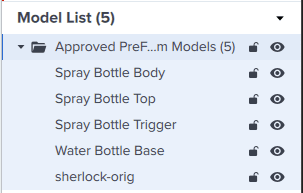
Modelos agrupados importados en la Model List (Lista de modelos) (PreForm 3.60.4 y versiones anteriores)
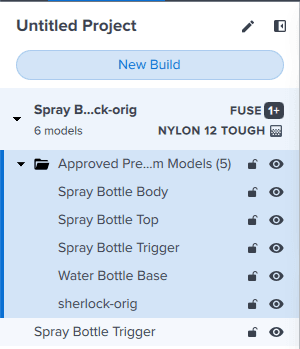
Modelos importados agrupados en el panel Projects (Proyectos) (PreForm 3.62.0 y versiones posteriores)
División de un modelo con varios cuerpos
Si importas un modelo con varias piezas o varios cuerpos, puedes separar esos cuerpos en modelos individuales en PreForm. Cuando lo hagas, los modelos separados se añadirán a un grupo de modelos:
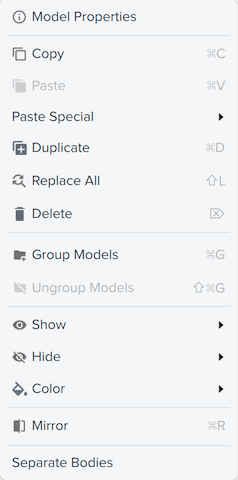
Selección de modelos
También puedes agrupar modelos seleccionándolos en la lista de modelos.
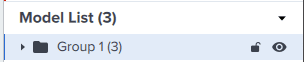
Desagrupando modelos
Puedes tener una mezcla de modelos agrupados y no agrupados en tu proyecto de impresión. Para separar modelos, haz clic con el botón derecho en el nombre del grupo o en cualquier modelo dentro del grupo y selecciona Ungroup Models (Desagrupar modelos). Los modelos se separan de la carpeta y se muestran individualmente.