LIBRO BLANCO
La Form Cure L V1 no se enciende
La Form Cure L V1 no se enciende
Los componentes dañados o averiados pueden hacer que la Form Cure L V1 no se encienda, se congele, no se inicie, se apague inesperadamente o tenga problemas con la pantalla. Aunque estos síntomas pueden parecer similares, suelen deberse a causas subyacentes diferentes, que suelen estar relacionadas con la pantalla, la placa base o el sistema en módulo (SOM).
Síntomas
- La pantalla de la Form Cure L V1 no se enciende
- No hay actividad en las luces de la placa base de la Form Cure L V1
- La Form Cure L V1 no responde después de encenderse
Causas
- Conjunto de la pantalla defectuoso
- La pantalla no funciona y no muestra ninguna imagen. Por lo demás, la Form Cure L V1 funciona con normalidad.
- El cable de la pantalla no está bien colocado
- La placa base está dañada o es defectuosa
- El sistema en módulo (SOM) está dañado o es defectuoso
- La fuente de alimentación está dañada o es defectuosa
Pasos para solucionar el problema
- Intenta conectar la máquina a otra toma de corriente o utiliza otro cable de alimentación, si está disponible.
- Conecta la Form Cure L a un ordenador con PreForm mediante un cable USB. Abre PreForm, haz clic en File > Accessories (Archivo > Accesorios) y busca tu Form Cure L.
- Si la máquina aparece en PreForm, puede ser necesario sustituir el conjunto de la pantalla. El conjunto de la pantalla está disponible para su compra en la tienda de Formlabs. Para reemplazar el componente, sigue las instrucciones de la guía Sustitución del conjunto de la pantalla de la Form Cure L V1.
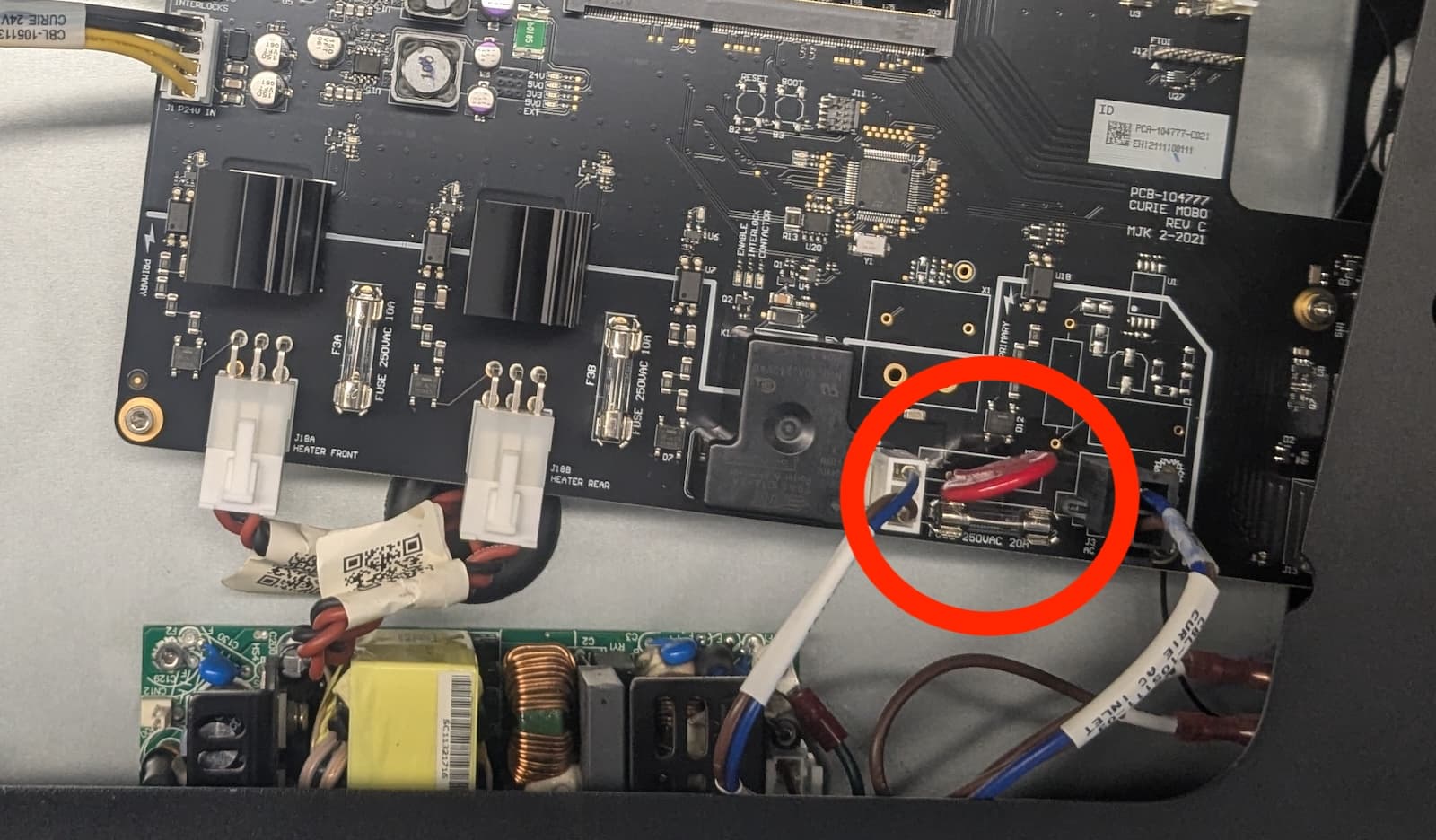
- Si la Form Cure L no aparece en PreForm, comprueba si el varistor circular rojo de la parte inferior de la placa base está dañado. Sigue las instrucciones de la guía Sustitución de la fuente de alimentación de la Form Cure L V1 para acceder a la placa base. Si el varistor está visiblemente quemado o dañado, ponte en contacto con el servicio de asistencia de Formlabs o con tu proveedor de servicios certificado.
- Comprueba el fusible de vidrio que está inmediatamente al lado del varistor. Si está fundido, reemplázalo por un fusible idéntico de 10 A y 250 VAC de 5 × 20 mm y vuelve a intentarlo.
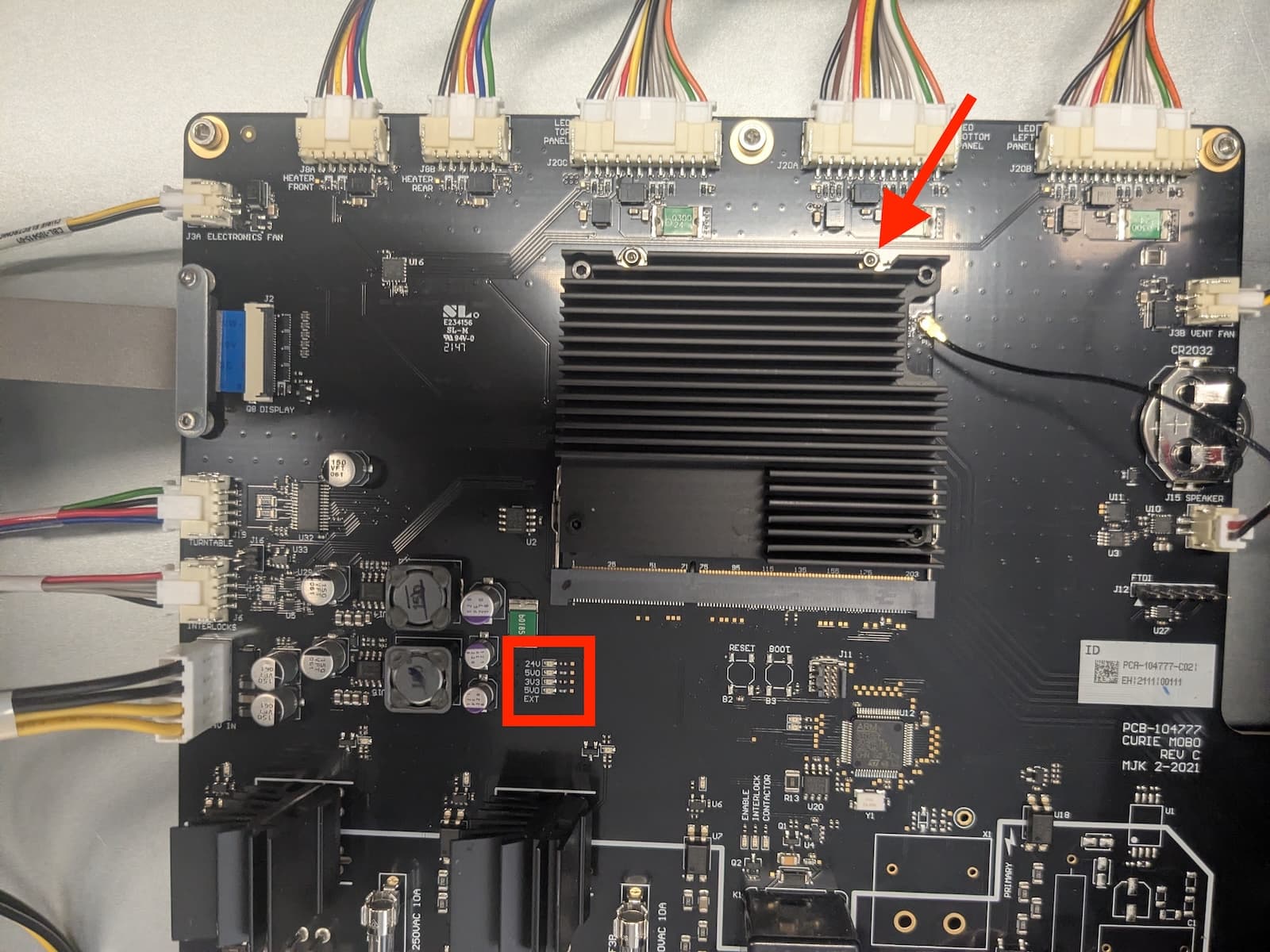
- Con la carcasa superior aún retirada, enciende la máquina y comprueba el estado de los leds de alimentación de la placa base. No toques ningún componente del interior de la Form Cure L V1 mientras esté encendida y la carcasa esté retirada.
- Si ninguno de los leds está encendido, es posible que haya que reemplazar la fuente de alimentación. Las fuentes de alimentación de la Form Cure L V1 están disponibles para su compra en la tienda de Formlabs. Para reemplazar el componente, sigue las instrucciones de la guía Sustitución de la fuente de alimentación de la Form Cure L V1.
- Si los leds 24V, 5V0 y 5V0 EXT están encendidos, pero el led 3V3 o el único led verde del borde superior del SOM no lo están, es posible que haya que sustituir el SOM. Contacta con el servicio de asistencia de Formlabs.
- Si el led 24V está encendido, pero el led 5V0 o el led 5V0 EXT no lo están, ponte en contacto con el servicio de asistencia de Formlabs o con tu proveedor de servicios certificado.
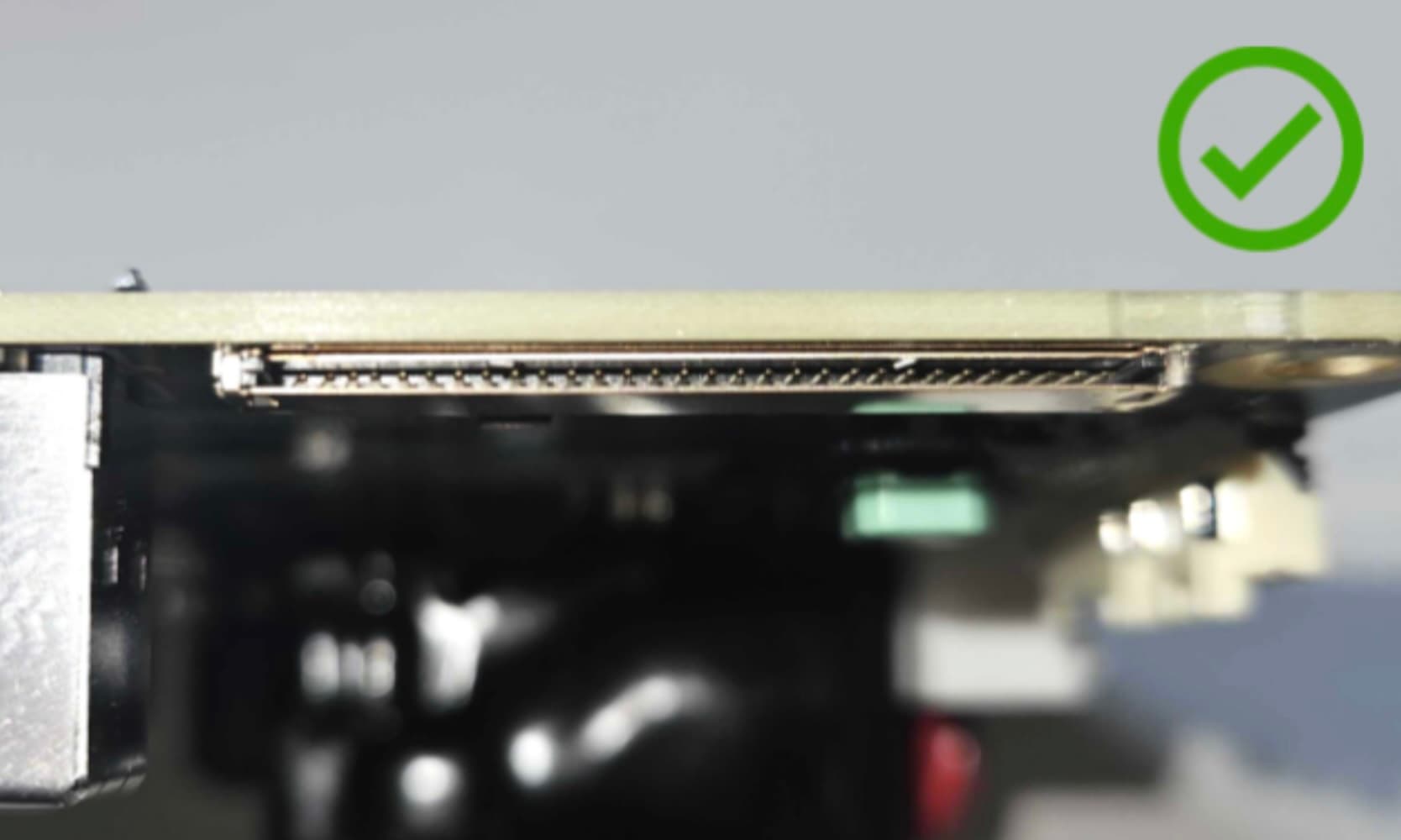
- Si todos los leds de alimentación están encendidos correctamente, es posible que el problema sea que el cable de la pantalla no está bien colocado. Si la placa base no puede comunicarse con la pantalla, la máquina no se iniciará por completo. Localiza el conector del cable de la pantalla, situado en el lado izquierdo de la placa base. Retira con cuidado el cable de la pantalla e inspecciona las clavijas del conector del cable de la pantalla para asegurarte de que ninguna de ellas está doblada. Si el conector está dañado, ponte en contacto con el servicio de asistencia de Formlabs o con tu proveedor de servicios certificado.
- If the issue persists, the SOM may need to be replaced. Contact Formlabs Support or your certified service provider.