LIBRO BLANCO
Formlabs Logo

Setting up Open Material Mode (SLA)

Setting up Open Material Mode (SLA)

With Open Material Mode, you can print with any type of 405 nm photopolymer resin on Formlabs SLA printers. Open Material Mode is available for a one-time lifetime fee per printer.

Follow the steps in this article to set up Open Material Mode on your Formlabs SLA printer.

Requisitos

Your printer will need to connect to the internet during Open Material Mode activation.

Activación del Open Material Mode

  1. On your printer, tap the gear icon. The Settings screen appears.

Note:

Before continuing, make sure the printer is connected to the internet. You can choose to connect it temporarily (e.g., via a mobile hotspot). An active internet connection is not required after activation to print with Open Material Mode.

  1. Navigate to the activation screen.
    • Form 3 generation: Tap System > Advanced capabilities > Activate new capability.
    • Form 3L generation: Tap System > Advanced capabilities > Activate new capability.
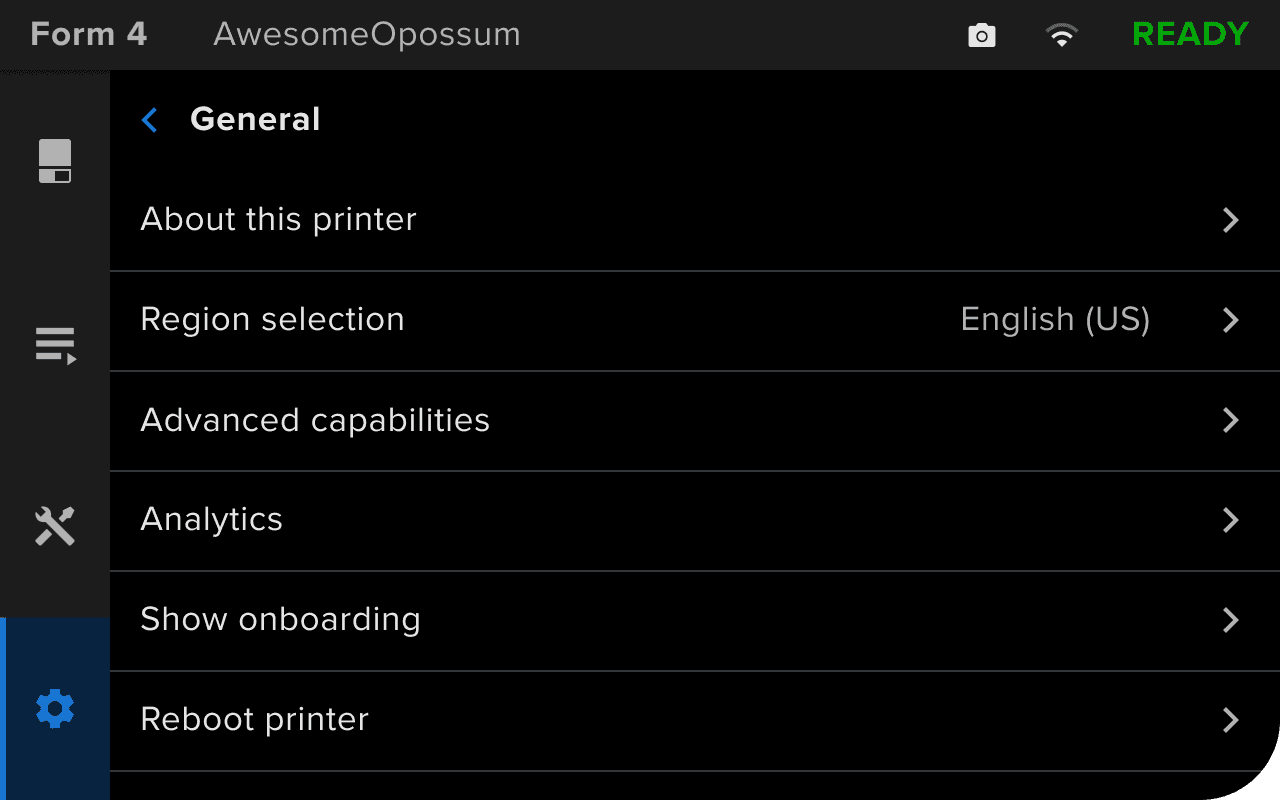
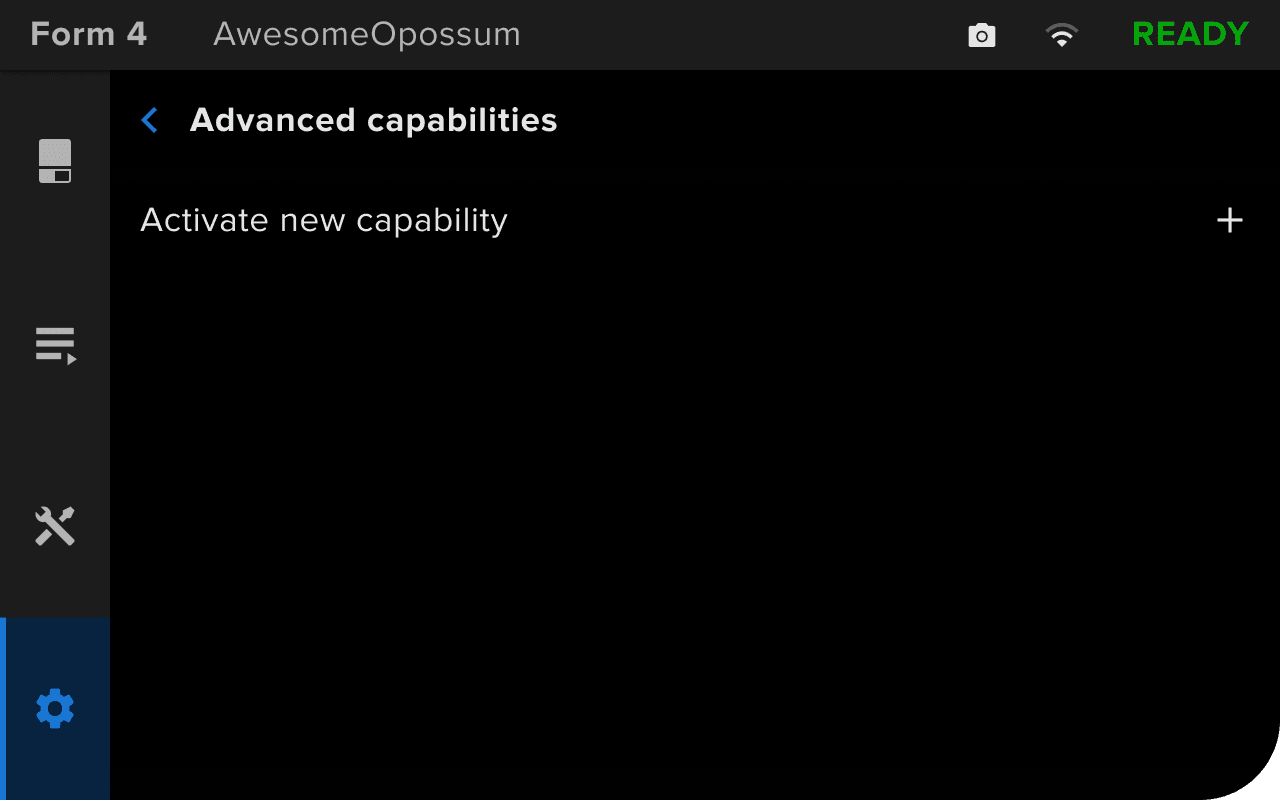
    • Form 4 and Form 4L generation: Tap General > Advanced capabilities > Activate new capability.
The Settings > General screen on a Form 4 generation printer
The Advanced capabilities screen on a Form 4 generation printer
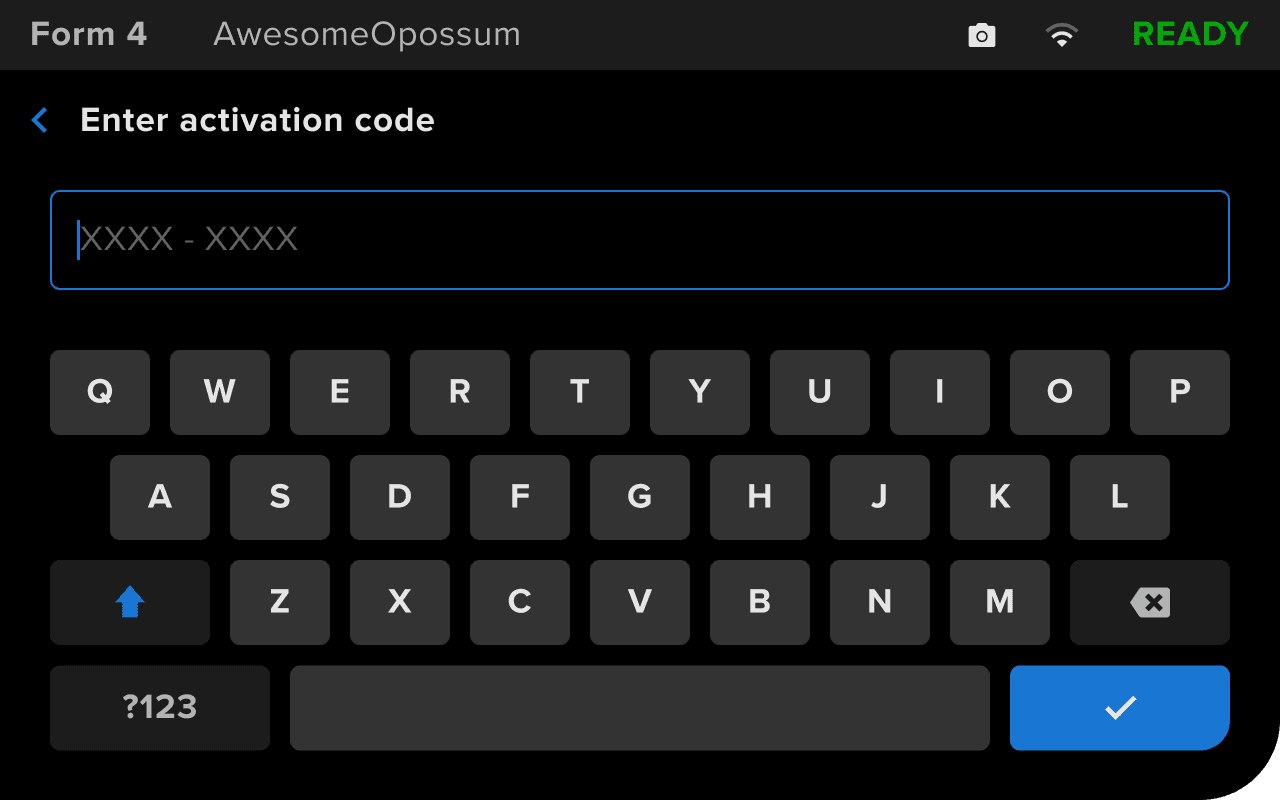
  1. Enter your activation code and tap the confirmation button on the bottom right.
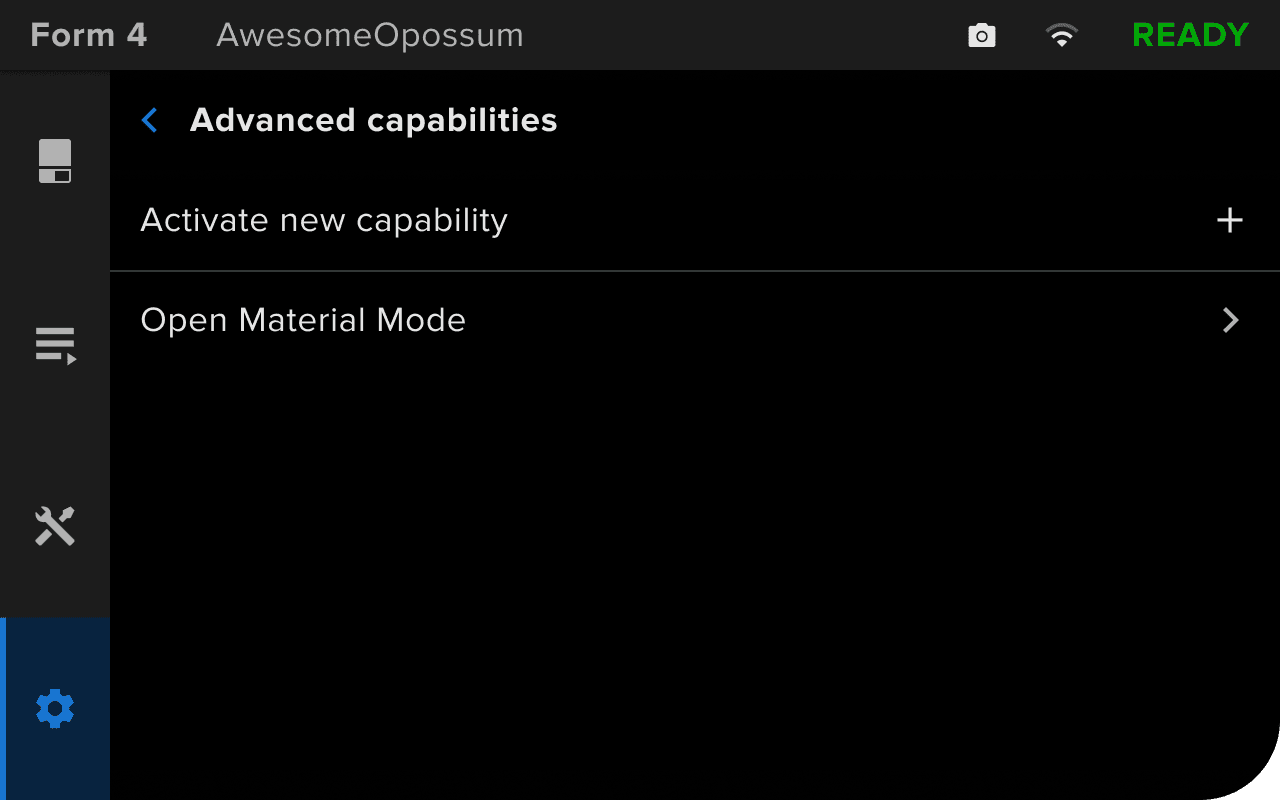
  2. If the code you entered is valid, the Advanced capabilities screen appears again and displays the message Open Material Mode activated.
Entering an Open Material Mode activation code on a Form 4 generation printer
Open Material Mode activated on a Form 4 generation printer

Note:

If you enter an incorrect or invalid code, the printer will show an error message (Form 4 and Form 4L generation) or show the Advanced capabilities screen again (Form 3 and Form 3L generation). Tap Activate new capability and re-enter your activation code.

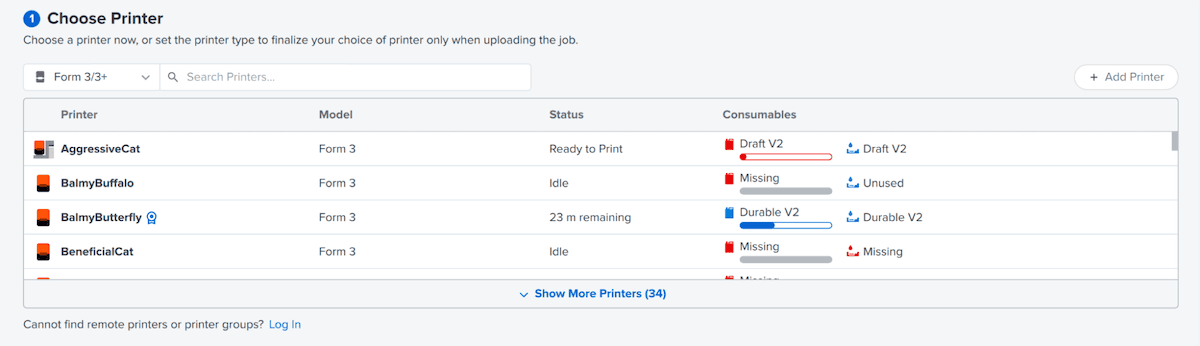
También puedes confirmar que la capacidad se ha activado a través de PreForm:

  1. Abre PreForm.
  2. Haz clic en el nombre de una Printer (Impresora). Se abrirá la ventana Job Setup (Configuración del trabajo).
  3. Desplázate hasta la sección Choose Printer (Elige una impresora). Haz clic para seleccionar una impresora.
  4. Aparecerá un icono de cinta azul junto al nombre de la impresora para indicar que se ha activado el Open Material Mode. Selecciona la impresora.
Una impresora Form 3 con el Open Material Mode en PreForm

Una vez que hayas activado correctamente el Open Material Mode en tu impresora, úsalo para configurar e iniciar una impresión.