Automatic layout settings for SLA printing
Automatic layout settings for SLA printing
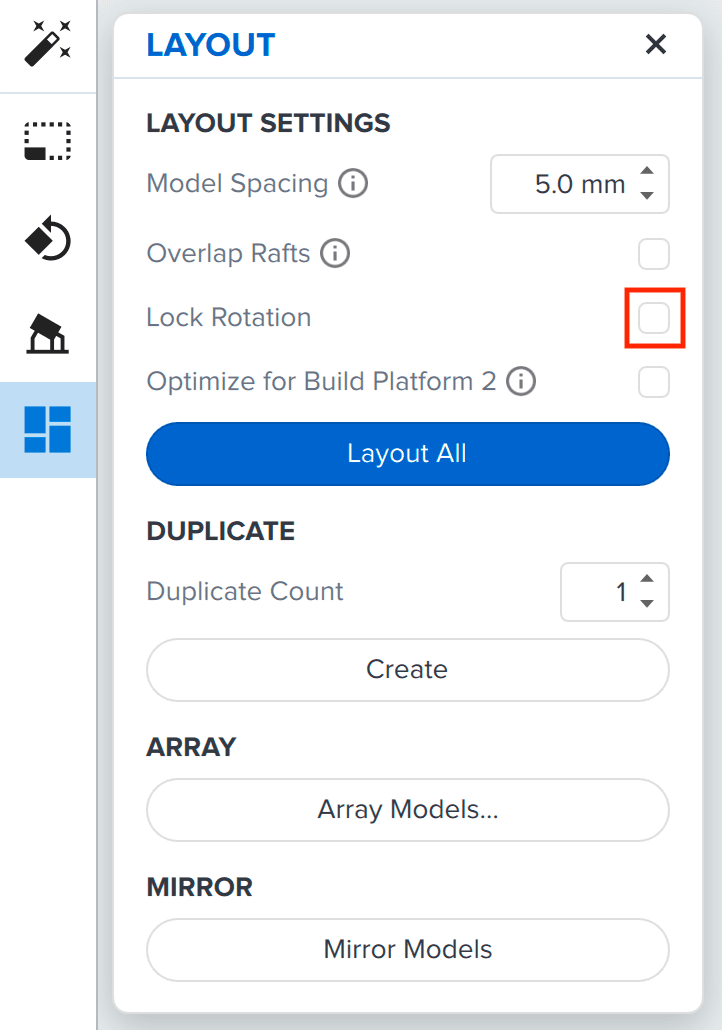
PreForm’s Layout settings lets you organize the placement, spacing, and rotation of models in the build scene. When using the automatic Layout All or Fill Build Platform function, Model Spacing arranges models at a minimum distance, Overlap Rafts joins the rafts of multiple models without overlapping the models to save space and resin, and Lock Rotation maintains the model’s current orientation in the build scene.
Layout settings
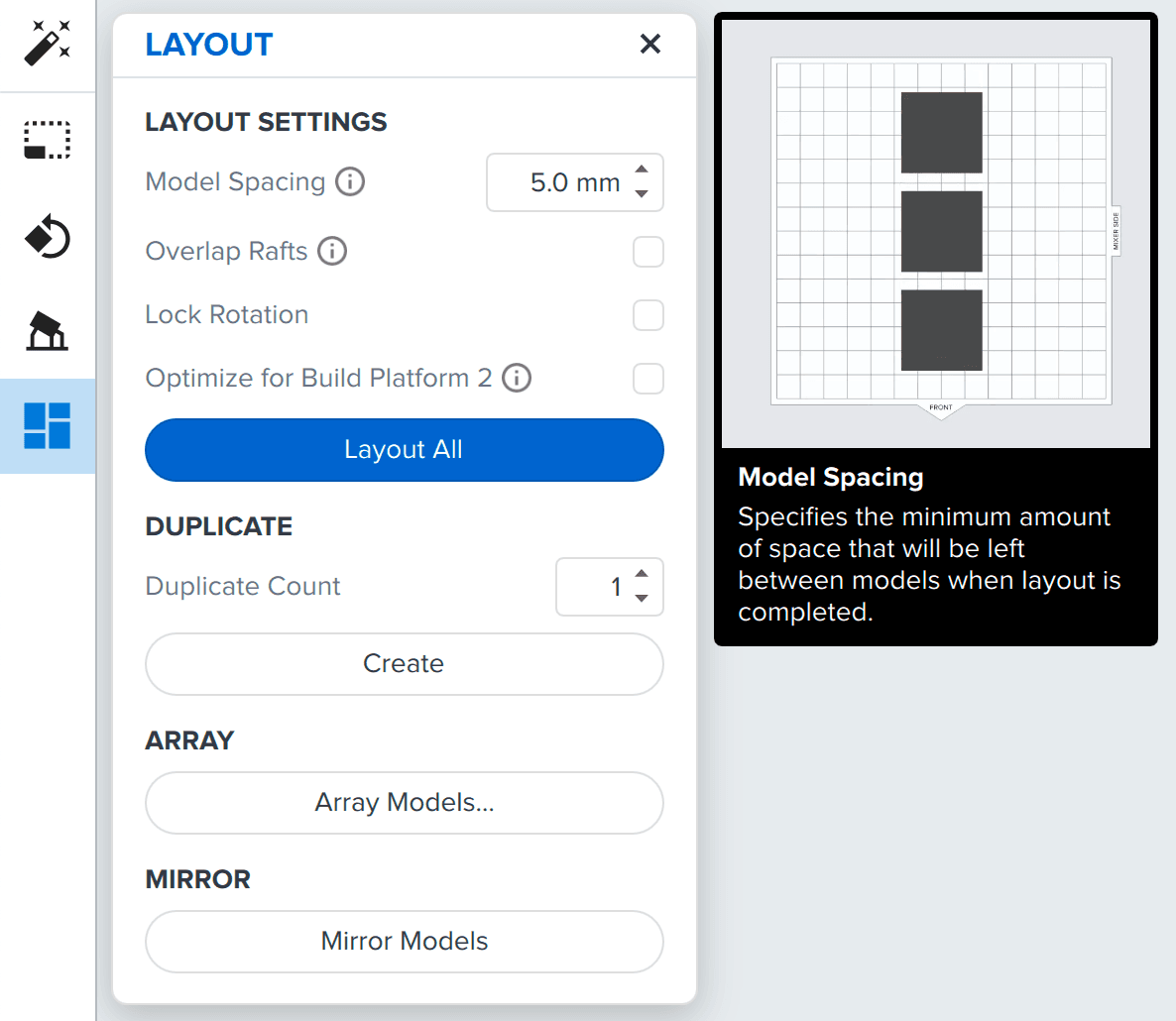
With Model Spacing, select the minimum spacing to preserve between models when laying out the build scene, including supports and rafts. Increasing the value spaces the parts out more and decreasing the value brings them closer together.
To arrange your models with PreForm:
- Import your models and orient and support them as needed.
- Click Layout on the toolbar to the left of the 3D scene. The Layout panel appears.
- Set your desired Model Spacing.
- Click Layout All. PreForm organizes the models in the build scene according to the settings chosen.
To arrange a subset of your models:
- Import your models and orient and support them as needed.
- Select one or more models.
- Click Layout on the toolbar to the left of the 3D scene. The Layout panel appears.
- Set your desired Model Spacing.
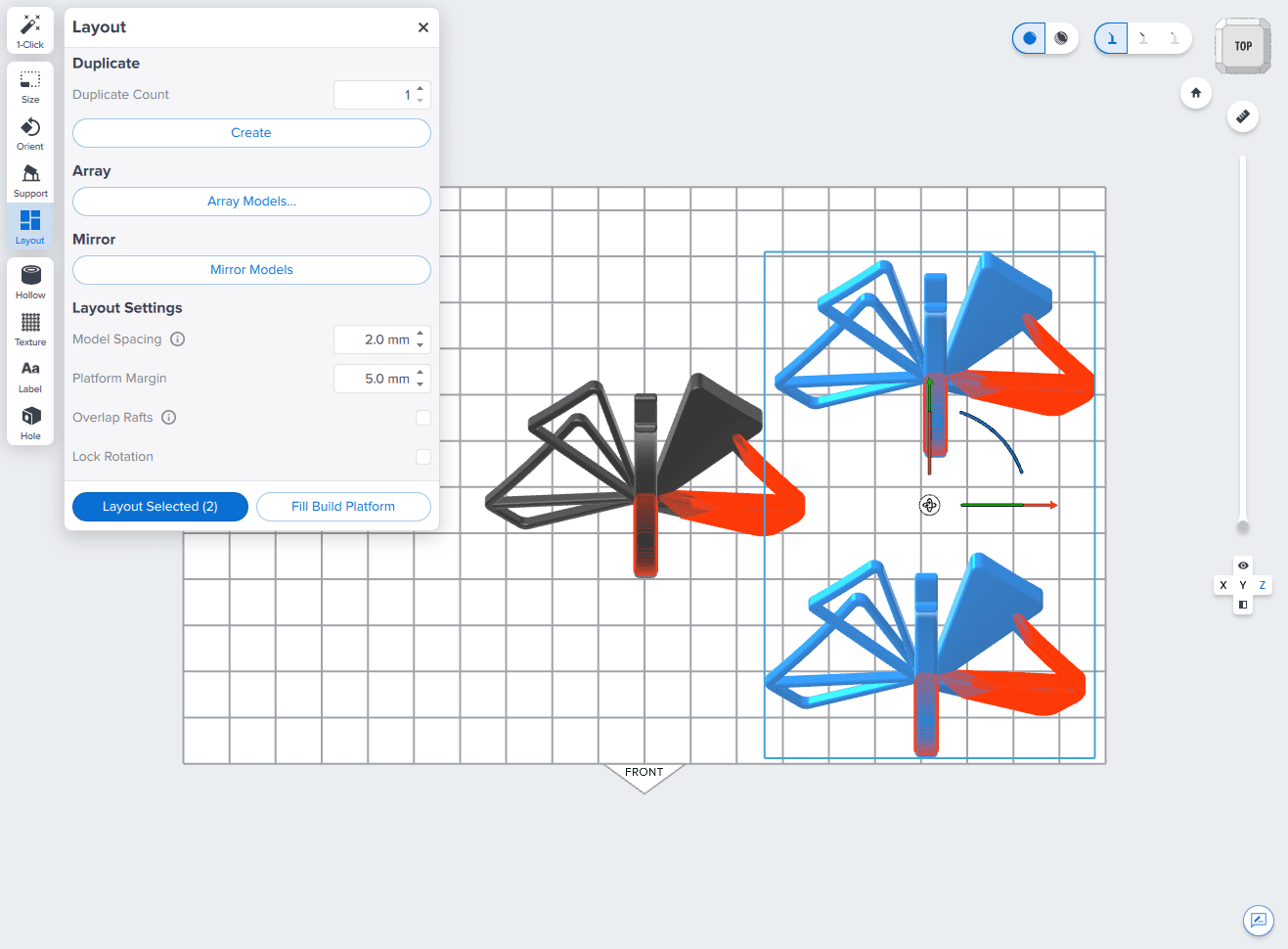
- Click Layout Selected. PreForm organizes the selected models in the build scene according to the settings chosen. Any models not selected are not moved.
Overlap Rafts
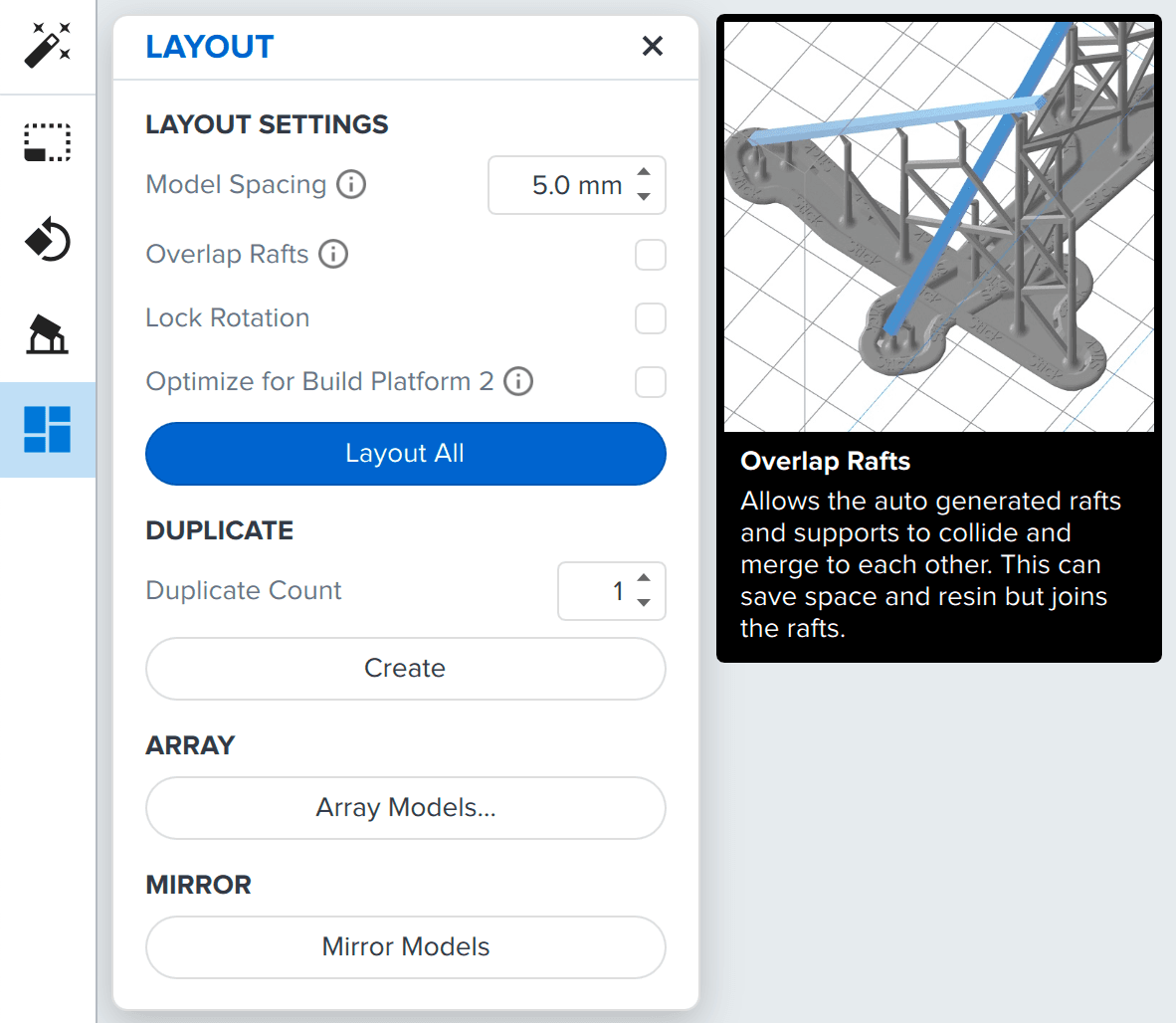
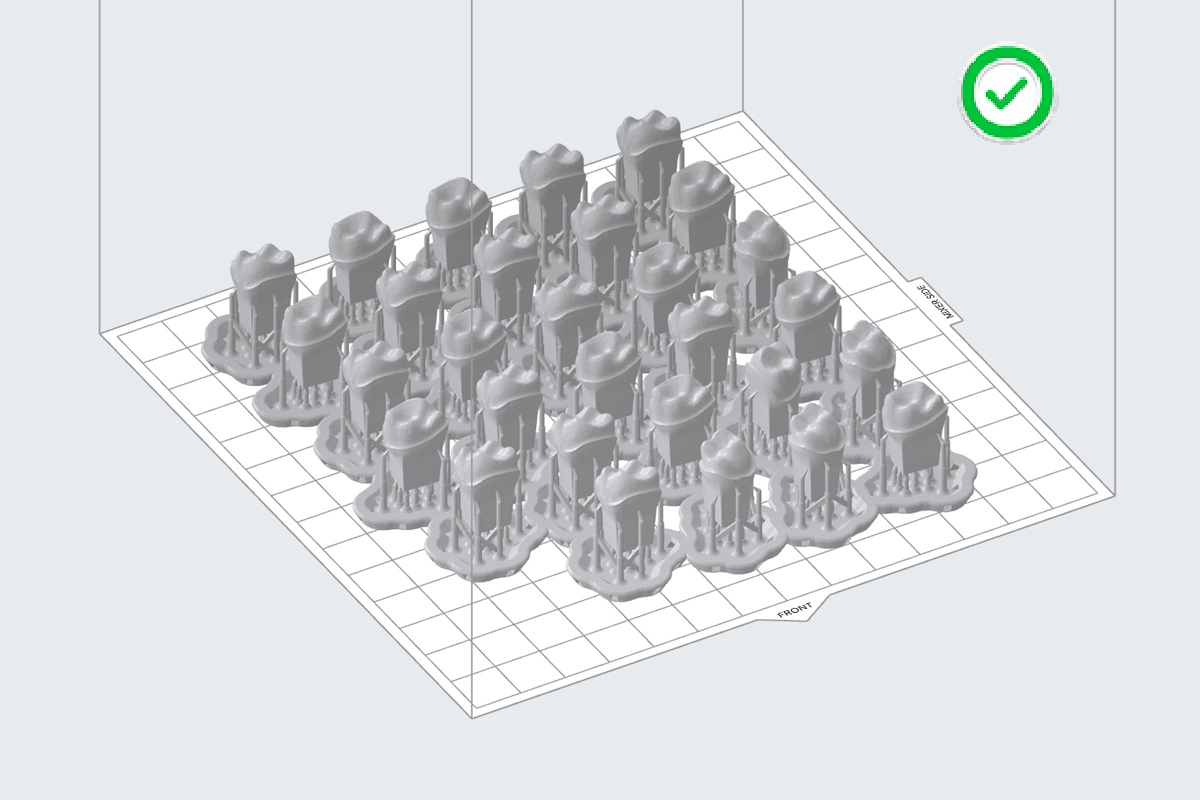
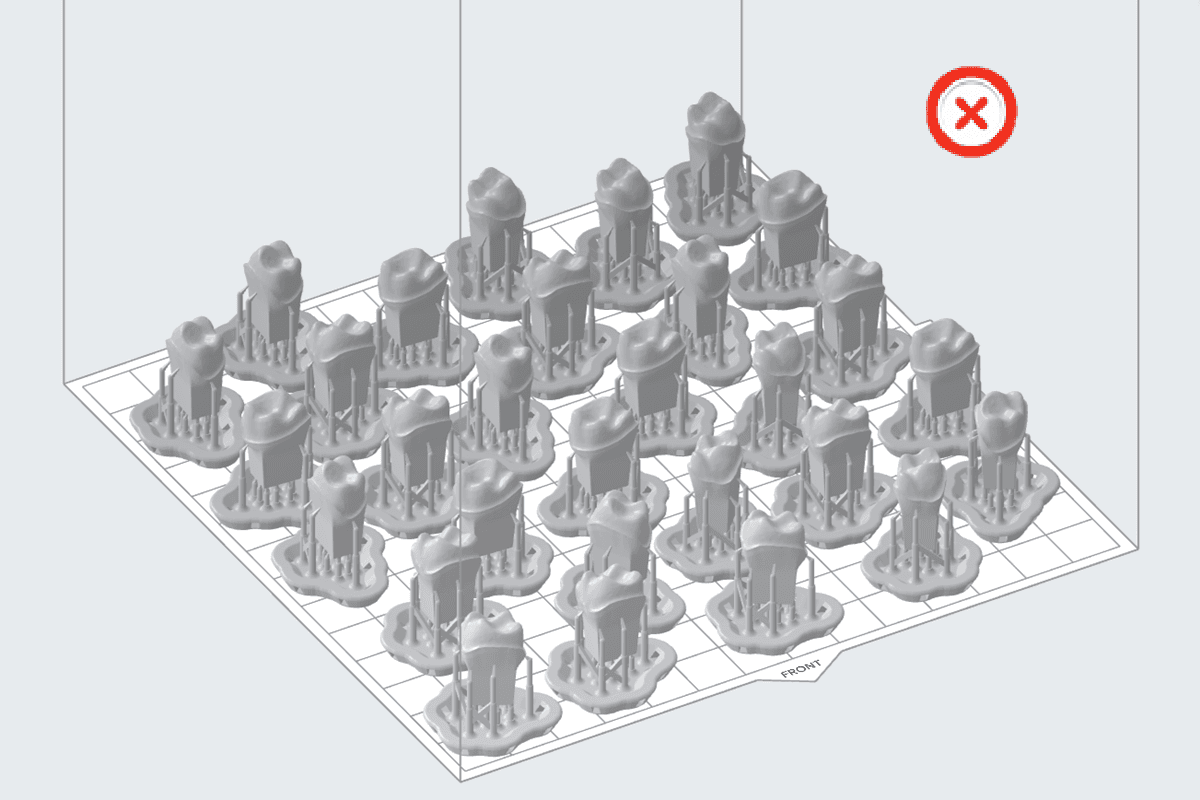
With Overlap Rafts, PreForm allows the rafts of multiple models to overlap to save space and resin. The models themselves do not overlap. Formlabs recommends overlapping rafts when printing small parts on build platforms with flexible print surfaces, such as the Build Platform 2.
If Overlap Rafts is selected, Layout All organizes the parts with the minimum spacing selected, not including supports and rafts. Selecting Overlap Rafts may not cause any rafts to overlap depending on your selected Model Spacing, the orientation of your models, and the size of the rafts on your models.
To overlap rafts with PreForm:
- Import your models and generate supports with rafts.
- Click Layout on the toolbar to the left of the 3D scene. The Layout panel appears.
- Select Overlap Rafts.
- Click Layout All. PreForm organizes the models in the build scene according to the settings chosen.
Lock orientation
Some models may need to be oriented or positioned in a specific way to print successfully. PreForm allows you to restrict the model’s orientation and position before using the Layout All settings to prepare print jobs according to the selected spacing and layout settings.
Lock Rotation maintains the model’s current orientation in the build scene when using the automatic Layout All function.
To lock a model’s rotation:
- Import your models and orient and support them as needed.
- Click Layout on the toolbar to the left of the 3D scene. The Layout panel appears.
- Select Lock Rotation.
- Click Layout All. PreForm organizes the models in the build scene according to the settings chosen.