
WHITE PAPER
Color coding models in PreForm
Color coding models in PreForm
Starting with PreForm 3.49.0, you can assign distinct colors to individual models or entire model lists within your PreForm build, either manually or with one-click random generation. This feature significantly improves build organization and makes identifying specific parts faster, especially in densely packed jobs. This can be particularly helpful for SLS users who frequently manage and pack numerous models into a single build.
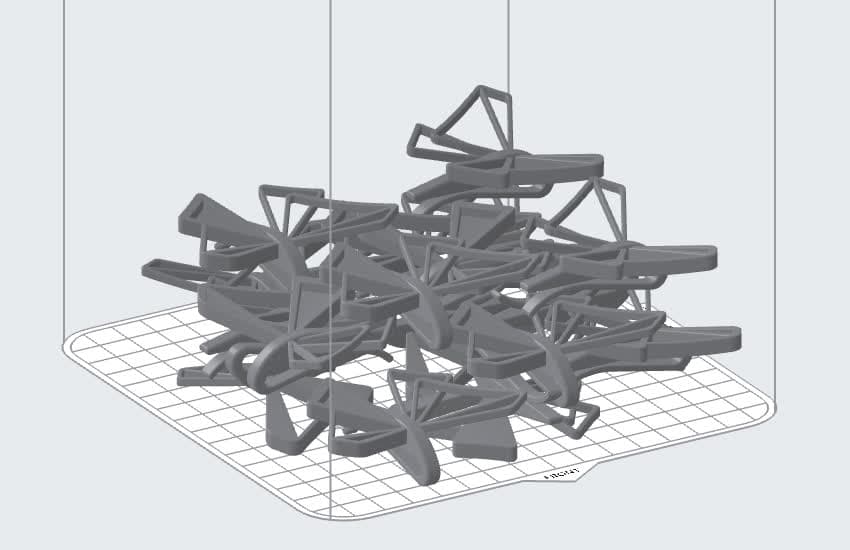
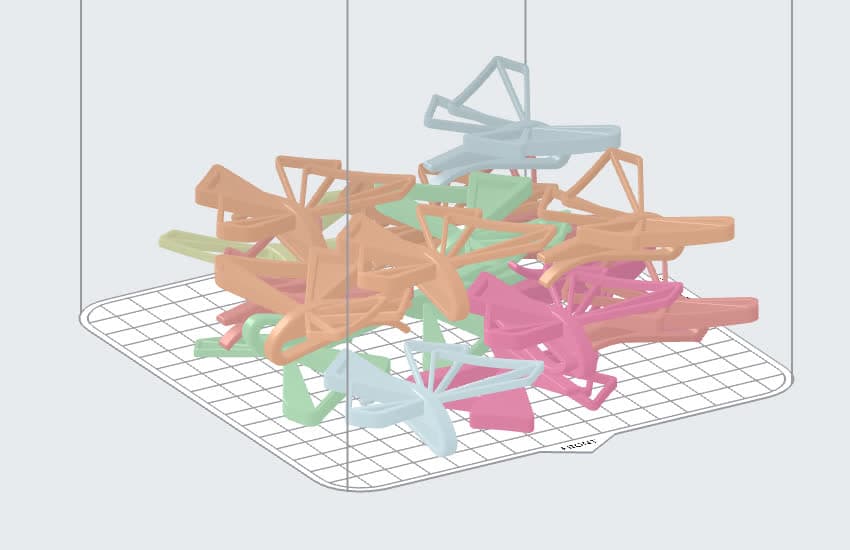
Applying color to models
Colorize your models to make them easier to distinguish from one another while you set up your print. Applied colors are not saved as part of a FORM file.
To color code your models:
- Select one or more models, either in the 3D scene or in the Model List.
- Right-click one of the selected models or its entry in the Model List.
- Highlight Color.
- Select a color option to apply to the selected models.
- Click a specific color to apply that color to all selected models.
- Click Randomize Selected (#) Colors to apply a random color from the color list to each of the selected models.
- Deselect the models to view the applied colors.
Resetting models to their default color
To remove color coding from your models:
- Select one or more models, either in the 3D scene or in the Model List.
- Right-click one of the selected models or its entry in the Model List.
- Highlight Color.
- Click Reset Selected (#) Colors. The models are reset to the default display color for your selected material.
- Deselect the models to view the change.