Note:
Remote printing is only available on select Formlabs printers. Refer to the following support articles for more information:

This is an overview about the connectivity and security of Formlabs hardware and software. For full details on information collected by Formlabs please consult Formlabs Privacy Policy, or email questions to [email protected].
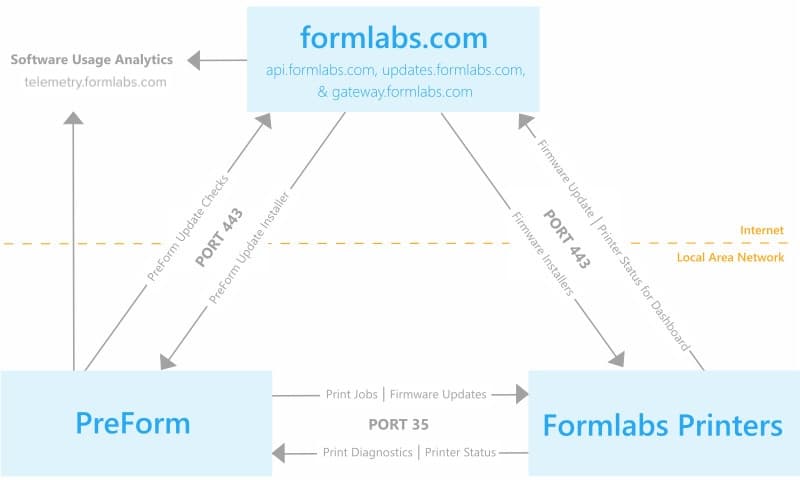
Formlabs operates multiple platforms that exchange data:
Traffic is encrypted using industry standard 256-bit RSA encryption.
Formlabs website and Dashboard
The Formlabs website offers information about products, the online store, and educational resources. Dashboard is an online tool for operators of Formlabs SLA printers to monitor the activities of their printers remotely. Once connected, Dashboard provides useful information about the status of current and past print jobs, material usage over time, and other useful statistics.
In order to activate Dashboard, each user must create a Formlabs account, connect a Formlabs device to the internet, and register each unit to Dashboard via the touchscreen interface. Please refer to the Formlabs Privacy Policy for more information about what information is collected by Dashboard.
Connectivity
PreForm and Formlabs hardware communicate with Dashboard via port 443 (HTTPS), api.formlabs.com, and gateway.formlabs.com.
Security
The Formlabs website and Dashboard both use HTTPS URLs and are encrypted using industry standard 256-bit RSA encryption.
Formlabs stores data using Amazon Web Services (AWS). AWS stores data redundantly across multiple devices across multiple environmentally controlled facilities. AWS infrastructure and controls are subject to annual SAS-70 Type II audits and AWS information security management processes and controls have achieved ISO 27001 certification.
Please make sure not to block these on your firewall:
Formlabs devices
Connectivity
There are three options for connecting a computer to Formlabs devices:
Learn more about connecting your SLA or SLS device.
If enabled via the touchscreen settings, a Formlabs device sends performance data like laser calibrations and print success rates to help us troubleshoot issues and improve the functionality of Formlabs hardware.
Security
Formlabs hardware include the following security configuration:
The printer synchronizes time through NTP (UDP port 123) with the following servers. Please make sure not to block these on your firewall:
Additional security notes and firewall requirements:
PreForm desktop software
Connectivity
PreForm operates in the same three connectivity modes as Formlabs devices: without network access, via LAN, and via LAN with internet access. For network connected printers, PreForm communicates through port 35 and checks for updates on updates.formlabs.com via port 443.
PreForm includes the option to participate in a software quality improvement project which logs information for Formlabs to improve PreForm. Choose whether to contribute to the quality improvement project by accessing Help > Help Improve PreForm... in the PreForm menu bar. To contribute, PreForm must operate on an internet-connected computer.
If you opt to participate in PreForm quality improvement, PreForm sends usage data to Formlabs at the URL telemetry.formlabs.com. You can opt to send anonymized crash and usage information, which does not include 3D model data or personal information. You can also opt to upload FORM files to help improve Formlabs products, which may include protected information. Opt out of FORM file collection if your files could contain protected health information or information subject to export controls.
PreForm logs and reports three major events:
New versions of printer firmware can be uploaded to the printer via PreForm. If PreForm is on an internet-connected computer, the software checks for new firmware via updates.formlabs.com. The specific URL for Form 2 firmware is updates.formlabs.com/latest/update-check-form-2-firmware-v2. The specific URL for PreForm updates is updates.formlabs.com/latest/update-check-preform-v2. If PreForm cannot connect to the internet, a new firmware version must be saved on a local disk and selected within PreForm in order to update.
Security
PreForm is distributed via a signed installer (for Windows) and signed app bundle (for Mac OS).
Please make sure not to block these on your firewall:
Automatic updates
PreForm uses the Omaha Updater Service to automatically update the software, ensuring that users receive the latest features, improvements, and security patches. The Omaha service operates in the background to streamline the update process, allowing you to stay on the most up-to-date version of PreForm without manual intervention.
As part of this process, PreForm will make requests to the following URLs for update verification and download:
These URLs are used by the Omaha service to check for available updates and securely download the latest version of PreForm when necessary. It is important that the software can connect to this service to ensure that updates are applied promptly.
For network administrators and those with strict firewall policies, please ensure that outbound connections to these URLs are allowed for PreForm to function correctly and receive automatic updates.
Remote printing
Formlabs printers have the ability to send a print job to a printer that is not connected to the same network.
Note:
Remote printing is only available on select Formlabs printers. Refer to the following support articles for more information:
Connectivity
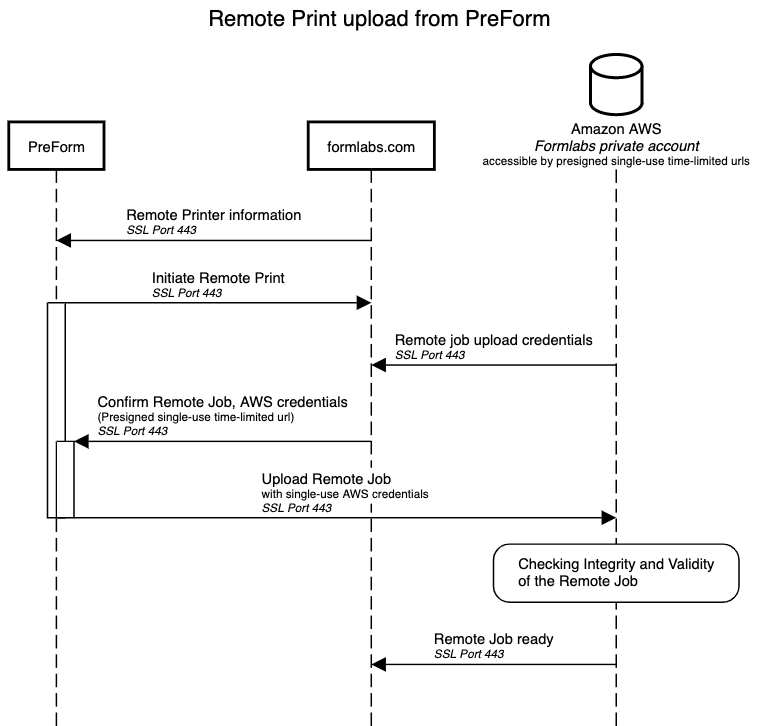
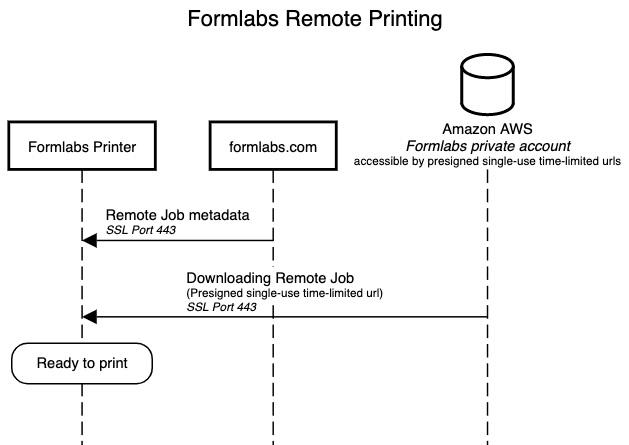
PreForm, Formlabs printers, formlabs.com, and Amazon Web Services (AWS) servers all communicate via port 443 (HTTPS).
Security
All remote print jobs are stored on our private Formlabs AWS account. During transit, information is encrypted through HTTPS SSL before reaching our private account. Uploads and downloads are secured through signed, temporary, and single-use upload URLs.
Please make sure not to block these on your firewall: