WHITE PAPER
Formlabs Logo

Defects on top surfaces of parts (Form 4 generation)

Defects on top surfaces of parts (Form 4 generation)

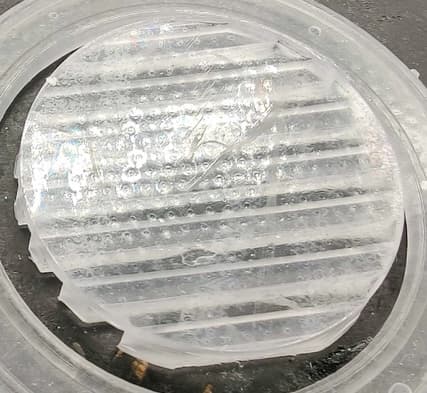
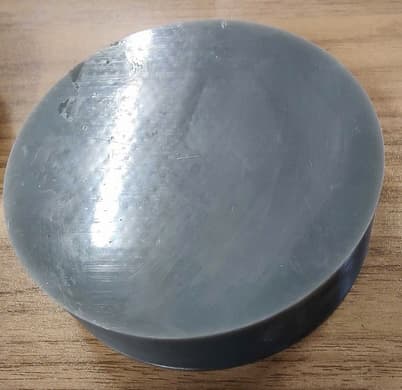
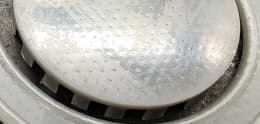
On Form 4 generation printers, models oriented with their top surfaces parallel to the build platform may end up with small bubbles or a slight rough texture on those top surfaces.

Printed part exhibiting a textured defect on its top surfaces.

Printed part exhibiting a textured defect on its top surfaces.

This type of defect is unique to Form 4 generation printers. Under certain circumstances, the release texture or the internal structure of the Light Processing Unit can be projected onto surfaces that are parallel to the build platform. Similarly, small air bubbles can become trapped between the tank film and the printed part, affecting the surface quality of printed parts.

Visual symptoms

  • Small divots or a texture like an orange peel on the top surface of printed parts
  • Small bubbles visible in or just under the top layer of printed parts

Common causes

The primary cause of defects on the top surfaces of parts printed on a Form 4 generation printer is the orientation of the model.

Troubleshooting steps

Note:

Make sure that your firmware and PreForm versions are up to date. To check your printer’s firmware version, refer to the support article Checking the firmware version for Formlabs SLA printers. To update your PreForm version, refer to the FAQ article How do I update PreForm?.

Reorient the model in PreForm

Review the model’s orientation in PreForm. Models whose top surfaces are parallel to the build platform, especially those with large surface areas, are susceptible to this print defect. If possible, reorient your model so that the top surfaces are no longer parallel to the build platform.

Print with a higher layer thickness setting

If the model cannot be reoriented, try printing at a higher layer thickness setting. Top surface defects can be worsened by printing at smaller layer heights.

Print with a different resin

This type of texture imprinting is most apparent on viscous materials with high specularity or sheen. If it is appropriate for your parts and you have one available, try printing with a less viscous resin or one with a matte finish.


Contacting Formlabs Support

If the troubleshooting steps above do not resolve the print failure, contact Formlabs Support or your authorized reseller.

To help us provide the fastest and most effective response to your issue, please follow these steps:

  1. Upload diagnostic logs
  2. Serial name of the printer
    • The serial name is on the back panel of the printer in the format AdjectiveAnimal or Machine-AdjectiveAnimal, where “Machine” is the machine type.
    • On a Form 2: Tap the printer icon on the home screen. The Your Printer screen appears.
    • On other Formlabs SLA printers (Form 3 or later): Tap the printer icon on the Home screen.
  3. Troubleshooting steps attempted
    • Example: “I reoriented the model in PreForm. I inspected the resin tank and did not notice any damage, clouding, or debris.”
  4. Resin formulation and lot number
  5. Layer thickness
    • On a Form 2: Tap the queue icon on the home screen. The Jobs screen appears.
    • On other Formlabs SLA printers (Form 3 or later): Tap Queue on the Home screen. The Queue screen appears.
  6. Relevant FORM files
    • If available, attach FORM files of the model to the support request.
  7. Previous attempts to print the part and any successful prints
    • Example: “I printed the file part2.form three times previously. The first and second were successful. The third one failed.”