
WHITE PAPER
Fuse Sift does not turn on
Fuse Sift does not turn on
Damaged or malfunctioning components may cause your Fuse Sift to fail to power on, freeze, not initialize, shut down unexpectedly, or experience display issues. Although these symptoms might seem similar, they usually result from different underlying causes, most often related to the display, motherboard, or the system on module (SOM).
Symptoms
- Fuse Sift display does not turn on
- No activity from lights on the Fuse Sift motherboard
- Fuse Sift is unresponsive after being powered on
Causes
- Defective display assembly
- The display is not functioning and shows no image. The Fuse Sift is otherwise operating normally.
- Display cable not seated properly
- Defective motherboard
- Defective system on module (SOM)
Troubleshooting steps
- Connect the Fuse Sift to a computer with PreForm via a USB cable. Open PreForm, click File > Accessories, and search for your Fuse Sift.
- If the machine appears in PreForm, the display assembly may need to be replaced. The display assembly is available for purchase on the Formlabs Store. To replace the component, follow the instructions in the guide Fuse Sift - Replacing the Display Assembly [EN].
- If the Fuse Sift does not appear in PreForm, check the status of the power LEDs on the motherboard while powering on the machine. Follow the instructions in the guide Fuse Sift - Replacing the Motherboard [EN] to access the motherboard. Refer to the flowchart below to identify if the issue is with the display, motherboard, or the system on module (SOM).
- If you determine that the motherboard should be replaced, it is available for purchase on the Formlabs Store. To replace the component, follow the instructions Fuse Sift - Replacing the Display Assembly [EN]. Instructions for replacing the SOM start from step 15.
- If you determine that the SOM should be replaced, contact Formlabs Support or your certified service provider.
- If the power LEDs are all lit properly, the issue may be that the display cable is not properly seated. If the motherboard cannot communicate with the display, the machine will not fully boot. Locate the display cable connector, positioned next to the USB and Ethernet ports on the motherboard. Carefully remove the display cable and inspect the pins on the display cable connector to ensure that none of the pins are bent. If the connector is damaged, then the motherboard will need to be replaced.

- If the steps in the flowchart do not solve the problem, contact Formlabs Support or your certified service provider.

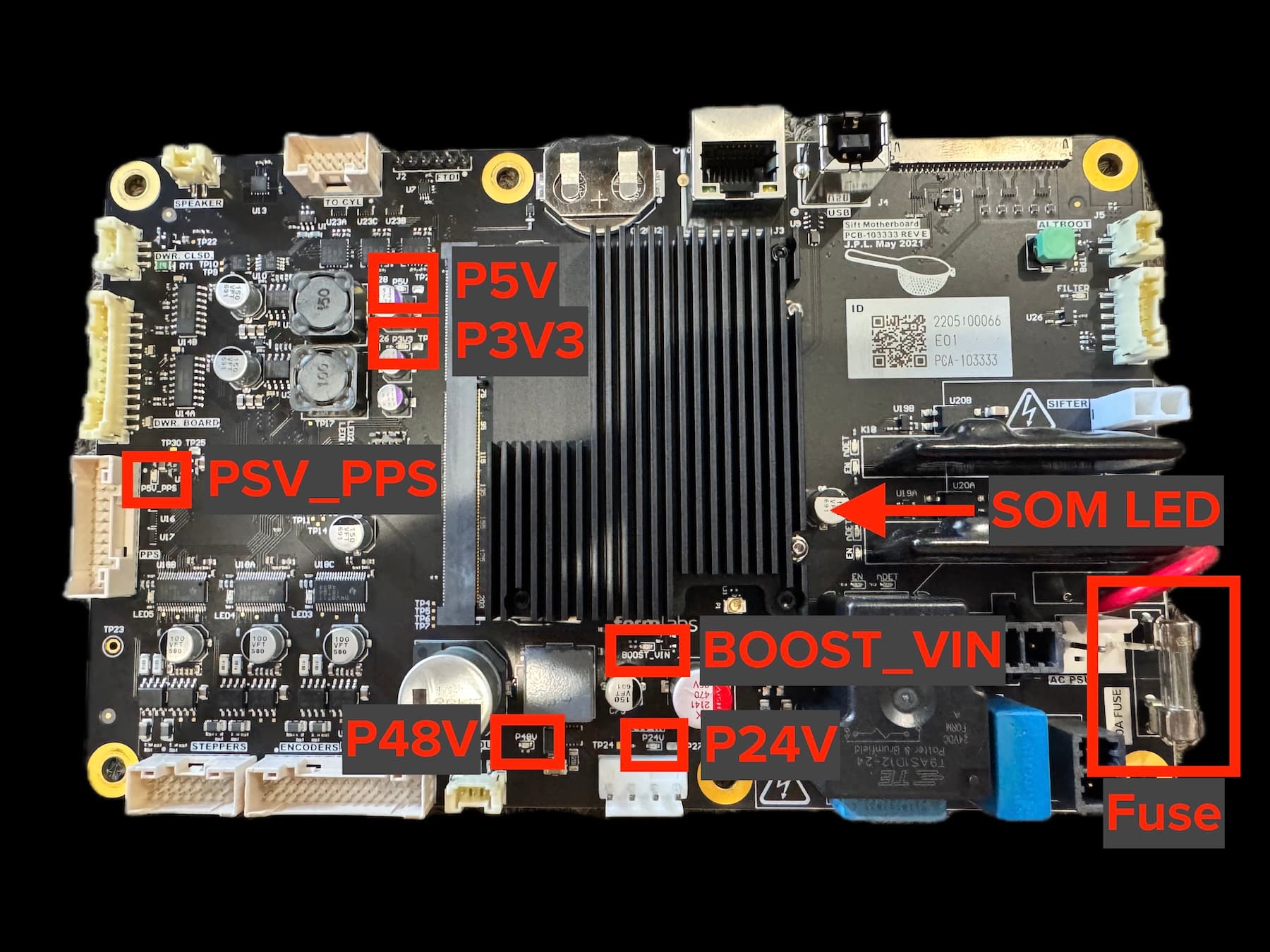
Fuse Sift motherboard with marked power LEDs