
WHITE PAPER
Improving dimensional accuracy with the Print Settings Editor
Improving dimensional accuracy with the Print Settings Editor
When tuning a material with the PreForm Print Settings Editor, accurately setting the scaling factors and Outer Boundary Offset is critical to getting dimensionally-accurate parts.
The Dimensional Accuracy section of the Print Settings Editor has four key parameters:
- X Correction Factor: a scaling factor that applies in the X direction
- Y Correction Factor: a scaling factor that applies in the Y direction
- Z Correction Factor: a scaling factor that applies in the Z direction
- Outer Boundary Offset: also called OBO, this is a static dimensional shift that applies in the XY plane
Tuning scaling factors and the Outer Boundary Offset
To tune these parameters:
- Open the Print Settings Editor. Select the custom print setting you are editing or create a new one.
- Set all of the X, Y, and Z Correction Factors to 1. Set the Outer Boundary Offset to 0.
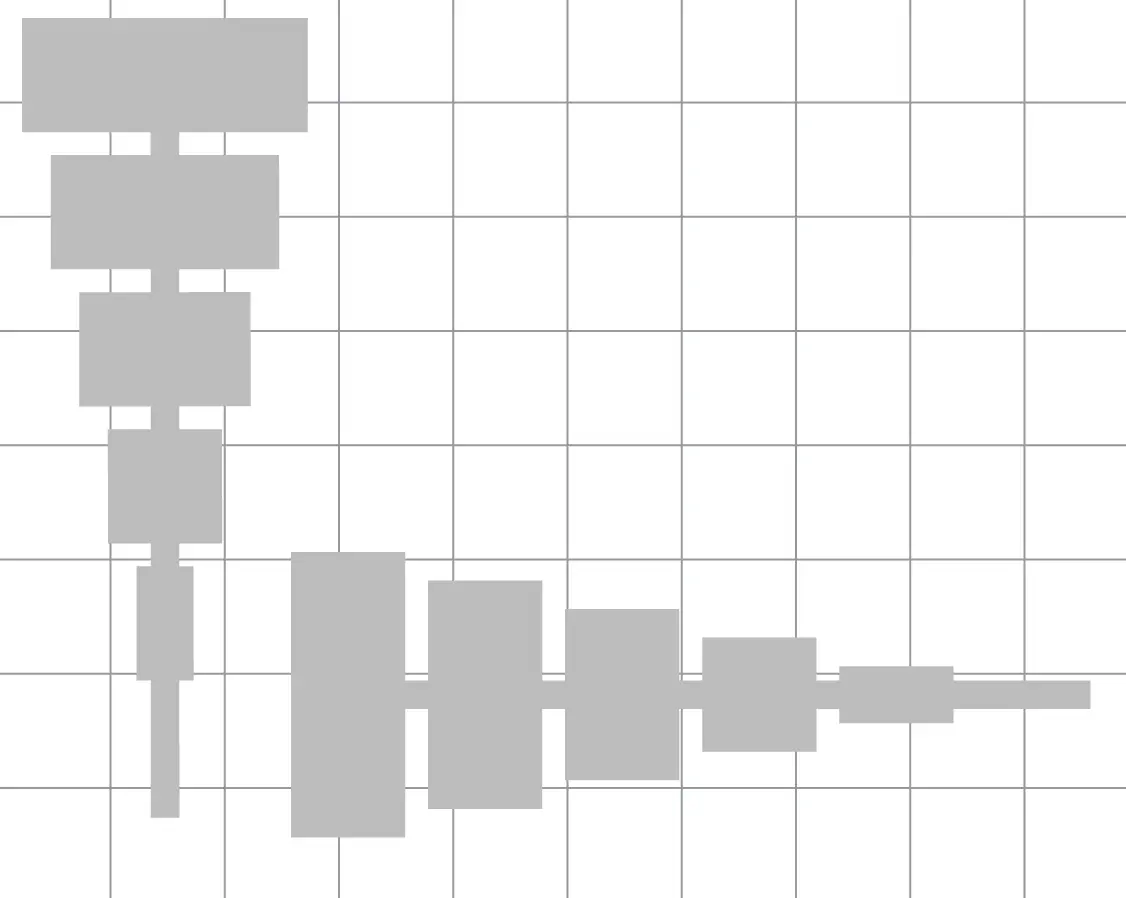
- Using your custom print setting, print a part with several different dimensions in X and Y. Shown here is an example print Formlabs uses in testing.
- Post-process the print as needed.
- Measure various features on the part. Use a micrometer or other high-precision tool to be as consistent and accurate with these measurements as possible.
- Find the slope and intercept of a line of best fit for your measurement data. An example, with spreadsheet formulas for Google Sheets, is shown below.
| Nominal | X measurements | Y measurements |
|---|---|---|
| 2.5 | 2.789 | 2.746 |
| 5 | 5.231 | 5.234 |
| 10 | 10.230 | 10.208 |
| 15 | 15.248 | 15.220 |
| 20 | 20.296 | 20.208 |
| 25 | 25.237 | 25.184 |
| Calculations | ||
|---|---|---|
| X | Y | |
| Slope | 0.9999 | 0.9977 |
| Intercept | 0.256 | 0.246 |
| OBO | -0.128 | -0.123 |
| Average OBO | -0.126 | |
- Slope
- X: =SLOPE(B2:B7,A2:A7)
- Y: =SLOPE(C2:C7,A2:A7)
- Intercept
- X: =INTERCEPT(B2:B7,A2:A7)
- Y: =INTERCEPT(C2:C7,A2:A7)
- OBO
- X: =-1*B11/2
- Y: =-1*C11/2
- Average: =AVERAGE(B12:C12)
- Input the calculator slopes as the new X Correction Factor and Y Correction Factor in the Print Settings Editor. Input the average Outer Boundary Offset as the new Outer Boundary Offset in the Print Settings Editor.
- If you did not initially set the correction factors to 1, multiply the calculated correction factor values by the previous ones.
- If you did not initially set the Outer Boundary Offset to 0, add the calculated Outer Boundary Offset value to the previous one.