WHITE PAPER
Formlabs Logo

Setting up Dashboard notifications

Setting up Dashboard notifications

Dashboard can notify you about print events over text and email. You can customize notification options to monitor the prints for an entire team or just your own prints.

To opt in to receiving custom notifications:

  1. Log in to your Formlabs account.
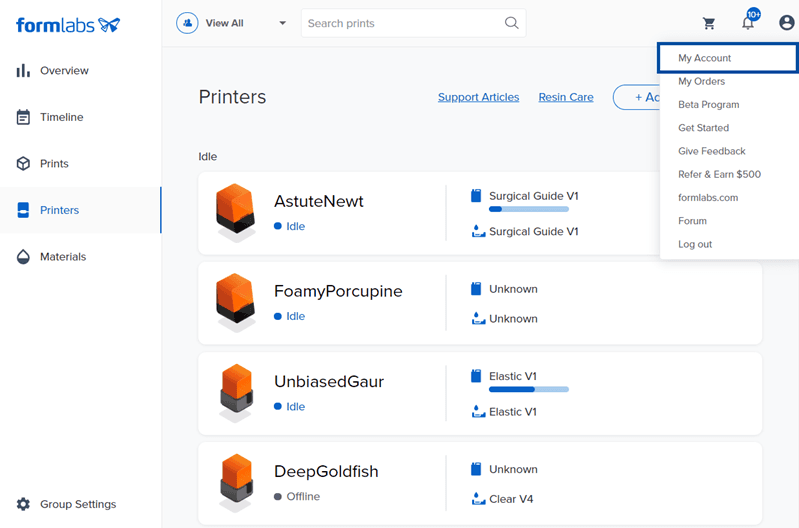
  2. Click the account icon in the top-right corner. A dropdown appears.
  3. Click My Account. The Account Overview page appears.
  4. Click Notifications. The Notification Settings page appears.
  5. Choose the type of notifications to receive:
    • To receive text notifications, enable SMS and select which printers, teams, and events to receive notifications about.
      • To opt out of text notifications, disable SMS or reply STOP to a notification text.
      • To enable text notifications after opting out, text START to +1-617-553-4411.
    • To receive email notifications, enable Email and select which printers, teams, and events to receive notifications about.
    • To receive a monthly breakdown about your resin usage and the success rate of your prints, enable Receive monthly printing reports.

TIP:

To only be notified about events specific to your personal prints, select Only My Prints.

The Settings > Notifications page is open in Dashboard and the SMS notifications toggle is enabled showing a list of printers and print events to receive notifications about.

Understanding print events

Upon enabling SMS or Email notifications, you can choose specific print events to be notified about. The range of print events include:

  • Print Started: Sent as soon as a print is confirmed on the printer. After the Print Started notification, the printer preheats and dispenses resin before beginning to print.
  • Print Finished: Sent when the last layer of a print is complete. After the Print Finished notification, the build platform can be removed.
  • Print Error: Sent when the printer experiences an error. After the Print Error notification, the print automatically stops. Check the touchscreen for additional information and instructions. If the error persists, upload diagnostic logs and contact Formlabs Support with the specific error.
  • Print Aborted: Sent when a print job is manually cancelled after starting. After the Print Aborted notification, the printer is available for printing. Check for a partial print and, if necessary, remove cured resin from the build platform before starting the next print.
  • Print Interruption: Sent when the printer pauses and needs attention to continue printing. Check the touchscreen for additional information and instructions to resume the current print.
  • Resin Low: Sent as soon as Dashboard estimates that the current resin cartridge has less than one quarter of its capacity (250 mL) remaining. After the Resin Low notification, the print continues. This notification is different from the “resin low” interruption type, which displays a message on the touchscreen.

Note:

Dashboard notification settings are limited to seven error notifications per print.