Tip:
Prime your Formlabs printer before sending a file to immediately begin printing without the need to confirm on the touchscreen.

When the print job upload is complete, the FORM file is saved to the printer’s internal storage. Print jobs can be deleted at any time to free up space on the printer.
Once transferred from PreForm to the printer, print jobs must be confirmed on the printer’s touchscreen to start the print.
Start the print job directly after uploading it to your printer or access the print job at a later stage from Jobs (Form 2) or Queue (other Formlabs SLA printers).
Starting a print job on a Form 2
To start a print job on a Form 2:
Starting a print job on a Form 3 or Form 3L generation printer
To start a print job on a Formlabs LFS printer (Form 3 or later):
Tip:
Prime your Formlabs printer before sending a file to immediately begin printing without the need to confirm on the touchscreen.
Starting a print job on a Form 4 or Form 4L generation printer
To start a print on a Form 4 or Form 4L generation printer, you can use the Queue, History, or Favorites list.
Starting from the Queue
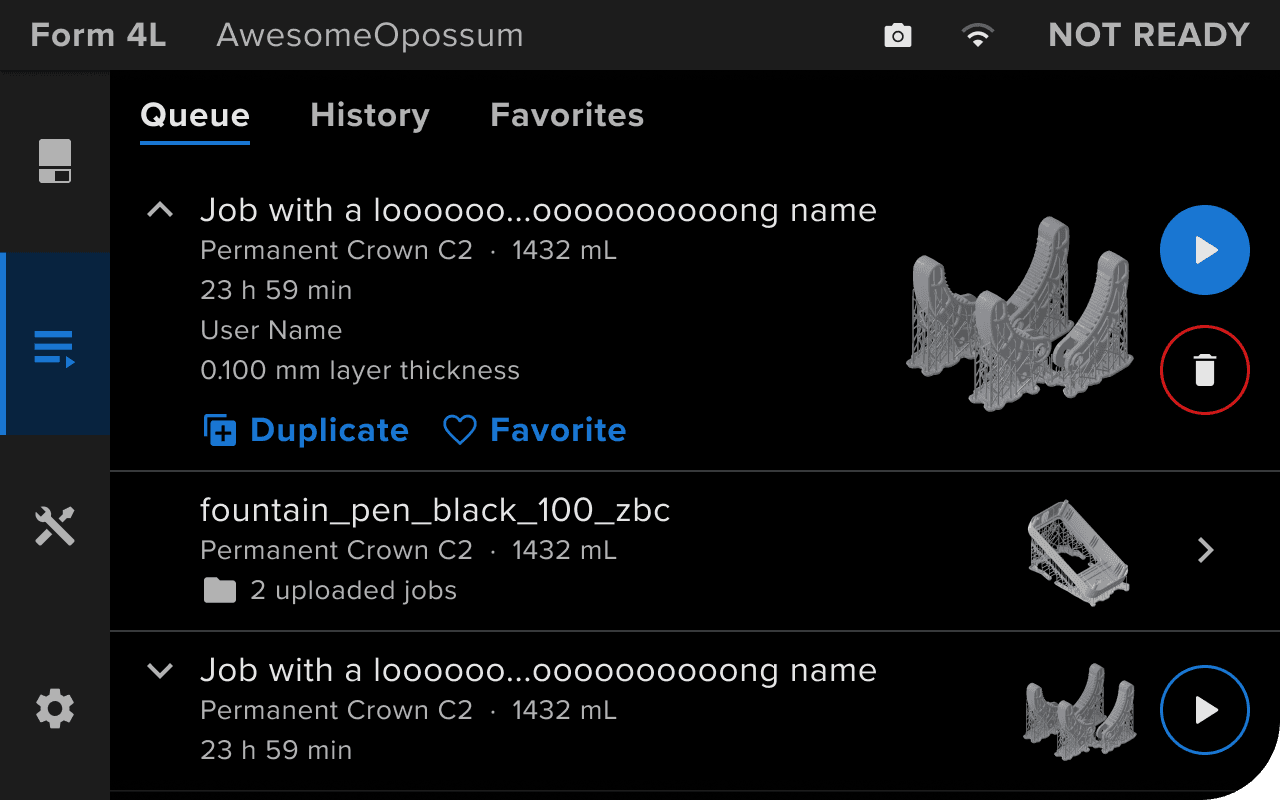
When you send a job from PreForm, the job is automatically added to the Queue.
Starting from the History list
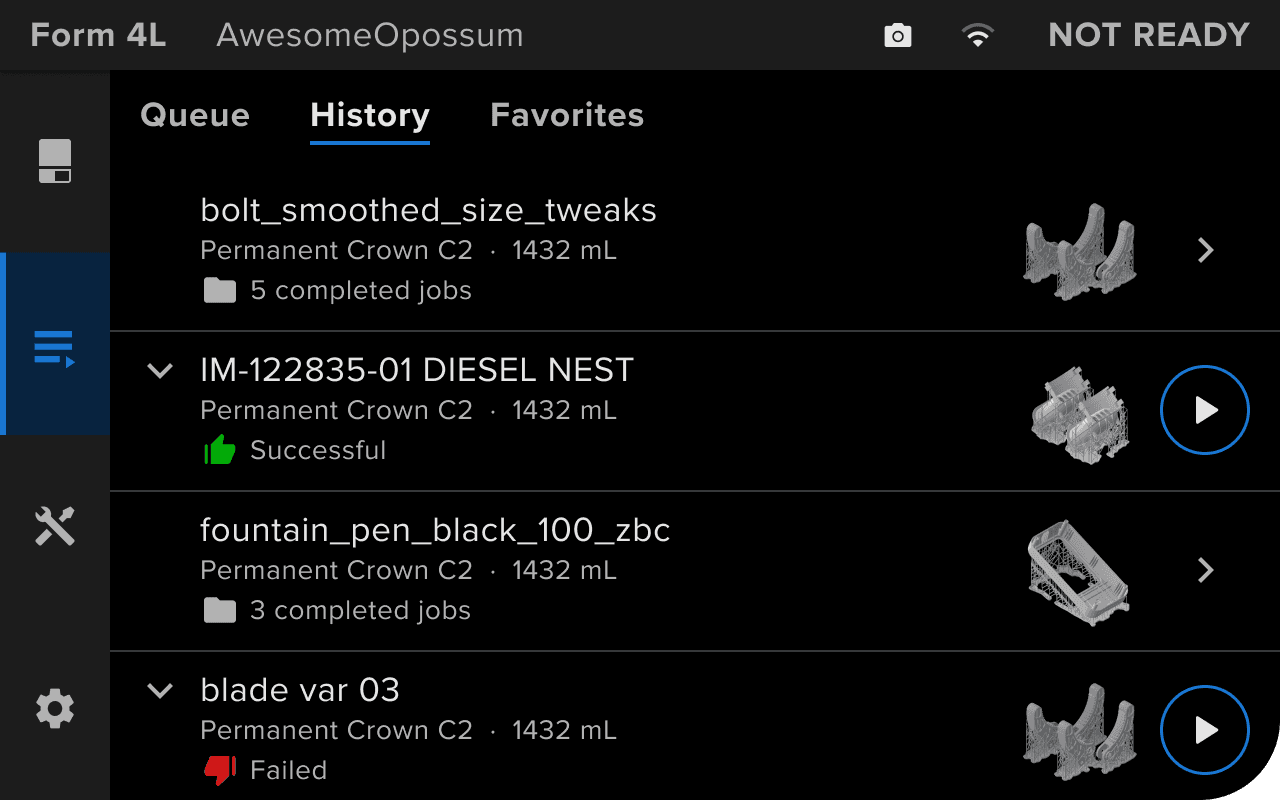
Previously-completed jobs can be viewed in the History list.
Starting from the Favorites list
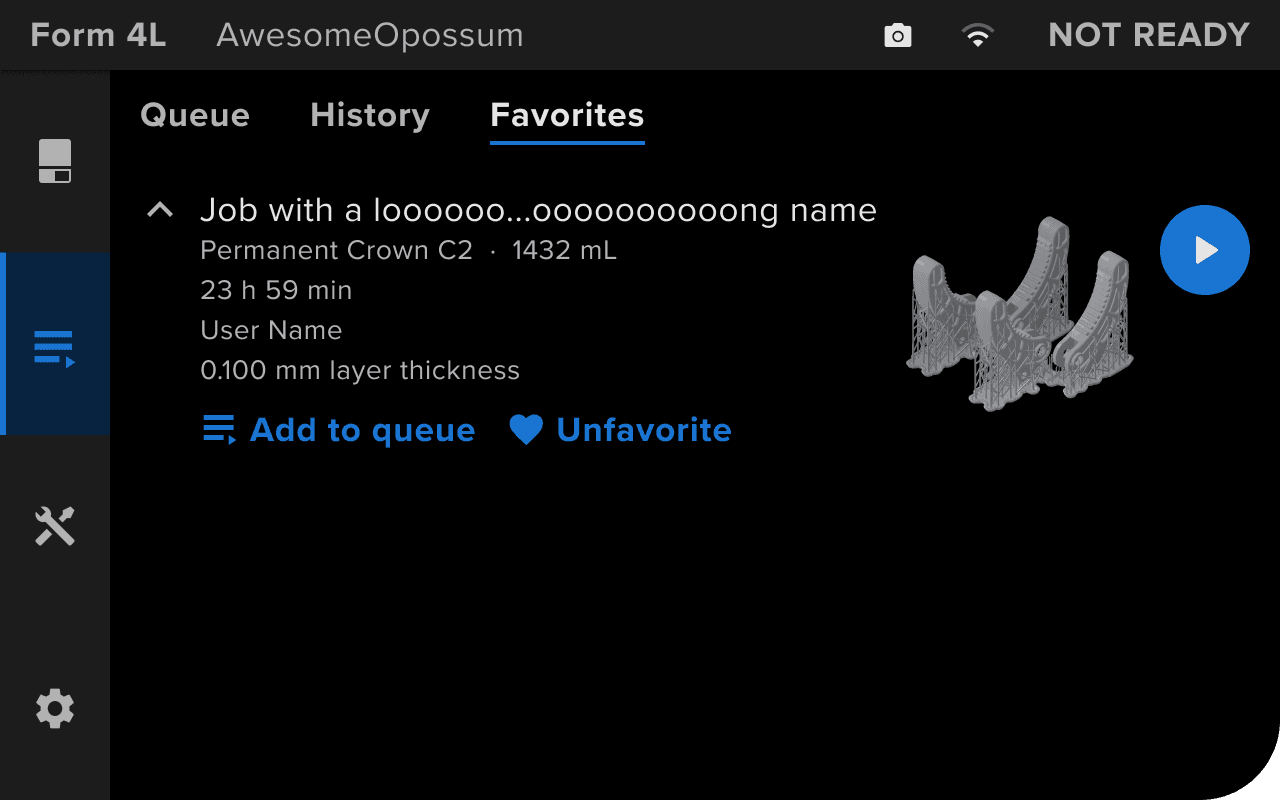
You can mark print jobs as a favorite to easily reprint them in the future. In the Queue or History, tap a job to view more information about the print, then tap Favorite to add it as a favorite.