
Note:
Check and ensure that your PreForm and firmware versions are compatible.

Formlabs regularly releases updated firmware to fix bugs and improve functionality. Check your printer's firmware to ensure you're always up to date.
Accepting a firmware auto-update
As long as a Formlabs printer has an active internet connection, it receives notification prompts about new firmware updates becoming available upon their release. Accept the prompts and tap Install on the Firmware Update screen to stay up to date.
To check a printer’s current firmware version:
| Form 2 | Form 3 generation Form 3L generation |
Form 4 generation Form 4L generation |
|---|---|---|
| Tap Settings > Firmware Update. | Tap Settings > System > Firmware Update. | Tap Settings > Firmware Updates. |
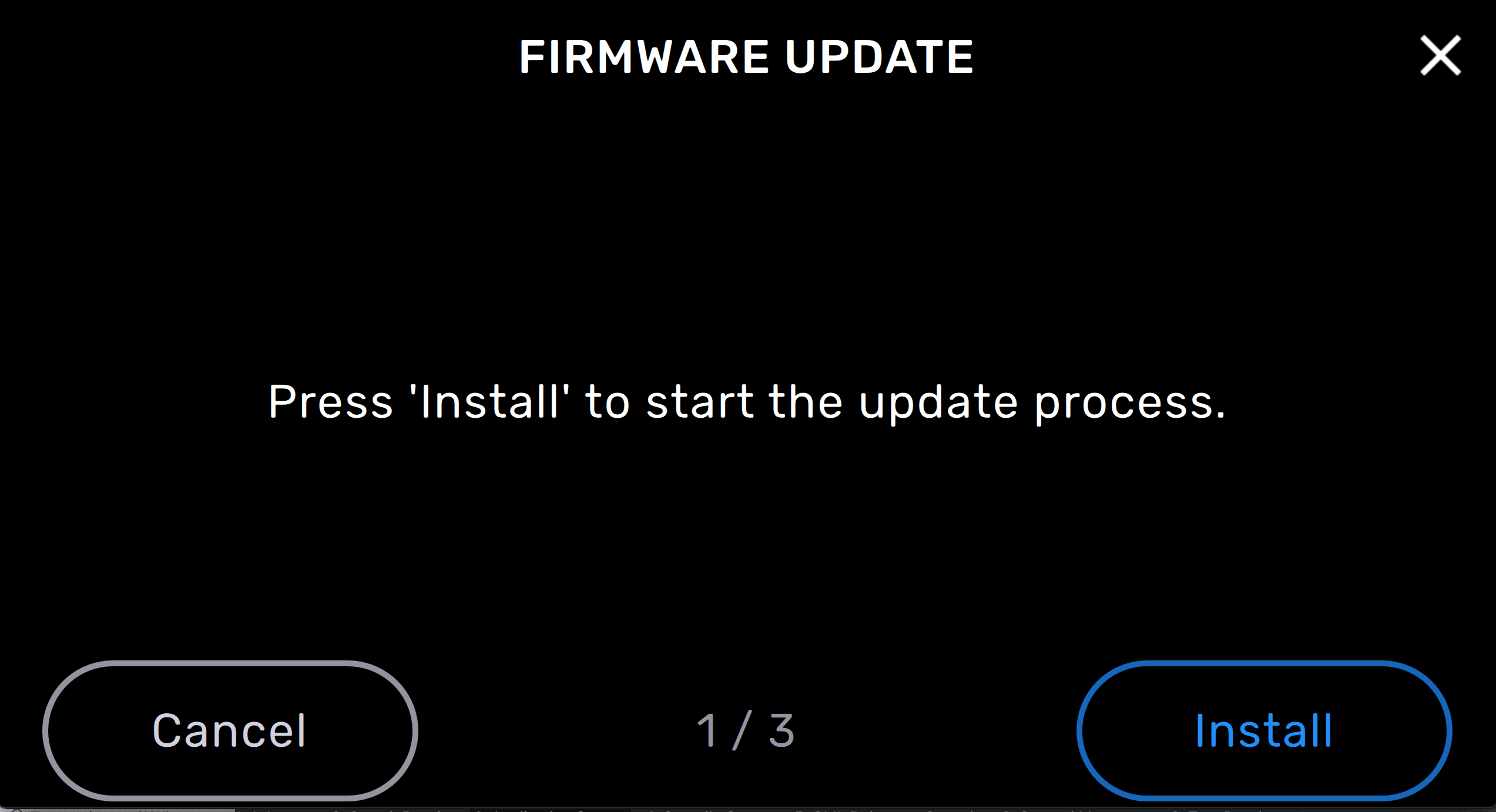
Updating firmware
Download the latest firmware version for your Formlabs SLA printer with PreForm, then upload and install the firmware file on the printer. Review the firmware release notes to learn more about the improvements that come with each version's release.
| Form 2 | Form 3 generation Form 3L generation |
Form 4 generation Form 4L generation |
|---|---|---|
| Tap Settings > Firmware Update. | Tap Settings > System > Firmware Update. | Tap Settings > Firmware Updates. |
Reverting back to an older firmware
Any version of firmware can be uploaded to your printer as long as it is compatible with your printer's model and the version of PreForm you have installed on your computer. To revert back to an older version of firmware:
Note:
Check and ensure that your PreForm and firmware versions are compatible.
Touchscreen freezes during or after firmware update
If the touchscreen freezes during or after the firmware update, perform a power cycle to restart the printer.
To power cycle the printer:
Not enough space error
If the printer reports insufficient space to install a firmware update, selectively delete one or more prints from the print queue.
To delete all prints on a printer:
| Form 2 | Form 3 generation Form 3L generation |
Form 4 generation Form 4L generation |
|---|---|---|
| Tap Settings > Storage. | Tap Settings > System > Printer Details > Storage. | Tap Settings > General > About this printer > Storage. |
Manual firmware update
If the printer is unable to complete an automatic firmware update, or displays a decryption failed error, perform a manual firmware update using PreForm.
To perform a manual firmware update via PreForm:
| Form 2 | Form 3 generation Form 3L generation |
Form 4 generation Form 4L generation |
|---|---|---|
| Tap Settings > Firmware Update. | Tap Settings > System > Firmware Update. | Tap Settings > Firmware Updates. |