Managing orders and quotes with Dashboard
Managing orders and quotes with Dashboard
With Dashboard, you can view and manage quotes and orders, reorder products, and more.
Viewing orders
To view your past orders:
- Log into Dashboard.
- Click your name in the top-right corner. A dropdown menu appears.
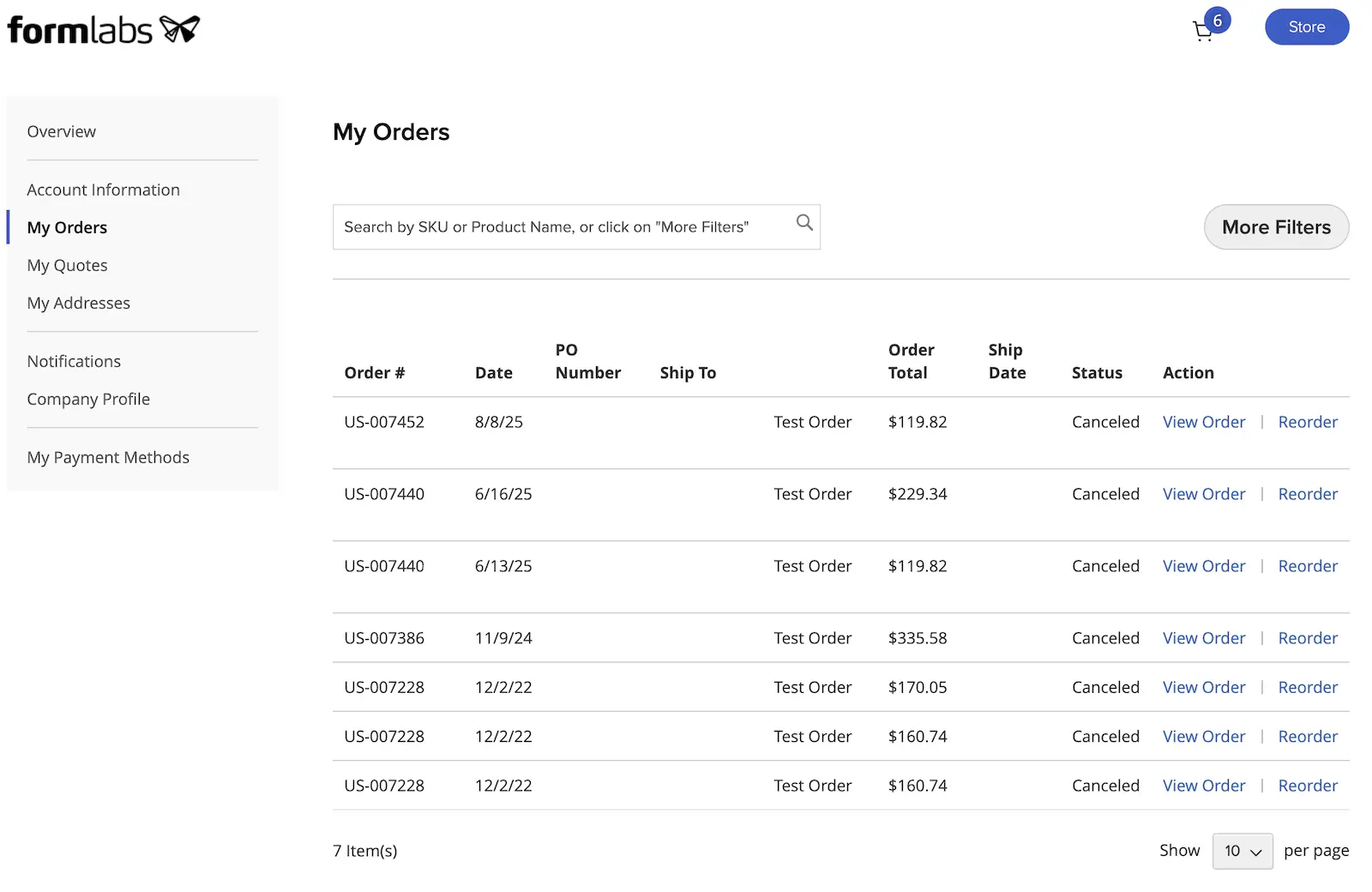
- Click My Orders. The My Orders page appears.
The My Orders page shows all of the orders associated with the current account. For more information about a specific order, click View Order.
Tracking orders
Formlabs offers multiple ways to track your orders, including via Dashboard:
- If you are the person who placed the order, you should have received a confirmation email shortly after completing your transaction. Once the order's shipping information is generated, we send another email with tracking information.
- Log into Dashboard and navigate to My Orders as described above. Each order lists its status and ship date.
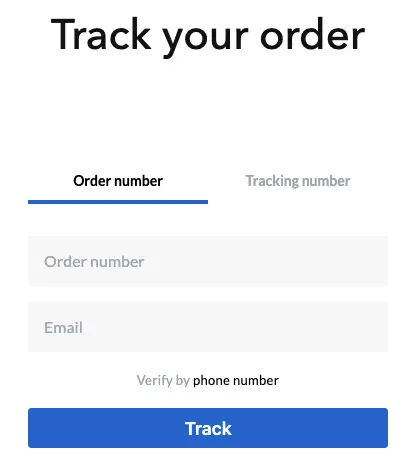
- Use the Track order status tool to track the location and shipping status of your items.
- Go to our Contact Support page and use the Order Shipment Status tool.
Downloading invoices
Each order has an invoice associated with it. To download an order invoice:
- Log into Dashboard.
- Click your name in the top-right corner. A dropdown menu appears.
- Click My Orders. The My Orders page appears.
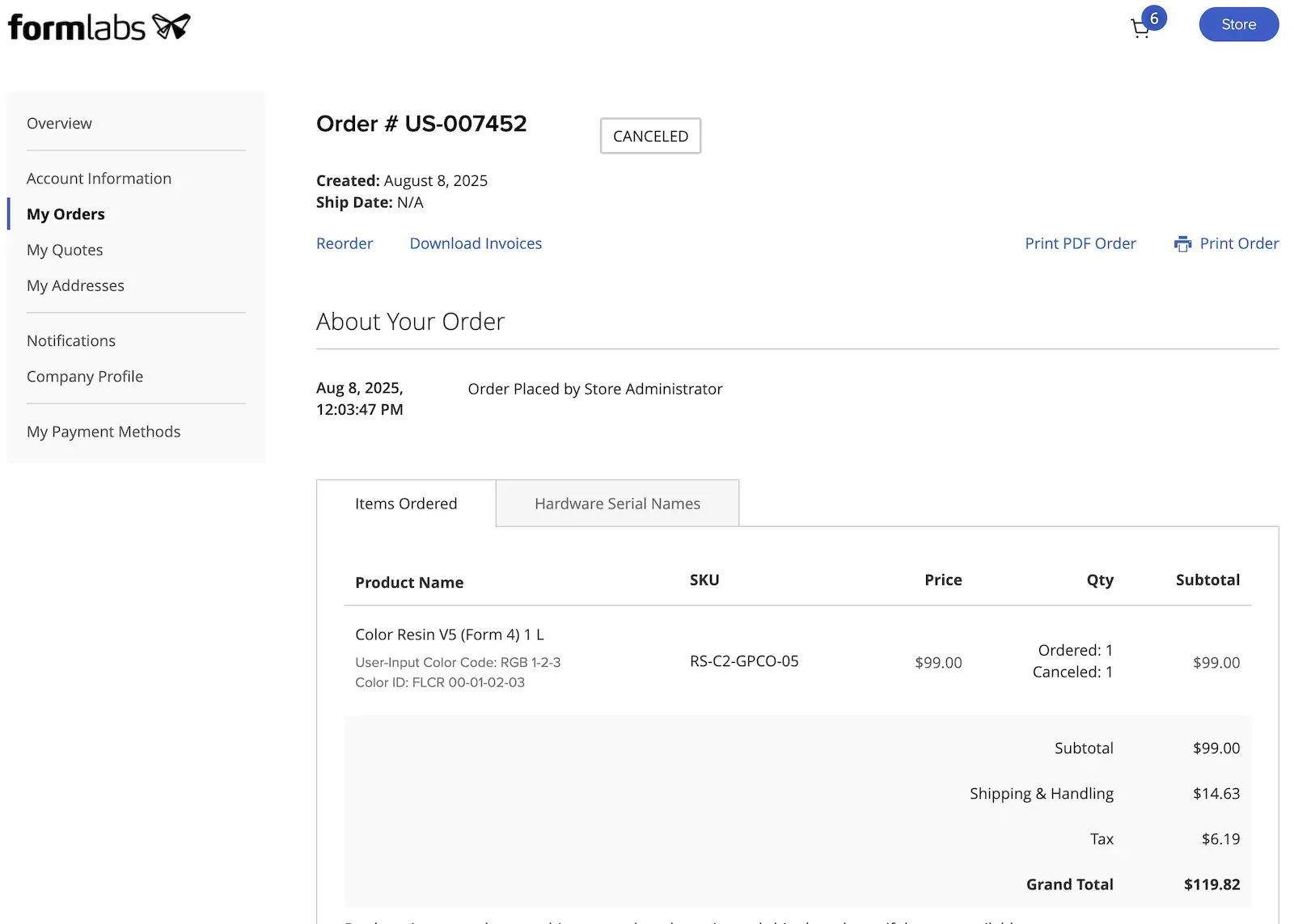
- Locate the order whose invoice you want to download and click View Order. The order detail page appears.
- Click Download Invoices. The invoice is generated and downloaded to your computer.
You can also download invoices using the Order Shipment Status tool on our Contact Support page. After you look up your order, click Download Invoices.
Reordering products
You can also use the order list to reorder previously-purchased products. This can save you time when ordering consumables you need on a regular basis. For Color Resin in particular, reordering a specific color from Dashboard is the best way to ensure an exact color match to your previous cartridges.
To reorder products via Dashboard:
- Log into Dashboard.
- Click your name in the top-right corner. A dropdown menu appears.
- Click My Orders. The My Orders page appears.
- Locate the order you want to repeat and click Reorder. Confirm your order and checkout as normal.
- You can also click Reorder on a specific order’s detail page.
Creating quotes
You can create self-service quotes via the Formlabs Store that can then be reviewed and managed in Dashboard. Note that these self-service quotes are not formal quotes from Formlabs and are subject to product availability and pricing changes; for a formal quote, contact Sales.
To create a self-service quote:
- Log into your Formlabs account on the Formlabs Store.
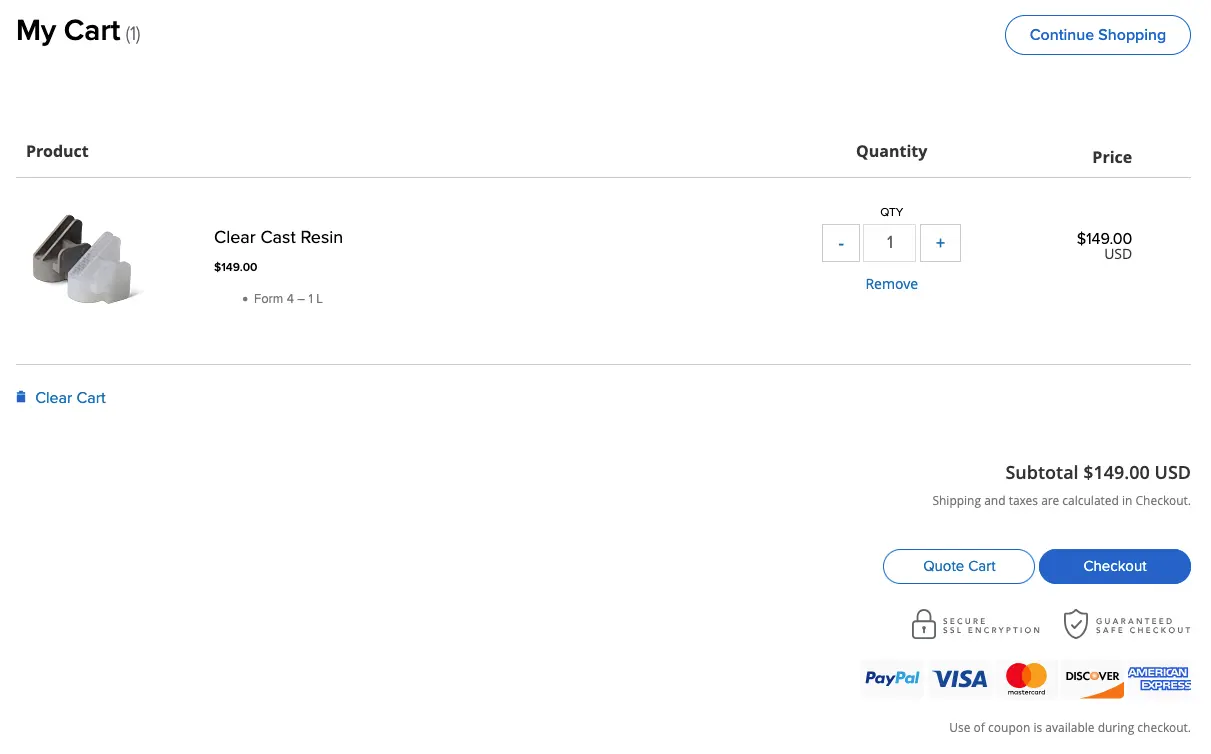
- Add one or more items to your cart.
- Click the shopping cart icon at the top of the screen. The My Cart page appears.
- Click Quote Cart. The Checkout page appears.
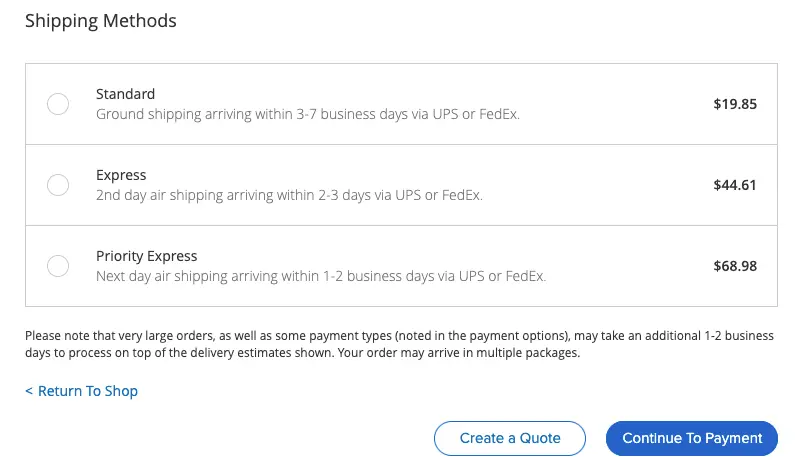
- Fill out your shipping information and select a shipping method, then click Create a Quote. A confirmation pop-up appears.
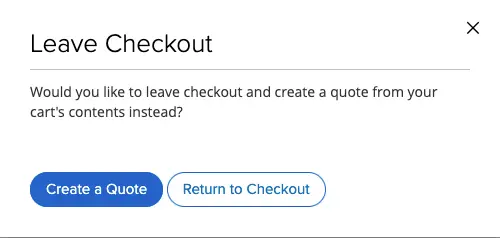
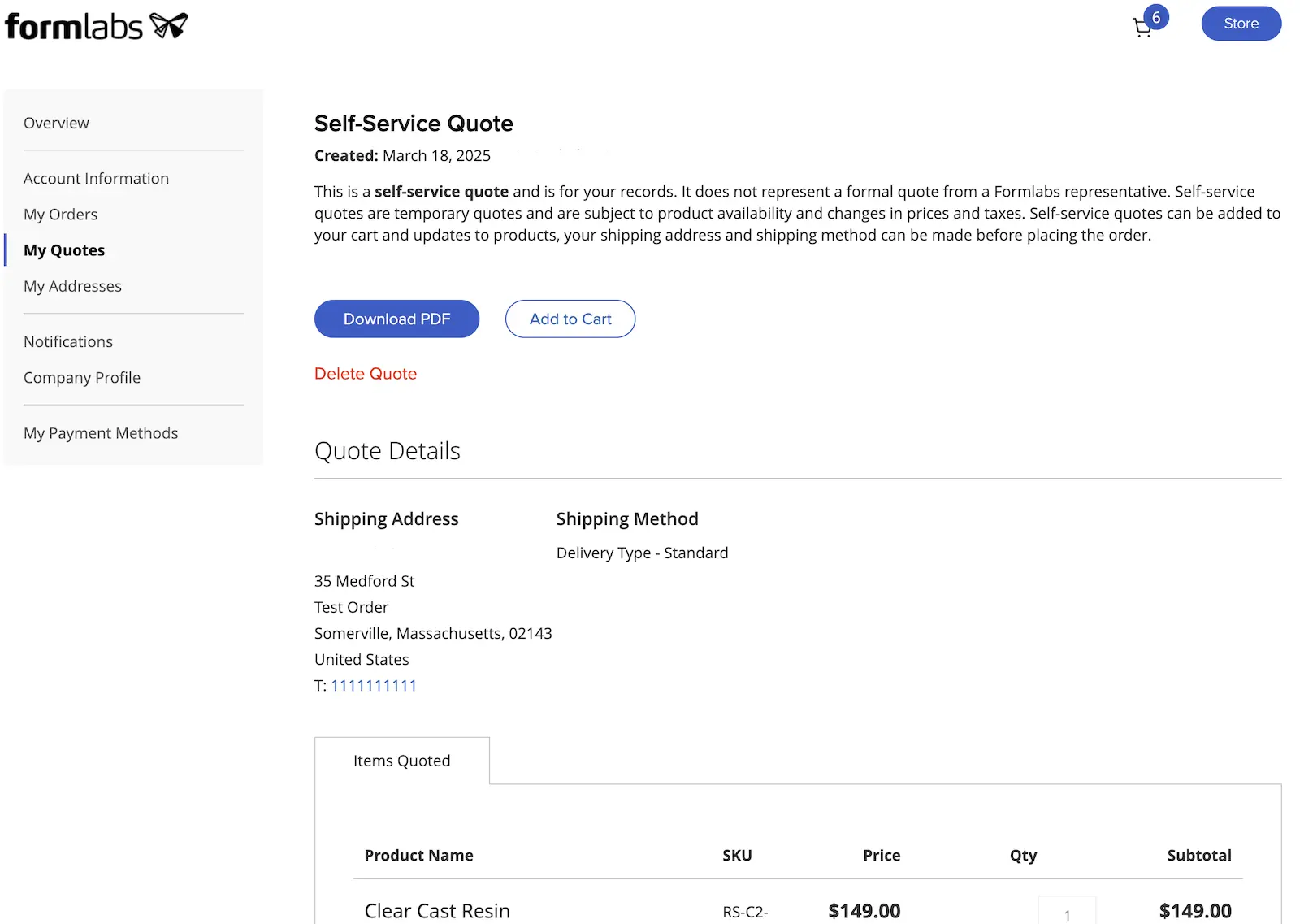
- Click Create a Quote to confirm. The quote is created and the Self-Service Quote page appears.
Reviewing quotes
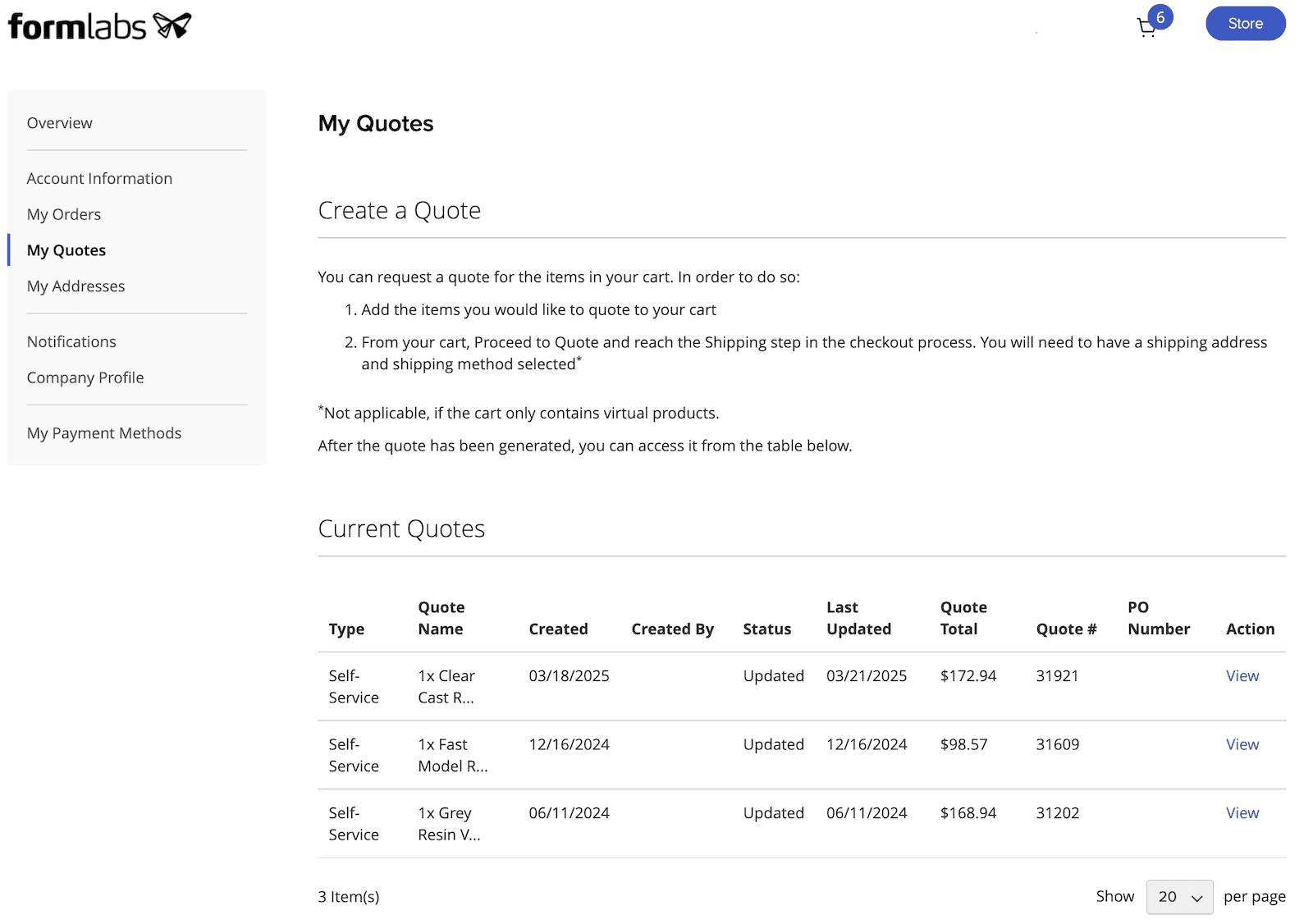
After creating a quote, you can review and manage it from your Formlabs account within Dashboard. These include self-service quotes and quotes created by Formlabs.
To view and manage quotes:
- Log into Dashboard.
- Click your name in the top-right corner. A dropdown menu appears.
- Click My Orders. The My Orders page appears.
- Click My Quotes. The My Quotes page appears.
- Locate the quote you want to manage and click View. The quote’s details appear.
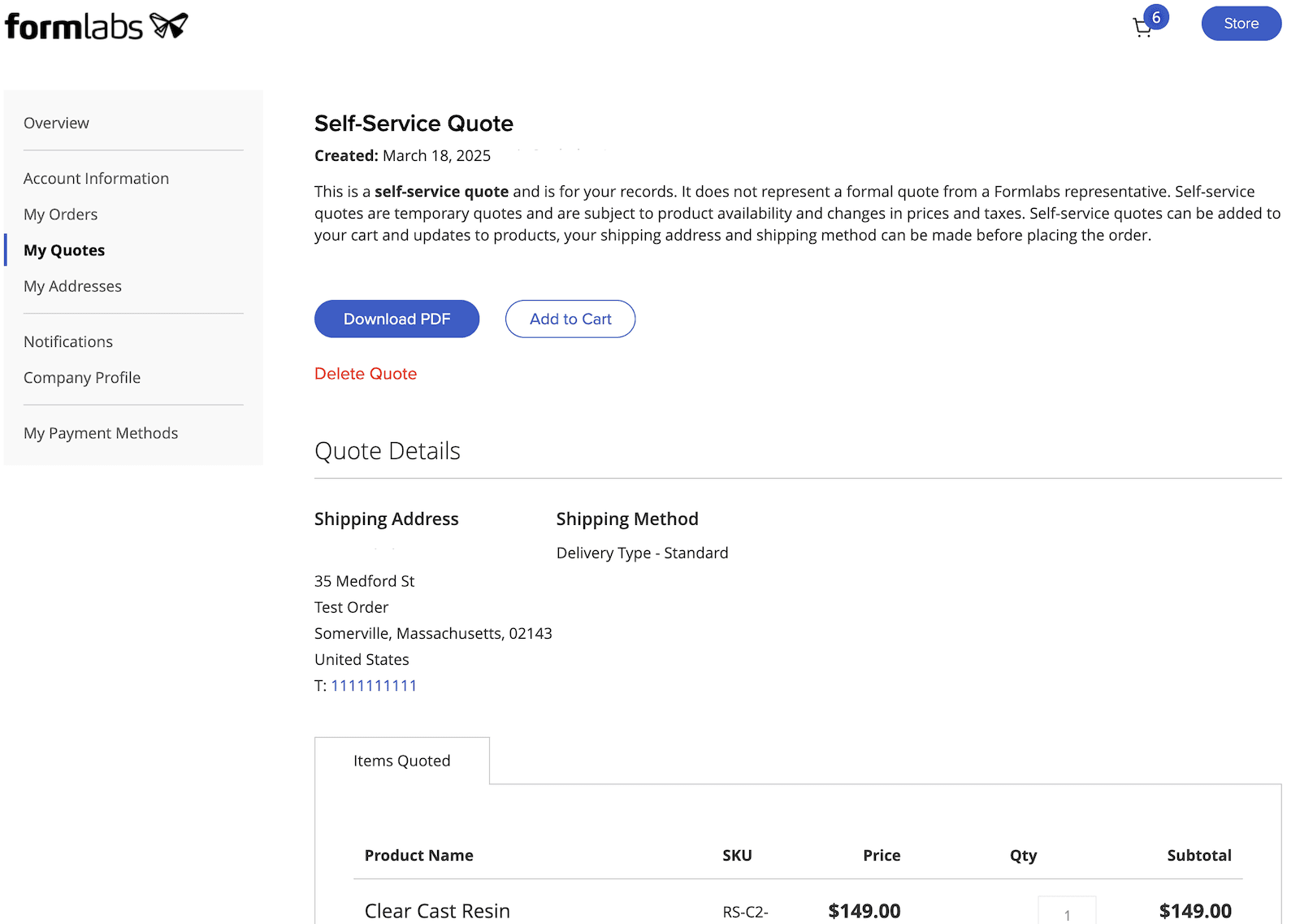
Once you are viewing a specific quote’s details, you can do one of the following:
- Click Download PDF to download a PDF copy of the quote. Save the file for your records or share it with others.
- Click Add to Cart to add the items in the quote to your Formlabs Store shopping cart. You can then proceed to purchase the items.
- Click Delete Quote to delete the quote from your account.