
Tip:
Download PreForm log files and printer diagnostic logs to aid Formlabs Support in troubleshooting your problem.

PreForm print preparation software helps configure 3D files for printing. Always ensure you are running the latest version of firmware and software before attempting troubleshooting. If you are experiencing an error message on a printer's touchscreen, check the support article for your printer to learn more:
Tip:
Download PreForm log files and printer diagnostic logs to aid Formlabs Support in troubleshooting your problem.
Downloading the PreForm log file
To access the PreForm log file:
log.txt file when contacting Formlabs Support or your authorized reseller.To manually access the PreForm log file:
macOS
To download the PreForm log file on macOS:
/Formlabs/PreForm/Logs/log.txt.log.txt file when contacting Formlabs Support or your authorized reseller.Windows
To download the PreForm log file on Windows:
C:UsersUSERNAMEAppDataLocalFormlabsPreFormLogs, replacing USERNAME with your local user name.
C:Users to view a list of user names in use on the computer.log.txt file when contacting Formlabs Support or your authorized reseller.For information about printer and accessory logs, see Downloading and sending diagnostic logs.
Software bugs
We are always working to improve our software and appreciate your help in spotting potential problems. If you encounter what you think is a software bug, check if you have the latest version of PreForm software installed. If the bug persists after updating PreForm, contact Formlabs Support or your authorized reseller with details, screenshots of your experience, and information about your operating system, PreForm version, graphics card, and processor. Our support team will resolve the issue as soon as possible.
Software crashing
The most common causes of a software crash are out-of-date graphics card drivers and large STL/OBJ/3MF files. Make sure the file you import is not too large (100 MB or greater). Contact your computer manufacturer to update your graphics card drivers if you are experiencing frequent crashes.
Unable to open PreForm/Application error (Windows)
PreForm gets stuck on splash screen
When you open PreForm, it displays a splash screen with the software version number, copyright information, and a highlighted Formlabs product while it loads. Various software issues can cause PreForm to hang at this splash screen and not finish loading. To resolve this issue:
PreForm fails to open with Application Error
As of PreForm version 3.29.0 and later, PreForm requires the installation of Visual Studio 2015, 2017, 2019, and 2022 to support Dental Workspace functionality in Windows. If the runtime library is not installed, PreForm cannot open and displays the error message PreForm.exe - Application Error.
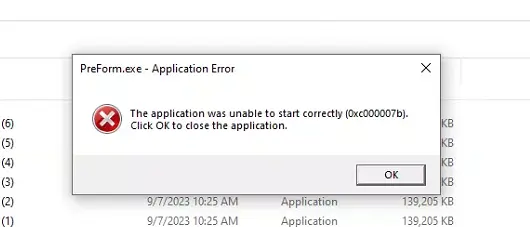
To resolve this issue:
Update Error (macOS)
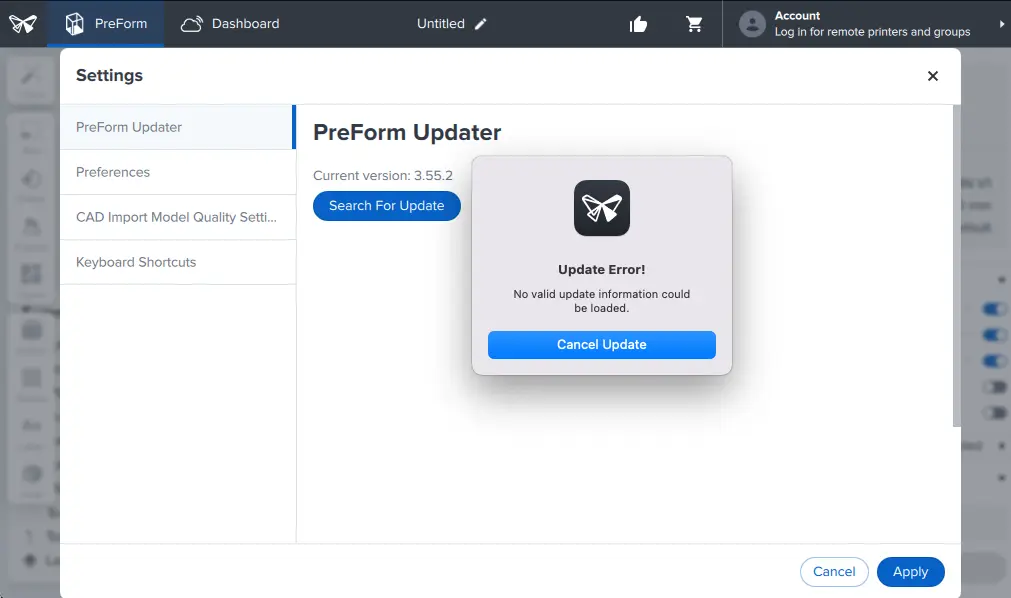
Starting with PreForm 3.56, PreForm requires macOS 13 or later. If you are on an earlier version of macOS and try to update to PreForm 3.56 or later, PreForm will display an Update Error message. To resolve this issue, update to macOS 13 or later, then try updating PreForm again. If you cannot update your operating system, you will not be able to update PreForm.
PreForm is slow to open (macOS)
Starting with PreForm 3.56, PreForm requires macOS 13 or later. Some macOS users may encounter an increased load time during the first application launch following the update. This initialization process will occur on the first launch each time you update PreForm (after version 3.56.0) until Formlabs releases a native ARM64 build of PreForm for macOS.
PreForm fails to discover printer
When you install or launch PreForm for the first time, your operating system will confirm if you want to give the program access to your local network. If you dismiss the request, deny access, or the operating system fails to show the request, PreForm will be unable to connect to any networked printers, even if your computer is on the same network as those printers.
If your corporate IT policies prevent you from granting PreForm access to your local network, contact Formlabs Support.
macOS
To grant local network access on macOS:
Windows
To grant local network access on Windows:
File import error message
PreForm warns you if an STL/OBJ/3MF file has flipped faces or other irregularities. When detected, the software offers to attempt an automatic repair. Check the support article Preparing a valid model in PreForm to learn more about what features cause a FILE IMPORT or BROKEN MODELS DETECTED error. Changes to the model's mesh may be necessary.
If the repair is successful:
Graphical issues
A variety of factors can cause unusual graphical issues and artifacts, such as:
To resolve these issues:
3Dconnexion 3D mouse not working
3Dconnexion 3D mice may not work correctly with older versions of PreForm due to driver incompatibilities. If you are having issues with your 3Dconnexion 3D mouse, update PreForm to version 3.11 or later.
Offset cursor with multiple monitors
When using PreForm on multiple monitors with different resolutions, the cursor may be offset from the true location on screen. To resolve, close out all instances of PreForm and restart the application. In rare instances where the issue persists, reinstall the latest version of PreForm.
Firmware compatibility
If you update your printer’s firmware after adding a print job to its queue, the printer may be unable to print the job. If a queued job fails to print, remove it from the queue, update update PreForm,and reupload the print job.
Additionally, when updating either PreForm or your printer's firmware, you may be required to update the other to maintain compatibility and be able to print. Keep both PreForm and your printer's firmware fully up to date for best results
If the problem persists after reuploading your print job, contact Formlabs Support or your authorized reseller.
Supports not generating
The most likely reason supports will not generate is out-of-date graphics card drivers. Contact your computer manufacturer to update these and then resume with support structure generation.
Updating firmware and software
Ensure you are using the latest firmware and software versions available.
To view the currently installed version of PreForm:
Tip:
PreForm automatically prompts an update if a new firmware version is available. If an automatic update is unavailable, perform a manual firmware update.
To view the firmware version currently installed on your printer:
Tip:
View the support article Updating firmware for Formlabs SLA printers to learn more.
Could not open DFU device
To correct this error:
Note:
If PreForm continues to display Could not open DFU device, then the printer may be in DFU mode or your computer is not recognizing the printer. Contact Formlabs Support or your authorized reseller for instructions on how to reload your firmware.
Running in a virtual machine
We do not support running PreForm in a virtual machine. If you want to try running in a virtual machine, make sure you have 3D graphics acceleration turned on for best results.
To enable in VMWare:
Note:
The virtual machine must restart in order to make this change.
Surface Pro installation
If you are experiencing an issue opening PreForm on your Microsoft Surface Pro:
Note:
Future Microsoft updates may replace the manufacturer's drivers.
FL0 generation failed
To correct this error:
Error 0x80070643 Setup Failed
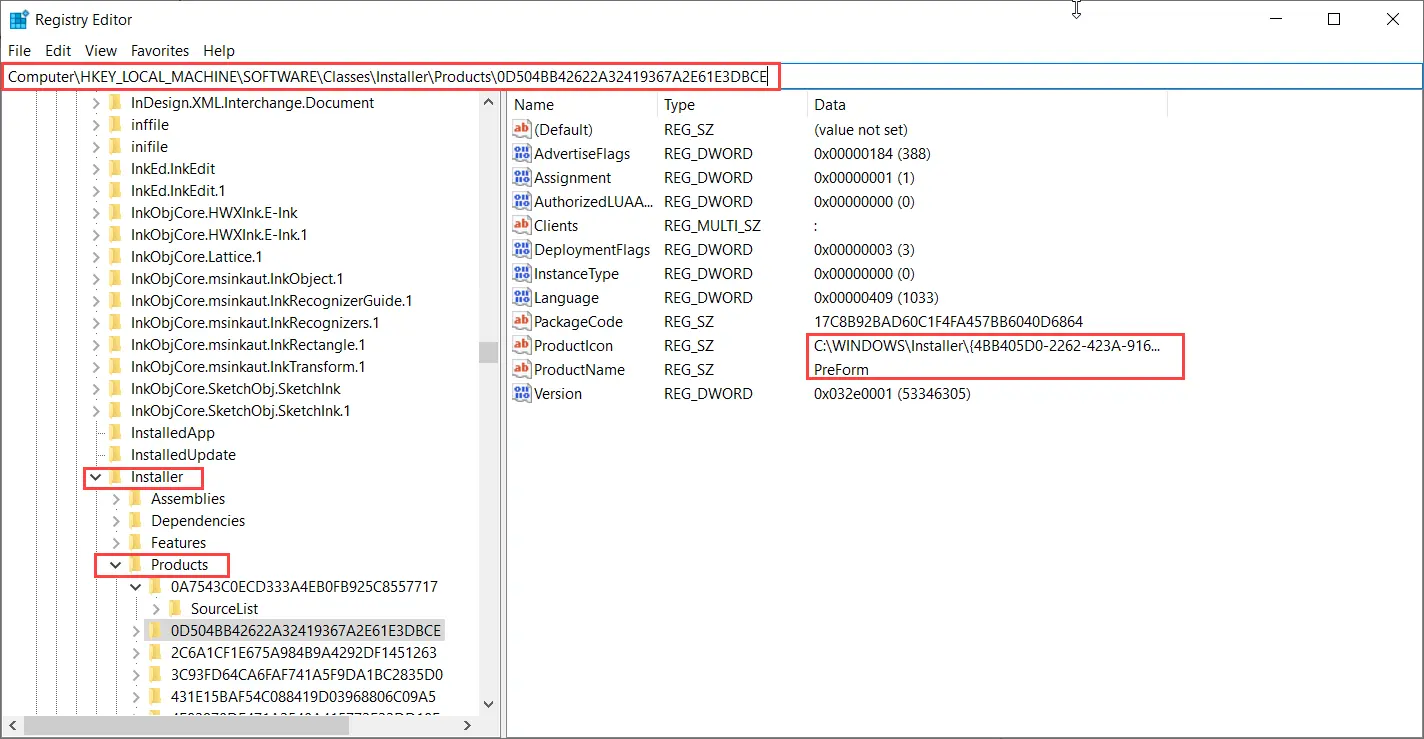
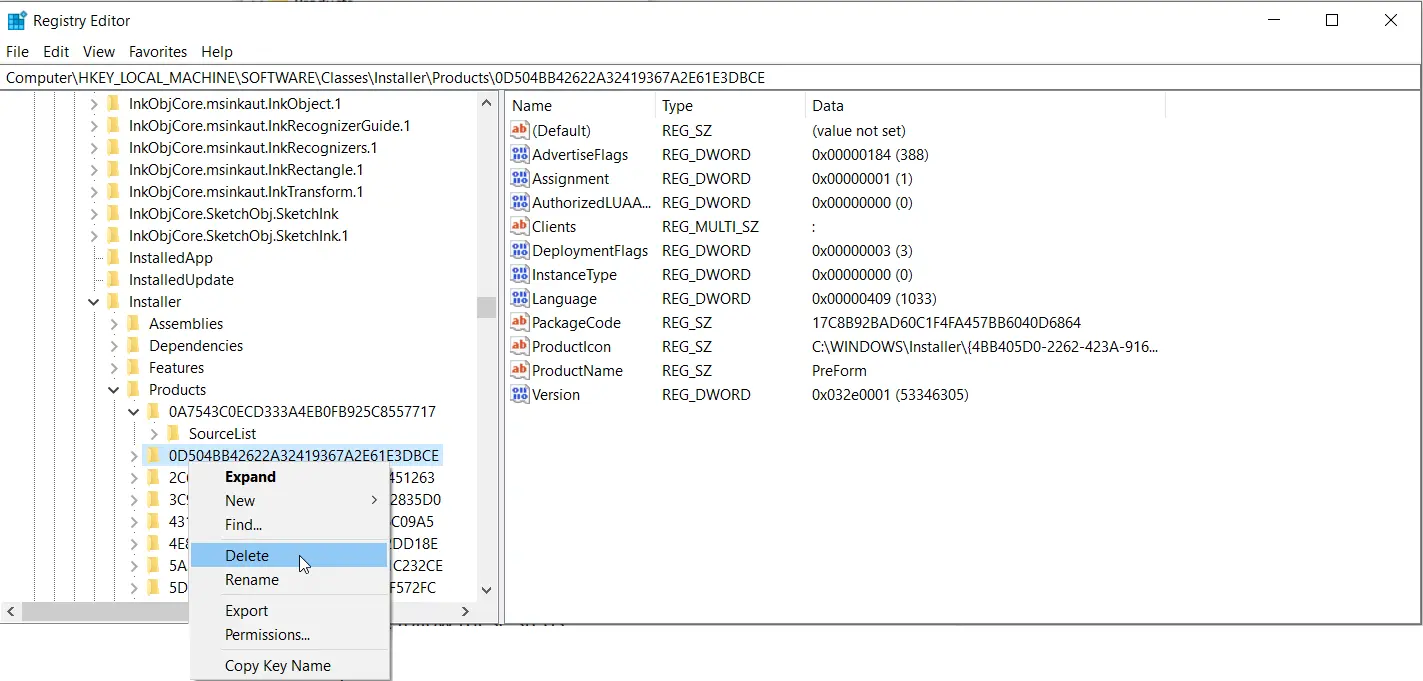
Error 0x80070643 Setup Failed and the error message "The feature you are trying to use is on a network resource that is unavailable." indicate a corrupted or misplaced installation file on a Windows computer.
To correct this error:
If the issue persists, contact Microsoft Support.
Calibration step failed
A failed job upload with the message Calibration step failed generally indicates a connectivity problem. To resolve this issue:
Form 1+ appears disconnected
Sometimes PreForm’s orange Print button may display the disconnected USB icon even when your printer is connected and otherwise recognized as a device. This can happen if you have two instances of PreForm open.
To resolve:
Tip:
If you cannot see a second instance of PreForm, open your task manager to check for other instances of PreForm running in the background. Close additional instances.
Alternatively, if you only have one instance of PreForm open, you can restart your Form 1+:
Tip:
If the printer remains Disconnected in PreForm, open your device manager to ensure that your computer is recognizing the Form 1+. If it is not recognized, uninstall and then reinstall PreForm.