Step 3: Import the scan(s) into the Dental Workspace
PreForm is compatible with STL, OBJ, and 3MF file types. PreForm Dental Workspace allows you to import multiple files into the workspace.
Import the scan(s) into the Dental Workspace:
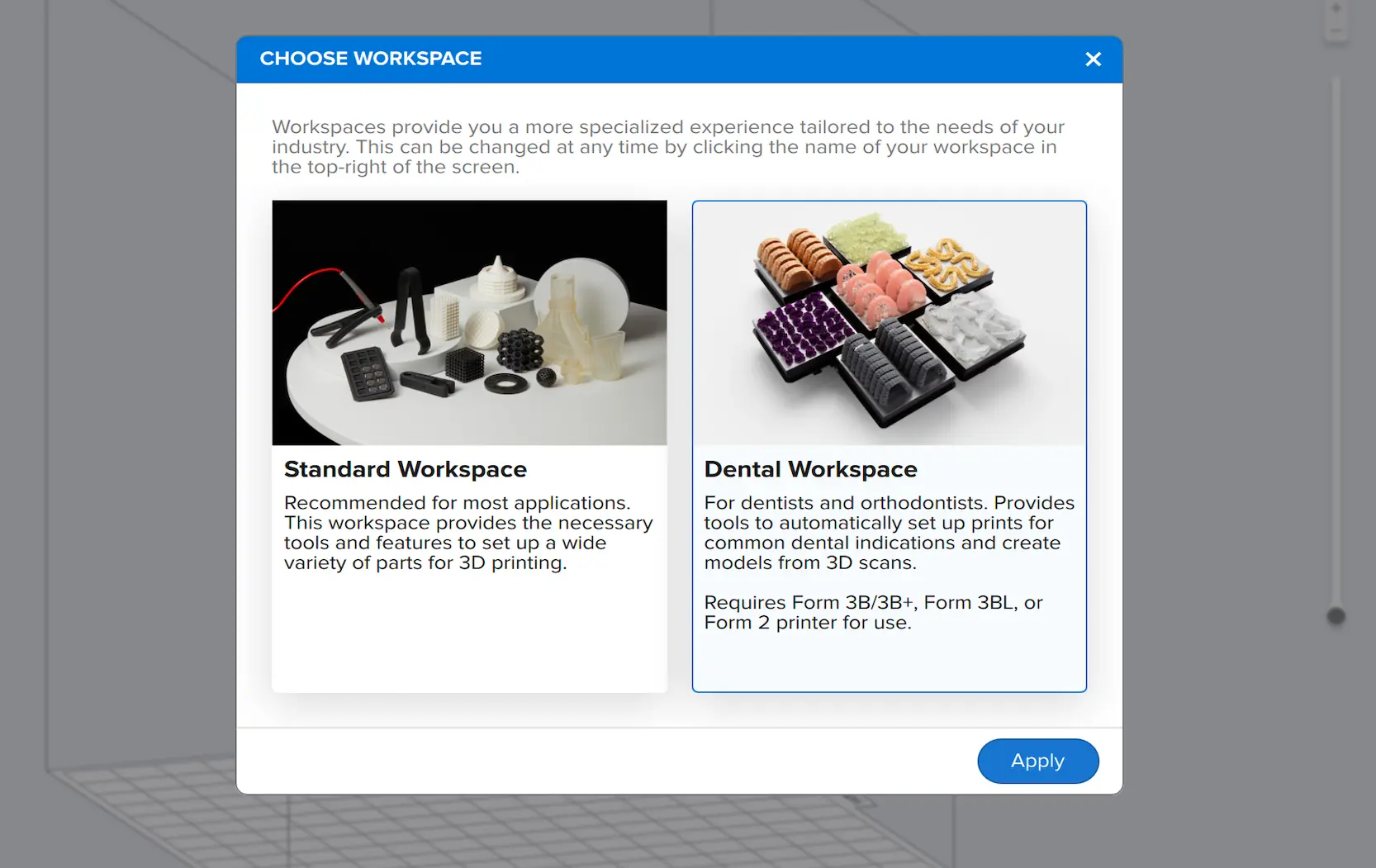
- Open the Dental Workspace.
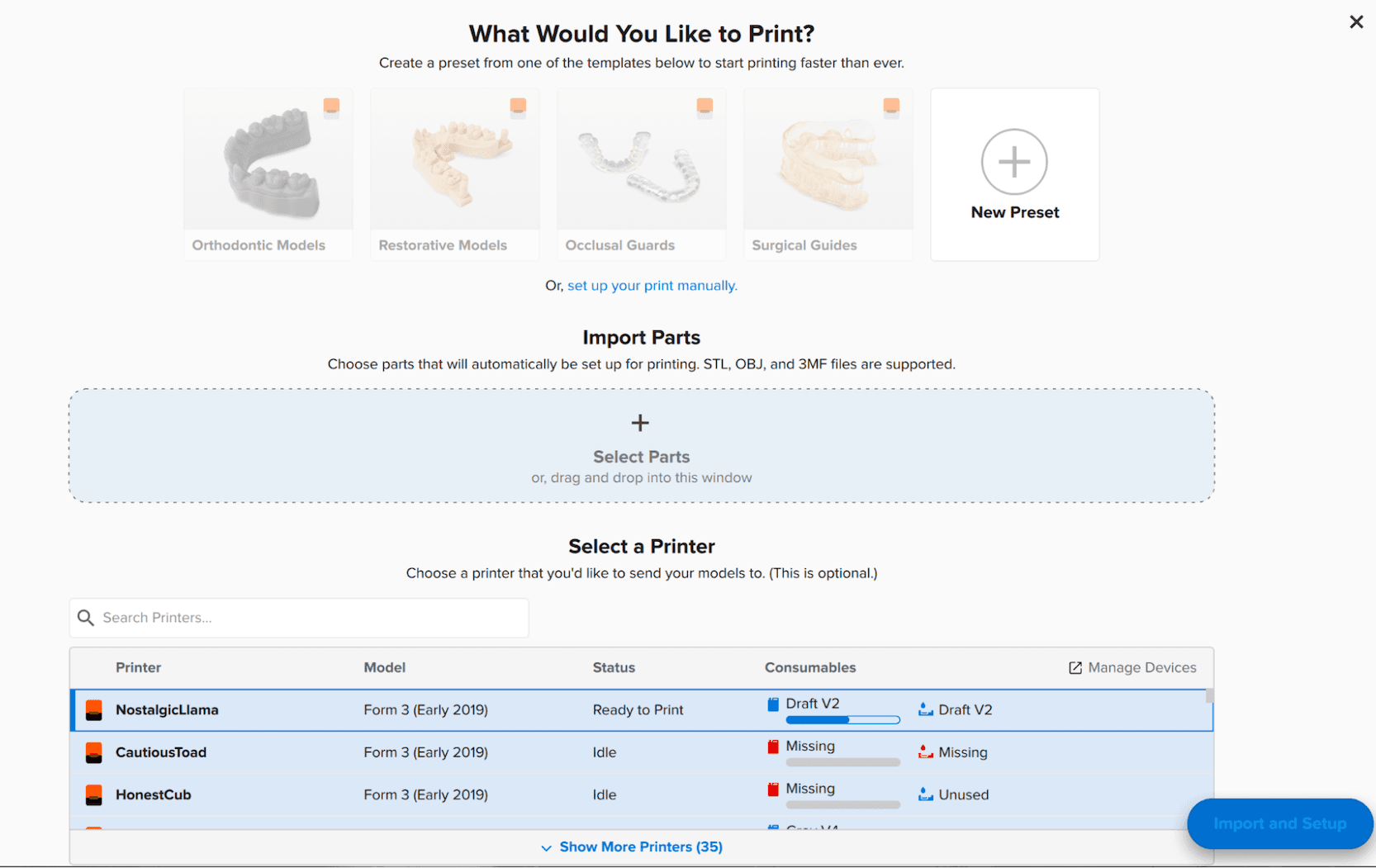
- Drag or drop an STL, OBJ, or 3MF file into the box labeled Import Parts. The file name in a rectangular box appears to confirm a successful upload.
- Select a printer (compatible with Formlabs resins for biocompatible applications only) from the Select a Printer list. A blue box appears around your selection.
- Click Import and Setup to import the model into the 3D scene.
Step 4: Send the model to the printer
Once the model is imported and set up based on your selected preset, it is ready for printing. Send the print job to the printer to print your dental model.