Printer does not turn on (Form 3 generation)
Printer does not turn on (Form 3 generation)
Damaged or malfunctioning components may cause your Form 3 generation printer to fail to power on, freeze, not initialize, shut down unexpectedly, or experience display issues. Although these symptoms might seem similar, they usually result from different underlying causes, most often related to the display, motherboard, power supply, or the system on module (SOM).
Sometimes, printers power on but do not complete the initialization process. The printer may be stuck on the Formlabs splash screen or on the Initializing Printer message. The printer can also time out during initialization if one of the startup operations takes longer than expected. This problem may seem similar to a failure to boot up.
Symptoms
- Printer does not turn on
- Screen is completely dark
- Screen shows the Formlabs butterfly splash screen, but the loading bar is stuck
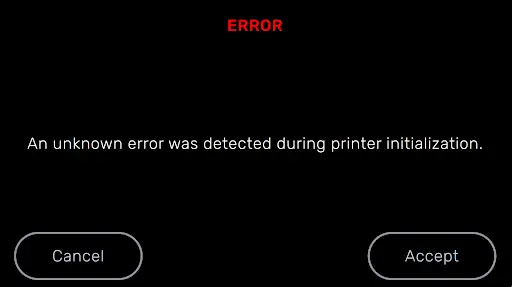
- Touchscreen displays the error message An unknown error was detected during printer initialization.
Causes
- Defective, damaged, or unplugged display: The display is not functioning and shows no image, but the device is otherwise operating normally.
- Defective motherboard: The motherboard has a number of voltage converters to provide different supply voltages. Damaged components in these circuits can prevent the printer from turning on.
- Defective SOM: The printer’s SOM runs its operating system. If the SOM is defective, then the device will not turn on.
- Defective power supply: If the power supply does not output DC power, the motherboard will not receive power, preventing the printer from turning on.
- Malfunctioning power outlet or damaged power cable: If the printer is not receiving mains electricity, it will not power on.
- Corrupt firmware or calibration data: If the printer’s instruction set has been corrupted, it may not power on or fully initialize.
Troubleshooting steps
Printer does not turn on
- Check that the printer’s power source is working properly. Try plugging the printer into another outlet if one is available. If you have a spare power cable available, try using it as well.
- Check if you can hear the printer fans spinning and see the Formlabs logo in the lower-left corner of the front shell light up while the printer boots.
- If you cannot hear the fans or see the logo light up, check the power cable. If it is not damaged and the printer does not work with any outlet or power source, contact Formlabs Support or your authorized reseller for more assistance.
- If you hear the printer’s fans, check if the touchscreen powers on and the loading screen appears.
- If the screen powers on but the loading screen does not appear or the loading bar does not fill, perform a factory reset using the physical button at the back of the machine.
- If a factory reset does not resolve the issue, contact Formlabs Support or your authorized reseller for more assistance.
- If the screen powers on but the loading screen does not appear or the loading bar does not fill, perform a factory reset using the physical button at the back of the machine.
- If the screen does not power on, check if the Light Processing Unit (LPU) moves to the center of the printer cavity.
- If the LPU moves, the display may be damaged or unplugged. Reseat the display cable by following the guide Replacing the Form 3 display assembly.
- If reseating the display cable does not resolve the issue, replace the display assembly. The display assembly is available for purchase on the Formlabs Store (Form 3, Form 3B). Follow the instructions in Replacing the Form 3 display assembly to replace the component.
- If the LPU does not move, contact Formlabs Support or your authorized reseller for more assistance.
- If the LPU moves, the display may be damaged or unplugged. Reseat the display cable by following the guide Replacing the Form 3 display assembly.
Initialization error
Firmware issues may cause the printer to display the error message An unknown error was detected during printer initialization, particularly following a Light Processing Unit (LPU) replacement.
- Update your printer to the latest firmware version.
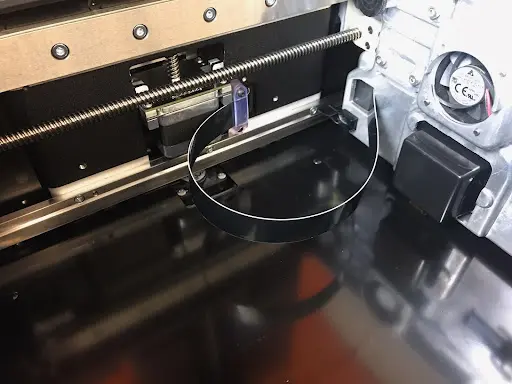
- Check your printer’s LPU ribbon cable for damage. This cable is visible in the printer cavity with the resin tank removed.
- If the ribbon cable looks damaged, replace it. Replacement ribbon cables are available for purchase on the Formlabs Store. Follow the instructions in Replacing the Form 3 Light Processing Unit to replace the component.
- If the ribbon cable looks undamaged, reseat both ends of the cable, following the instructions in Replacing the Form 3 Light Processing Unit.
- Perform a factory reset using the physical button at the back of the machine.
- If the issue persists, upload your printer’s diagnostic logs and contact Formlabs Support or your authorized reseller.