

Understanding the Summary panel in PreForm
Understanding the Summary panel in PreForm
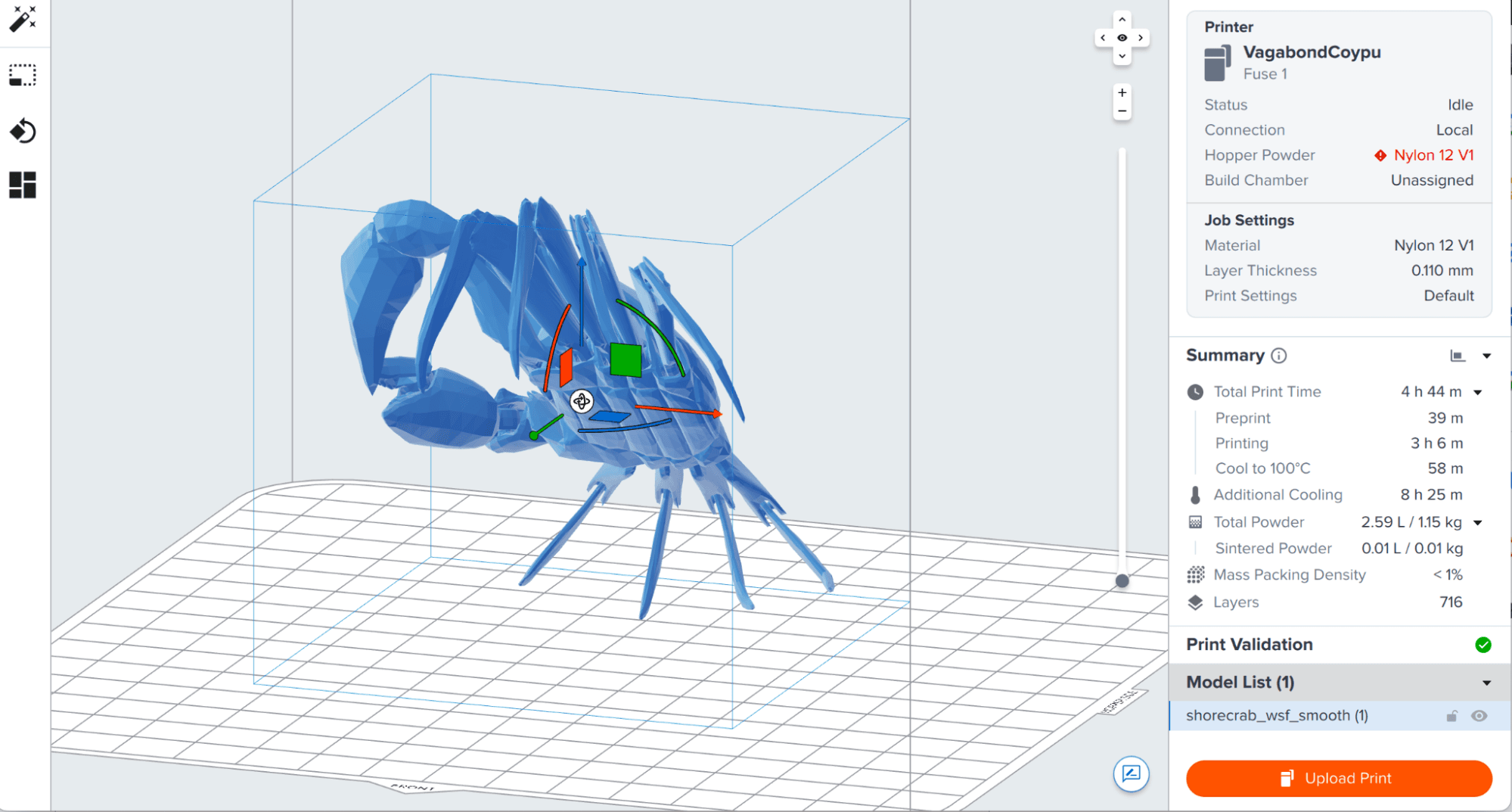
The PreForm Summary panel provides additional details about the print process, such as material usage, print time, and print cost. The panel can be undocked from the sidebar and moved into the main workspace for your convenience.
Powder usage information was added to the Summary panel in PreForm 3.38.0. Similar cost information was added for SLA prints in PreForm 3.54.0. If you do not see this information, update PreForm.
Total Part Cost
The Summary panel can help you estimate the cost of your print based on your material price.
SLA
- Next to Total Print Cost, click Enter Info or the current cost estimate. The Print Cost Estimator window appears.
- The text shown next to Total Print Cost depends on whether you have previously entered a material price into PreForm.
- Enter a value for the Cost per liter of your current material. You can also enter costs of other resins. The cost value is not tied to a specific currency.
- Most Formlabs resins are sold in 1 L or 5 L quantities. Some resins, such as BEGO™ VarseoSmileⓇ TriniQⓇ Resin, are sold in other quantities. Check the resin cartridge volume for your resin before inputting the cartridge price.
- Click Apply. Your input costs are saved.
- Click X to close the window. The Summary panel updates to show your current print cost.
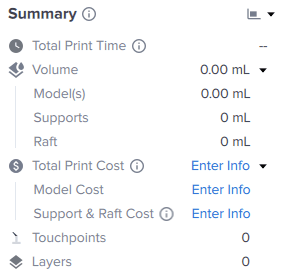
The Summary panel shows the following information:
| Parameter | Description |
|---|---|
| Total Print Cost | The total cost of all resin cured during the print, not including resin dispensed to fill the resin tank. |
| Model Cost | The cost of resin used for the imported models themselves, not including any supports generated by PreForm. |
| Support & Raft Cost | The cost of resin used for supports and rafts, if any are present. |
SLS
- Next to Total Print Cost, click Enter Info or the current cost estimate. The Print Cost Estimator window appears.
- The text shown next to Total Print Cost depends on whether you have previously entered a material price into PreForm.
- Click Inputs. The Inputs tab appears.
- Input your Cost per kg and Refresh Rate for your current material. You can also enter costs of other powders. The cost value is not tied to a specific currency.
- The default refresh rate values are the recommended refresh rates and should be updated to reflect your workflow.
- Click Apply. Your input costs are saved.
- Click X to close the window. The Summary panel updates to show your current print cost.
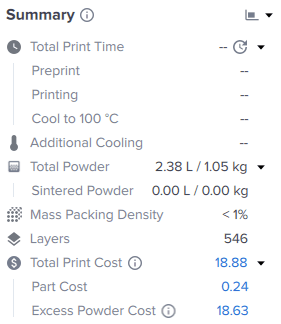
The Summary panel shows the following information:
| Parameter | Description |
|---|---|
| Total Print Cost | The expected material cost of your printed parts and associated excess waste. |
| Part Cost | The cost of the model based on the material price and total amount of sintered powder. |
| Excess Powder Cost | The cost of powder that is a) dispensed but not sintered and b) exceeds the amount of used powder required at your current refresh rate. For example, if 75% of the powder in your print job is unsintered and your refresh rate for the current powder is 30% (i.e., 30% fresh powder and 70% used powder per cartridge), 5% of each print will be excess. |
Total Print Time (SLS)
The Total Print Time is a rough estimate of how long your current job would take to print and initially cool within the printer. It updates each time your model is adjusted in PreForm. Click the refresh icon after making changes to see the calculated Total Print Time. Different part layouts and orientations affect print times. To help reduce print time, refer to Model orientation best practices for SLS printing.
The Total Print Time is divided into different stages of the printing process: Preprint, Printing, and Cool. The Additional Cooling time is the amount of additional time it would take for the powder cake to cool to room temperature within the printer.
Print stages
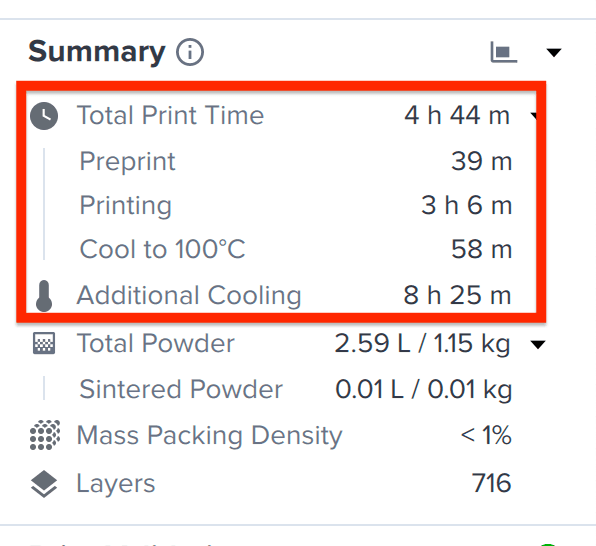
Preprint: A series of actions the printer takes to prepare for printing. During this time, the printer performs an initial set of tests to confirm its operational state, prepares the printing bed with powder, and brings the build chamber up to temperature.
Printing: The time it takes to sinter all parts, including post-coat layers and the print label.
Cool: The time it takes to cool the build chamber and print down to a temperature at which it is safe to remove from the printer. For example, for most Formlabs SLS powders, this temperature is 100 ºC. You may need to allow the build chamber to cool outside the printer before recovering your parts with the Fuse Sift.
Additional Cooling: The time it takes to cool the build chamber to nearly room temperature while inside the printer.
Understanding powder usage (SLS)
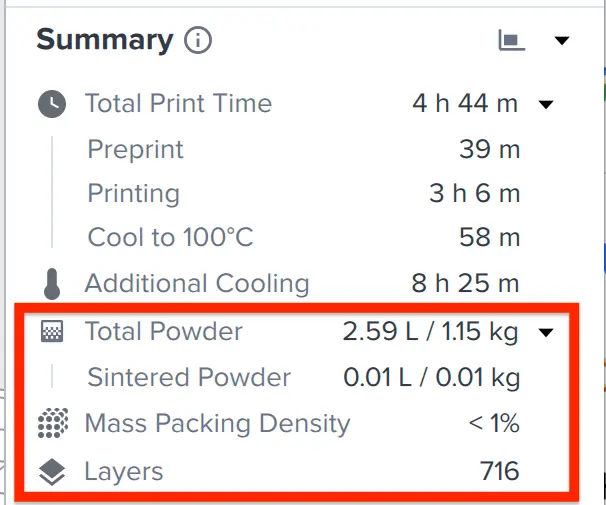
Total Powder: The total amount of powder (sintered and unsintered) it will take to complete the job. This includes the powder required to prepare the print bed and insulate the print walls.
Sintered Powder: The total amount of powder that is sintered in the build.
Mass Packing Density: The percentage of sintered powder versus unsintered powder by mass. The formula is Sintered Powder Mass / Total Powder.
Layers: The total number of layers a print requires during printing. This does not include preprint or post print layers.
Moving the Summary panel
The Summary panel can be undocked from the right panel to display on the left side of the workspace. When it is undocked, you can minimize the panel to display only the Total Print Time, Volume, and Total Print Cost (SLA) or the Total Print Time and Mass Packing Density.