WHITE PAPER
Formlabs Logo

Updating Form Wash and Form Cure firmware

Updating Form Wash and Form Cure firmware

Formlabs occasionally releases new firmware versions for the Form Wash and the Form Cure to introduce features and critical updates. The FormWashCureUpdater updates firmware for both the Form Wash and the Form Cure.

To update firmware on a Form Wash or a Form Cure, connect the unit with a USB cable to a computer running the latest version of PreForm. Locate and run the FormWashCureUpdater in the PreForm installation folder to check for firmware updates and to update the firmware. Update one unit at a time.

Note:

The FormWashCureUpdater is included in installations of PreForm version 2.15.1 and later.

Windows instructions

  1. Install the latest version of PreForm.
  2. Install the Form Wash and Form Cure USB drivers. Downloading and installing the Form Wash and Form Cure USB drivers may take approximately 15 minutes to complete.
  3. Locate and open the installed PreForm directory. The default path is:
    • C:Program FilesFormlabsPreForm (PreForm 3.20.0 and later)
    • C:Program Files (x86)FormlabsPreForm (PreForm 3.19.1 and earlier)
  4. The FormWashCureUpdater is located in a subfolder corresponding to the current PreForm version. Double-click the FormWashCureUpdater.exe file. The FormWashCureUpdater appears in a new window.
    • If Windows prompts you to allow the program to make changes, allow the changes to run the FormWashCureUpdater.
  5. Connect the Form Wash or the Form Cure to a power source.
  6. Connect the Form Wash or the Form Cure to the computer with a USB cable. Do not disconnect the USB or power cables during the firmware update.
  7. When the FormWashCureUpdater detects your Form Wash or Form Cure, select Update Firmware.
  8. The FormWashCureUpdater uploads the new firmware and restarts your Form Wash or Form Cure to complete the update. The update should take approximately 20 seconds. The turntable may rotate during firmware updates on the Form Cure.
  9. Firmware Up To Date appears next to the connected unit in the main updater window. Select Done once the update is complete.
  10. Repeat Steps 4–8 to update firmware on additional Form Wash or Form Cure units.
  11. Select Quit to close the FormWashCureUpdater.

macOS instructions

  1. Download and run the latest PreForm installer. The installer includes the PreForm application and the FormWashCureUpdater.
  2. Drag the FormWashCureUpdater application file into the Applications folder.
  3. Open the Applications folder and run the FormWashCureUpdater.
  4. Connect the Form Wash or the Form Cure to a power source.
  5. Connect the Form Wash or the Form Cure to the computer using a USB cable. Do not disconnect the USB or power cables during the firmware update.
  6. When the FormWashCureUpdater detects your Form Wash or Form Cure, select Update Firmware.
  7. The FormWashCureUpdater uploads the new firmware and restarts your Form Wash or Form Cure to complete the update. The update should take approximately 20 seconds. The turntable may rotate during firmware updates on the Form Cure.
  8. Firmware Up To Date appears next to the connected unit in the main updater window. Select Done once the update is complete.
  9. Repeat Steps 4–8 to update firmware on additional Form Wash or Form Cure units.
  10. Select Quit to close the FormWashCureUpdater.

Troubleshooting

Only attempt to troubleshoot or force a firmware update if the initial attempt fails.

Display freezes during firmware update

Unplug the Form Wash or Form Cure then reconnect to a power source if the screen freezes during a firmware update.

If the display freezes during or after the firmware update, power cycle your Form Wash or Form Cure.

  1. Unplug the unit.
  2. Wait at least ten seconds to ensure a complete power cycle.
  3. Reconnect the power cable to restart the unit.
  4. If updating the firmware on your Form Wash or Form Cure fails, try forcing an update or contacting Formlabs Support or your authorized reseller.

Firmware update fails

The display on a Form Wash or Form Cure typically goes blank and won’t turn back on if a firmware update fails.

Notice:

Do not daisy chain USB cords when updating the firmware on a Form Wash or Form Cure. This may result in the machine becoming inoperable.

Forcing an update should only be considered after a Form Wash or Form Cure fails to update. To force an update:

  1. Install the latest version of PreForm.
  2. Disconnect the Form Wash or Form Cure from its power source.
  3. Press and hold down the knob on the front panel of the unit.
  4. While holding down the knob, connect the Form Wash or Form Cure to a power source.
  5. Open and run the FormWashCureUpdater application file on your Windows or Mac computer.
  6. Connect the Form Wash or the Form Cure to the computer using a USB cable.
    • On Windows, the Device Manager application should show the connected USB device as Wash (DFU) or Cure (DFU).
    • On macOS, the System Information application should show the connected USB device as Wash (DFU) or Cure (DFU).
  7. When the FormWashCureUpdater detects the Form Wash or Form Cure, select Update Firmware.
  8. The FormWashCureUpdater uploads the new firmware and restarts the Form Wash or Form Cure to complete the update. The update should take approximately 20 seconds. Forcing a firmware update on a Form Wash or Form Cure after daisy chaining USB cords may bring the unit back online.

FormWashCureUpdater utility crashes

On Windows systems, if driver installation fails, FormWashCureUpdater.exe can crash when it detects your device. To resolve this, reinstall the newest drivers:
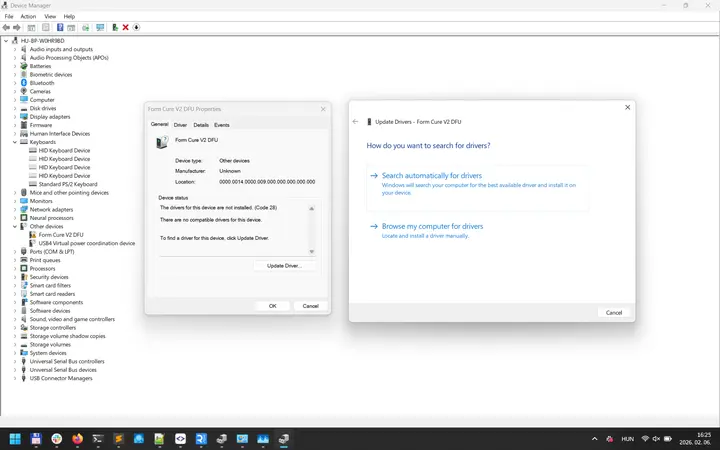
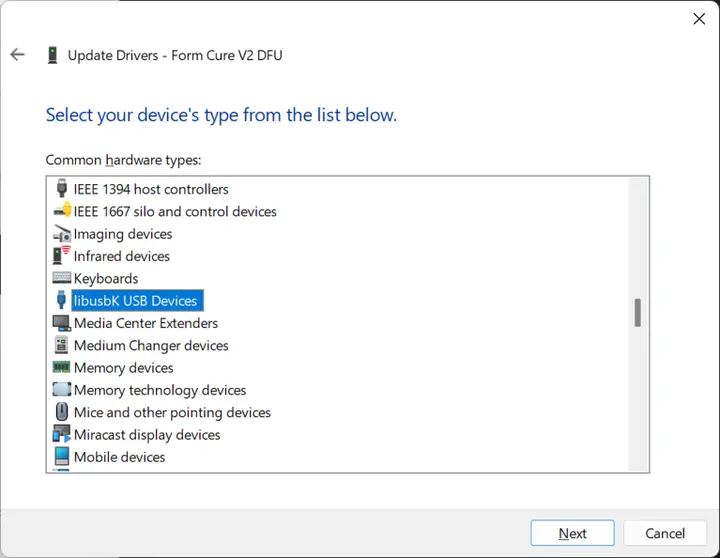
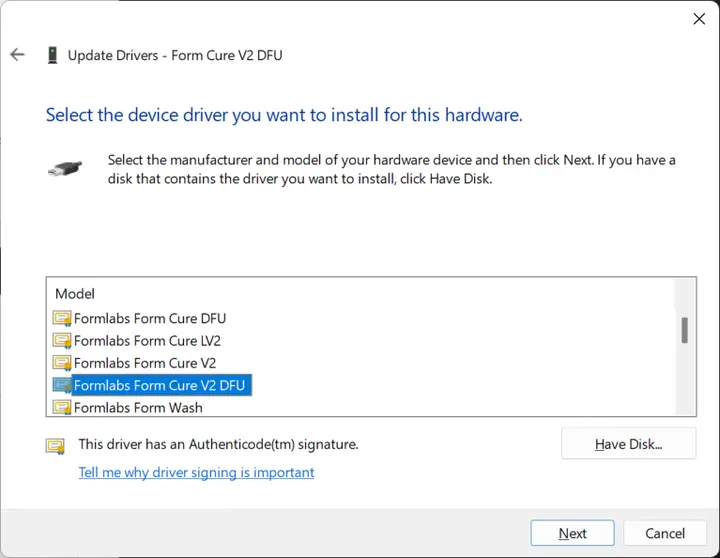
Updating Form Wash or Form Cure drivers on Windows
  1. Open Windows Device Manager.
  2. Expand Other Devices and double-click your Formlabs device. For example, Form Cure V2 DFU is shown here.
  3. Click Update Driver…. The Update Drivers window appears for the device.
  4. Click Browse my computer for drivers.
  5. Click Let me pick from a list of available drivers on my computer.
  6. Select libusbK, then click Next.
  7. Select your device. Again, the example shown here is Cure V2 DFU. Click Next and complete the installation process.
  8. Reopen FormWashCureUpdater.exe and retry the firmware update.

FormWashCureUpdater utility does not recognize connected machine

If the FormWashCureUpdater utility does not recognize a connected machine:

  1. Check that the machine is powered on.
  2. Try a different USB port on your computer, if one is available.
  3. Try a different USB cable, if one is available.

Form Cure V2 and Form Cure L V2 units do not support connectivity via USB C-to-C cables. When updating firmware, use a USB A-to-C that supports data transfer (with a dongle if needed to connect to your computer).

Contact Support

Contact Formlabs Support or your authorized reseller for additional help with the FormWashCureUpdater.

Please provide the following information:

To download the FormWashCureUpdater log file on Windows:

  1. Press the Windows key + E on your keyboard to open the File Explorer.
  2. Follow the Windows instructions to show hidden files in File Explorer.
  3. In File Explorer, navigate to C:Users[USERNAME]AppDataLocalFormlabsFormlabsFirmwareUpdaterLogs, replacing USERNAME with your local user name.
    • If you're not sure what your username is, navigate to C:Users to view a list of usernames in use on the computer.
  4. Send the FormWashCureUpdater log file log.txt to Formlabs Support or your authorized reseller.

To download the FormWashCureUpdater log file on macOS:

  1. Hold the Option key on your keyboard, and click the Go menu at the top of the screen.
  2. Select Library from the Go menu (while holding down the Option key) to access the hidden folder.
  3. In Library, select the Applications Support folder.
  4. In Application Support, navigate to /Formlabs/FormlabsFirmwareUpdater/Logs/.
  5. Send the FormWashCureUpdater log file log.txt to Formlabs Support or your authorized reseller.

Additional resources

  • Show hidden files on Windows 7/10/8.1 [EN] [DE] [ES] [FR] [IT] [JA] [ZH]