Note:
Errors are stored in the Error History list for 30 days.

The touchscreen on Fuse 1 generation printers displays error messages if the machine encounters any abnormalities and displays more details about the error. When troubleshooting your printer or contacting Formlabs Support or your certified service provider, use the Error History screen to view past error messages and relevant information about them.
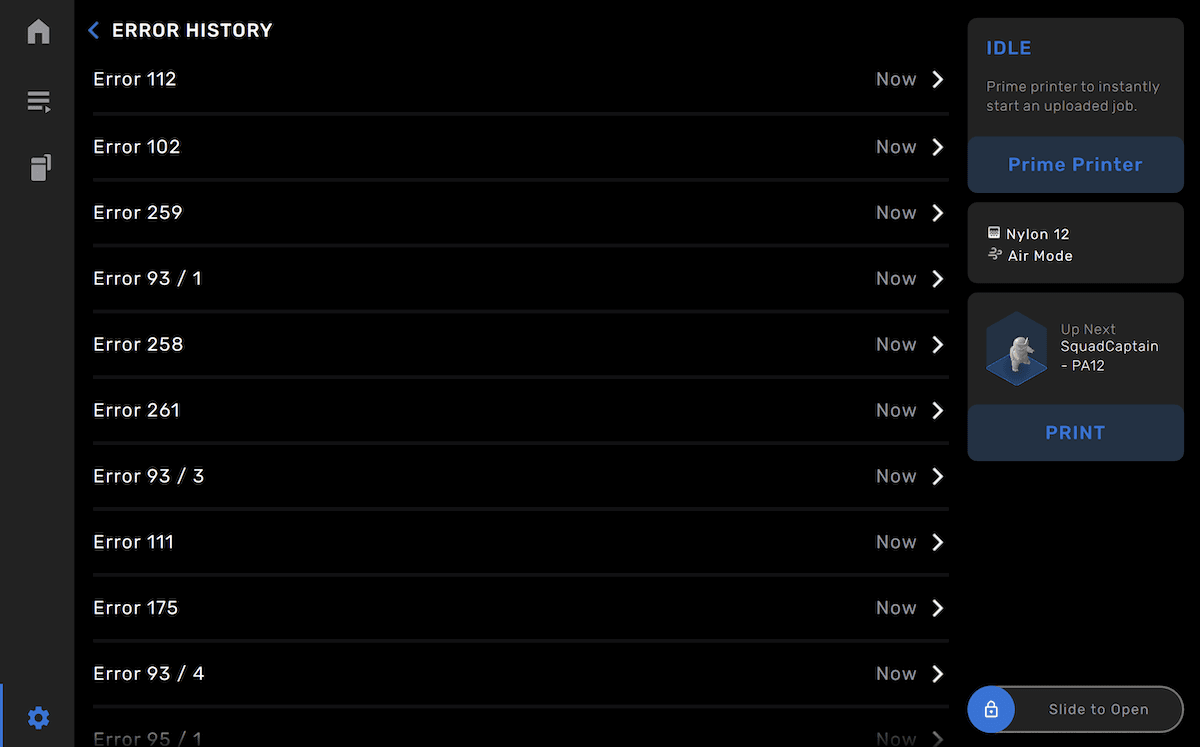
Viewing past error messages
To view a list of recent error messages:
Note:
Errors are stored in the Error History list for 30 days.
Viewing information about a past error message
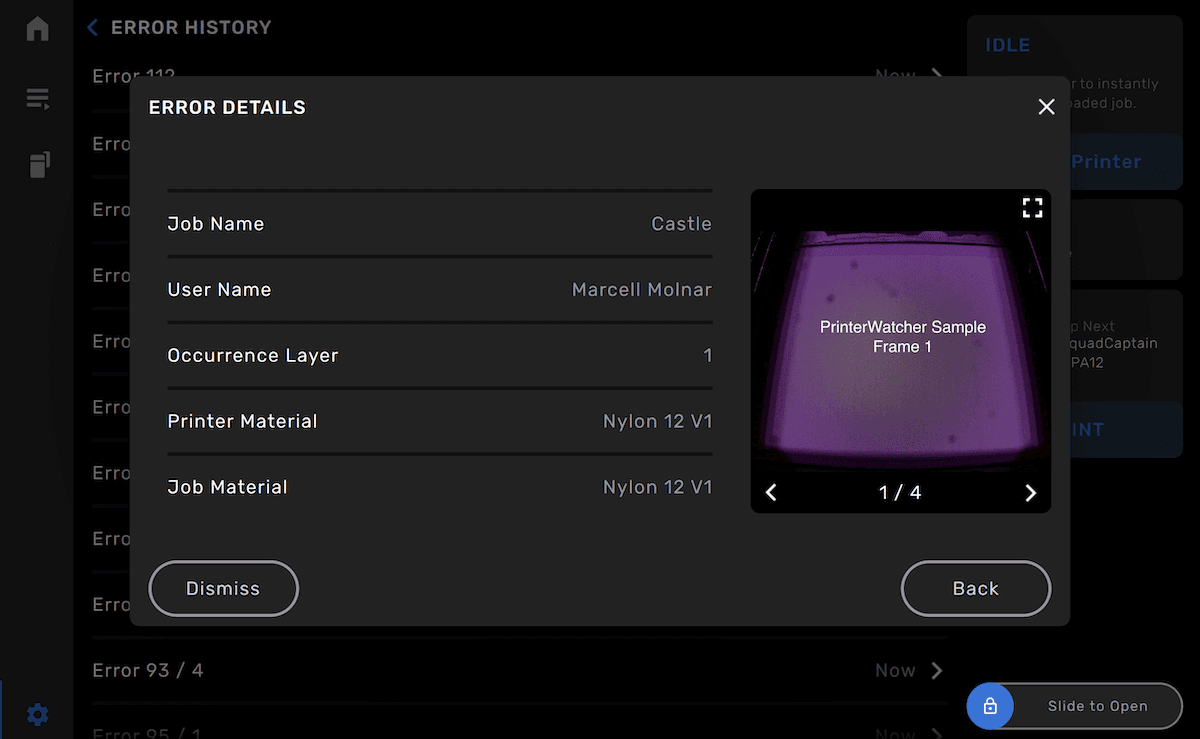
When reviewing a past error message, you can check sensor data and images related to the fault, access relevant support content, or open a support case.
Viewing a relevant support article
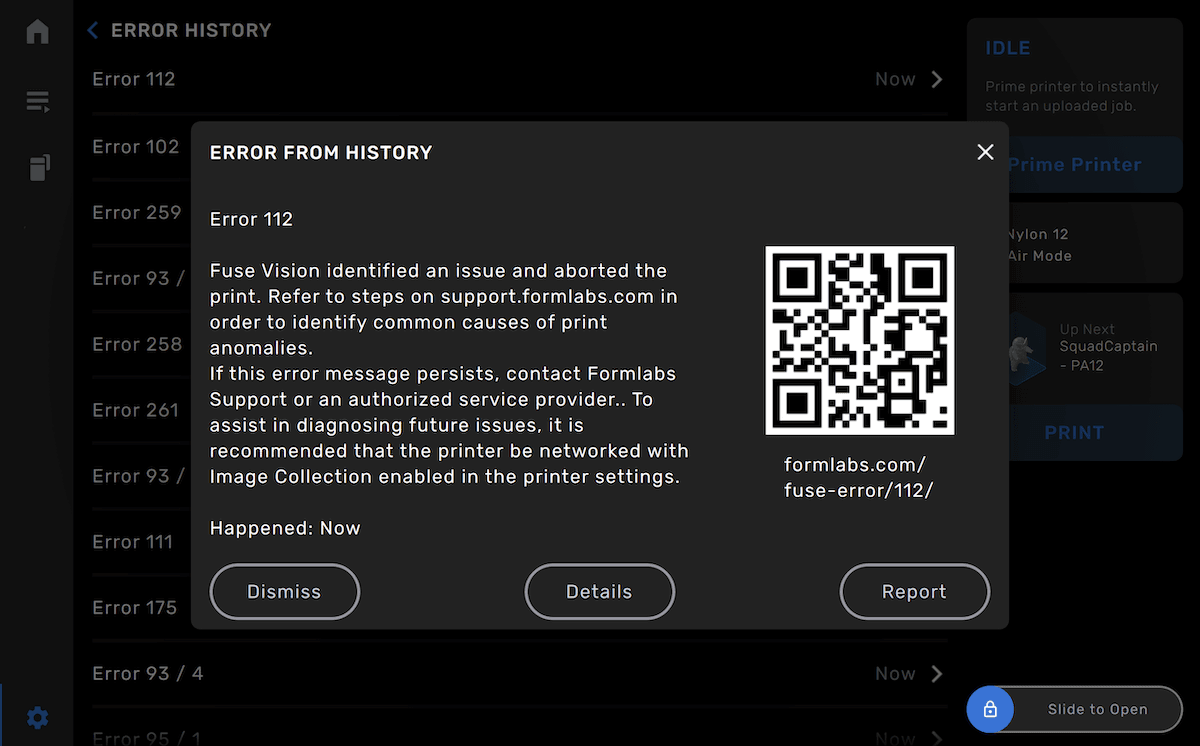
The Formlabs Support site has details and troubleshooting steps for a wide variety of Fuse 1 generation error codes. While viewing a past error message, scan the QR code on the touchscreen with your smartphone to access support content for that error.
Viewing error message details
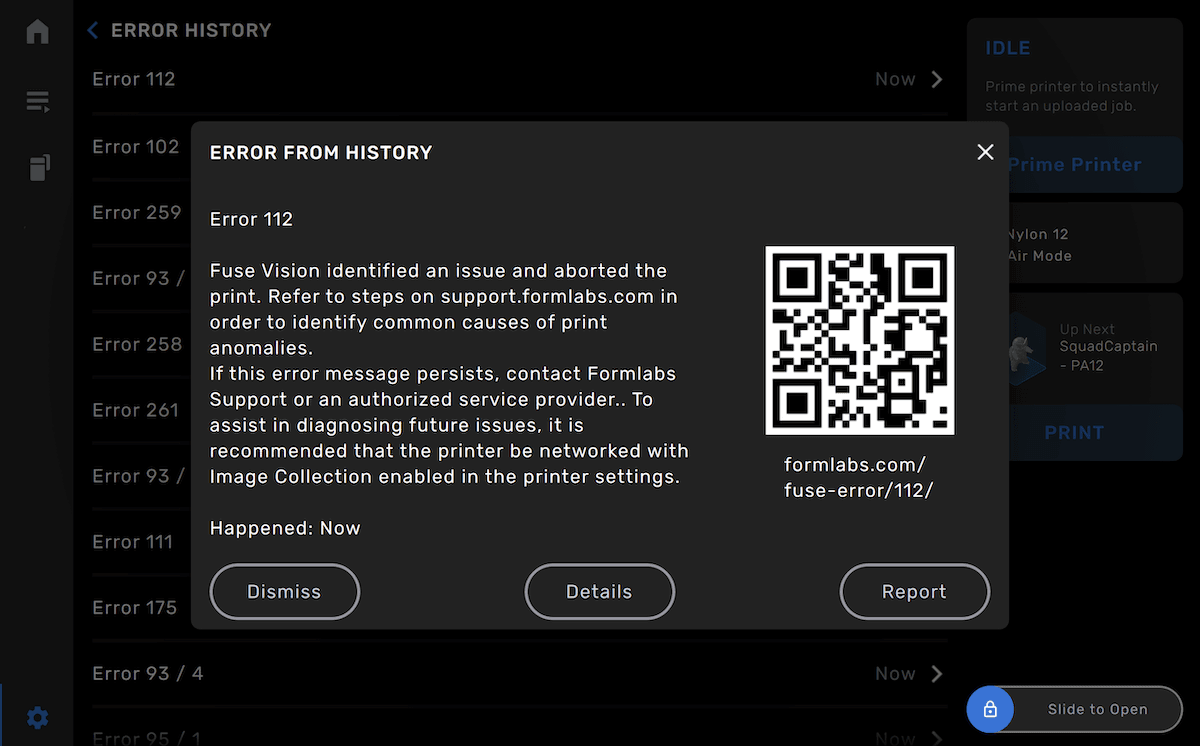
Some error messages are triggered by data from the printer’s sensors. This data can be useful when troubleshooting the error message, either on your own or when working with Formlabs Support or your certified service provider. While viewing a past error message, tap Details to view relevant sensor information when available.
For example, Fuse 1 generation Error 261 indicates an error with one of the printer or build chamber’s Resistance Temperature Detector (RTD) sensors or the printer’s infrared (IR) sensor. The sensor values include temperature readings at the time of the error. In the example above, the reported bed temperature is higher than the other sensor readings, implying that the IR sensor may be at fault.
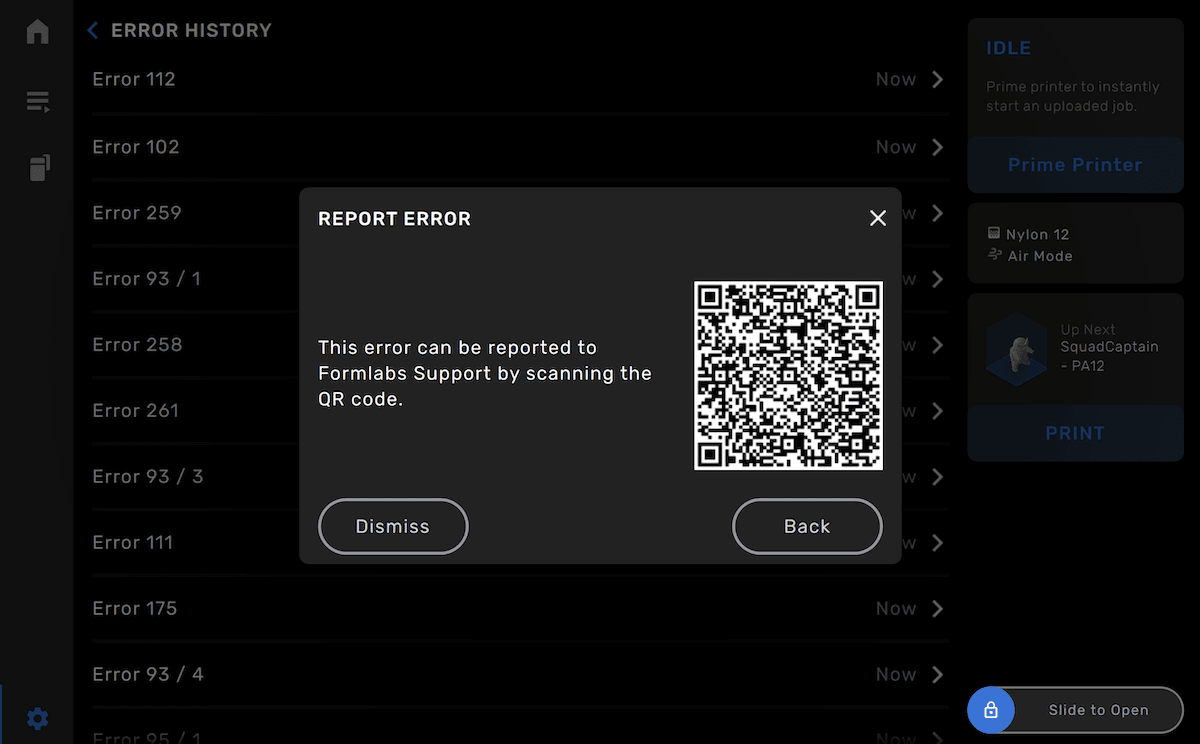
Creating a support case
To open a support case with Formlabs Support for a specific error: