
Note:
At this time, the following printer types can be connected to Form Mobile:
- Form Studio 1
- Form 4 generation
- Form 4L generation

Form Mobile allows you to remotely monitor and control your prints and printers via your mobile device. Add printers to Form Mobile to start tracking them. Remove them from Form Mobile if you no longer wish to track their activity.
Once the printer is registered to Form Mobile and logging is enabled on the printer, the printer can begin to send data to the app as long as the Wi-Fi or Ethernet connections are able to access the internet. Connecting to a local area network is not sufficient for sending data to Form Mobile.
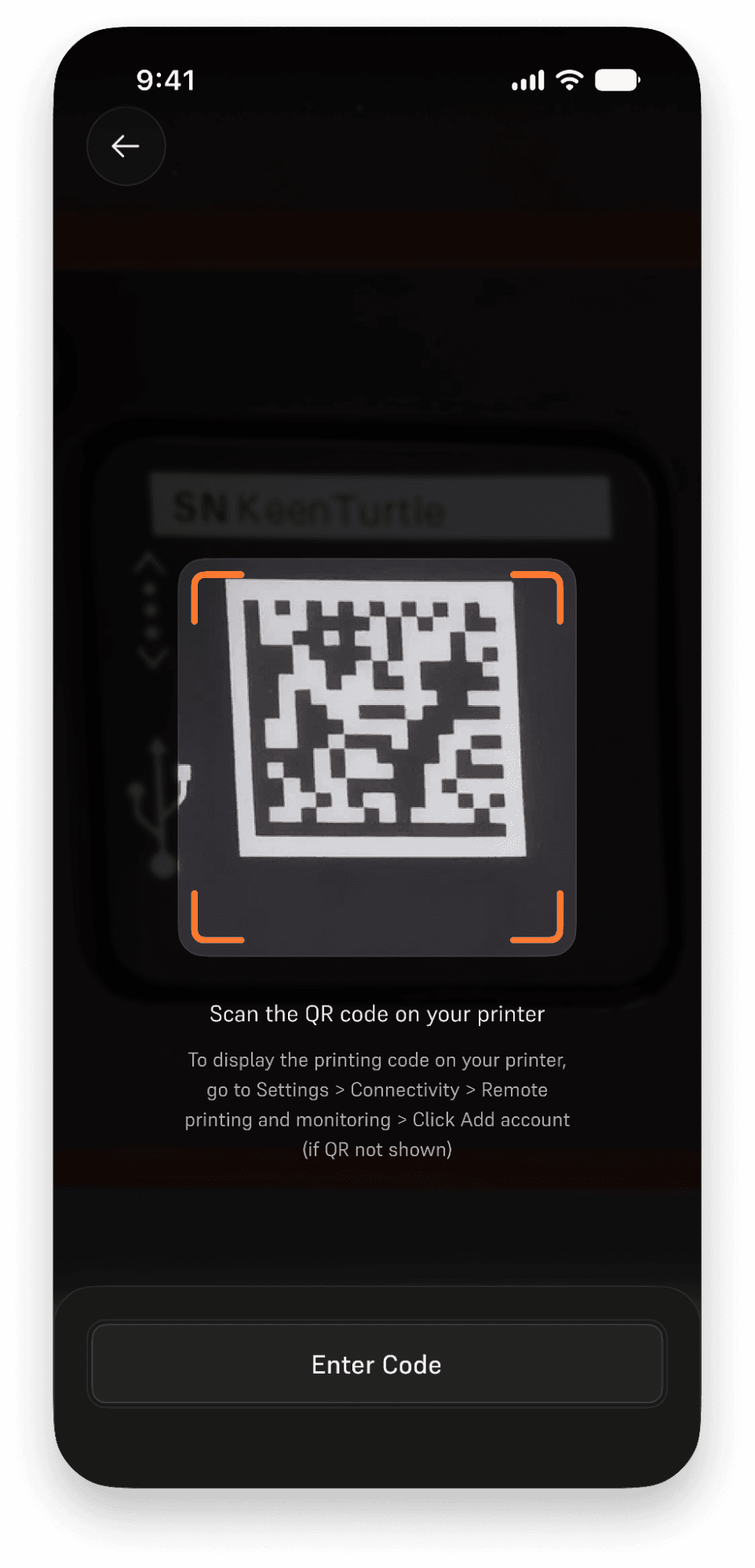
If someone has already registered the printer, attempting to re-register the printer using the QR code on the touchscreen will add your account to the printer group as a member.
Note:
At this time, the following printer types can be connected to Form Mobile:
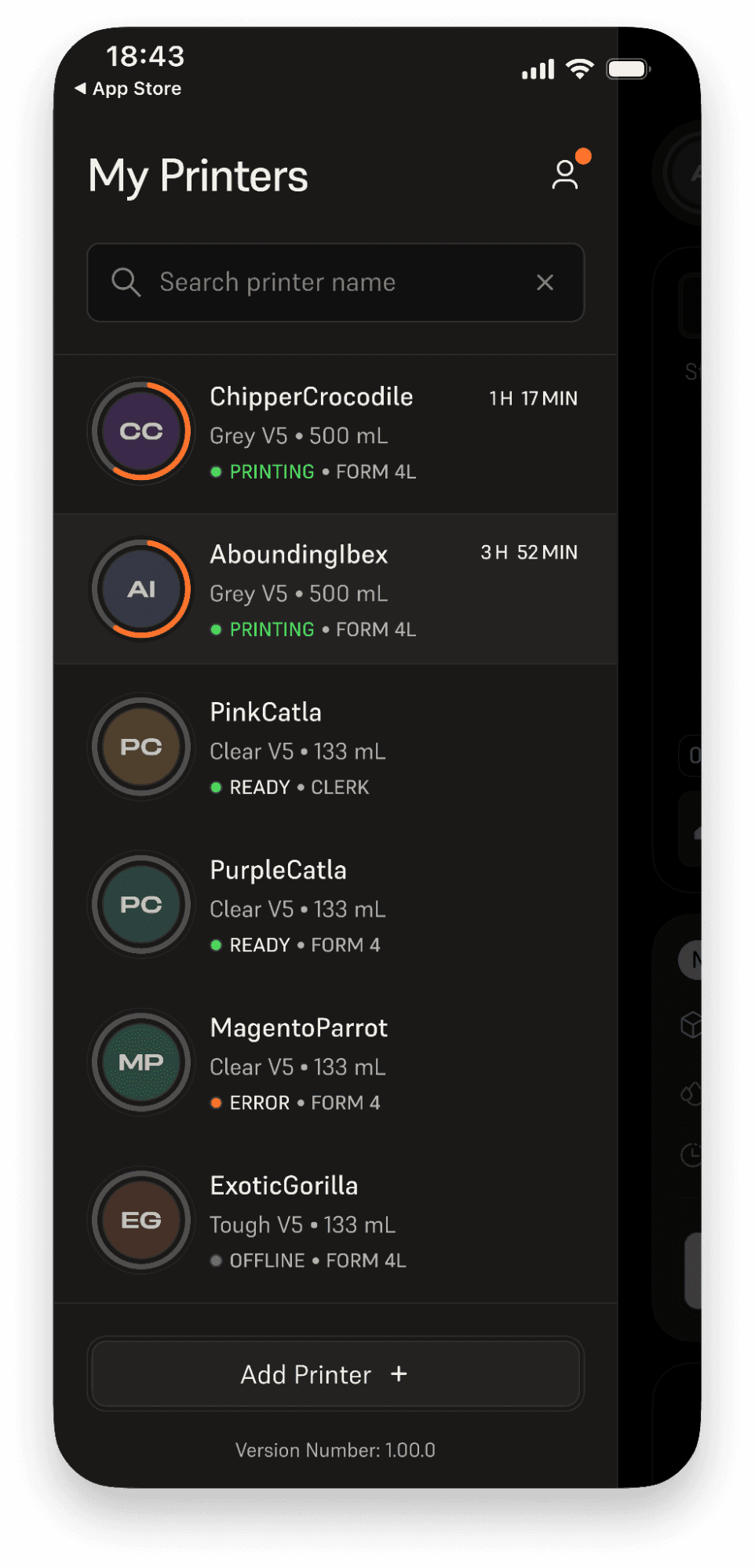
Adding printers to Form Mobile
Connect a printer to Form Mobile using the QR code or personal registration code from the printer's Settings menu. You can add a printer during app setup or later on while using the app.
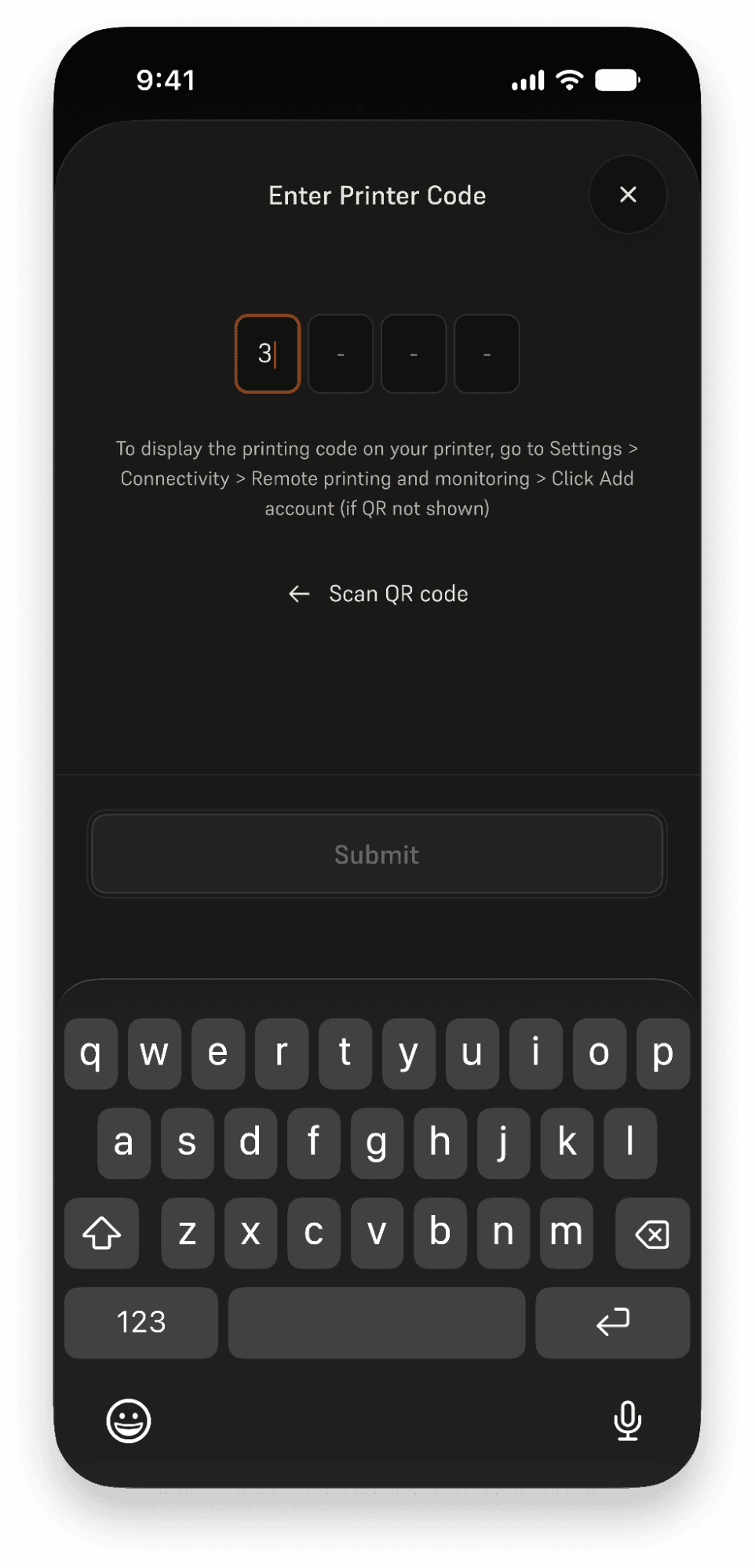
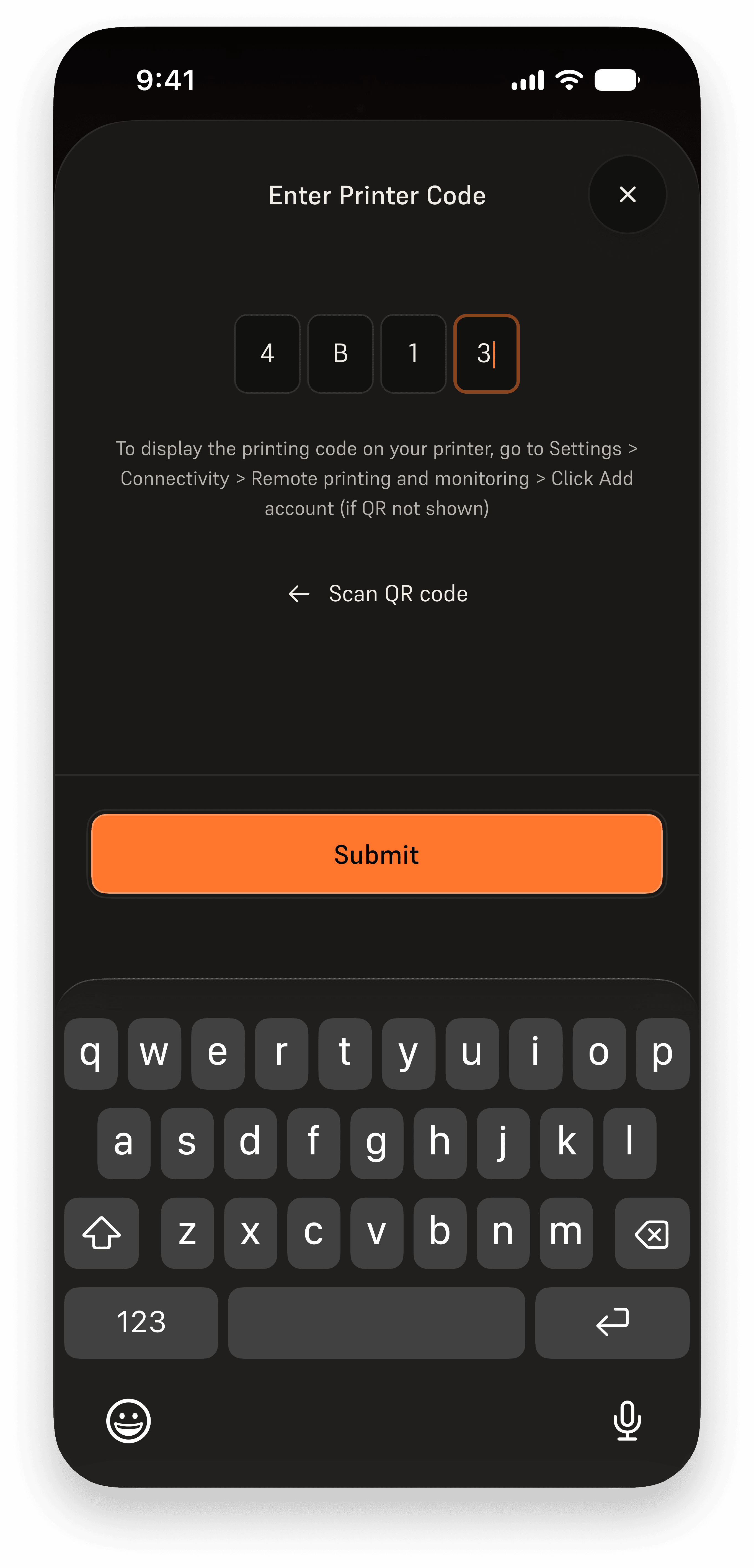
Tip:
If the printer is unable to generate a registration code:
Hiding a printer in Form Mobile
If you no longer want to track a printer with the Form Mobile app, you can hide it from view.
To hide a printer in Form Mobile:
Note:
Only an admin can delete a printer from a Printer Group.
Removing a printer in Form Mobile
If you no longer want to have a printer connected to your account, you can remove it within Form Mobile.
To remove a printer from your account in Form Mobile:
Note:
Only an admin can delete a printer from a Printer Group.