
- Nitrile gloves
- Flashlight, LED, or cell phone light
- Non-abrasive wipes
- 90% or higher isopropyl alcohol (IPA), non-recycled
WHITE PAPER
Cleaning the release texture (Form 4L generation)
Cleaning the release texture (Form 4L generation)
In Form 4L generation printers, the printer’s backlight shines through the Light Processing Unit (LPU) to print. The LPU has a textured surface that prevents suction from forming between the resin tank film and the LPU, reducing peel forces between layers. Any contamination on the release texture can cause the backlight to diffuse or weaken, resulting in print defects. Keep the release texture clean to ensure successful prints. To protect the release texture from dust, keep the printer cover closed when the printer is not in use.
Overview
To maintain the release texture inspect the release texture for dust, oil, or contamination using a flashlight, LED, or cell phone light. If dust, oil, or contamination is noted, clean the release texture following Formlabs instructions. As with most optical surfaces, minimal cleaning is the best cleaning.
Required supplies
Estimated time: 10 minutes
Removing the consumables
Always remove the build platform, resin cartridge, mixer, and resin tank before performing maintenance on the printer to avoid dripping resin onto the release texture.
- Slide the build platform latch and remove the build platform.
- Close the resin cartridge vent cap and remove the resin cartridge.
- Unlatch the mixer.
- Cover the resin tank and mixer, unlatch the tank, and remove it from the printer.
Inspecting the release texture
Inspect the release texture for dust, oil streaks, fingerprints, or cured resin.
- For best results, dim or turn off the main lights in the room when inspecting the release texture.
- Always wear clean gloves when handling optical surfaces to avoid contamination.
- Power the printer off by turning the power switch to the 0 position.
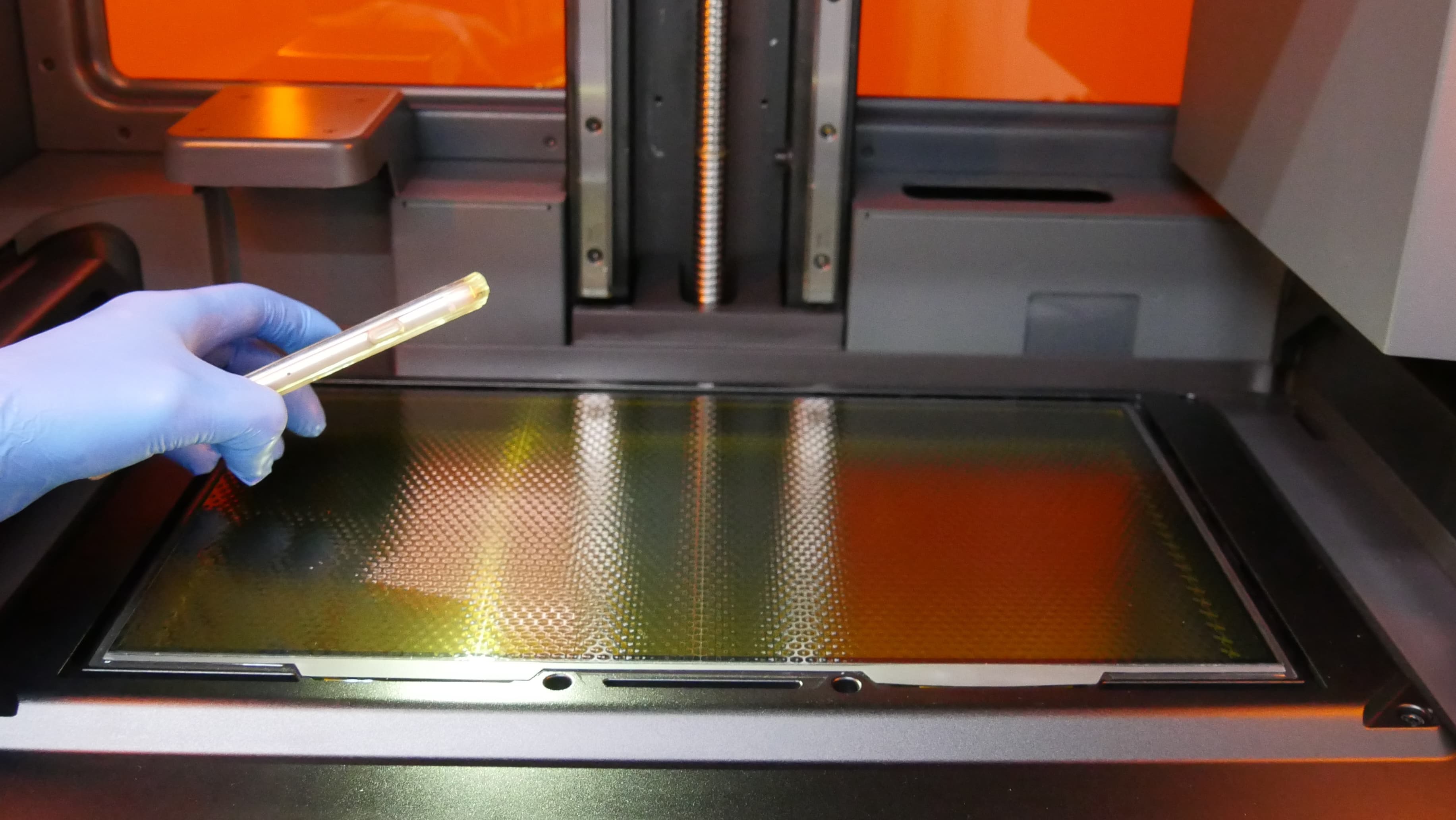
- Shine a secondary light source (for example, a flashlight, LED or cell phone light) onto the release texture to reveal any hidden contamination on its surface.
- Hold the light source at the shallowest angle possible. From the edges of all three accessible sides, pass the light back and forth across the release texture.
Cleaning the release texture
Cleaning liquid resin
Only use IPA to clean the surface, as any other cleaning solution may degrade the anti-reflective coating.
Notice:
Wiping the release texture with non-recommended materials may damage the surface and affect print quality. Avoid using cleaners or materials that can scratch or leave residue on the release texture.
- Put on a new, clean pair of nitrile gloves.
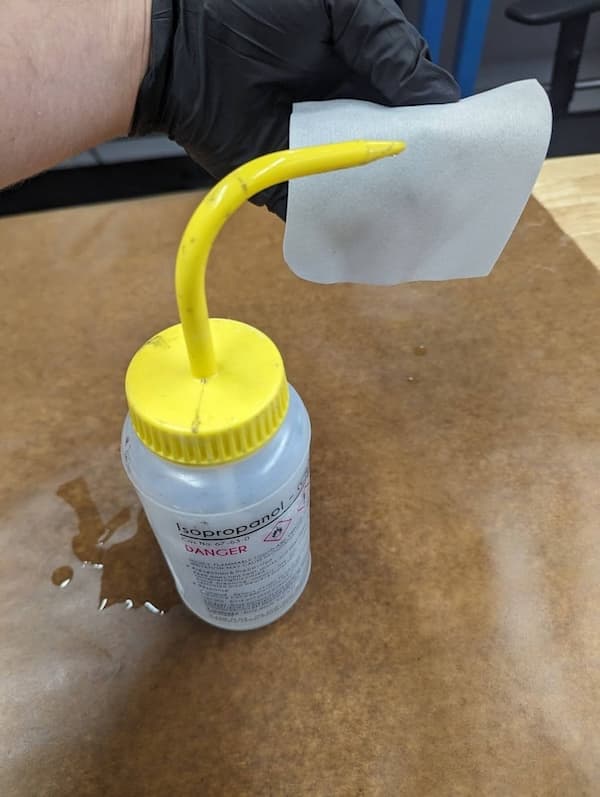
- Grip the top of a non-abrasive wipe with a gloved hand. Soak the bottom half of the wipe with clean isopropyl alcohol.
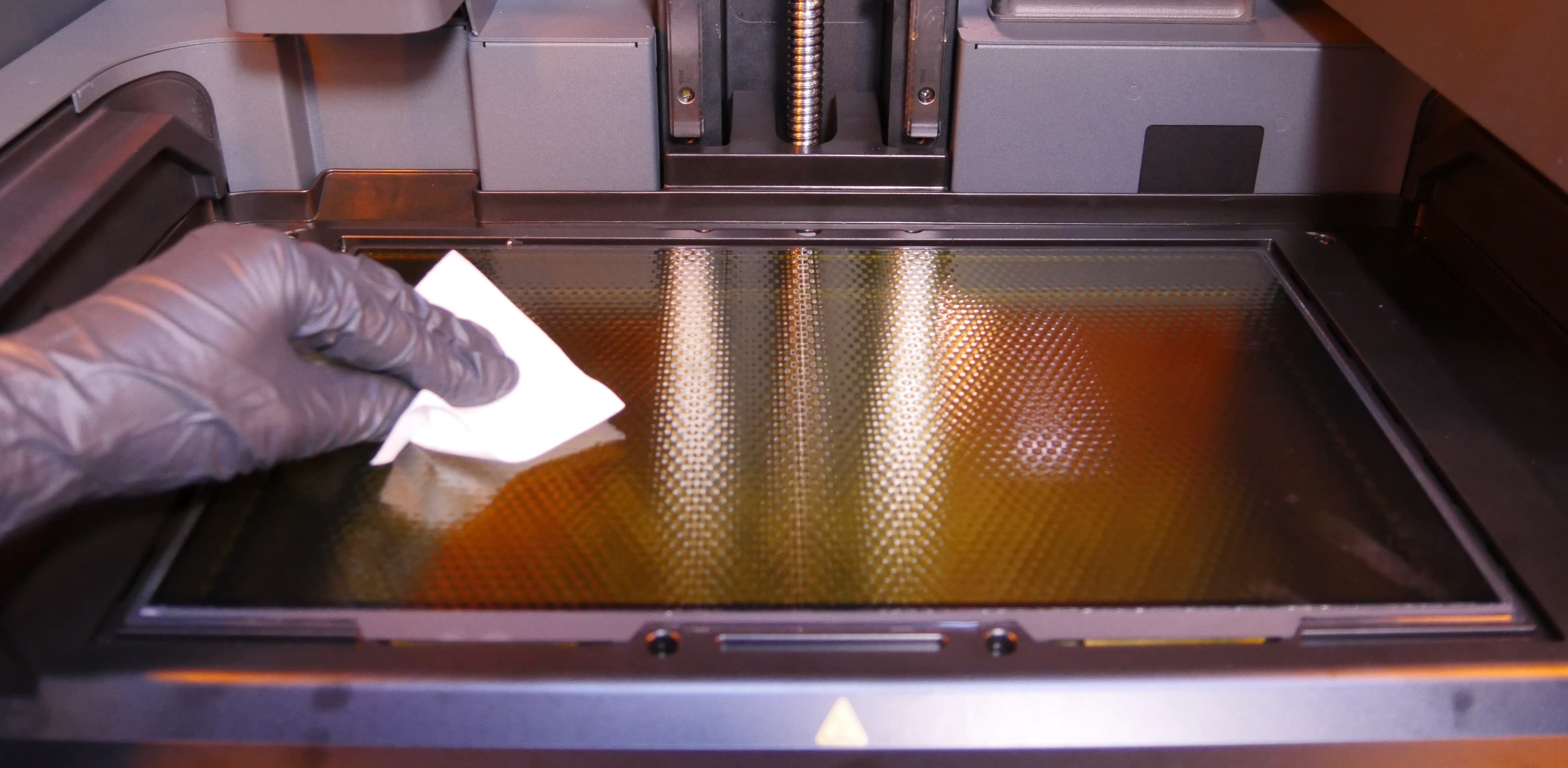
- Drag the isopropyl alcohol soaked wipe slowly across the surface of the LPU. It should take 20–30 seconds to traverse the width of the LPU.
- Do not contact the release texture with your hand or apply pressure to the wipe.
- For debris and resin near the edge of the LPU, always drag the wipe towards the edge of the LPU to avoid spreading the contaminant.
- Wait for the isopropyl alcohol on the release texture to dry.
- Repeat this process several times until the contaminant has been removed.
Cleaning cured resin
Cured resin cannot be removed with IPA and requires removal with the plastic scraper.
Notice:
Avoid using sharp tools to remove cured resin because they may scratch the release texture.
- Put on a new, clean pair of nitrile gloves.
- Gently slide the plastic scraper underneath the cured resin at a shallow angle to remove it from the release texture.
- For cured resin that is difficult to remove, apply clean isopropyl alcohol on to the release texture to help with removal. After removal, wait for the isopropyl alcohol on the release texture to dry.
If the debris or contaminants are difficult to remove, contact Formlabs Support or your authorized reseller. When requesting help, please provide photos of the release texture illuminated by a secondary light source and a list of attempted cleaning steps.
Testing the cleaned LPU
After cleaning the LPU, test it by printing a cleaning sheet to make sure there is no additional debris or cured resin on the release texture.
- Insert and secure a previously-used resin tank that contains resin. You do not need to insert a build platform, mixer, or resin cartridge.
- Tap Maintenance > Print cleaning sheet. The Print cleaning sheet screen appears.
- Tap Start. The cleaning sheet begins printing.
- When the print completes, open the printer cover and use the plastic tank scraper to peel the cleaning sheet off of the resin tank film.
- Examine the cleaning sheet for holes.
- If there are no holes in the cleaning sheet, the release texture is clean and you can continue printing normally.
- If you see any holes in the cleaning sheet, clean the release texture again. If additional cleaning is unsuccessful, contact Formlabs Support or your authorized reseller.
LPU release texture damage
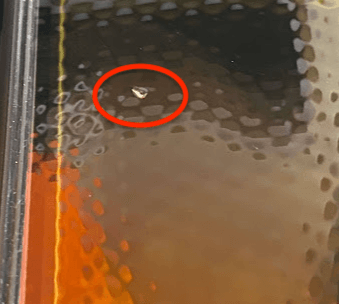
The LPU may sustain damage to the release texture that looks like cured resin or like part of the texture is missing. This is usually caused by the build platform squishing debris into the texture during a print.
Damage to the LPU may affect print quality, since it can redirect the light coming from the backlight unit. This damage may be very small and difficult to feel on the surface of the release texture. If you see LPU texture damage that you cannot remove, take a photo of the damage and contact Formlabs Support or your authorized reseller.
Dust under the LPU
Over time, it is possible that dust from the cooling fans may collect on the underside of the LPU. The filter from the air intake should catch most dust, but it is still possible for dust to be pulled in through the cracks between the pieces of the printer.
Follow this guide to remove the LPU, then clean the underside of the LPU with a non-abrasive wipe lightly wetted with IPA. Clean any other visible dust in the printer cavity, then reinstall the LPU. Also clean or replace the LPU fan filter, clean the mesh filter, and ensure the printer is located away from machinery that generates dust. LPU fan filters are available for purchase on the Formlabs Store. To clean the LPU fan filter, follow the instructions to remove it, vacuum both sides, then reinstall.