

Powder contamination (SLS)
Powder contamination (SLS)
Artifacts from powder contamination may manifest in different forms. Fibers, hair or other debris in powder can generate clumps that can become trapped in parts, trigger Fuse Vision, or obstruct the functioning of the printer.
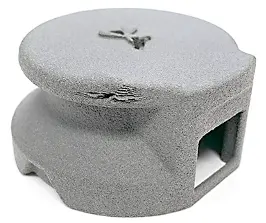
Powder contamination on a printed part. When powder is dragged across a print bed during a recoat, grooves may appear in parts and extra material may become trapped.
Symptoms
- Unexpected gaps between print layers
- Extra material trapped within the part
- The printer touchscreen displays Error 93
- The printer touchscreen displays Error 112, Error 113, Error 114, Error 216, or Error 217
- White dots or strings of powder visible in the camera feed
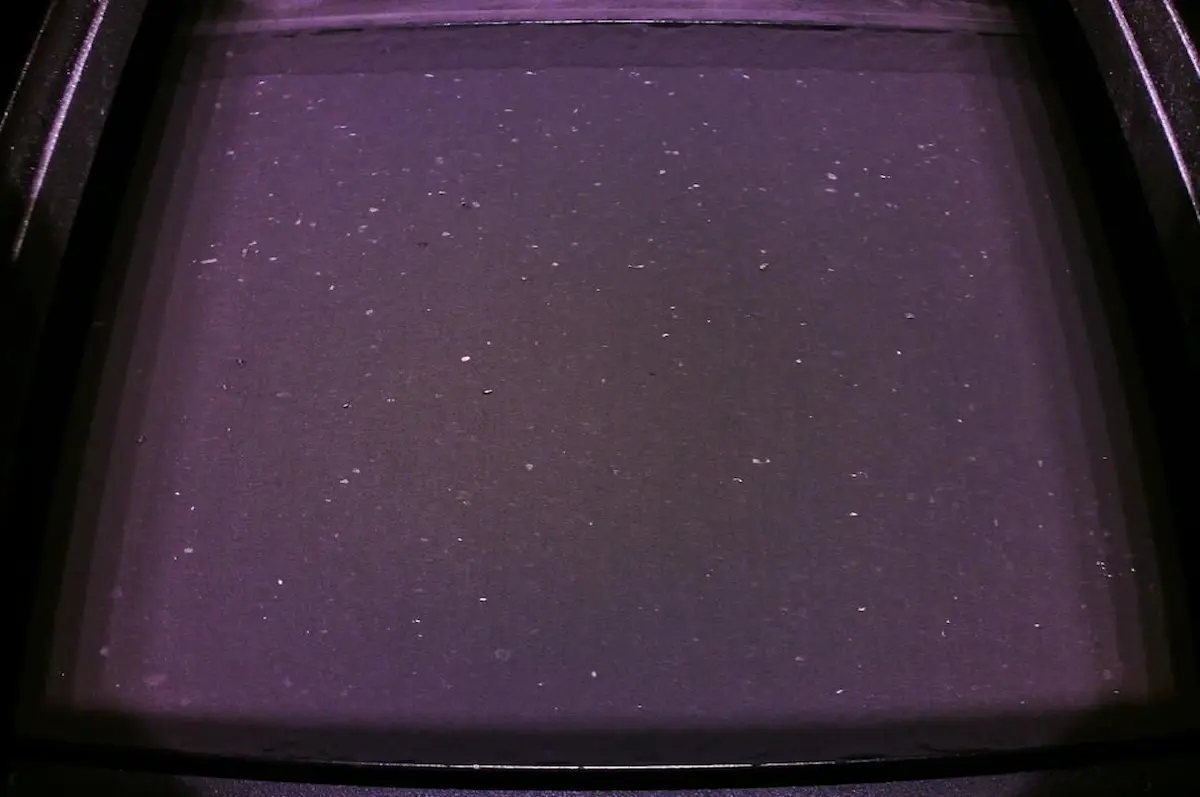
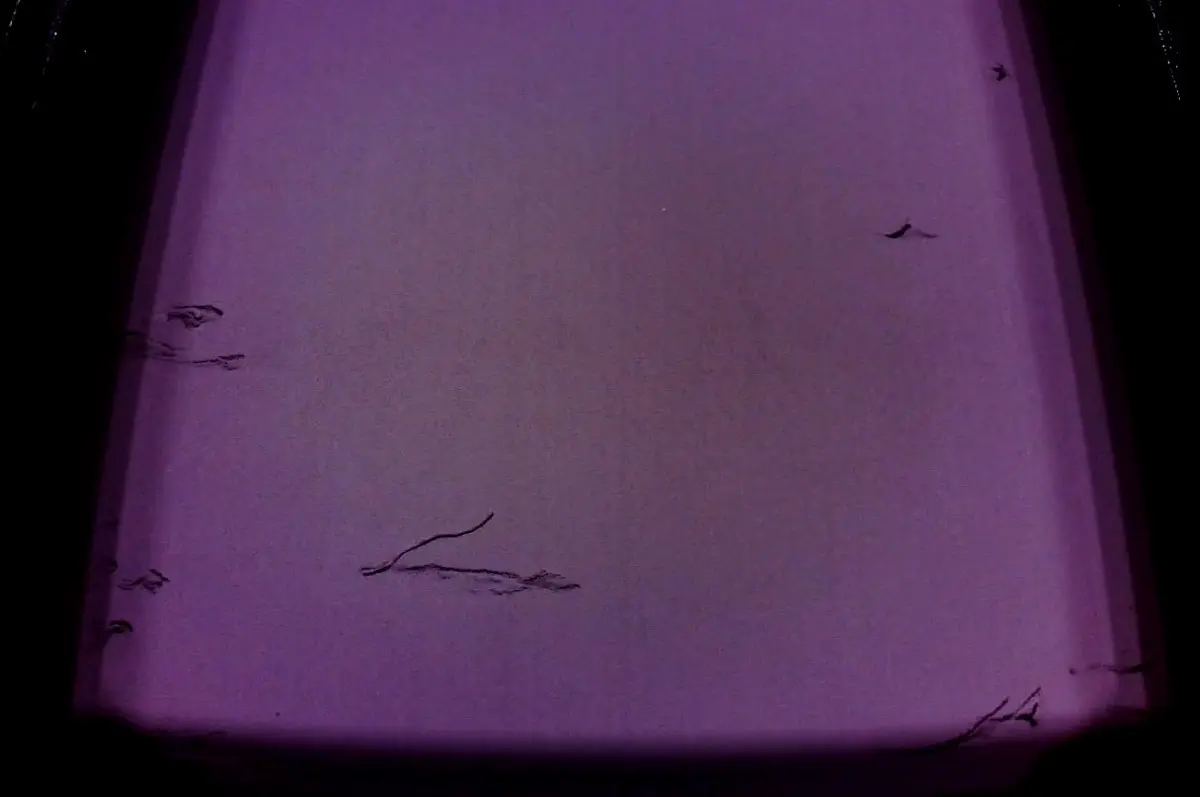
White dots in the print chamber.
Strings of powder in the print chamber.
Common causes
- Organic fibers like wool or human hair in the print chamber
- Leftover debris from past print failures
- Media contamination
- Damaged or dirty sieve on the Fuse Sift
Troubleshooting steps
- Review your powder storage and equipment maintenance routines.
- Make sure loose powder is kept in closed containers.
- Keep powder and powder-handling tools (such as the Fuse Sift) away from other sources of particulate and debris, such as woodworking equipment.
- When handling powder, wear appropriate clothing or PPE to prevent hair or fibers from contaminating the powder.
- When cleaning your printer, follow Formlabs-approved procedures. Deviating from these procedures or using non-standard tools may contaminate your powder. For example, if you use your vacuum’s brush attachment to clean your printer’s doser while it is moving, the doser could pull bristles off the attachment and contaminate your powder.
- Clean all the powder from the printer.
- Run the empty hopper routine as needed to empty all the powder in the hopper.
- Tap the gear icon on the bottom left of the printer's Home screen. The Settings screen appears.
- Tap Calibration. The Calibration screen appears.
- Tap Empty hopper and follow the on-screen prompts.
- Fuse 1 printers only: Make sure that the debris catcher in the hopper is properly installed and clean.
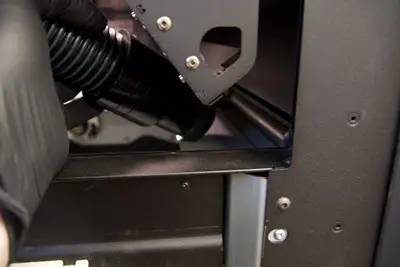
- Vacuum the print enclosure.
- Vacuum the troughs and print bed surroundings.
- If the powder was contaminated with blasting media, dispose of all the powder.
- Inspect the Fuse Sift’s sieve.
- If the sieve is torn, replace the sieve.
- If the sieve is clean and undamaged, continue.
- Sift all the powder collected from the printer.
- If the sieve was replaced recently, Formlabs recommends re-sifting the powder stored in the cartridges as well, to ensure it is free of contaminants.
- Mix the sifted powder with fresh powder at the recommended refresh rate.
If the troubleshooting steps do not resolve the issue, please contact Formlabs Support or your authorized reseller. Include your printer’s diagnostic logs with other relevant observations and details when contacting Formlabs Support or your certified service provider to speed up resolution.