
Note:
Do not disconnect your printer while the upload is in progress.

After orienting and supporting a model, connect your printer to the internet via USB, Ethernet, or Wi-Fi. Ensure your printer is connected to the same network as your computer, then send a print job to the printer.
While uploading a print job to the printer, PreForm and the printer’s touchscreen show that the FORM file upload is in progress. Once transferred, print jobs must be confirmed on the printer’s touchscreen to start the print.
Uploading a print job to a Formlabs SLS printer
To upload a print job from PreForm to a Formlabs SLS printer:
If a job is currently running and you have a local connection to your printer, you may be able to add new parts to your ongoing print. Enable Add to Running Job, set up your print, and click Add to Job.
Note:
Do not disconnect your printer while the upload is in progress.
Uploading a print job to a Formlabs SLA printer (Form 3 and later)
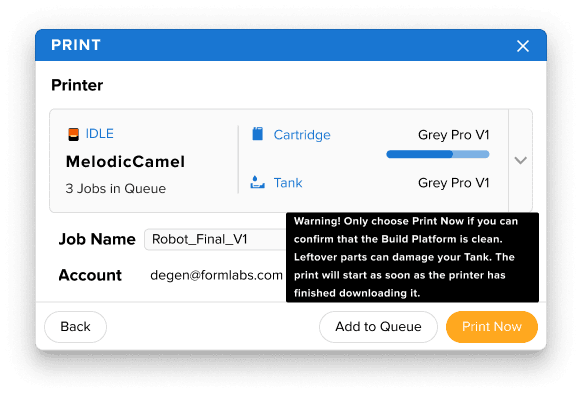
To upload a print job from PreForm 3.29 or later to a Formlabs SLA printer (Form 3 and later):
Note:
Do not disconnect your printer while the upload is in progress.
Uploading a print job to all other Formlabs resin printers
To upload a print job if you are using:
Note:
Do not disconnect your printer while the upload is in progress.
Print Now or Upload to Queue is unavailable in PreForm
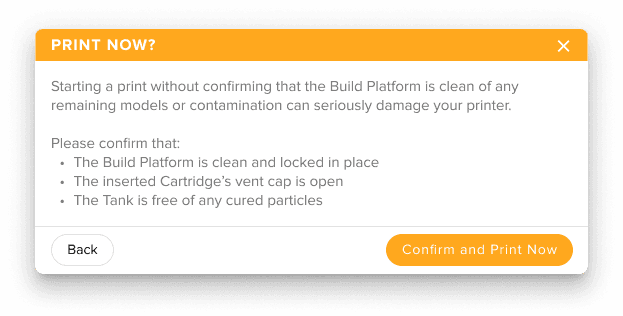
The Print Now option is only available if you are sending a print job to an individual printer whose status is Ready to Print and whose inserted resin cartridge and resin tank match the resin type for your print job. Otherwise, PreForm will display Upload to Queue. If the Print Now button is unavailable in PreForm:
If the Upload to Queue button is not selectable, make sure you have selected a printer. Manually add the printer to PreForm if necessary.
Upload Failed error
In some cases, PreForm may appear to successfully send a print file to the printer, but the printer displays the error message Upload Failed. To resolve this issue:
Factory reset your printer.
Restart PreForm, remake or modify the FORM file, and send it to the printer. Do not resend the same exact file that caused the error, if possible.
If the error persists, uninstall and reinstall PreForm, then try again.