WHITE PAPER
Formlabs Logo

Changing material rendering mode in PreForm

Changing material rendering mode in PreForm

Thank you for your patience while Formlabs translates this article. Please refer to the English information, and check later for updated Spanish content.

Thank you for your patience while Formlabs translates this article. You can view the information in English and return later for the updated content in Spanish.

When preparing a model for a print, it can be difficult to envision the color and texture of the final printed part and how it may be affected by job setup options. For example, layer thickness and model orientation can affect the appearance of layer lines.

Starting with PreForm 3.60.0, you can control the material rendering in PreForm. PreForm can render your part with accurate lighting, shadows, and surface texture, so you can get a sense of the finish before you ever hit print. Combine it with the support visibility tool to see where your touchpoints will land & where you might need to do some post-processing.

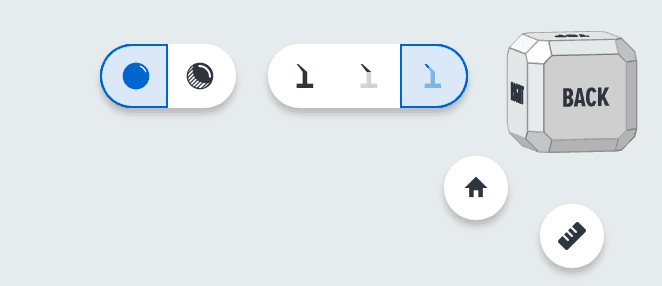
Render control toggle in PreForm

Note:

Realistic material rendering benefits from accelerated graphics hardware and may have reduced performance without a dedicated graphics card. Having many models in the 3D scene, such as for a tightly-packed SLS print, can also cause reduced performance.

Changing rendering mode

Use the material rendering controls, located next to the support structure visibility and 3D view controls, to change the rendering mode. Your selection applies across other tools and interactions, such as model orientation, layout changes, hollowing, or adding holes, texture, or labels.

Rendering mode selections are not saved with a FORM file or when you close PreForm. PreForm defaults to the Standard View when it opens or when you change materials.

Standard View

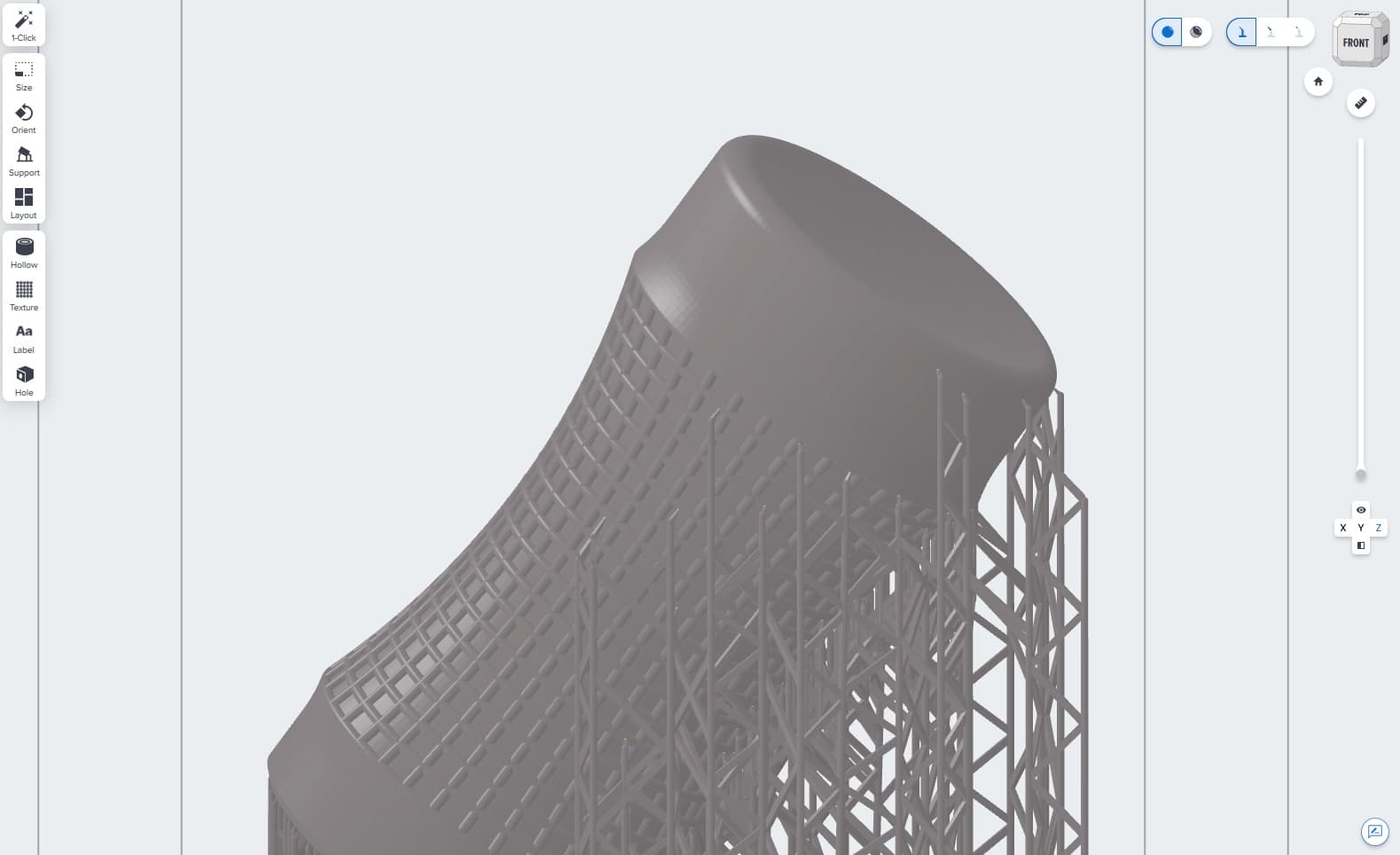
To view your models with flat rendering and a rough approximation of your selected material's color, click the left-hand render control, labeled Show Standard View . This matches earlier versions of PreForm and is the default behavior when you first open the application.


Standard rendering view

Realistic View

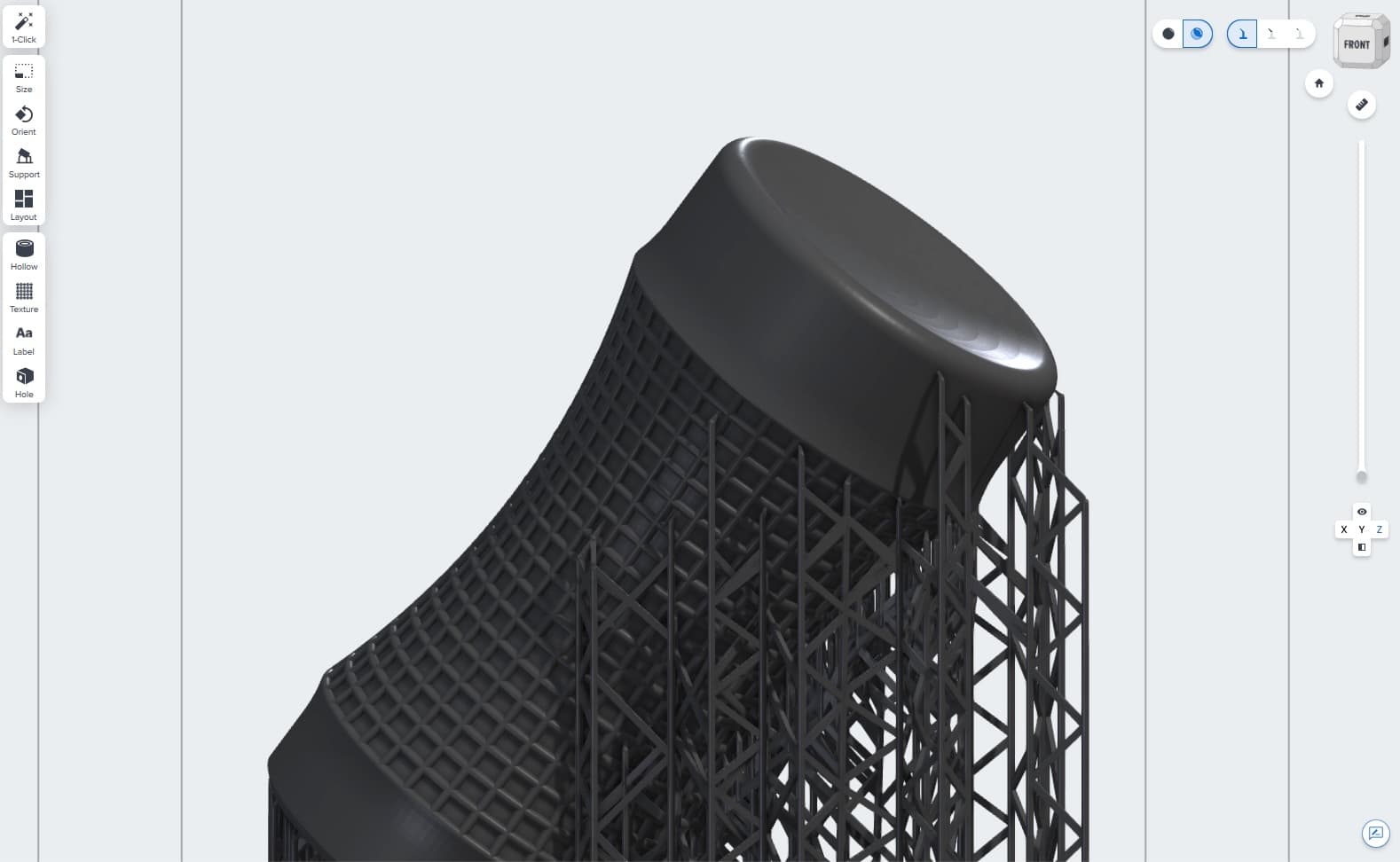
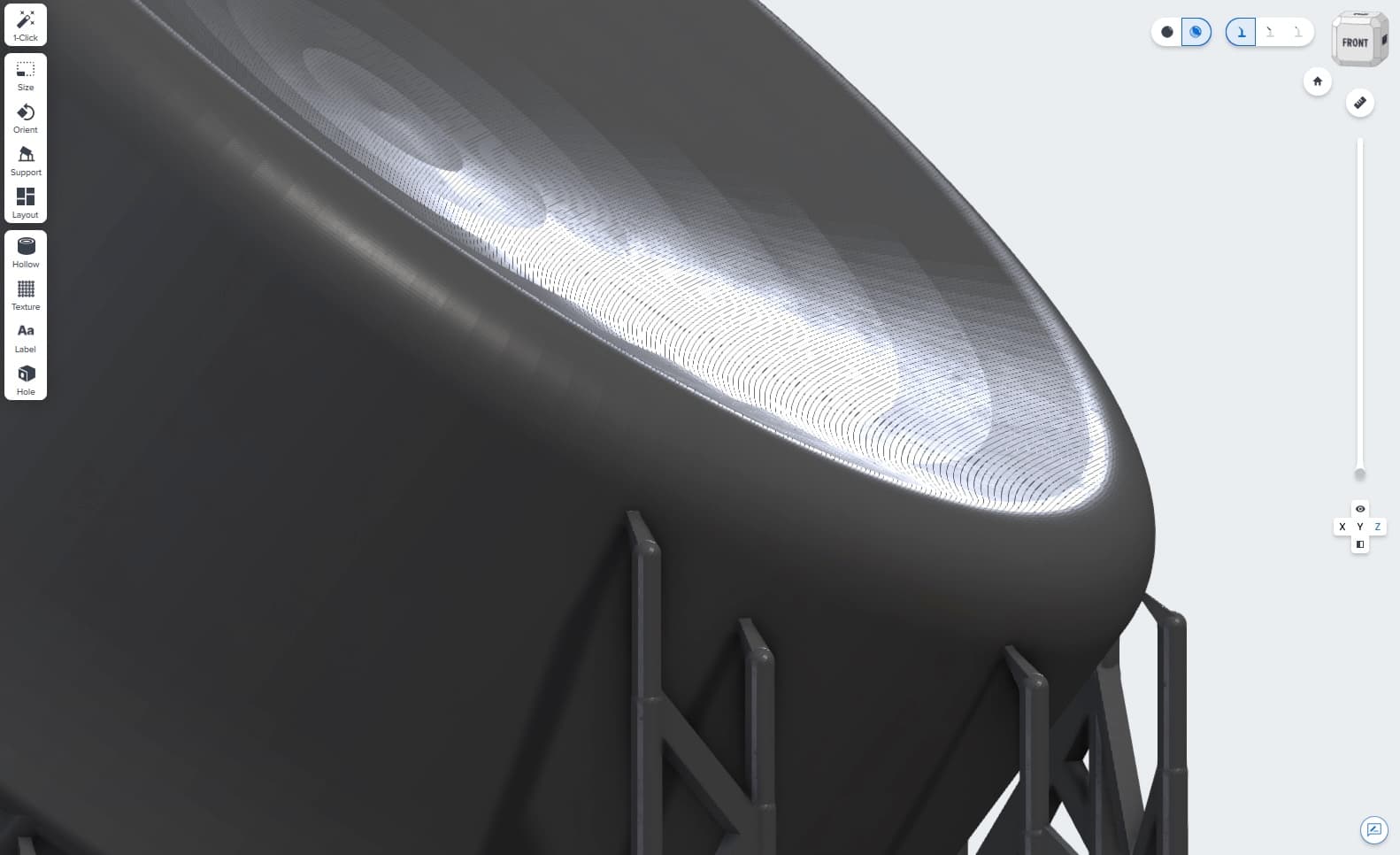
To view your models with more realistic rendering that better reflects material color, layer lines, and touchpoints, click the right-hand visibility control, labeled Show Realistic View. If the selected material does not currently support realistic rendering, the button will be greyed out and be labeled Realistic View is not yet available for this material.

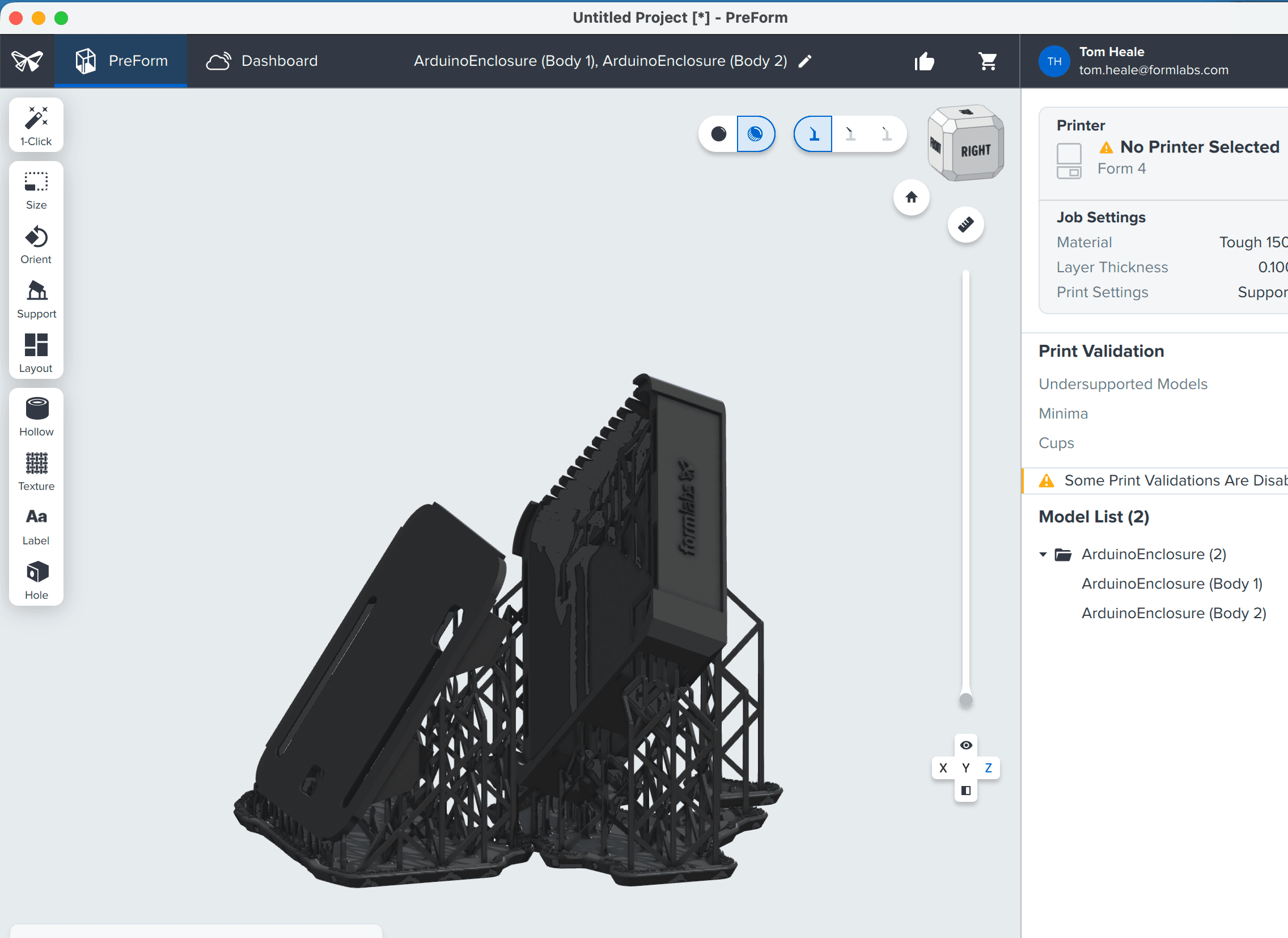
Model shown in Realistic View
Model detail in Realistic View showing layer lines and lighting

Model shown in Realistic View (left) and model detail showing layer lines and lighting (right)

You can also disable build volume visibility for a clearer view of your models. This option is available in both rendering modes but is particularly useful in Realistic Mode. To disable build volume visibility:

  1. Click View. A dropdown menu appears.
  2. Deselect Show Build Volume. The build volume guide lines, including the build platform or print bed, disappear.
Disabling build volume visibility in PreForm

Supported materials

The following materials currently support Realistic View. If you would like to see support for a particular material, submit feedback to Formlabs using the Feedback button in the bottom right-hand corner of the 3D scene.

  • Grey Resin V5
  • Black Resin V5
  • White Resin V5
  • Fast Model Resin V1
  • Precision Model V1
  • Tough 1000 Resin V1
  • Tough 1500 Resin V2
  • Tough 2000 Resin V2
  • Rigid 4000 Resin V1
  • Rigid 10K Resin V1.1
  • Flexible 80A V2
  • Nylon 12 Powder V1
  • Nylon 11 Powder V1
  • Nylon 12 Tough Powder V1
  • Nylon 12 GF Powder V1
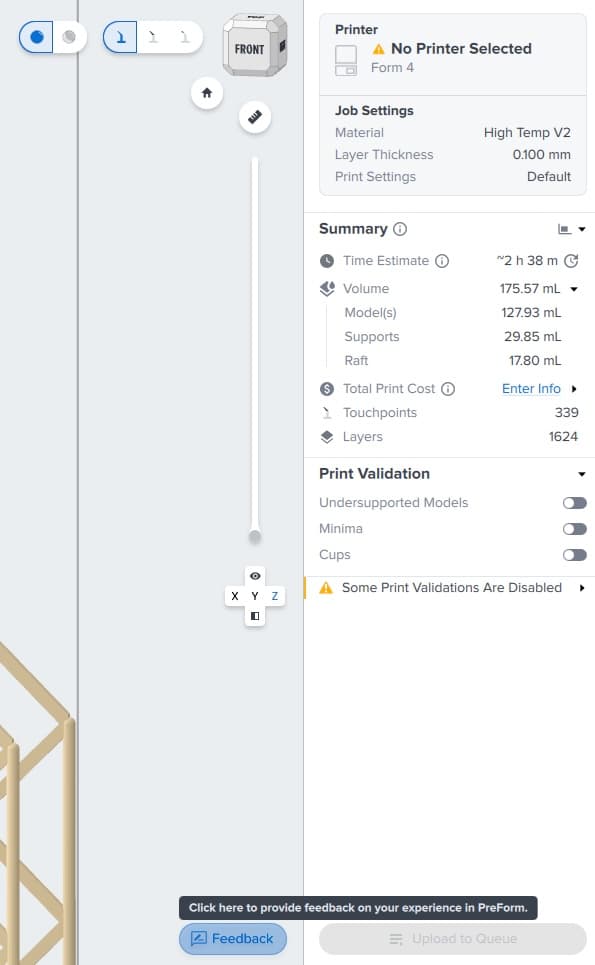
Submitting feedback view PreForm