

Changing scene rendering and level of detail preferences in PreForm
Changing scene rendering and level of detail preferences in PreForm
PreForm’s performance depends on your computer and the contents of the 3D scene: for example, large, highly-detailed, supported SLA models or densely-packed SLS models can cause PreForm to lag. Additionally, high-resolution models at a low zoom level may have triangles that are less than a pixel in size, using system resources with no actual benefit to your work.
Starting with PreForm version 3.64.0, you can limit the level of detail that remains visible while you interact with PreForm. Your chosen settings become visible when moving the camera, highlighting models, and during other interactions with the 3D scene.
Changing rendering preferences
To change your rendering and level of detail preferences:
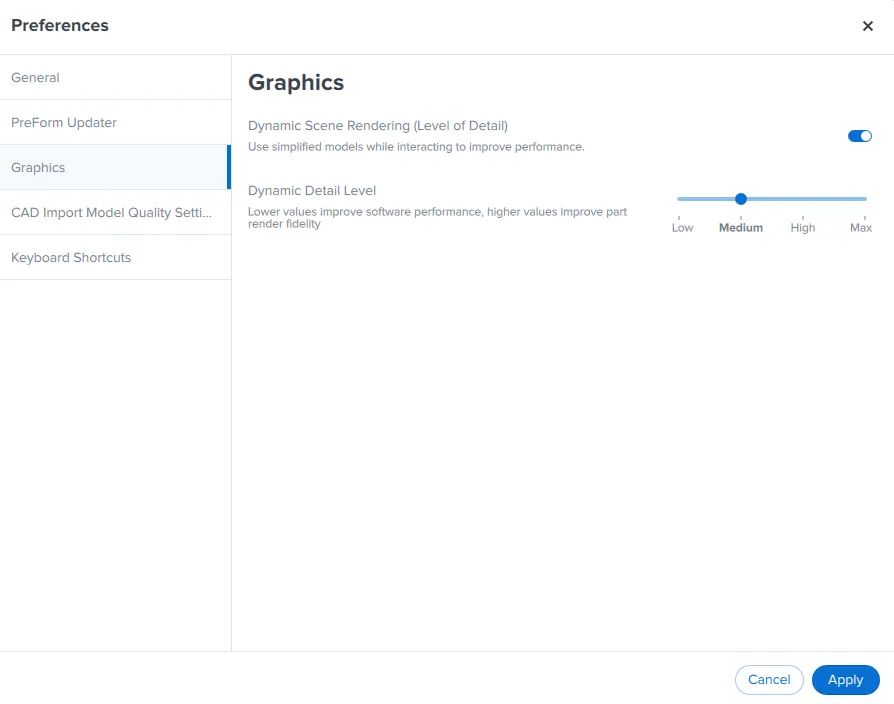
- Click PreForm > Preferences > Graphics. The Graphics preferences window appears.
- Enable or disable Dynamic Scene Rendering (Level of Detail).
- Disabling this setting retains maximum model fidelity throughout all interactions with the 3D scene, but may lead to degraded performance.
- Enabling this setting allows you to set the maximum level of detail during interactions.
- When you first update PreForm to version 3.64.0, this setting is enabled by default.
- If Dynamic Scene Rendering (Level of Detail) is enabled, use the slider to set Dynamic Detail Level.
- Select between Low, Medium, High, and Max. The lower the setting, the greater the allowable deviation from the original model during interactions with the 3D scene.
- When you first update PreForm to version 3.64.0, this is set to Medium by default.
Effect of Dynamic Detail Level
As noted above, the lower the Dynamic Detail Level setting, the greater the allowable deviation from the original model during interactions with the 3D scene.
In the example below, a gyroid lattice has been scaled to fill the Form 4L build volume. In this case, when the Dynamic Detail Level is set to Low, the level of detail on the lattice surface drops as the camera rotates or zooms in and out. When the interaction stops, the model returns to its original level of detail. Depending on the model and setting, the model may not visibly change: here, when the Dynamic Detail Level is set to Max, the level of detail on the lattice surface does not change as the camera rotates or zooms in and out.
Model shown with Dynamic Scene Rendering enabled and Dynamic Detail Level set to Low. For this model, the level of detail on the lattice surface changes as the camera moves.
Model shown with Dynamic Scene Rendering enabled and Dynamic Detail Level set to High. For this model, the level of detail on the lattice surface does not change as the camera moves.