
Note:
Changing the display name of your Form 4 or Form 4L generation printer does not change the serial name of the printer. Read this article for more information on how to find your printer’s serial name

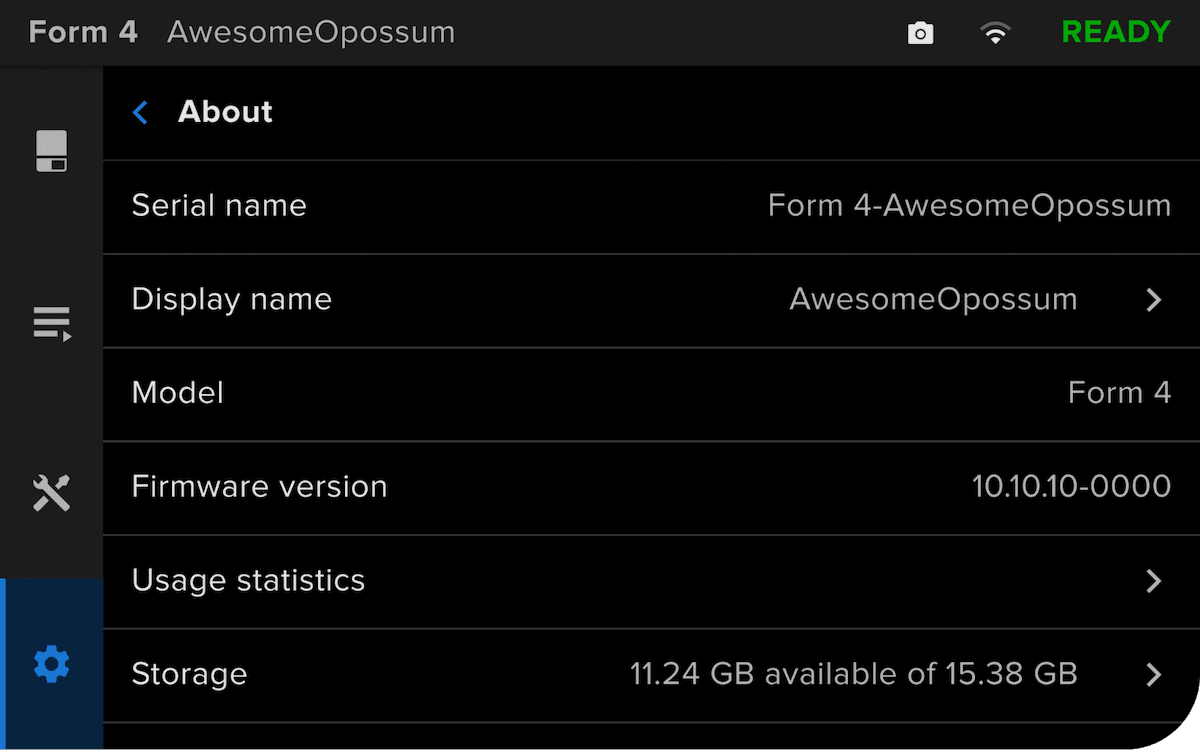
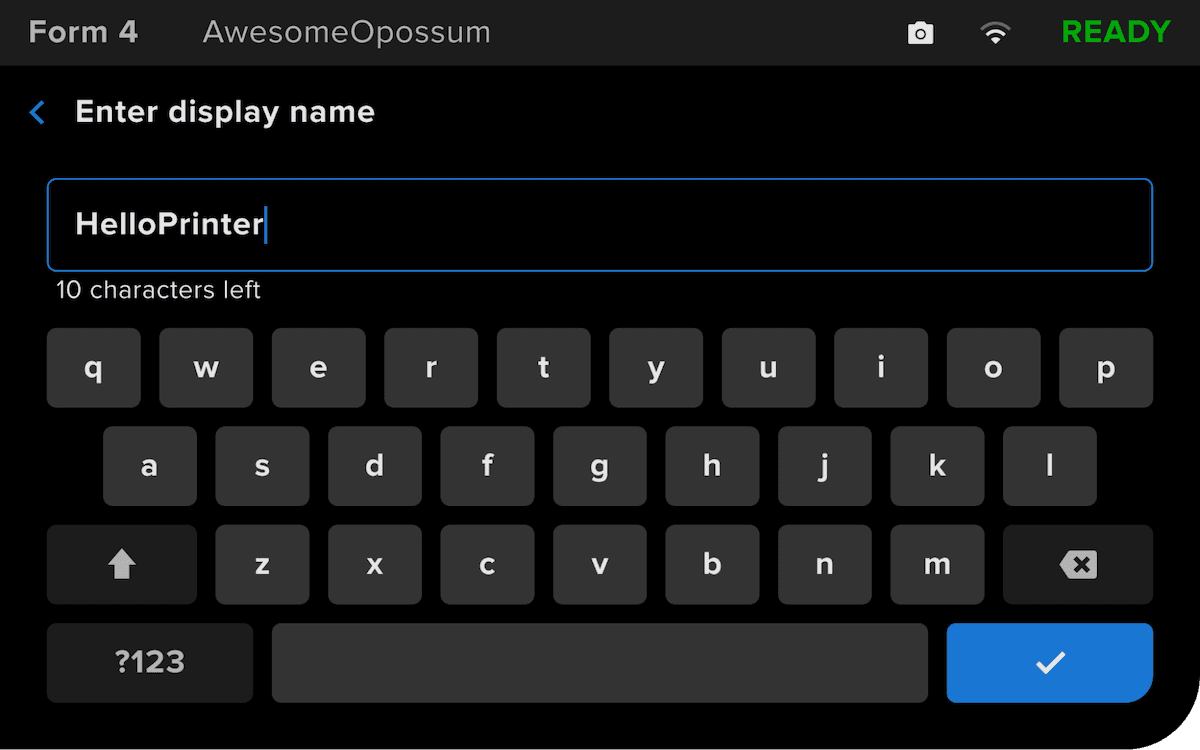
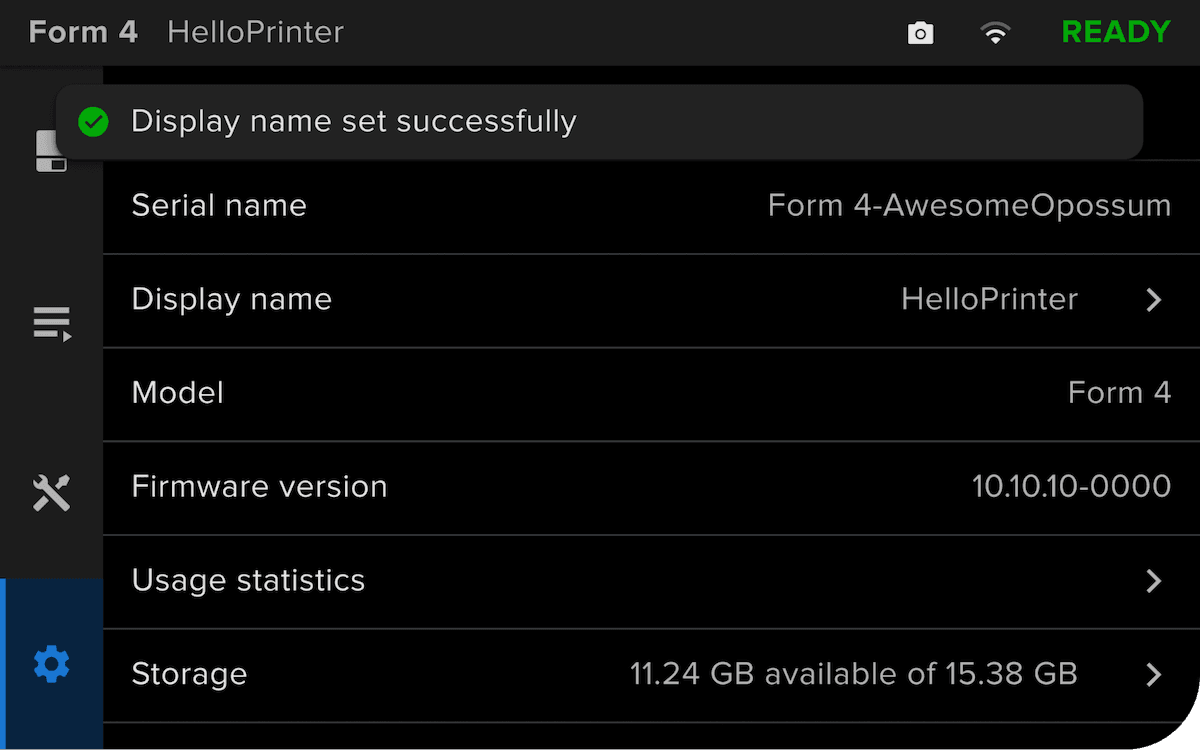
Starting with firmware version 1.14.0 or later, you can set a custom display name for your Form 4 or Form 4L generation printer, making it easier to identify the machine. Once set, the custom name appears in PreForm, on Dashboard, and on the printer’s touchscreen.
Note:
Changing the display name of your Form 4 or Form 4L generation printer does not change the serial name of the printer. Read this article for more information on how to find your printer’s serial name

Tip:
You can also see your printer’s display name in PreForm and Dashboard. You may need to restart PreForm for the change to be visible.