

Display and touchscreen issues (Fuse 1 generation)
Display and touchscreen issues (Fuse 1 generation)
Damaged or malfunctioning components may cause your Fuse 1 generation printer to fail to power on, freeze, not initialize, shut down unexpectedly, or experience display issues. Although these symptoms might seem similar, they usually result from different underlying causes, most often related to the display, motherboard, or the system on module (SOM).
Symptoms
- Case 1: Printer display flickers during use
- Case 2: Display is incorrect color
- Case 3: Unexpected lines or visual artifacts on display
- Case 4: Touchscreen is unresponsive or registers unexpected inputs
- Case 5: Display is backlit but otherwise blank
- Case 6: Display gets stuck on Formlabs logo while powering on
- Case 7: Display does not turn on
- Case 8: Touchscreen response is laggy or freezes
Causes
- Damage to the printer’s display assembly
- Malfunctioning motherboard
- Malfunctioning system on module (SOM)
- Unseated display cable
- Malfunctioning power supply unit
- Malfunctioning heater power distribution board (PostRock board)
- Printer memory full
Troubleshooting steps
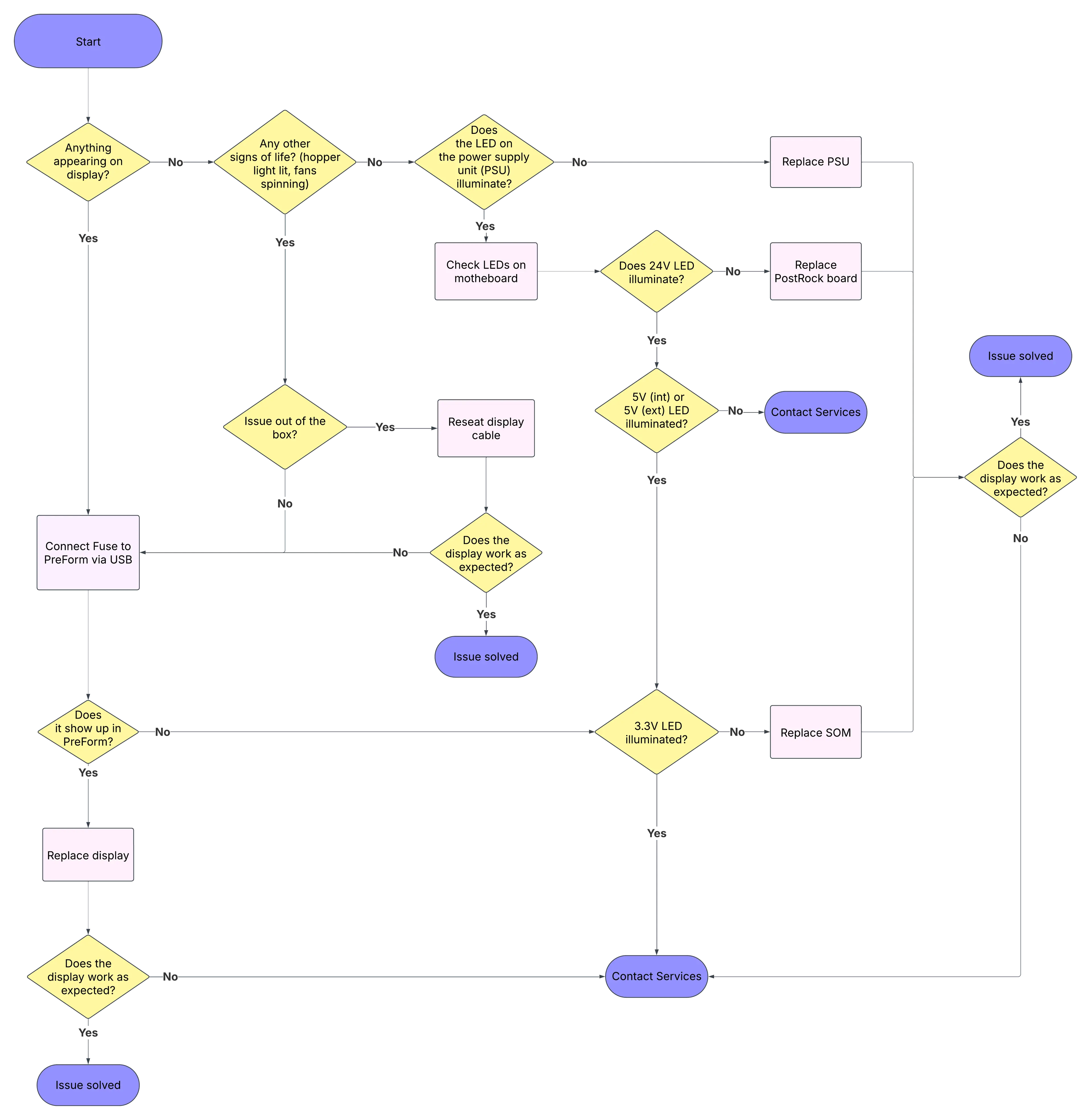
Case 1: Display flickers
Any type of flickering, regardless of the stage at which it occurs, indicates that the display is defective. Replacement display assemblies are available for purchase on the Formlabs Store. Replace the components following the instructions in the applicable guide:
Case 2: Display is blue
If the display turns blue, regardless of whether it shows other issues like flickering or extraneous lines, it indicates an issue with the display assembly. Replacement display assemblies are available for purchase on the Formlabs Store. Replace the components following the instructions in the applicable guide:
Case 3: Vertical or horizontal lines on the display
Any type of lines appearing on the display, regardless of whether they’re accompanied by other symptoms (like flickering), indicates an issue with the display assembly. Replacement display assemblies are available for purchase on the Formlabs Store. Replace the components following the instructions in the applicable guide:
Case 4: Unresponsive touchscreen or unexpected/phantom inputs
- Check that the power supply your printer is connected to meets the requirements for Fuse 1 generation printers. An improperly-grounded power outlet can cause the touchscreen to be unresponsive.
- If the touchscreen is intermittently or consistently unresponsive, or if it registers incorrect or unexpected inputs, the display is most likely defective or damaged. Replacement display assemblies are available for purchase on the Formlabs Store. Replace the components following the instructions in the applicable guide:
- If the touchscreen becomes unresponsive after the printer freezes mid-print, this likely indicates an issue with the SOM on the motherboard. To confirm, check the SOM LED status by following the instructions in the guide Checking the Fuse 1 generation motherboard LEDs.
- If the SOM LED does not turn on or is solid green instead of blinking, the SOM is damaged. Contact Formlabs Support or your certified service provider for a replacement, then replace the component following the instructions in the repair guide Replacing the Fuse 1 generation SOM [EN].
Case 5: Display is backlit but blank
If the display is backlit but blank, check the printer's status in PreForm:
- If the printer status is Idle, the printer is booting properly and the display is likely defective or damaged. Replacement display assemblies are available for purchase on the Formlabs Store. Replace the components following the instructions in the applicable guide:
- If the printer does not appear in PreForm, check the SOM LED status by following the instructions in the guide Checking the Fuse 1 generation motherboard LEDs.
- If the SOM LED does not turn on or is solid green instead of blinking, the SOM is damaged. Contact Formlabs Support or your certified service provider for a replacement, then replace the component following the instructions in the repair guide Replacing the Fuse 1 generation SOM [EN].
Case 6: Printer does not boot and display gets stuck at the Formlabs butterfly logo
If the Formlabs butterfly logo appears on the display but the printer fails to boot, the issue is likely with the SOM. Contact Formlabs Support or your certified service provider for a replacement, then replace the component following the instructions in the repair guide Replacing the Fuse 1 generation SOM [EN].

Case 7: Display does not turn on
- If the display does not turn on but other printer components do (e.g., the hopper light is lit or the fans are spinning), and the issue occurs on a new printer, the display cable may be disconnected. Reseat the display cable following the instructions in the applicable guide:
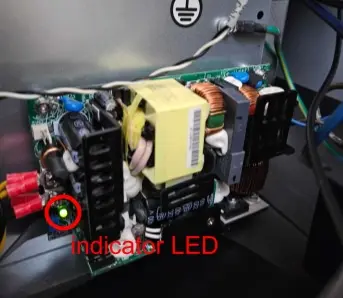
- If no part of the printer appears to turn on, check if the LED on the power supply unit (PSU) is illuminated, as shown in the provided picture. To access the PSU, refer to the guide Fuse 1 Generation - Replacing the Power Supply [EN].
- If the PSU LED is off, replace the PSU. The power supply is available for purchase on the Formlabs Store.
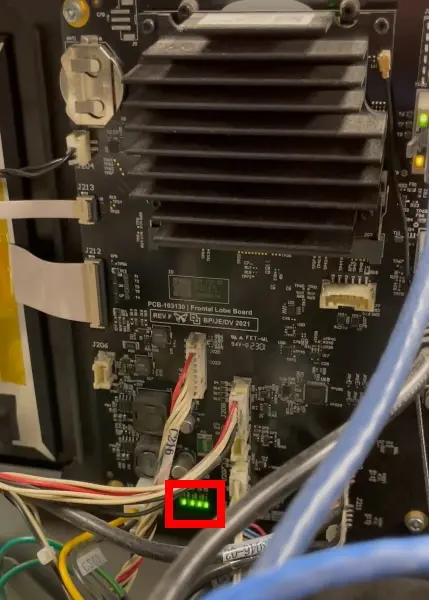
- If the PSU LED is on, check the power LEDs on the motherboard by following the instructions in the guide Checking the Fuse 1 generation motherboard LEDs.
- If the 24V LED is not illuminated, the glass fuse on the heater power distribution board (known as the PostRock Board) or the board itself may be damaged. Replacement boards are available for purchase on the Formlabs Store. Replace the PostRock Board following the instructions in the guide Fuse 1 Generation - Replacing the Post Rock Board [EN].
- If the 5V (int) or 5V (ext) LEDs are not illuminated, the printer motherboard may be damaged. Contact Formlabs Support or your certified service provider.
- If the 3.3V LED is not illuminated, the SOM may be damaged. Contact Formlabs Support or your certified service provider for a replacement, then replace the component following the instructions in the repair guide Replacing the Fuse 1 generation SOM [EN].
Case 8: Touchscreen response is laggy or freezes
- Delete all print jobs from the Print History.
- Update your printer’s firmware.
- If the issue persists, inspect the display assembly and display cables for damage. If there is any damage, the display assembly may need to be replaced. Replacement display assemblies are available for purchase on the Formlabs Store. Replace the components following the instructions in the applicable guide: