Warning:
Resin may cause skin irritation or an allergic skin reaction. Wear gloves when handling liquid resin or resin-coated surfaces. Wash skin with plenty of soap and water.

There may be circumstances where you need to reprogram a Form 3/Form 3B resin tank so it can be used with a different resin type. For example, you may have started a print with a new resin tank but inserted the wrong resin cartridge. In this case, you can use the printer’s touchscreen to reprogram the resin tank to accept a new resin type.
Cleaning the resin tank
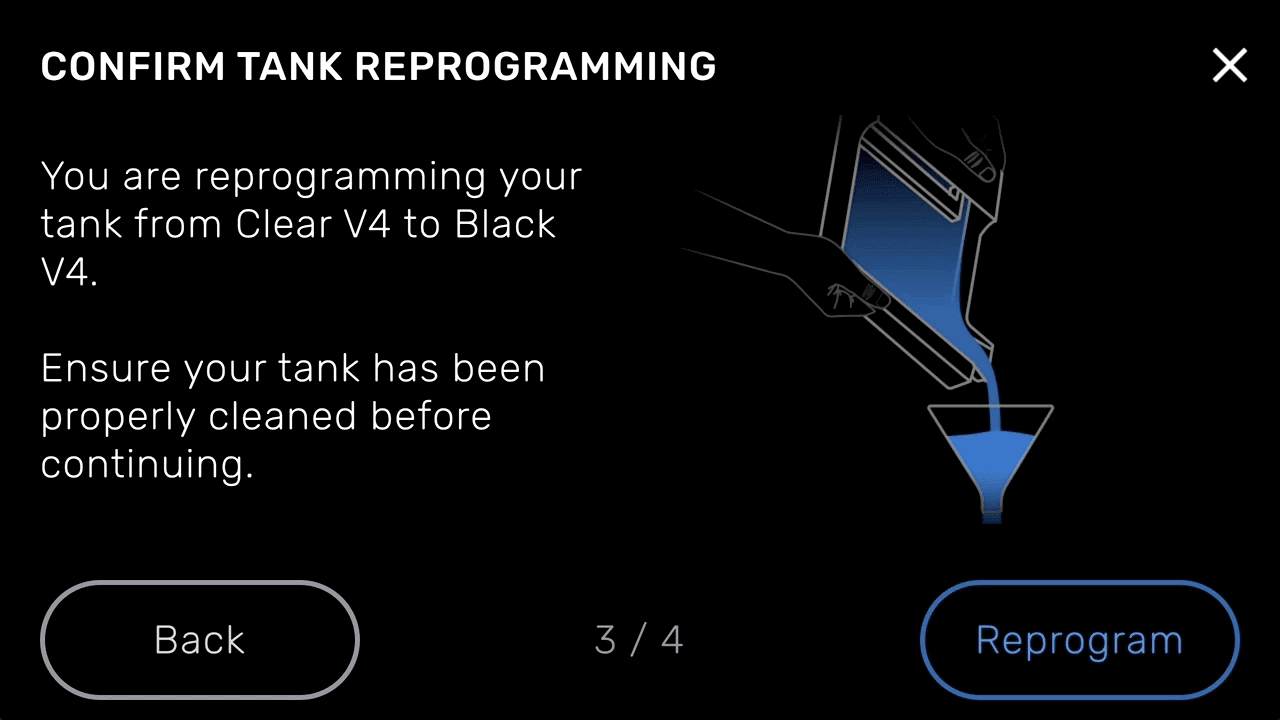
If the resin tank already contains resin, you must remove the existing resin and clean it out before reprogramming it.
Warning:
Resin may cause skin irritation or an allergic skin reaction. Wear gloves when handling liquid resin or resin-coated surfaces. Wash skin with plenty of soap and water.
Notice:
Do not pour resin from the resin tank back into the corresponding resin cartridge. Doing so may contaminate the resin in the resin cartridge.
Do not use IPA or other solvents to clean the flexible film inside the resin tank. Solvents may damage the flexible film in the resin tank.
Reprogramming the resin tank
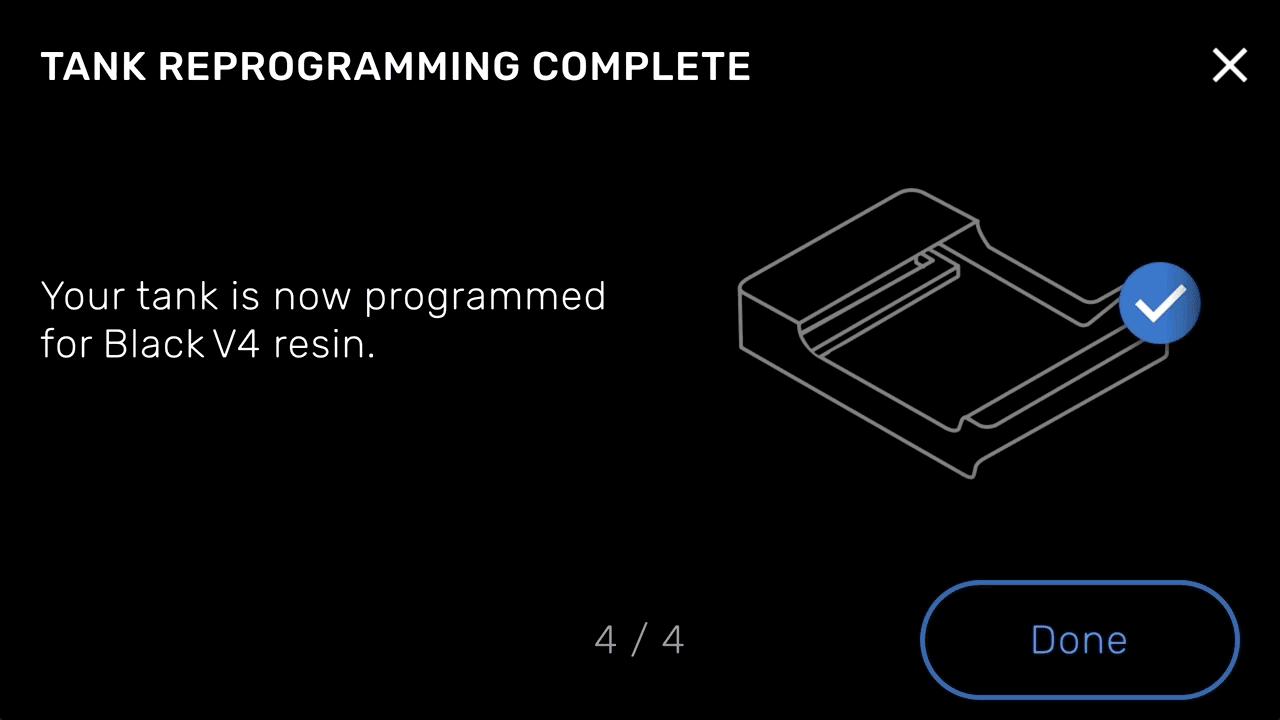
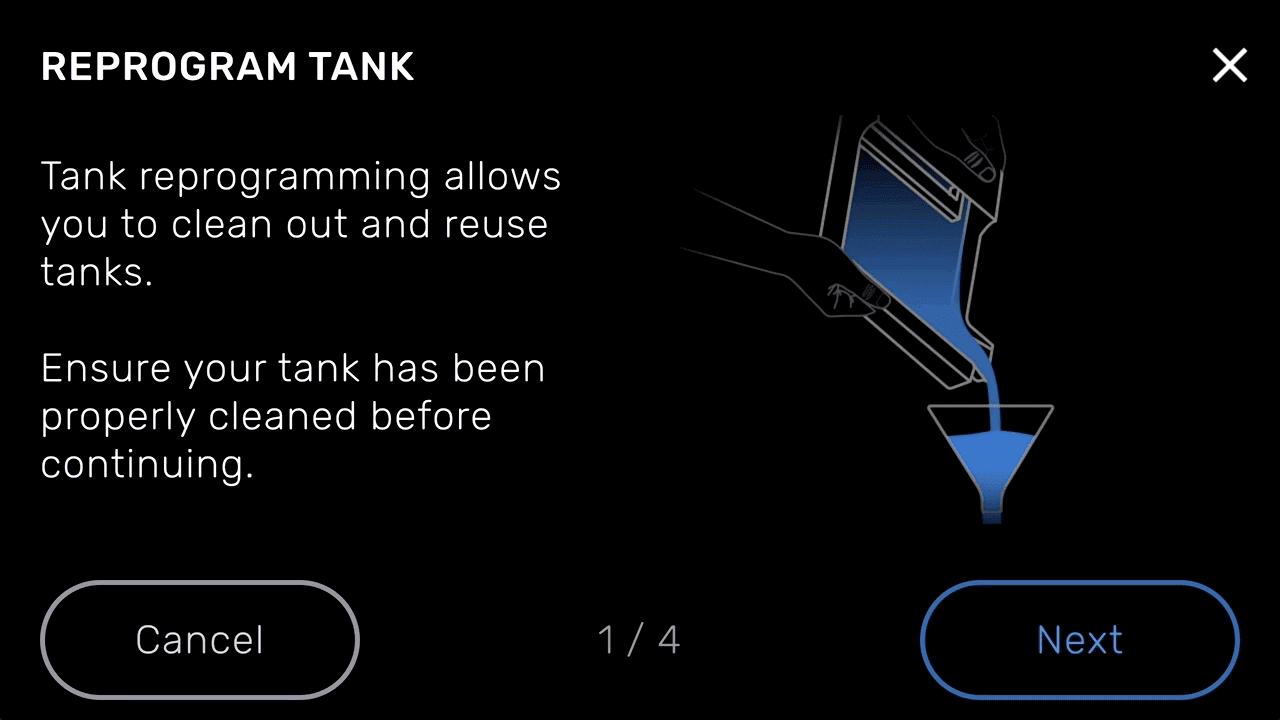
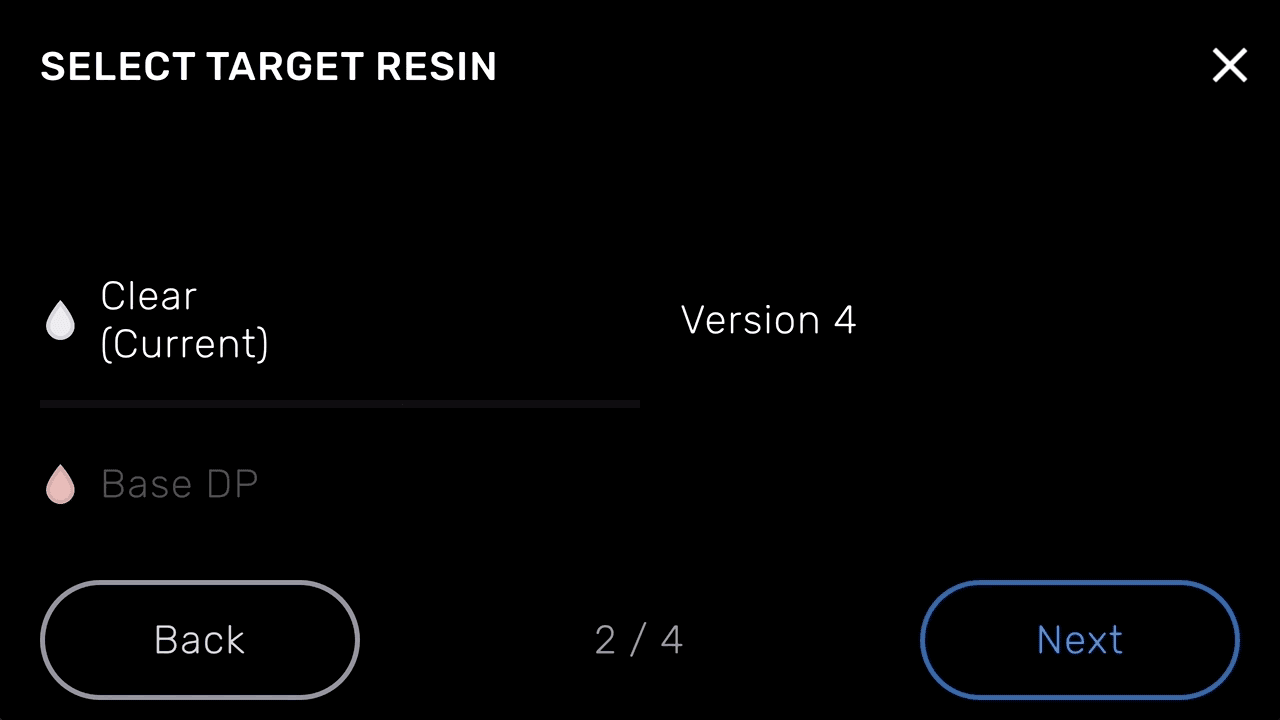
After thoroughly cleaning your resin tank, insert the tank into the printer to begin the process of reprogramming.
Notice:
Ensure that the resin tank is clean and free of resin before reprogramming. Mixing resin types in a resin tank can damage the tank or have an adverse effect on prints.
Notice:
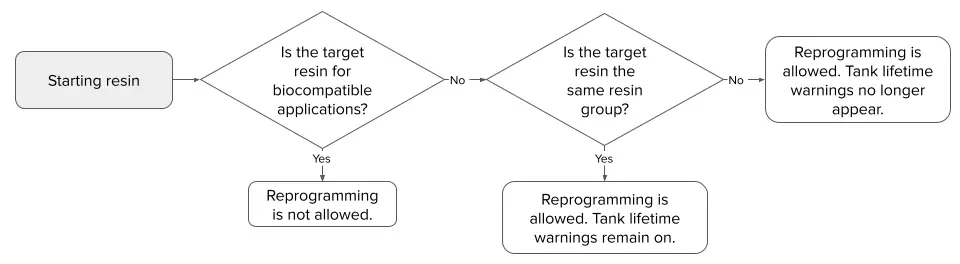
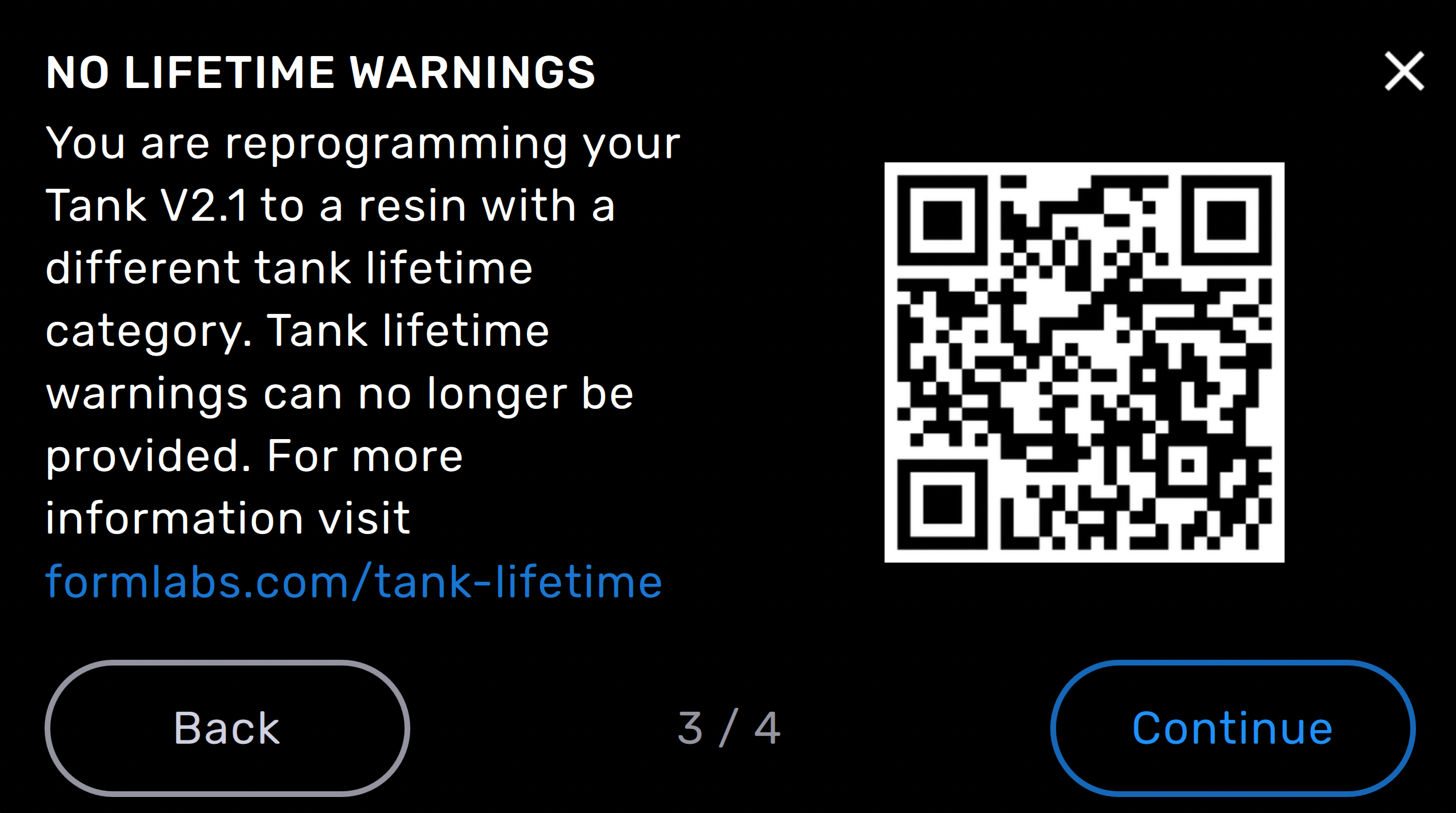
Reprogramming a resin tank with aggressive or moderately aggressive resins disables tank lifetime warnings. Consult the resin chart in Resin tank lifetime and monitoring (Form 3/Form 3B) for more information about the estimated maximum lifetime of your resin tank.
Note:
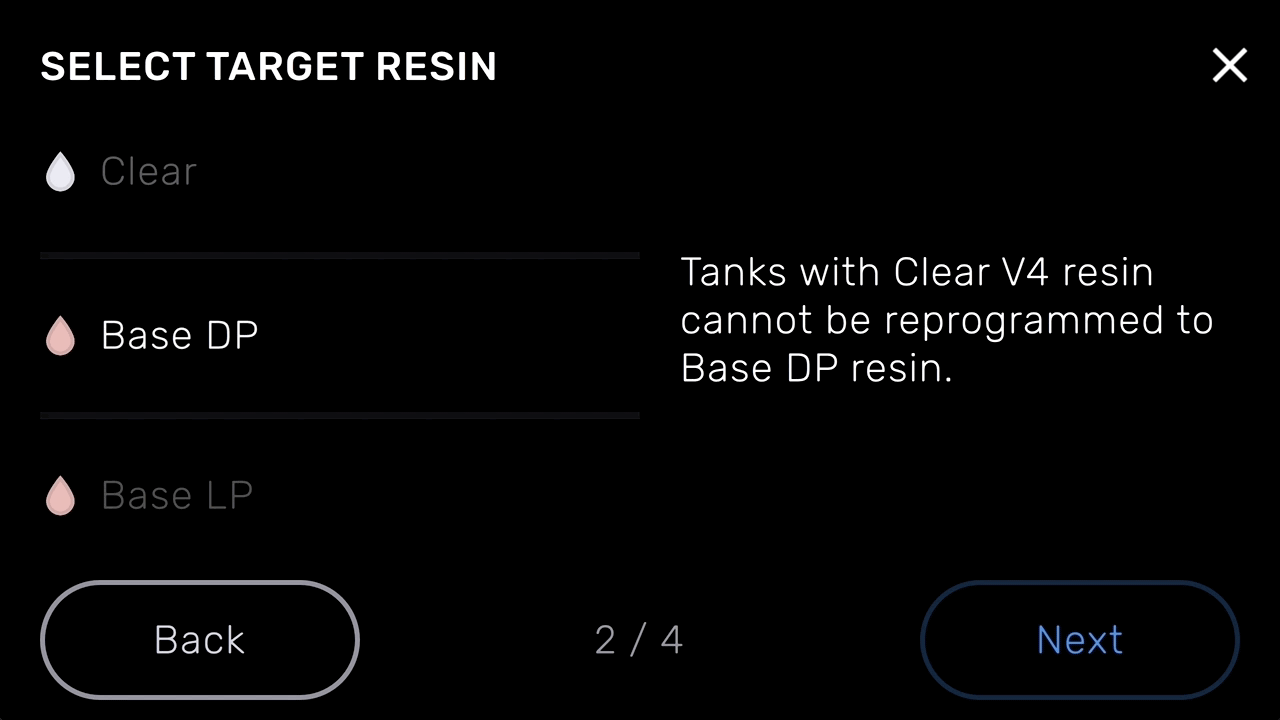
Under any of these circumstances, the Next button becomes unavailable: