
WHITE PAPER
Resin cartridge not detected properly (Form 4 and Form 4L generation)
Resin cartridge not detected properly (Form 4 and Form 4L generation)
Form 4 and Form 4L generation printers detect when a resin cartridge has been inserted by sensing an RFID sticker underneath the cartridge label. They use a load cell in the cartridge floor to track the weight of the inserted resin cartridge during a print. If one or both of these sensors is malfunctioning, the printer will be unable to detect resin cartridges properly. If this happens before or separate from a print, the printer will not necessarily display a consumables error.
Symptoms
- Printer does not detect resin cartridge
- Resin cartridge detected in wrong slot (Form 4L generation only)
- Reported fill level incorrect
Causes
- Software bug
- Resin cartridge RFID sticker is damaged or missing
- Resin cartridge RFID board is unplugged
- Resin cartridge RFID board is damaged
Troubleshooting steps
- Reboot your printer.
- Ensure that the printer's firmware is up to date. If the firmware is up to date, manually reinstall the latest firmware package.
- If the printer is clearly reporting the wrong amount of resin in the resin cartridge (e.g., showing that a full cartridge is empty), calibrate the affected load cell.
- Try again with another resin cartridge, if any are available.
- If no resin cartridges are detected properly, proceed to step 6.
- Test the original resin cartridge in another printer, if any are available.
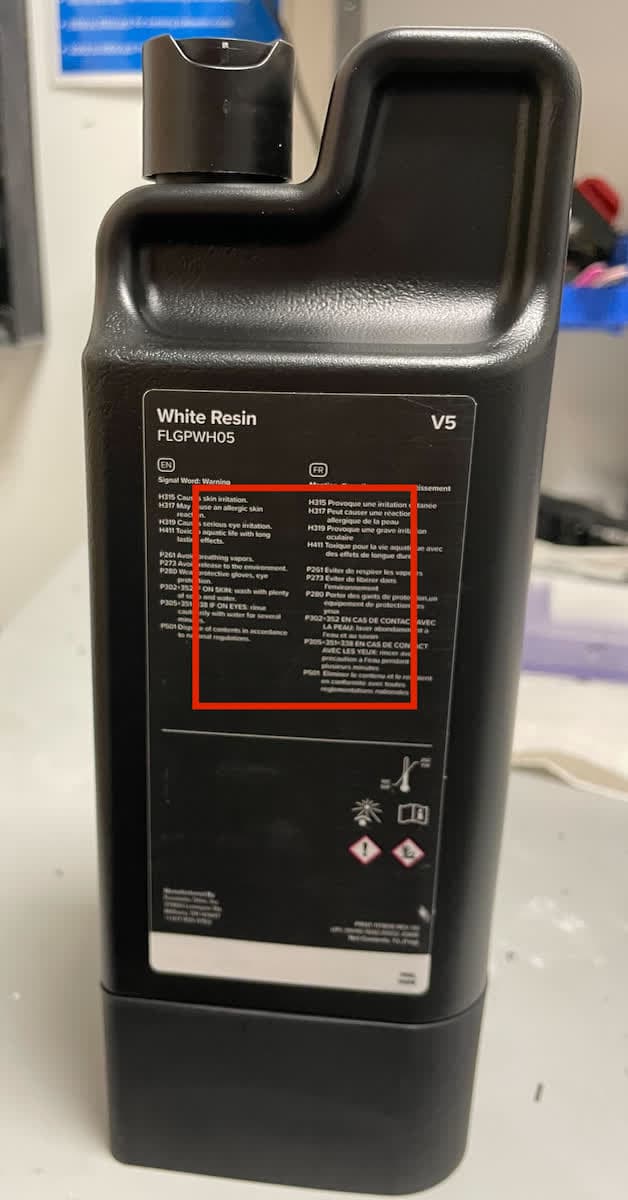
- If the resin cartridge is not detected properly in any printer or there are no other printers available, check that the RFID sticker is present. You should be able to feel the small square sticker underneath the cartridge label, roughly in the position shown here.
- If the RFID sticker is not present, contact Formlabs Support or your authorized reseller. Be sure to include the resin lot number, found on a sticker on the bottom of the cartridge, in your message.
- If the resin cartridge is not detected properly in any printer or there are no other printers available, check that the RFID sticker is present. You should be able to feel the small square sticker underneath the cartridge label, roughly in the position shown here.
- Inspect and reseat the cartridge RFID cable.
- Form 4: Follow the instructions in the repair guide Replacing the Form 4 resin cartridge RFID board to Step 3: Disconnect the resin cartridge RFID cable.
- Form 4L: Follow the instructions in the repair guide Replacing the Form 4L resin cartridge RFID boards to Step 6: Disconnect the resin cartridge RFID cable.
- If the error persists, replace the resin cartridge RFID board(s). Follow the instructions in the repair guides Replacing the Form 4 resin cartridge RFID board or Replacing the Form 4L resin cartridge RFID boards. Replacement resin cartridge RFID boards are available from the Formlabs Store.