

Using the Formlabs Texture Engine
Using the Formlabs Texture Engine
The Formlabs Texture Engine is a tool that allows you to add textures to 3D models.
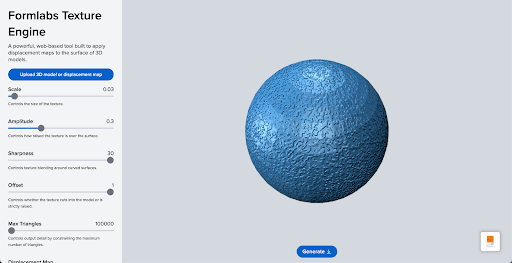
To rotate a model in the interface, left click and drag. To translate a model in the interface, right click and drag. To zoom in and out, use the scroll bar.
Click Upload a 3D model or displacement map and select a model (STL format) or texture image (JPG or PNG format) to upload. Alternatively, drag and drop a model or displacement map file into the interface to upload. Use the sidebar menu to control different aspects of the model's texture.
Scale controls the size of the texture. The lower the number, the larger and coarser the texture.
Amplitude controls how raised the texture is. The lower the number, the less pronounced the texture.
Sharpness controls texture blending around curved surfaces, for softer or more distinct textures. At very low values, you may notice elements of the texture overlapping around curves and edges. Formlabs recommends using a sharpness value of 15–30.
Offset controls whether the texture cuts into the model or whether it is only raised. When set to one, the texture will be fully embossed. If set to zero, it will be fully debossed.
Max triangles controls output detail by constraining the maximum number of triangles the tool will generate. This is helpful for reducing the total size of the file.
Displacement maps are what the tool uses to determine the texture of the model. You can use the existing maps or upload your own.
Click Generate to save your newly textured model as an STL file. You need a formlabs.com account to save your file.
For more information, read the blog post Introducing the Formlabs Texture Engine for 3D Printing Texture.