Loud or rattling fan noise (Form 4 and Form 4L generation)

There are three types of fans in Form 4 and Form 4L generation printers. If you are hearing a loud or rattling noise from your printer, the resolution depends on which fan is the source of the noise.

  • Power supply fan(s)
    • Form 4 generation: 1x fan next to the power supply
    • Form 4L generation: 2x fans inside the power supply
  • Light Processing Unit fan(s)
    • Form 4 generation: 1x fan behind the left side panel
    • Form 4L generation: 2x fans behind the right side panel
  • Backlight Unit fan(s)
    • Form 4 generation: 1x fan under the Backlight Unit
    • Form 4L generation: 2x fans under the Backlight Unit

Symptoms

  • Fan noise whenever the printer is powered on
  • Fan noise whenever the printer is printing

Causes

  • Broken or damaged power supply fan
  • Broken or damaged Light Processing Unit fan
  • Broken or damaged Backlight Unit fan

Troubleshooting steps

Determine which fan is faulty by disconnecting the fans one at a time. See the appropriate section below for your printer type.

Danger:

This procedure involves operating your printer with a panel removed. Do not touch any electrical components on the printer while the panel is removed and the printer is powered on.

Form 4 generation
  1. Disconnect the printer from its power source.
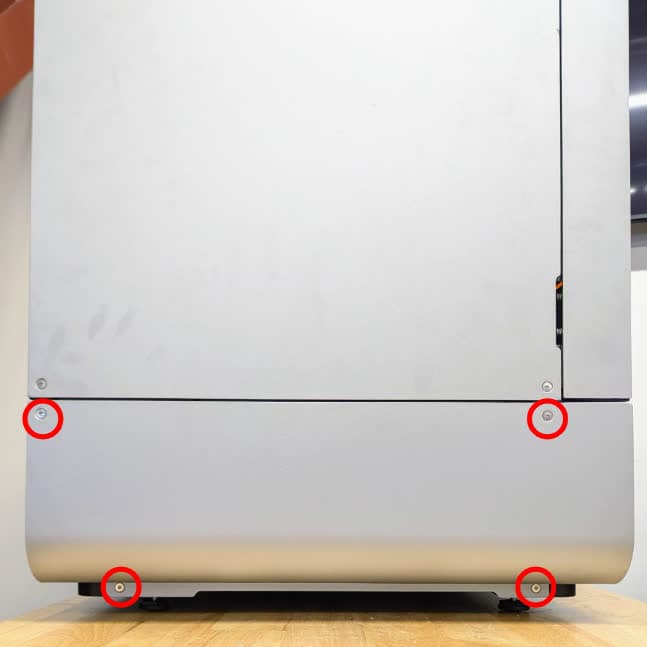
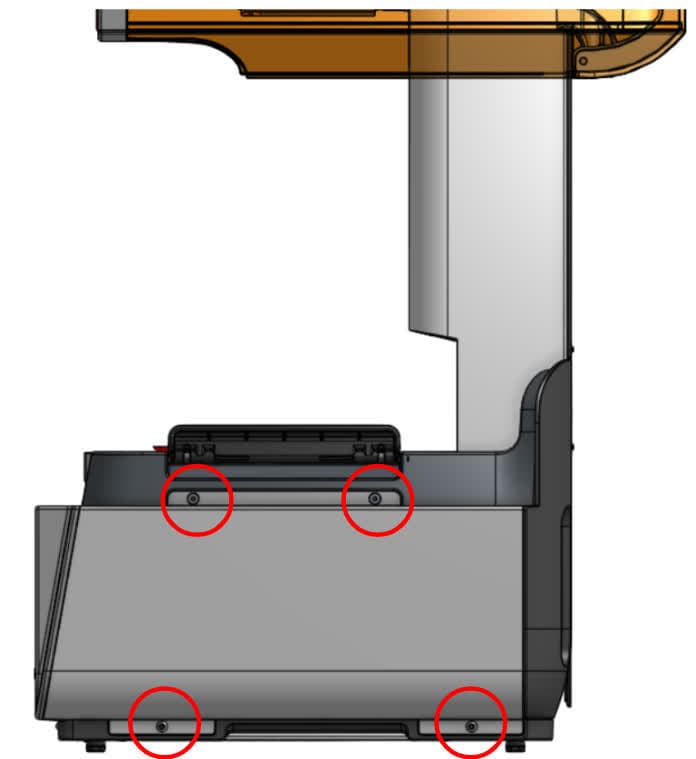
  2. Use a 2.5 mm hex driver to remove the four screws securing the right panel to the printer. Set the right panel and the screws aside.
Right panel screws on a Form 4 generation printer
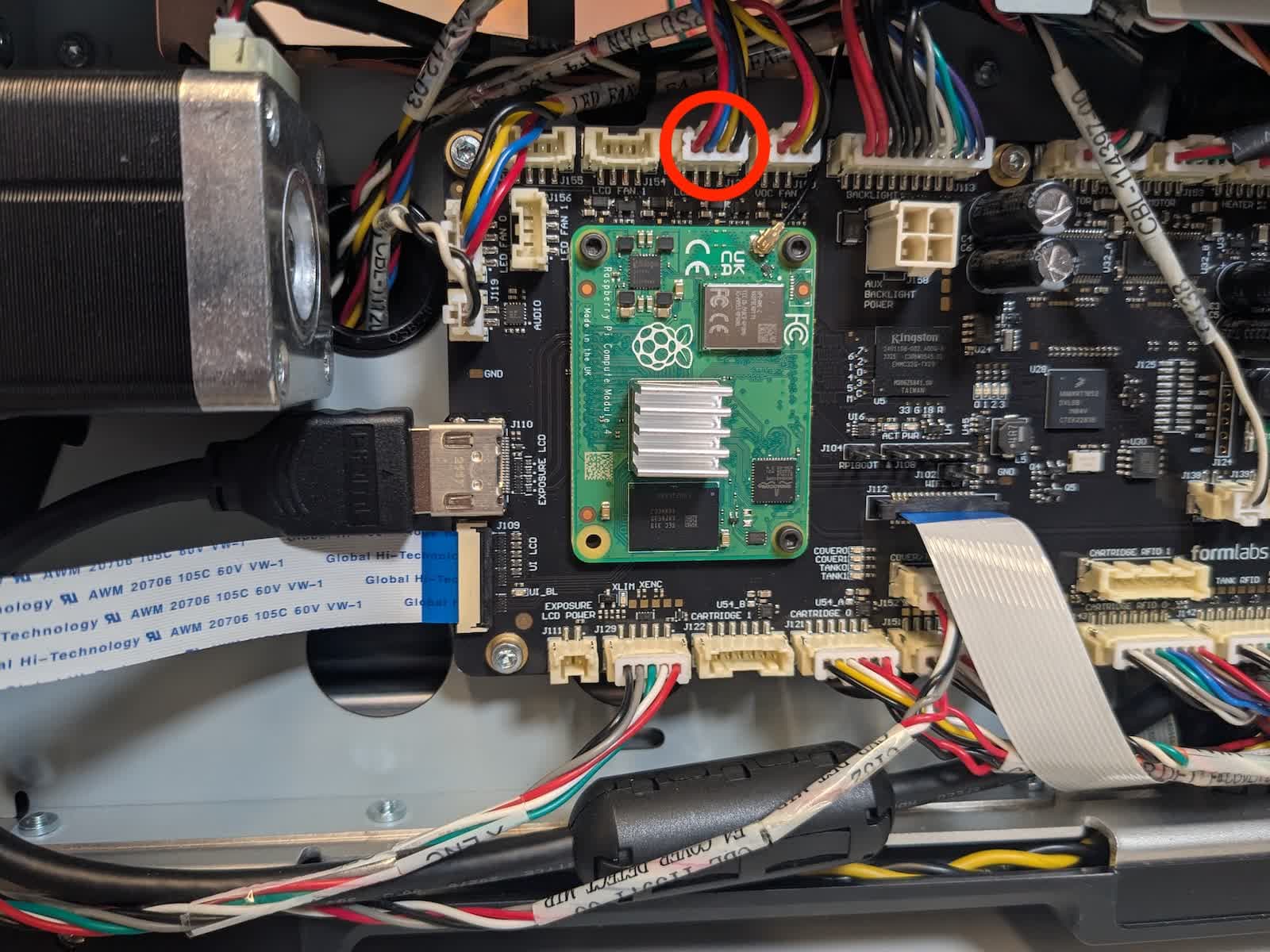
  1. Disconnect the Backlight Unit fan from the motherboard. Gently squeeze the plastic tab to unplug the cable. Do not pull on the individual wires.
Backlight Unit fan cable on a Form 4 generation printer
  1. Reconnect the machine to power.
  2. The Light Processing Unit and Backlight Unit fans turn on when those components are active. Use the Inspect optics tool to turn on the fans without running a print.
    1. On the touchscreen, tap Settings > Tools > Inspect optics.
    2. Remove the consumables and tap Next.
    3. Place a sheet of paper on the LPU to protect your eyes from UV damage. Leave the printer cover open after placing the sheet of paper on the LPU. Tap Next when the LPU is fully covered.
    4. Tap Backlight and LPU. The Backlight Unit and LPU both turn on.
  3. Wait three seconds for the fans to turn on, then check if the noise is present. Tap Done to turn off the Backlight Unit and Light Processing Unit.
    • If the noise is no longer present, then the Backlight Unit fan is faulty. The fan is part of the Backlight Unit, which should be replaced. The Backlight Unit is available for purchase from the Formlabs Store. Follow the instructions in the guide Replacing the Form 4 Backlight Unit.
    • If the fan noise still occurs, continue.
  1. Disconnect the printer from its power source.
  2. Reconnect the Backlight Unit fan to the motherboard.
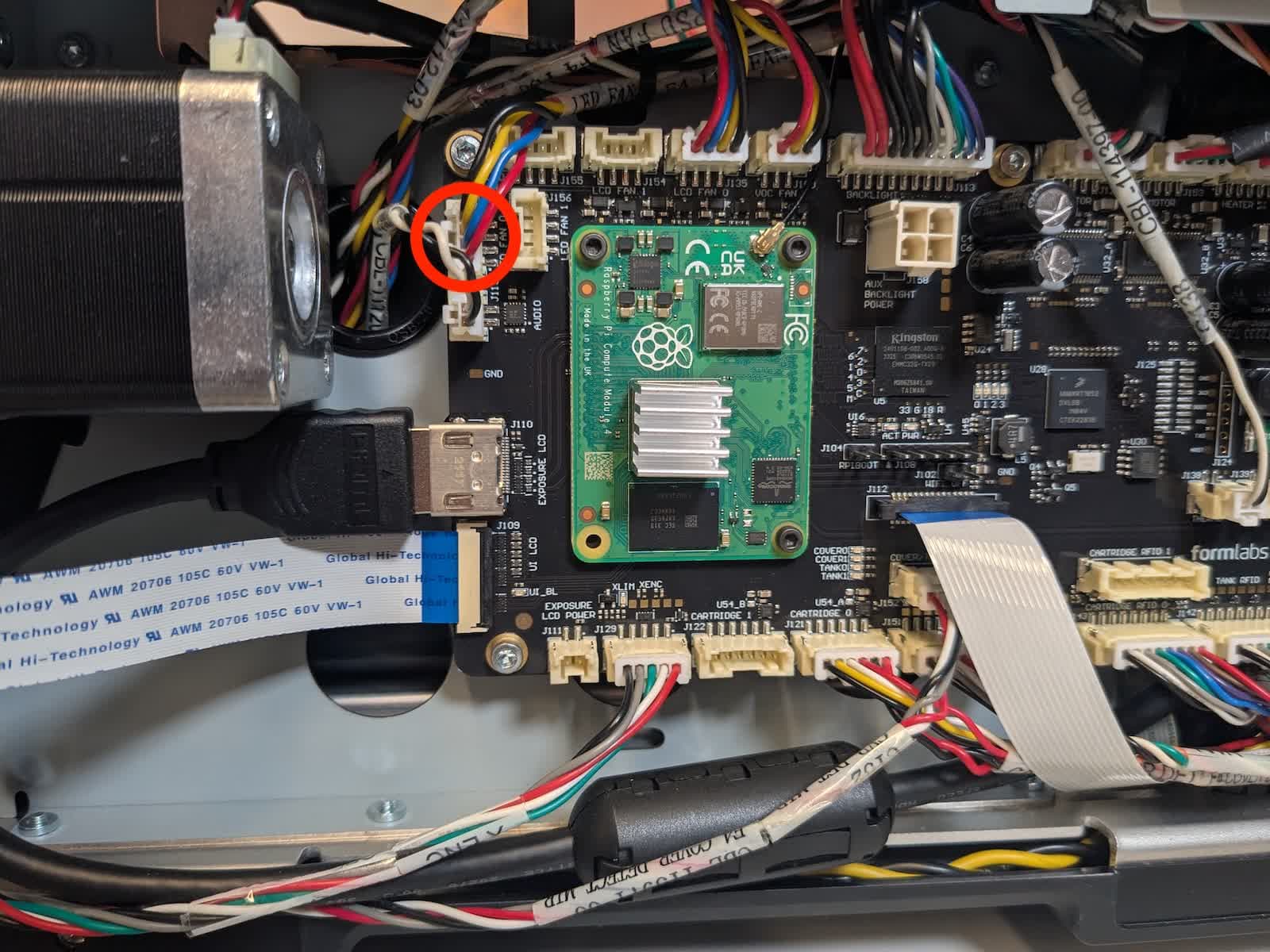
  3. Disconnect the Light Processing Unit (LPU) fan from the motherboard. Gently squeeze the plastic tab to unplug the cable. Do not pull on the individual wires.
Light Processing Unit fan cable on a Form 4 generation printer
  1. Repeat steps 4–6 from the previous section on testing the Backlight Unit fan.

Form 4L generation

  1. Disconnect the printer from its power source.
  2. Use a 2.5 mm hex driver to remove the four screws securing the lower left panel to the printer. Set the left panel and the screws aside.
Right panel screws on a Form 4L generation printer
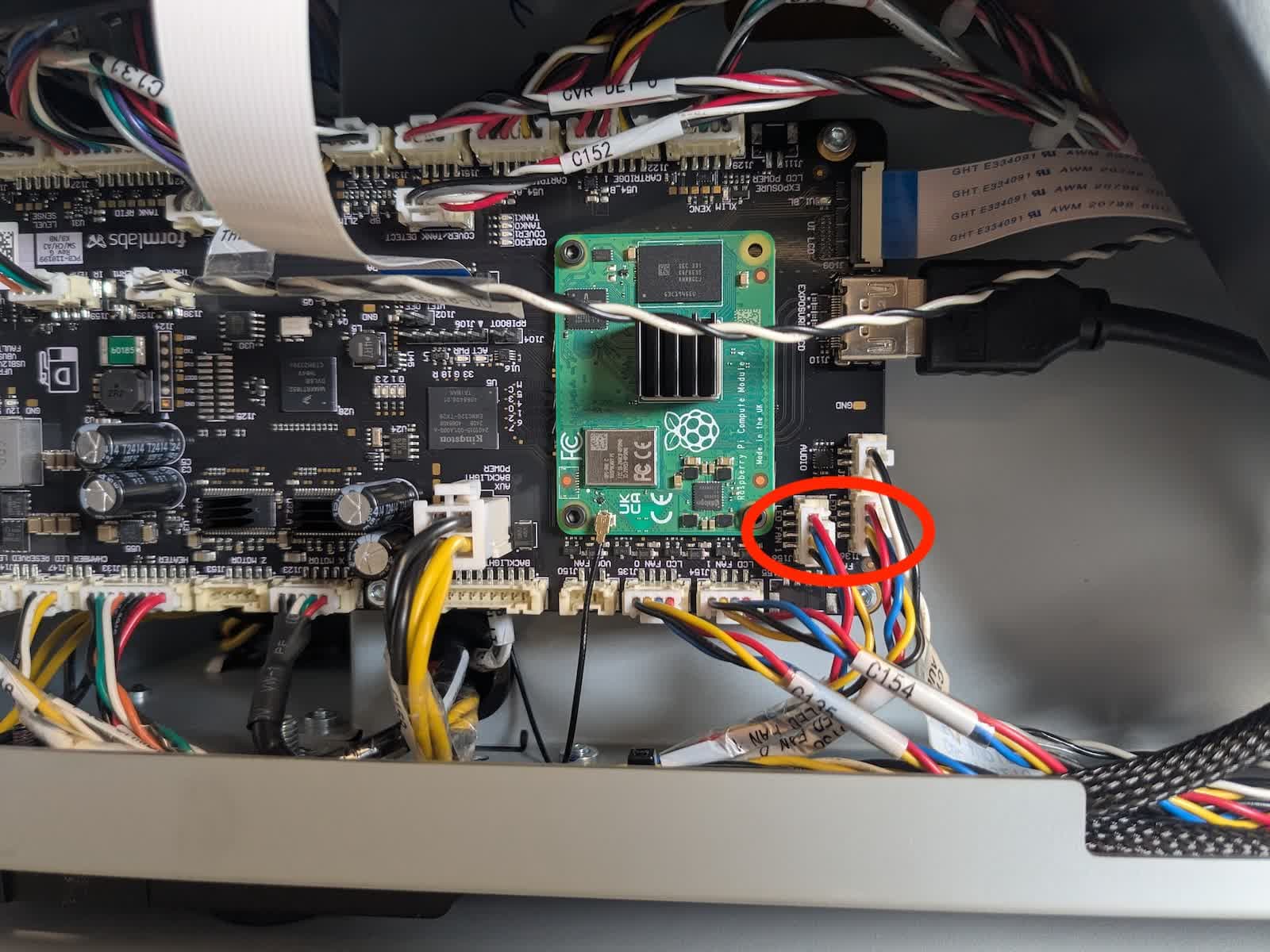
  1. Disconnect both Backlight Unit fans from the motherboard. Gently squeeze the plastic tabs to unplug the cables. Do not pull on the individual wires.
Backlight Unit fan cables on a Form 4L generation printer
  1. Reconnect the machine to power.
  2. The Light Processing Unit and Backlight Unit fans turn on when those components are active. Use the Inspect optics tool to turn on the fans without running a print.
    1. On the touchscreen, tap Settings > Tools > Inspect optics.
    2. Remove the consumables and tap Next.
    3. Place two sheets of paper on the LPU to protect your eyes from UV damage. Leave the printer cover open after placing the sheets of paper on the LPU. Tap Next when the LPU is fully covered.
    4. Tap Backlight and LPU. The Backlight Unit and LPU both turn on.
  3. Wait three seconds for the fans to turn on, then check if the noise is present. Tap Done to turn off the Backlight Unit and Light Processing Unit.
    • If the noise is no longer present, then one of the Backlight Unit fans is faulty. The fan is part of the Backlight Unit, which should be replaced. The Backlight Unit is available for purchase from the Formlabs Store. Follow the instructions in the guide Replacing the Form 4L Backlight Unit.
    • If the fan noise still occurs, continue.

Testing the Light Processing Unit fans
  1. Disconnect the printer from its power source.
  2. Reconnect the Backlight Unit fans to the motherboard.
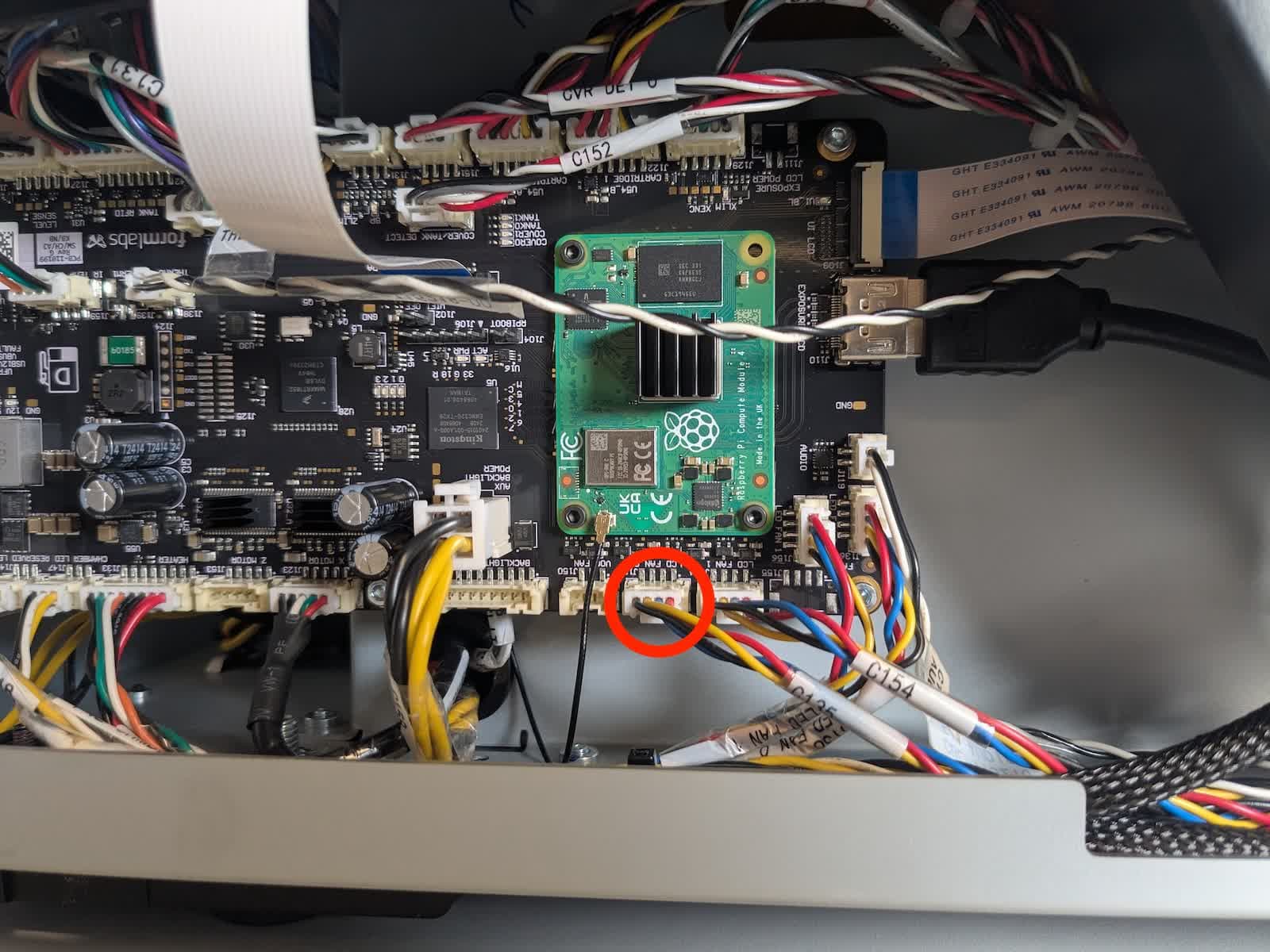
  3. Disconnect the front Light Processing Unit (LPU) fan from the motherboard. Gently squeeze the plastic tab to unplug the cable. Do not pull on the individual wires.
Front Light Processing Unit fan cable on a Form 4L generation printer
  1. Repeat steps 4–6 from the previous section on testing the Backlight Unit fans.
  2. Reconnect the machine to power.
  3. Reconnect the front LPU fan to the motherboard.
  4. Disconnect the rear Light Processing Unit (LPU) fan from the motherboard. Gently squeeze the plastic tab to unplug the cable. Do not pull on the individual wires.
Rear Light Processing Unit fan cable on a Form 4L generation printer
  1. Repeat steps 4–6 from the previous section on testing the Backlight Unit fans.