Formlabs Logo
Controlling your printer and starting a print via Form Mobile

Controlling your printer and starting a print via Form Mobile

Form Mobile tracks printer activity and displays it in real time. You can use the app to control your printer’s status, ready it for a print, or start, pause, or abort a print.

To view a printer’s status, open the Form Mobile app. The app opens to the status page for the most recent printer you viewed. If you have registered multiple printers to your account, you can view the status of another printer by tapping the top status bar in the app. The My Printers drawer opens. Tap a different printer’s name to view its status.

Controlling your printer’s status

To start a print on a Formlabs SLA printer, you must insert a set of consumables, including a resin tank, resin cartridge, and build platform. Depending on the printer type, you must also confirm that the consumables are locked in place (such as a mixer on a Form 4) or clean and ready for use (such as a build platform on a Form Studio 1).

If you want to start a print but your printer’s status is Not ready, you can toggle the status of these consumables via the Form Mobile app:

  1. Open the app. The app opens to the status page for the most recent printer you viewed.
    • If your last-viewed printer is not the one you want to control, tap the top status bar in the app. The My Printers drawer opens. Locate a printer you want to control.
  2. Scroll to the consumables section.
  3. Tap the Build Platform card to mark whether or not the build platform is clean and ready for use. The related icon on the printer wireframe turns green when the build platform is ready for use or red when it is not.
  4. Form 4 and Form 4L generation printers: Tap the Tank card to mark whether or not the mixer is present and locked in place. The related icon on the printer wireframe turns green when the mixer is ready for use or red when it is not.

If all consumables are ready for use and the resin in the resin tank matches the resin in the inserted resin cartridge, the printer status changes to Ready to print. If you mark any consumables as not ready for use, the printer status changes to Not ready.

Controlling a printer’s queue

You can view and control a printer’s queue, history, or list of favorite print jobs via Form Mobile:

  1. Open the app. The app opens to the status page for the most recent printer you viewed.
    • To control the queue on a different printer, tap the top status bar in the app. The My Printers drawer opens. Locate the printer whose queue you want to control and tap its name.
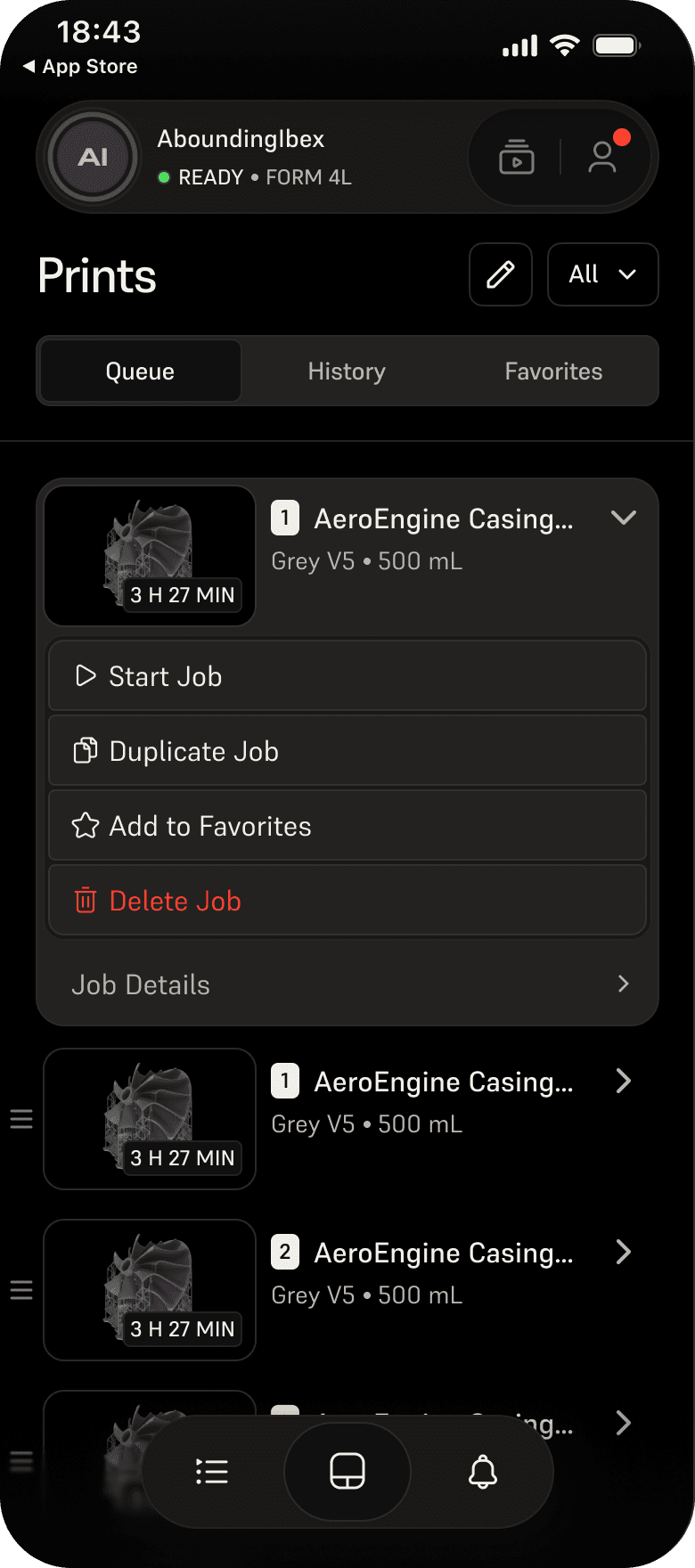
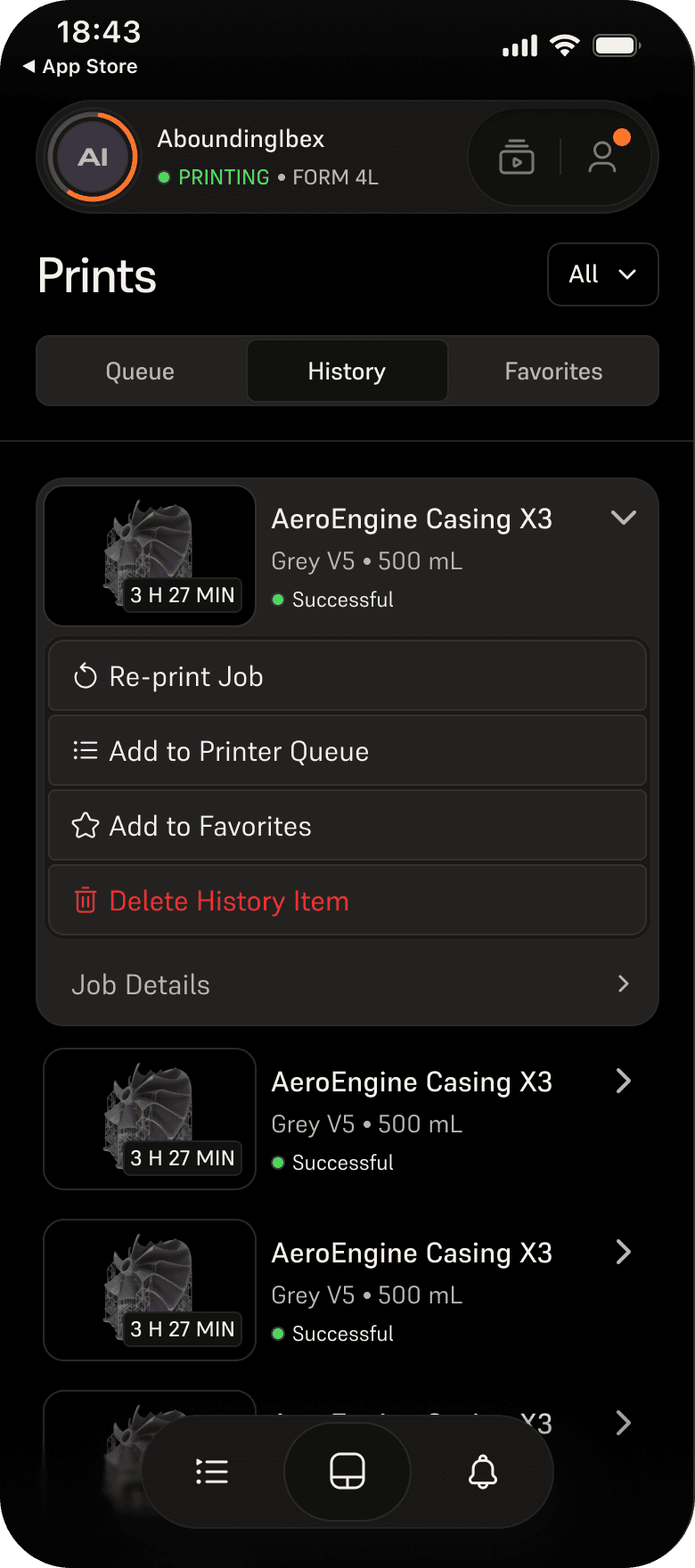
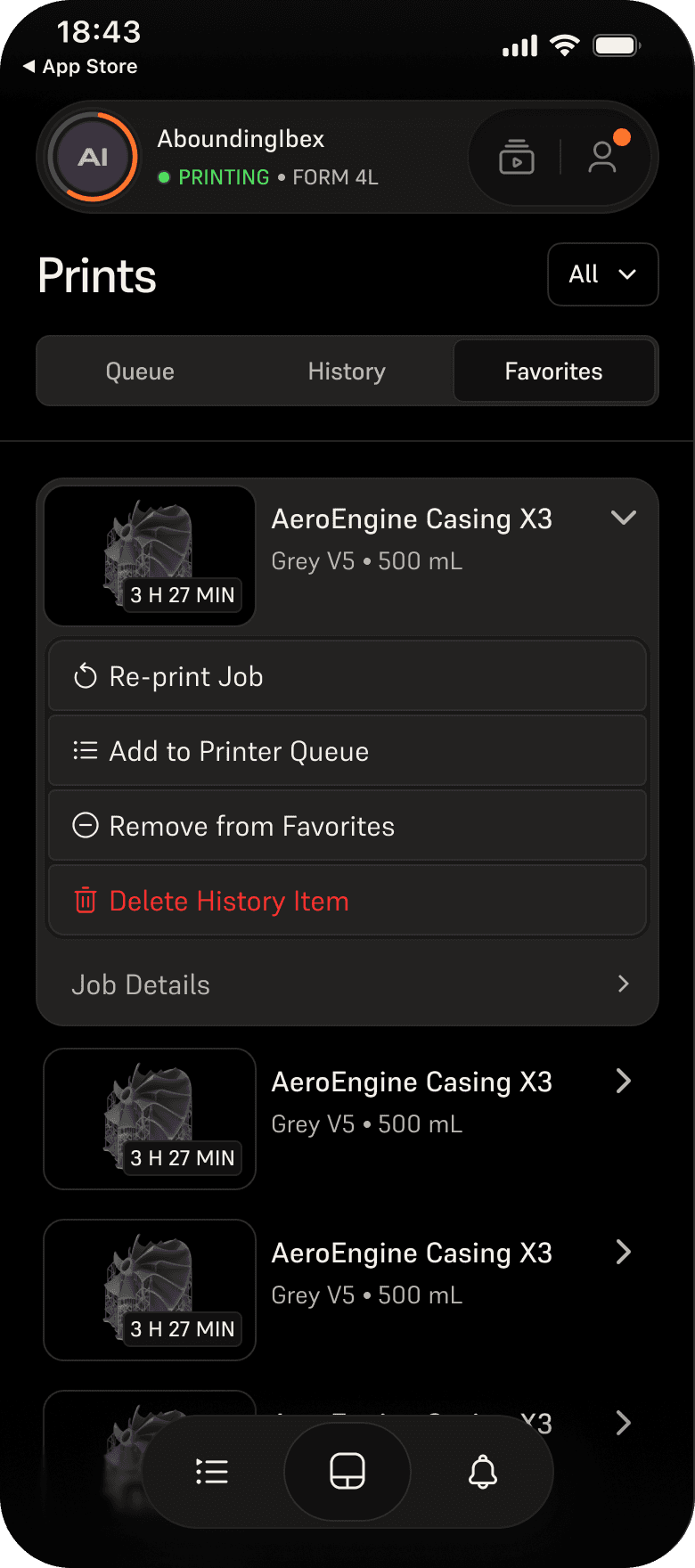
  2. Tap the queue icon at the bottom of the screen. The Prints screen appears with the Queue tab selected. Tap History or Favorites to switch to those tabs.
  3. Tap a print name to view more details and options for the print job.
    • Start Job or Re-print Job: Start the print, if the printer is ready.
    • Duplicate Job or Add to Printer Queue: Add a copy of the print job to the queue.
    • Add to Favorites: Add the print job to the Favorites list.
    • Delete Job or Delete History Item: Remove the print job from the queue or printer history, respectively.
    • Remove from Favorites: Remove a print job from the list of favorites.

Tip:

You can filter between All printers or Only mine for easier control.

Form Mobile print queue
Form Mobile print history
Form Mobile print favorites

Starting a print via Form Mobile

If a printer’s status is Ready to print, you can start a print via Form Mobile as long as the printer has a job in its queue or history that matches the inserted consumables.

To start a print via Form Mobile:
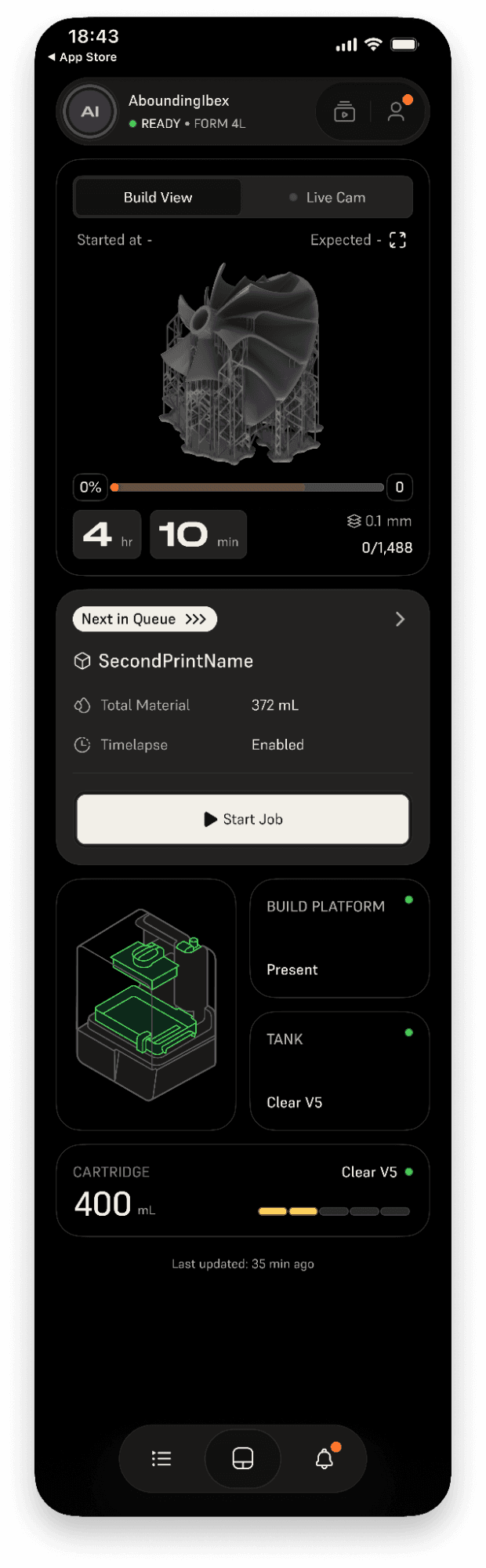
  1. Open the app. The app opens to the status page for the most recent printer you viewed.
    • If your last-viewed printer is not ready to print, tap the top status bar in the app. The My Printers drawer opens. Locate a printer with the Ready to print status and tap its name.
  2. The printer status screen shows the job that is next in the printer’s queue. If the material for that job matches the material in the printer, you can tap Start Job to start the print.
    • If the consumables do not match, the Start Job button will be greyed out.
  3. To start a print from the printer’s queue, history, or favorites list:
    • Tap the queue icon at the bottom of the screen. The Prints screen appears with the Queue tab selected. Tap History or Favorites to switch to those tabs.
    • From the Queue tab: Tap a print name to view more details and options for the print job. If the material for that job matches the material in the printer, you can tap Start Job to start the print. If the consumables do not match, the Start Job button will be greyed out.
    • From the History tab: Tap a print name to view more details and options for the print job. Tap Re-print Job > Yes to reprint a job from the printer’s history. If the material for that job does not match the material in the printer, the printer’s status will change to Check printer and the printer will show a consumables mismatch error.
    • From the Favorites tab: Tap a print name to view more details and options for the print job. Tap Start Job to reprint a job from the printer’s favorites list. If the material for that job does not match the material in the printer, the printer’s status will change to Check printer and the printer will show a consumables mismatch error.
Starting a print via Form Mobile

Pausing or ending a print via Form Mobile

If your printer has a print in progress, you can pause or abort the print via Form Mobile:

  1. Open the app. The app opens to the status page for the most recent printer you viewed.
    • If your last-viewed printer is not currently printing, tap the top status bar in the app. The My Printers drawer opens. Locate a printer with the Printing status and tap its name.
  2. To pause the print, tap Pause Job. A confirmation window appears. Tap Yes to pause the print.
    • The printer status changes to Pausing while the print is in the process of pausing. The status changes to Paused once the print has stopped and you can interact with the printer again.
    • Tap Resume to continue the print. The print continues and the printer status returns to Printing.
  3. To end the print, tap Abort Job. A confirmation window appears. Tap Yes to abort the print.
    • The printer status changes to Aborting while the print is in the process of ending. The status changes to Not ready once the print has stopped and you can interact with the printer again.