Viewing print images and videos on Form Mobile
Some Formlabs printers, such as Form 4 generation, Form 4L generation, and Form Studio 1 printers, have an integrated camera that can take end-of-print photos, timelapses, and more. Form Mobile allows you to view print images and videos from supported printers.
Viewing a video timelapse
Formlabs printers with integrated cameras allow users to take a video timelapse of the printing process. The video is available in the Form Mobile app and Dashboard once the print job is completed.
To take a video timelapse, ensure that:
- The printer’s camera is on
- The printer is registered to the Form Mobile app
- The printer is connected to the internet
- Timelapse recording is enabled for the print
- Form Studio 1: The Timelapse option is enabled under Settings > Configuration > Timelapse on the printer touchscreen
- Form 4 and Form 4L generation: Timelapse Recording is enabled in Job Setup in PreForm
To view a video timelapse:
- Open the Form Mobile app.
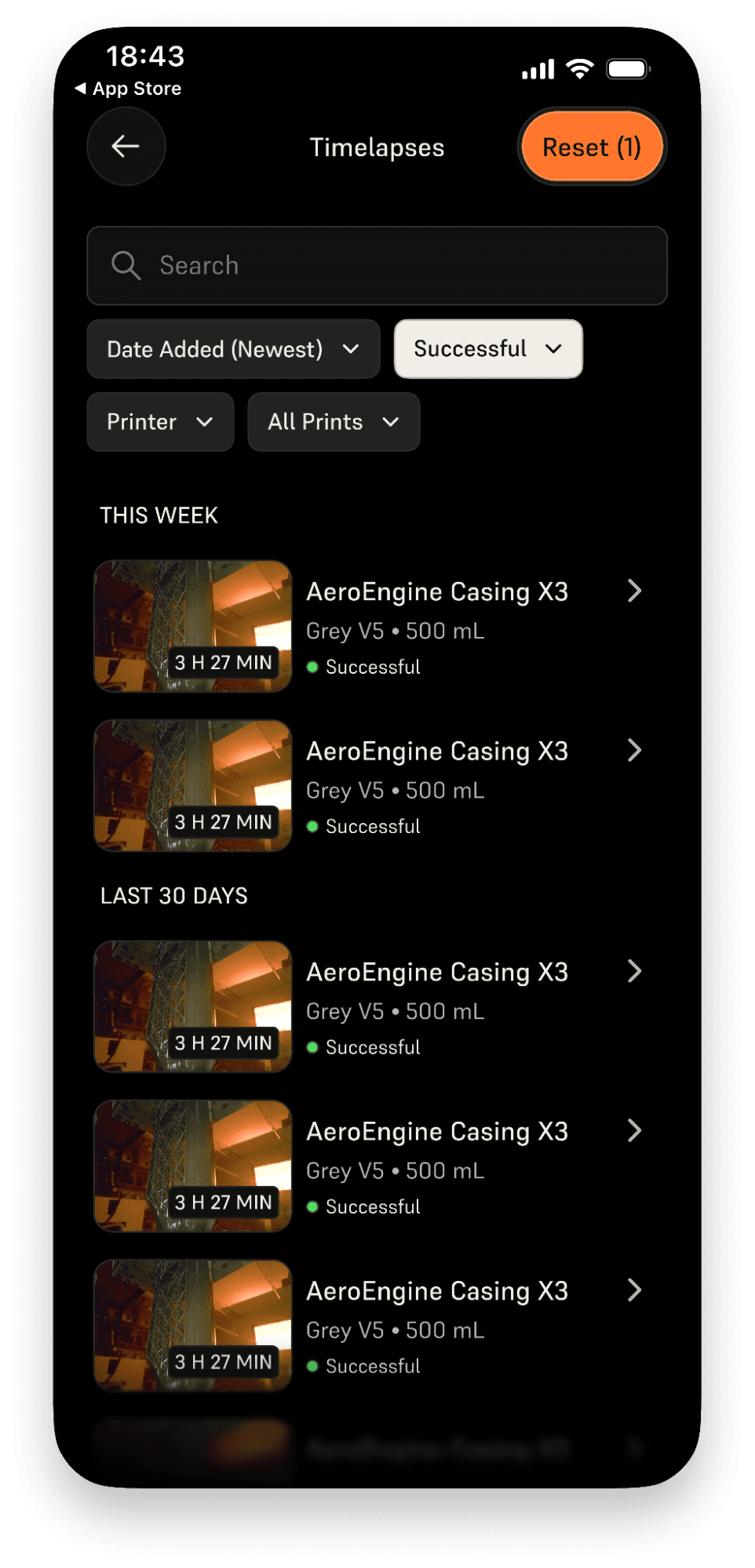
- Tap the timelapse icon, located to the left of your profile icon in the top-right corner of the screen. The Timelapses screen appears.
- Tap the print job whose timelapse video you want to view. More information about the print job appears.
- To more easily find a print job, you can search the list, sort by date added, filter by print outcome, or view only your own prints.
- Tap Timelapse. The timelapse video appears.
- Tap the play button to view the timelapse. Tap on the enlarge icon in the corner of the video to enlarge the window.
- Tap the Download or Share icon to download or share the video, respectively.
Viewing an end-of-print photo
Formlabs printers with integrated cameras allow users to take an end of print photo of a finished print job. The photo is available in the Form Mobile app once the print job is completed.
To take an end of print photo, ensure that:
- The printer’s camera is on
- The printer is connected to the internet
To view an end-of-print photo:
- Open the Form Mobile app.
- Select the printer whose end-of-print photo you want to view.
- Tap the Prints icon in the lower-left corner. The Prints screen appears.
- Tap History, then select the print job whose end-of-print photo you want to view. More information about the print job appears.
- To more easily find a print job, you can search the list, sort by date added, filter by print outcome, or view only your own prints.
- Tap Job Details > Snapshot. The end-of-print photo appears.
- Tap on the image to enlarge the window.
- Tap the Download or Share icon to download or share the image, respectively.
Viewing the live feed
Formlabs printers with integrated cameras allow users to view the live camera feed in the Form Mobile app. To watch the live cam, ensure that:
- The printer’s camera is on
- The printer is connected to the internet
- The printer is registered to the app
To view the live camera feed:
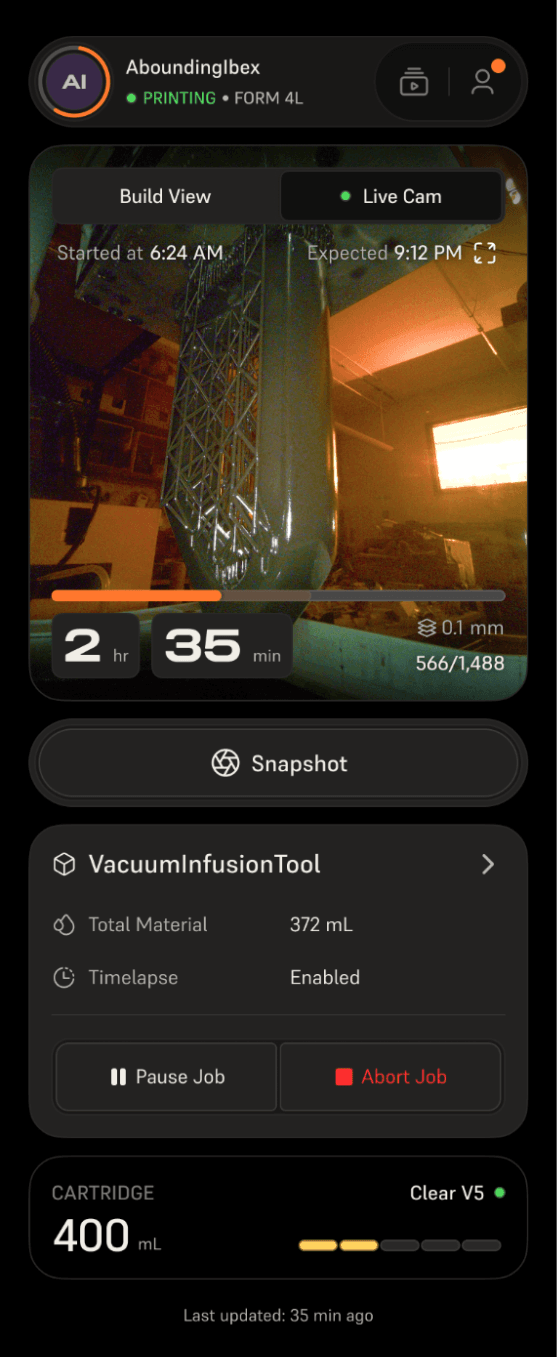
- Open the Form Mobile app. The app opens to the status page for the most recent printer you viewed.
- If your last-viewed printer is not the one whose live feed you want to access, tap the top status bar in the app. The My Printers drawer opens. Select a printer whose live feed you want to view.
- Tap Live Cam. The live stream window appears. Tap on the video to enlarge the live cam window.
Taking a camera snapshot
Formlabs printers with integrated cameras allow users to take a photo snapshot from the live camera feed. The camera snapshot is available in both the Form Mobile app and Preform.
To take a camera snapshot, ensure that:
- The printer’s camera is on
- The printer is connected to the internet
- The printer is connected to the Form Mobile app
- Open the Form Mobile app. The app opens to the status page for the most recent printer you viewed.
- If your last-viewed printer is not the one whose camera you want to access, tap the top status bar in the app. The My Printers drawer opens. Select the printer you want to take a snapshot from.
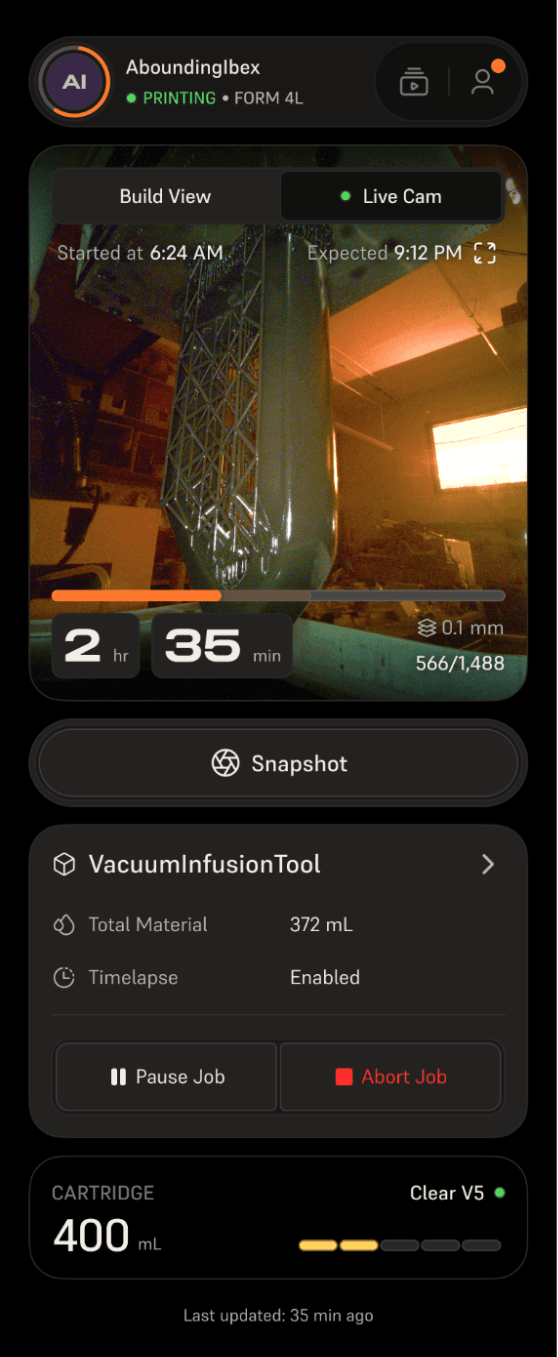
- Tap Live Cam. The live stream window appears. Tap Snapshot under the video window to take a snapshot.
- Tap the Delete or Download icon to delete or download the snapshot image, respectively.
- The snapshot is automatically deleted in 60 seconds if you do not download it.