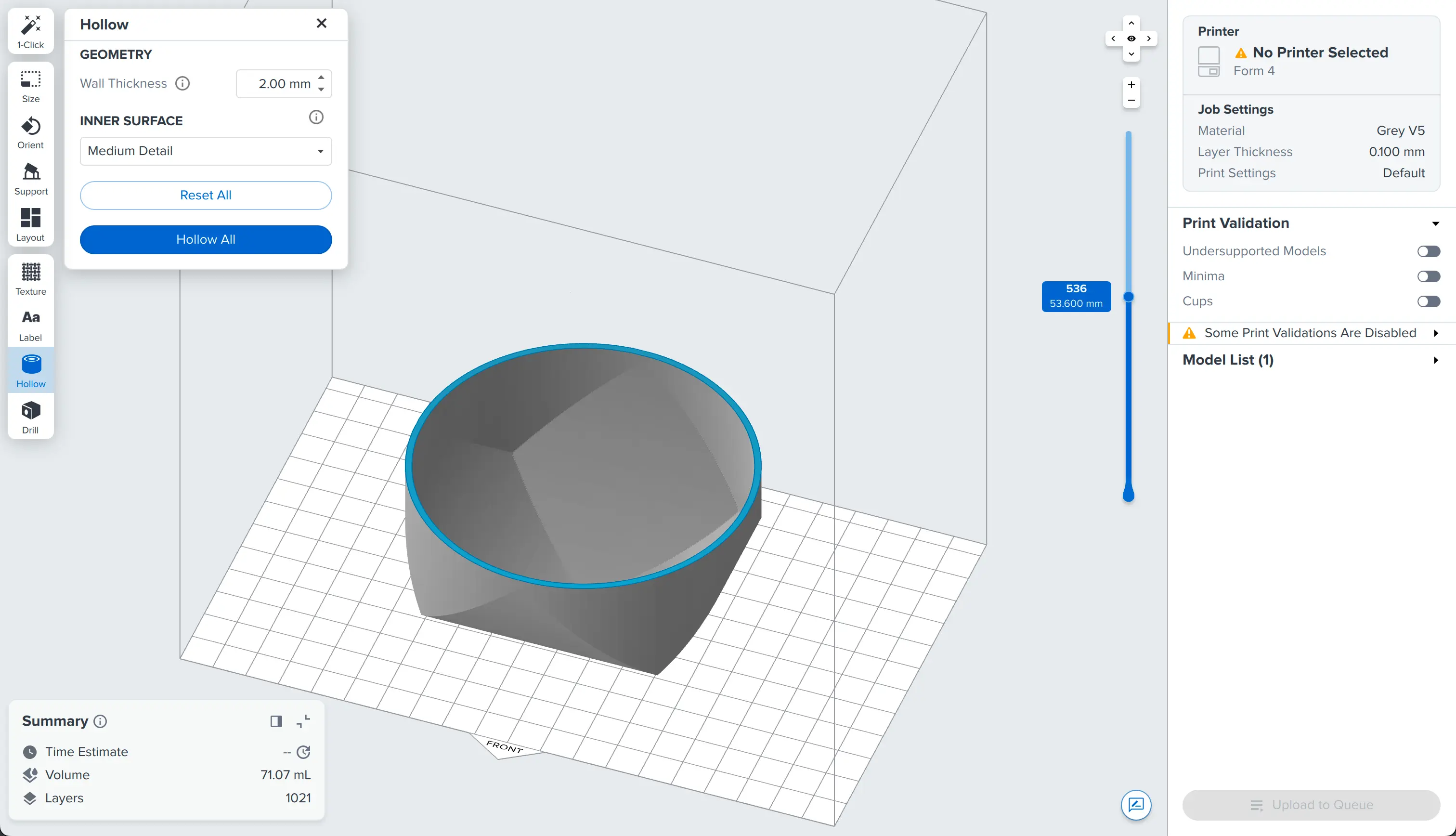
Évidage de modèles dans PreForm
Évidage de modèles dans PreForm
Imprimer un modèle creux économise les matériaux et réduit le temps d’impression, mais cela peut également être une exigence fonctionnelle. En démarrant avec PreForm 3.41.0, vous pouvez évider vos modèles dans PreForm.
L’opération d’évidage est basée sur la topologie du modèle. Si votre modèle est une union de plusieurs pièces plus petites plutôt qu’un corps unique défini, PreForm évide chaque pièce, ce qui peut conduire à des résultats inattendus.
Lorsque vous évidez un modèle, ajoutez des trous de drainage pour éviter les cavités d’aspiration (SLA) et pour empêcher le matériau d’être piégé à l’intérieur de la pièce (SLA et SLS).
Consultez les spécifications de conception des modèles 3D pour votre imprimante afin de trouver les exigences relatives à l’épaisseur minimale des parois avec supports.
Pour évider des modèles à l’aide de l’outil Hollow (Évider) :
- Cliquez sur Hollow (Évider) dans la barre d’outils à gauche de la scène 3D. Le panneau Hollow (Évider) apparaît.
Évidage de modèles dans PreForm
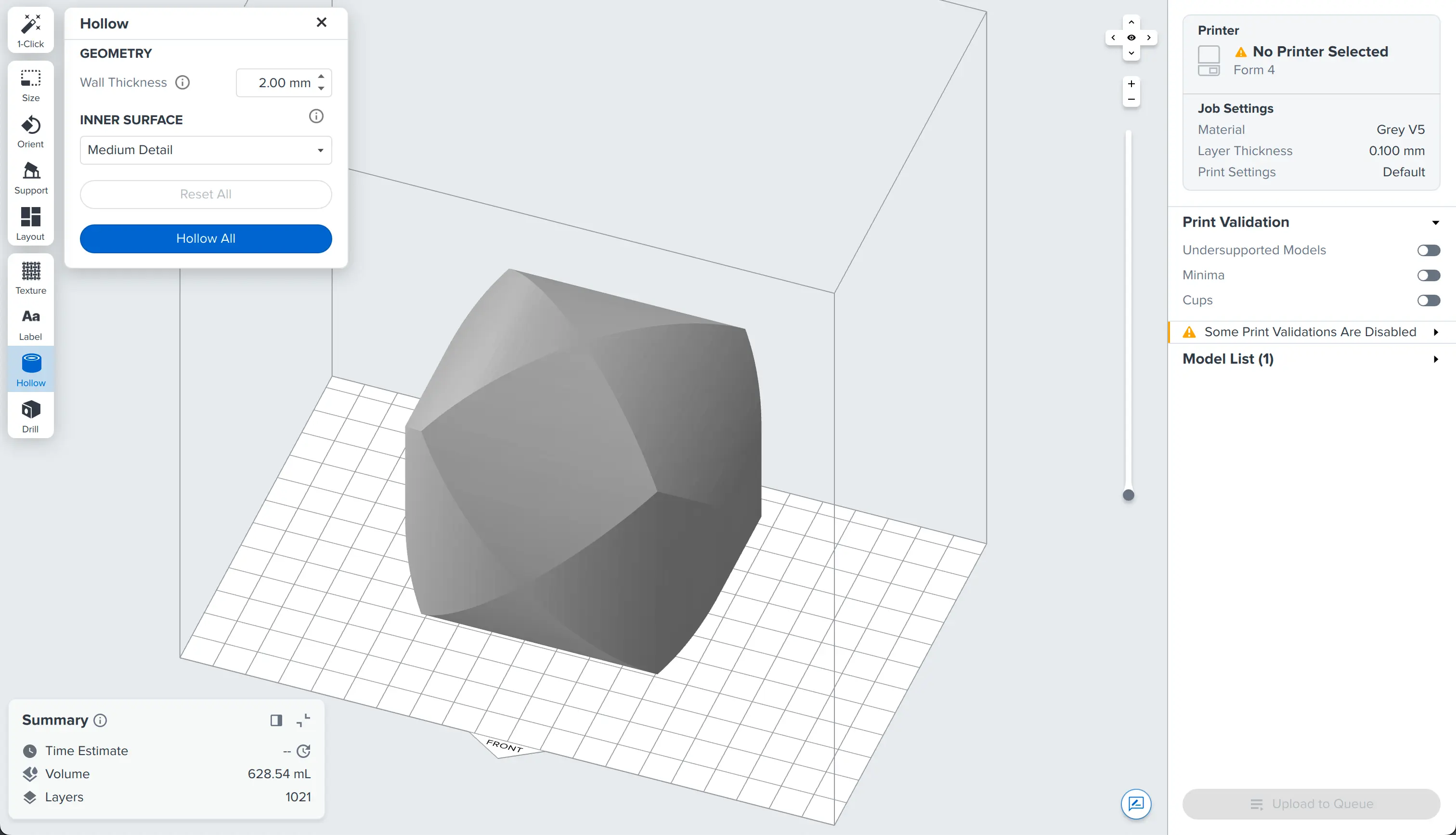
- Les modèles dont l’épaisseur est inférieure à deux fois l’épaisseur des parois sélectionnée ne seront pas évidées.
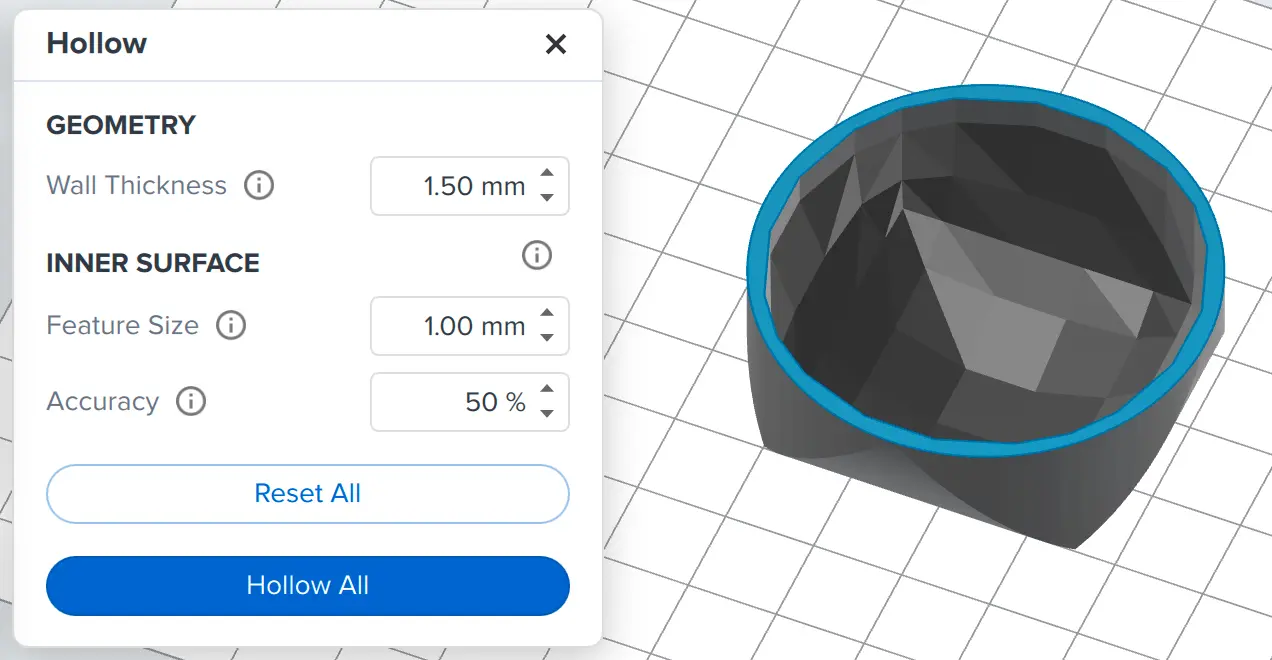
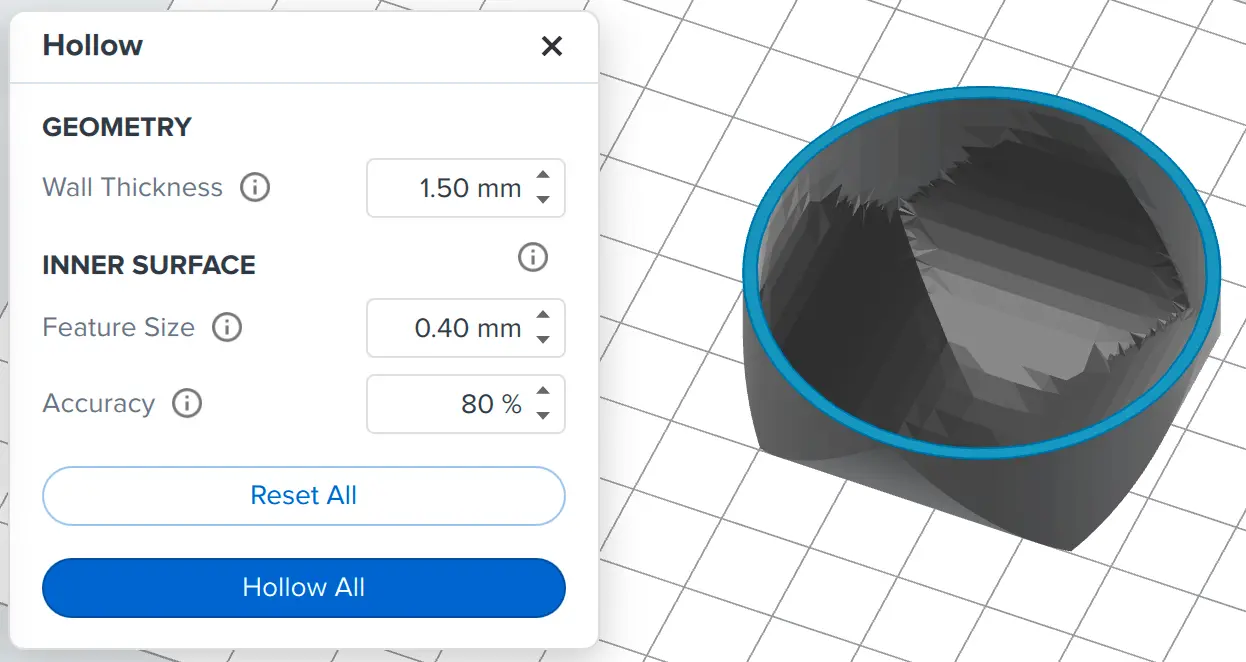
- Utilisez les paramètres Feature Size (Taille de la caractéristique) et Accuracy (Précision) pour mettre l’ensemble du niveau de précision de la surface intérieure du modèle creux.
- Feature Size (Taille des caractéristiques) : la réduire permet de lisser les surfaces internes, mais PreForm peut prendre plus de temps pour évider le modèle et générer un fichier FORM plus volumineux.
- Accuracy (Précision) : degré de concordance entre les caractéristiques internes et les caractéristiques externes en fonction de la Wall Thickness (Épaisseur de la paroi). Augmenter la précision améliore la qualité des surfaces internes du modèle creux, mais cela peut prendre plus de temps pour évider le modèle.
- Pour évider tous les modèles ouverts, assurez-vous qu’aucun modèle n’est sélectionné et cliquez sur Hollow All (Tout évider).
- Sélectionnez un ou plusieurs modèles et cliquez sur Hollow Selected (Évider la sélection) pour n’évider que les modèles sélectionnés.
- Cliquez sur Reset All (Réinitialiser tout) ou Reset Selected (Réinitialiser la sélection) pour restaurer les modèles d’origine.