WHITE PAPER
Formlabs Logo

Setting up Open Material Mode (SLA)

Setting up Open Material Mode (SLA)

With Open Material Mode, you can print with any type of 405 nm photopolymer resin on Formlabs SLA printers. Open Material Mode is available for a one-time lifetime fee per printer.

Follow the steps in this article to set up Open Material Mode on your Formlabs SLA printer.

Requirements

Your printer will need to connect to the internet during Open Material Mode activation.

Activating Open Material Mode

  1. On your printer, tap the gear icon. The Settings screen appears.

Note:

Before continuing, make sure the printer is connected to the internet. You can choose to connect it temporarily (e.g., via a mobile hotspot). An active internet connection is not required after activation to print with Open Material Mode.

  1. Navigate to the activation screen.
    • Form 3 generation: Tap System > Advanced capabilities > Activate new capability.
    • Form 3L generation: Tap System > Advanced capabilities > Activate new capability.
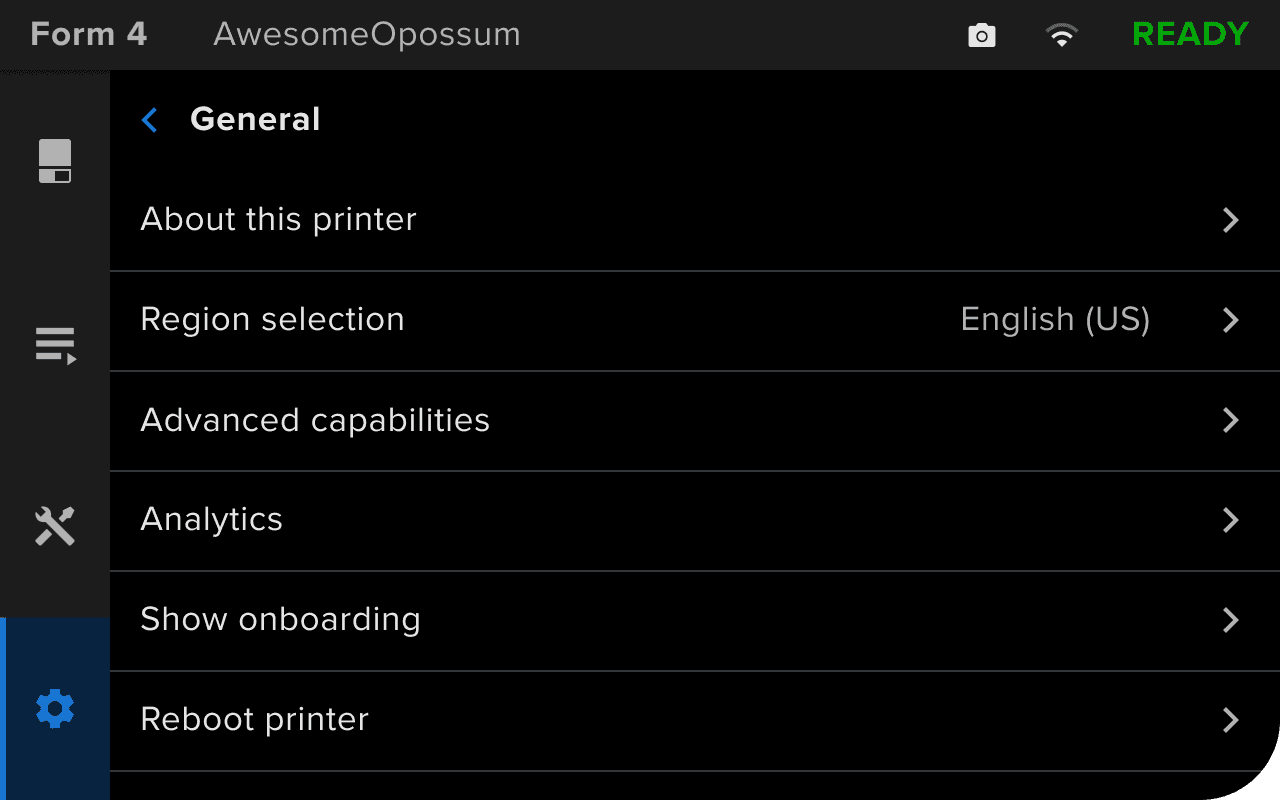
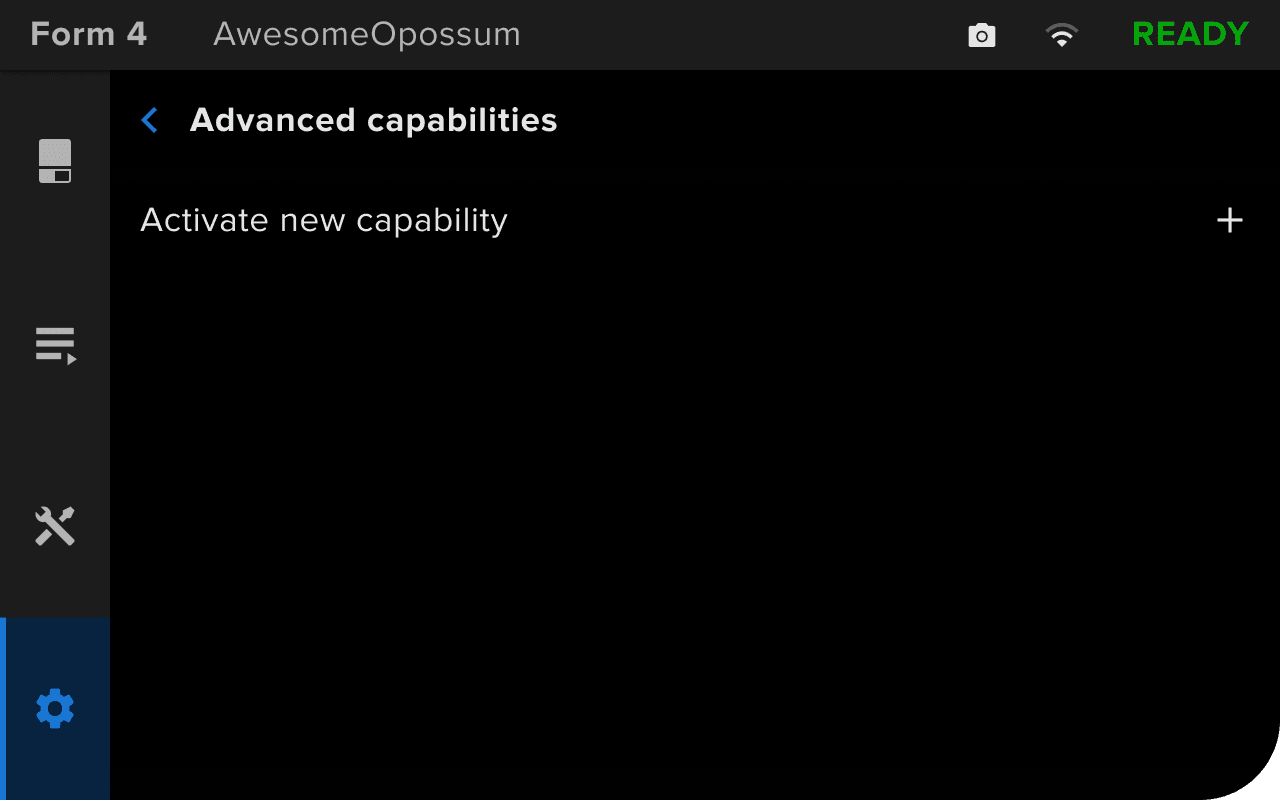
    • Form 4 and Form 4L generation: Tap General > Advanced capabilities > Activate new capability.
The Settings > General screen on a Form 4 generation printer
The Advanced capabilities screen on a Form 4 generation printer
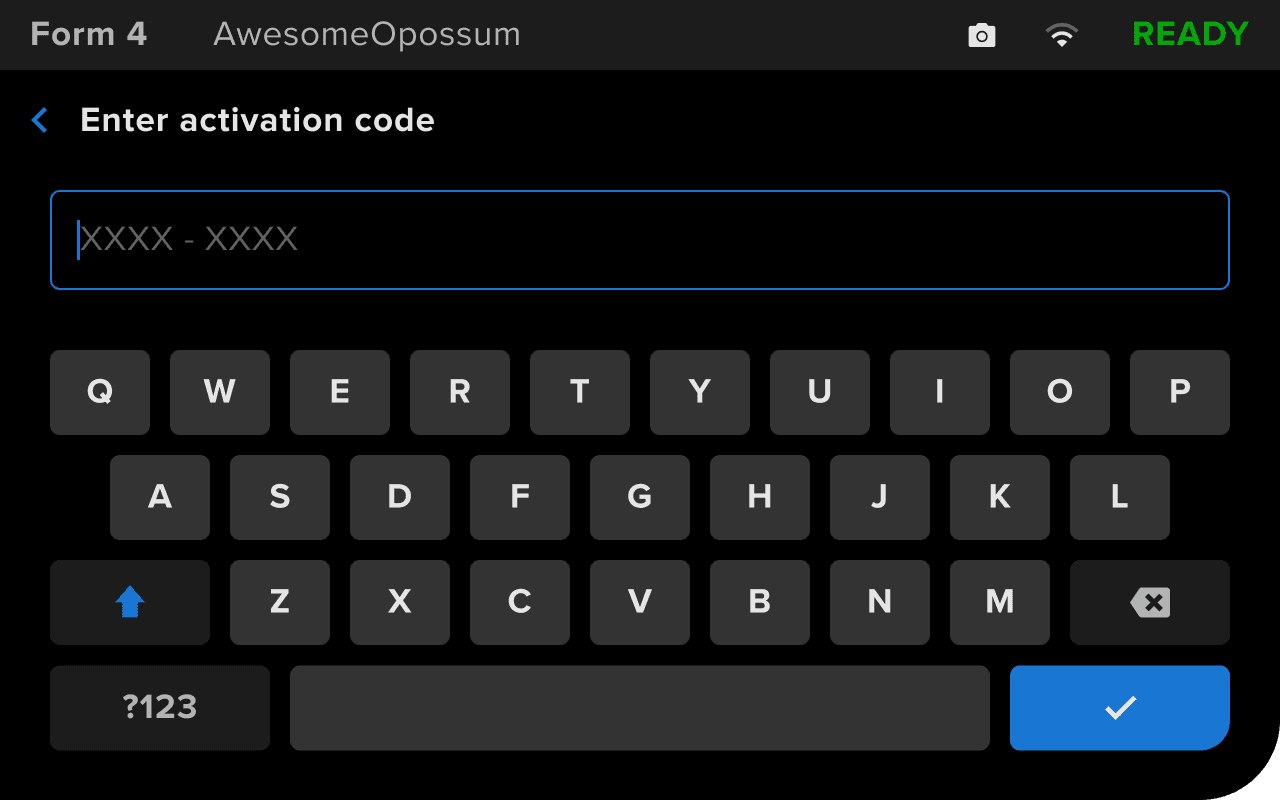
  1. Enter your activation code and tap the confirmation button on the bottom right.
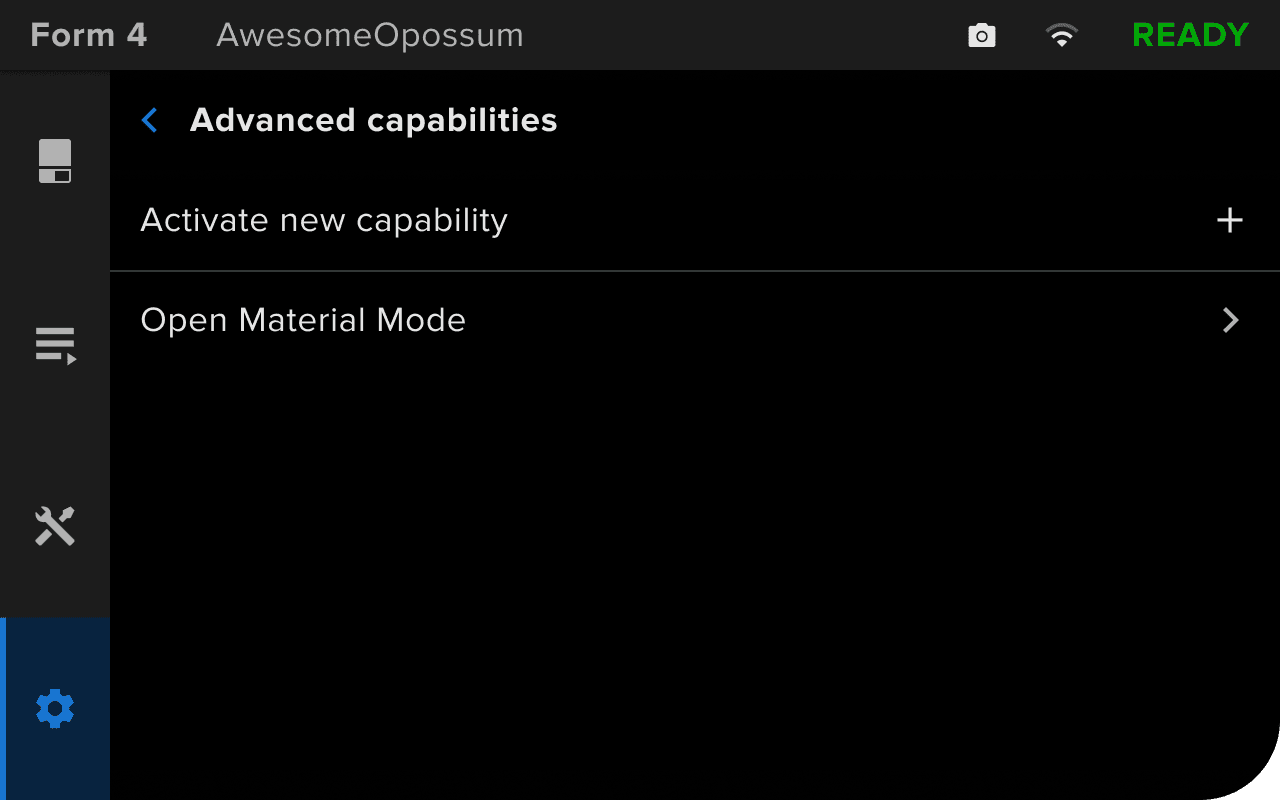
  2. If the code you entered is valid, the Advanced capabilities screen appears again and displays the message Open Material Mode activated.
Entering an Open Material Mode activation code on a Form 4 generation printer
Open Material Mode activated on a Form 4 generation printer

Note:

If you enter an incorrect or invalid code, the printer will show an error message (Form 4 and Form 4L generation) or show the Advanced capabilities screen again (Form 3 and Form 3L generation). Tap Activate new capability and re-enter your activation code.

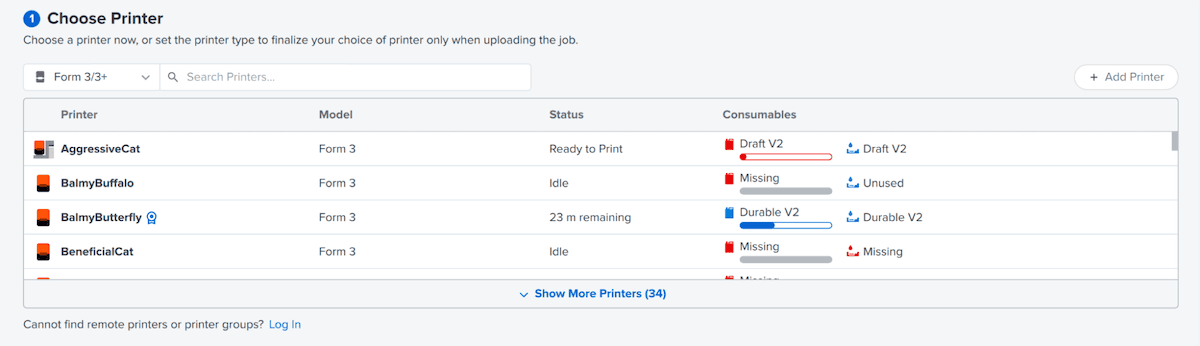
You can also confirm that the capability has been activated via PreForm:

  1. Open PreForm.
  2. Click the name of a Printer. The Job Setup window opens.
  3. Scroll to the Choose Printer section. Click to select a printer.
  4. A blue ribbon icon appears next to the printer name to indicate that Open Material Mode has been activated. Select the printer.
A Form 3 printer with Open Material Mode in PreForm

Once you have successfully activated Open Material Mode on your printer, use it to set up and start a print.