
Note:
Run the Combined Calibration Tool on each printer that will use Nylon 11 Pro Powder. Two printers operating side by side may require different calibrations.

The Combined Calibration Tool is a diagnostic print that prepares your Fuse 1+ 30W to print with Nylon 11 Pro Powder. During the print, the printer runs a series of tests that automatically and precisely tune the bed temperature to the material and correct any laser power drift that may have occurred since the printer was manufactured. The Combined Calibration Tool can also be used to diagnose problems with air handling and optical cleanliness.
The print uses about 4.3 kg of fresh Nylon 11 Pro Powder and takes about 20 hours to complete. Most of the print is used to age fresh powder for your first print. The print leaves about 4 kg of used powder, which can be mixed with 30% fresh powder for your next print.
Note:
Run the Combined Calibration Tool on each printer that will use Nylon 11 Pro Powder. Two printers operating side by side may require different calibrations.
Prepare your printer
The Combined Calibration Tool precisely calibrates your bed temperature and laser power. For these calibrations to be accurate, the IR sensor and optics must be thoroughly cleaned before the print. Clean the following:

Wiping the optical cassette windows with a lint-free cloth wetted with ethanol
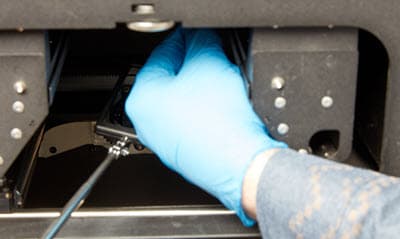
Cleaning the IR sensor cone with a swab wetted with ethanol
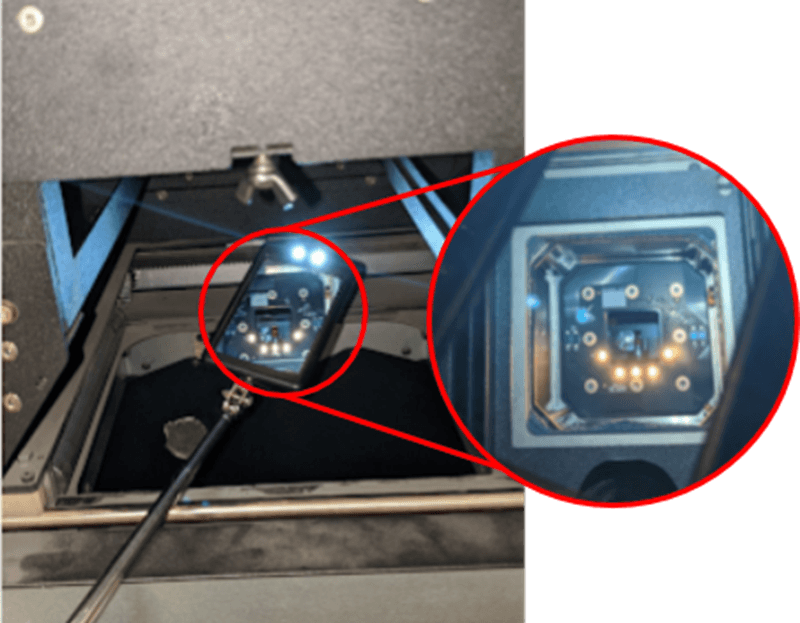
Cleaning the upper laser window with a swab, guided by a mirror
The print includes checks that help identify optics that have not been cleaned sufficiently. If the print stops shortly after it starts and the touchscreen shows the error message Glare Check Failed, clean the camera window in the optical cassette and start the print again.

The Glare Check Failed screen, showing the camera window to clean outlined in green
Run the Combined Calibration Tool
To download, print, and use the Combined Calibration Tool:
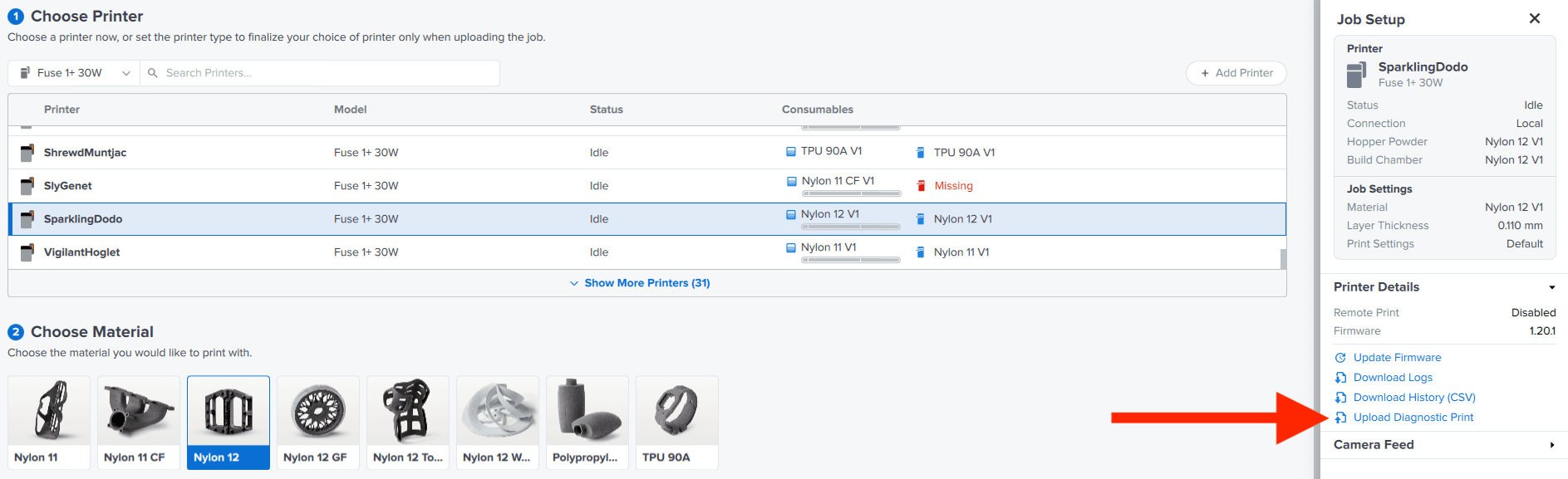
After the print
After the print has cooled, insert the build chamber into the Fuse Sift and eject the powder cake. Discard the printed sheets. Sift and recover the remainder of the powder cake—the aged can be refreshed with 30% fresh powder and used for your next print.
Review and apply the results
Review the results on the printer's touchscreen and apply the new calibration:

Tools menu on the Fuse 1+ 30W
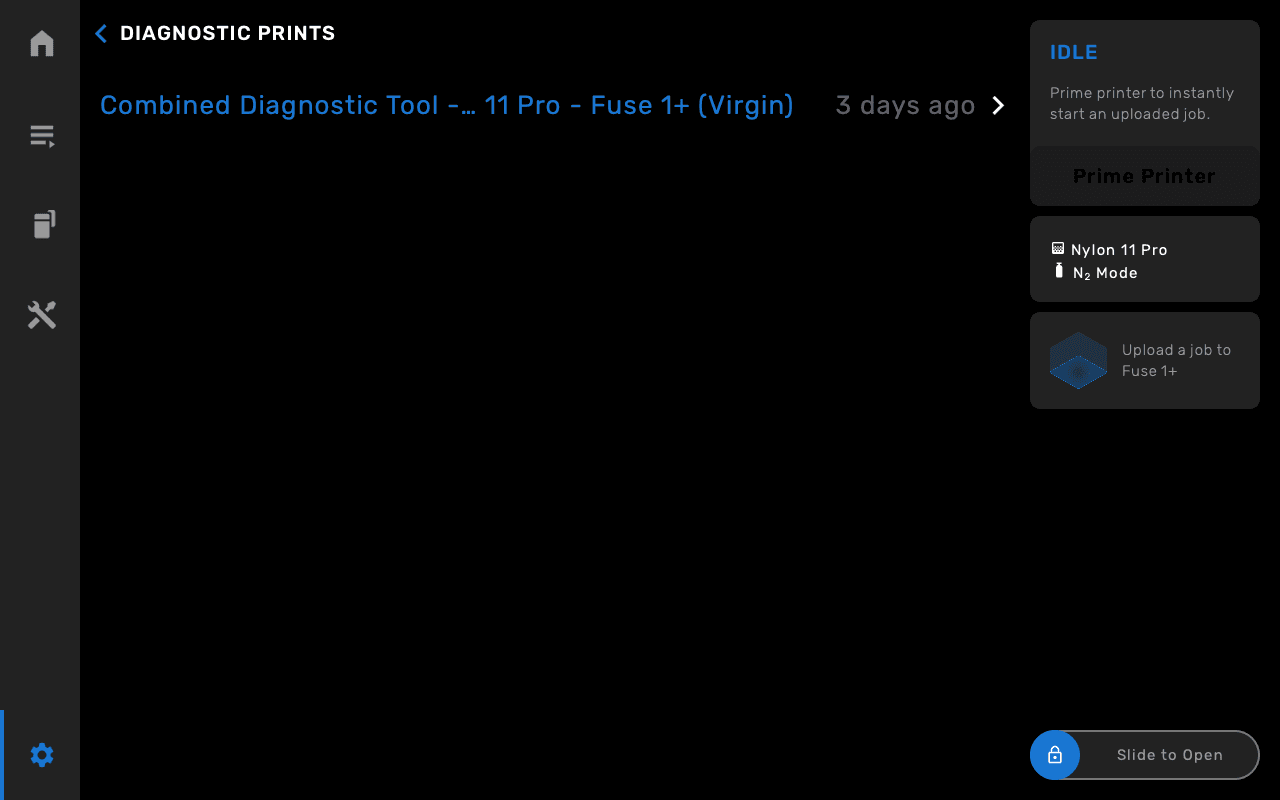
Diagnostic Prints list on the Fuse 1+ 30W
Note:
Laser power is only corrected when the optics are clean. If you tap Needs cleaning, the bed temperature offset will still be applied, but the laser power will not be corrected. Clean the optics and run the Combined Calibration Tool again.

Optical Cleanliness Scan from the Nylon 11 Pro Powder Combined Calibration Tool print beside a clean and a dirty example

Selecting powder type

Test results and the new calibration, ready to apply