
Tip:
Adjusting the Z-Compression Correction value in PreForm corrects dimensional inaccuracy along the Z-axis for a single model.

Z Axis Fine Tuning is an advanced troubleshooting feature on Formlabs LFS printers (Form 3 and Form 3L product lines). Use Z Axis Fine Tuning to correct any consistent, small-scale dimensional errors or to mitigate model adherence issues.
Tip:
Adjusting the Z-Compression Correction value in PreForm corrects dimensional inaccuracy along the Z-axis for a single model.
Correcting overcompression
Printed prints are sometimes shorter than their intended design. This dimensional inaccuracy is referred to as Z-compression, and can be adjusted by either raising the build platform or by recalibrating the Z-axis.
Note:
Make sure that your firmware and PreForm versions are up to date. To check your printer’s firmware version, refer to the support article Checking the firmware version for Formlabs SLA printers. To update your PreForm version, refer to the FAQ article How do I update PreForm?.
Step 1: Recalibrate the Z-axis
Recalibrating the Z-axis may correct Z-compression by resetting the build platform’s height back to factory settings.
To recalibrate the Z-axis:
Step 2: Fine tune the Z-axis
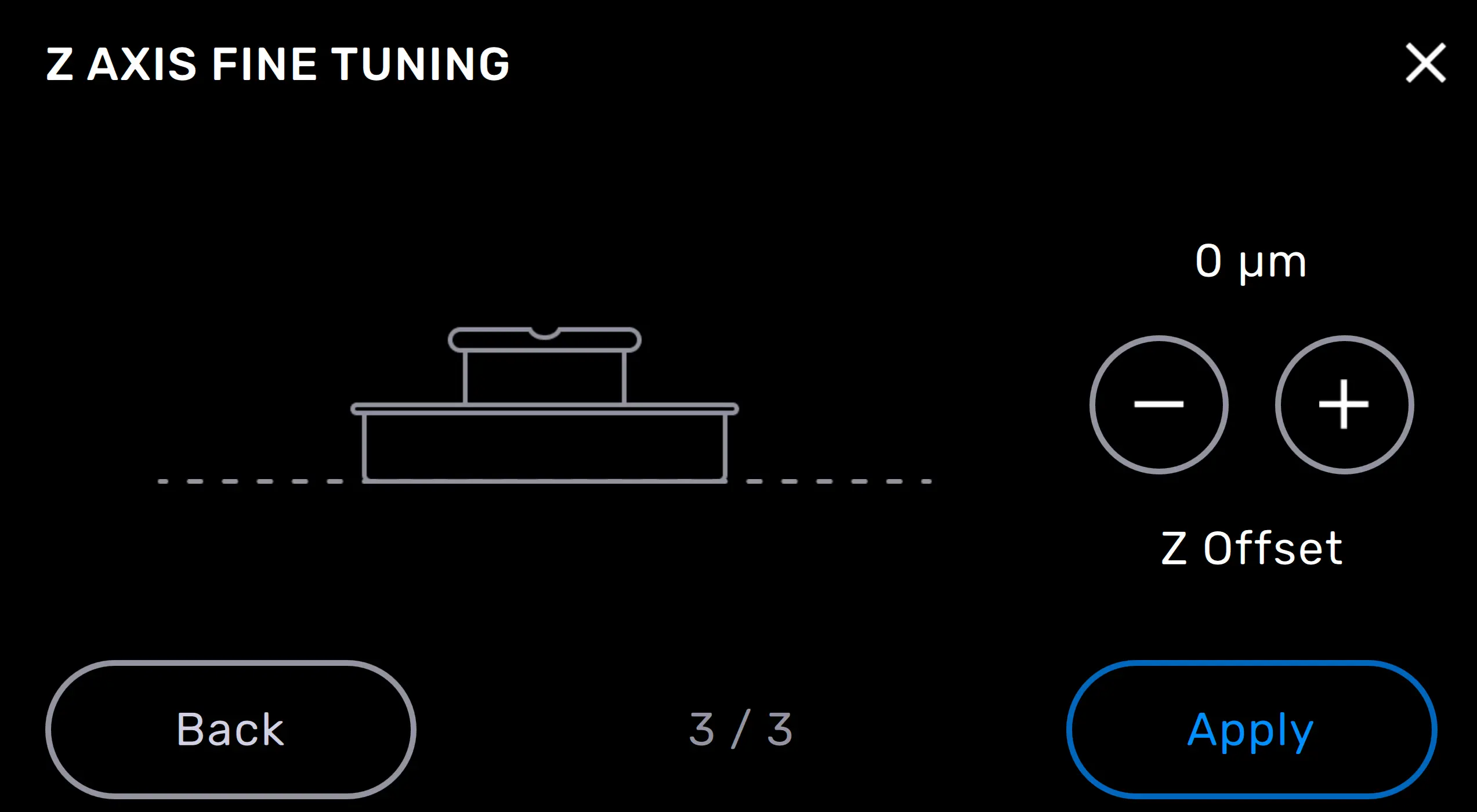
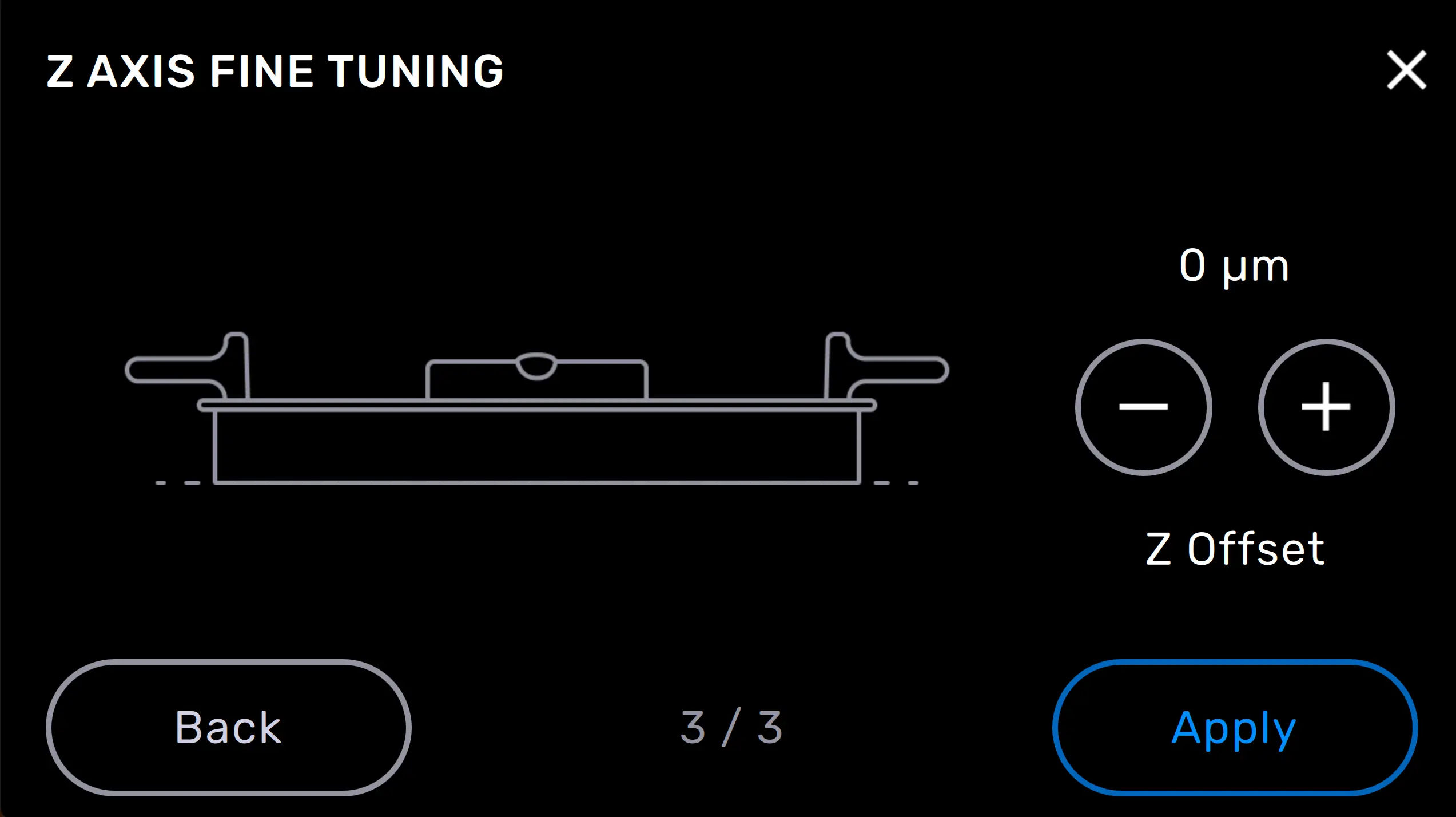
Z Axis Fine Tuning changes the height of the build platform above the tank’s elastic layer before the first layer adheres to the build platform. Small adjustments adding to the build platform’s height may correct Z-compression in models.
Tip:
Your PreForm settings do not change when adjusting the Z-axis.
To fine tune the Z-axis on a Formlabs LFS printer:
Tip:
Adjust the build platform height in increments of 50 µm, then print small models to test the change and continue to adjust the value until models print with consistent supports and rafts.
Correcting non-adherence
Prints that complete but leave the build platform empty are the result of non-adherence. This can be corrected by either raising the build platform or by recalibrating the Z-axis.
Note:
Make sure that your firmware and PreForm versions are up to date. To check your printer’s firmware version, refer to the support article Checking the firmware version for Formlabs SLA printers. To update your PreForm version, refer to the FAQ article How do I update PreForm?.
Step 1: Recalibrate the Z-axis
Recalibrating the Z-axis may correct non-adherence by resetting the build platform’s height back to factory settings.
To recalibrate the Z-axis:
Step 2: Fine tune the Z-axis
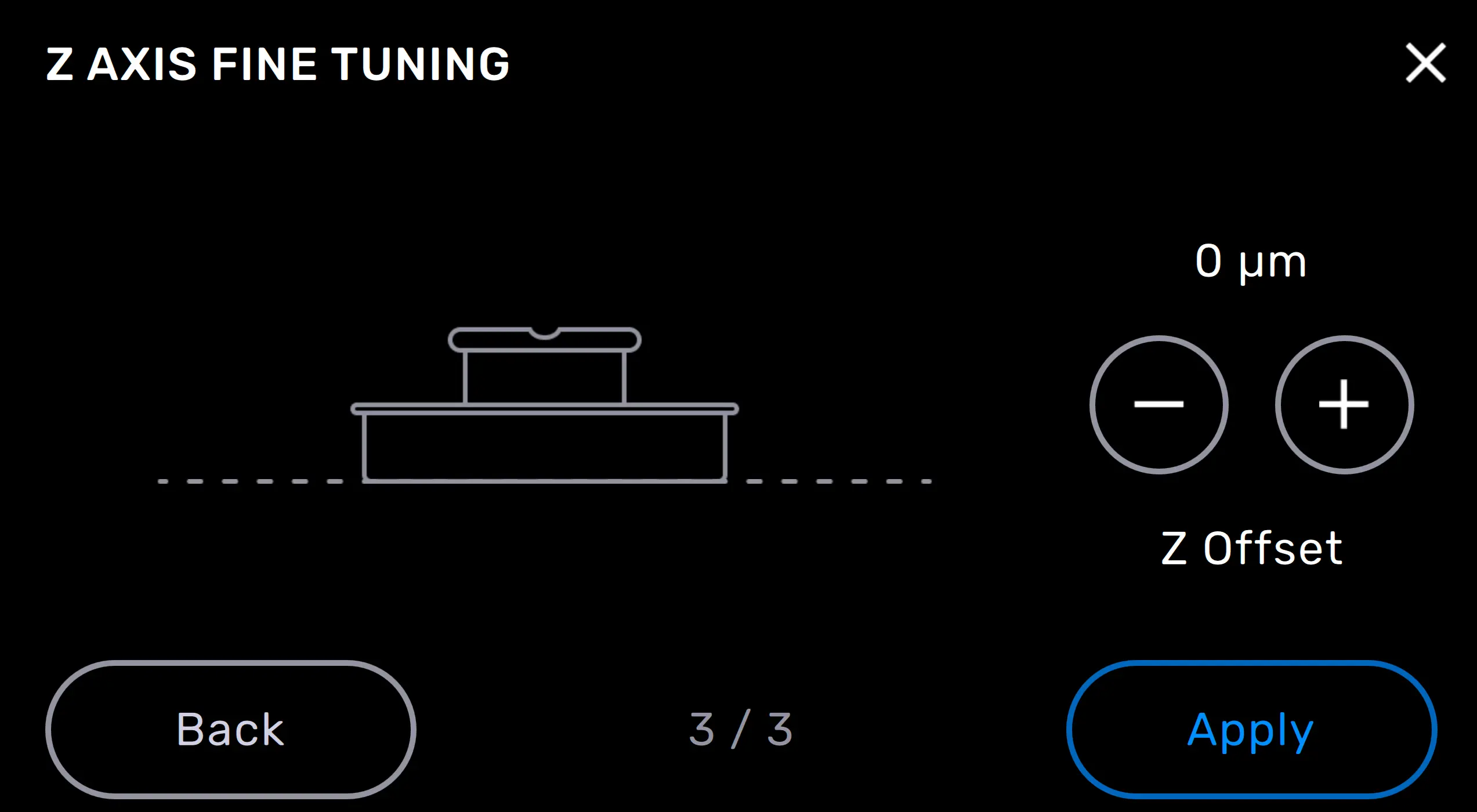
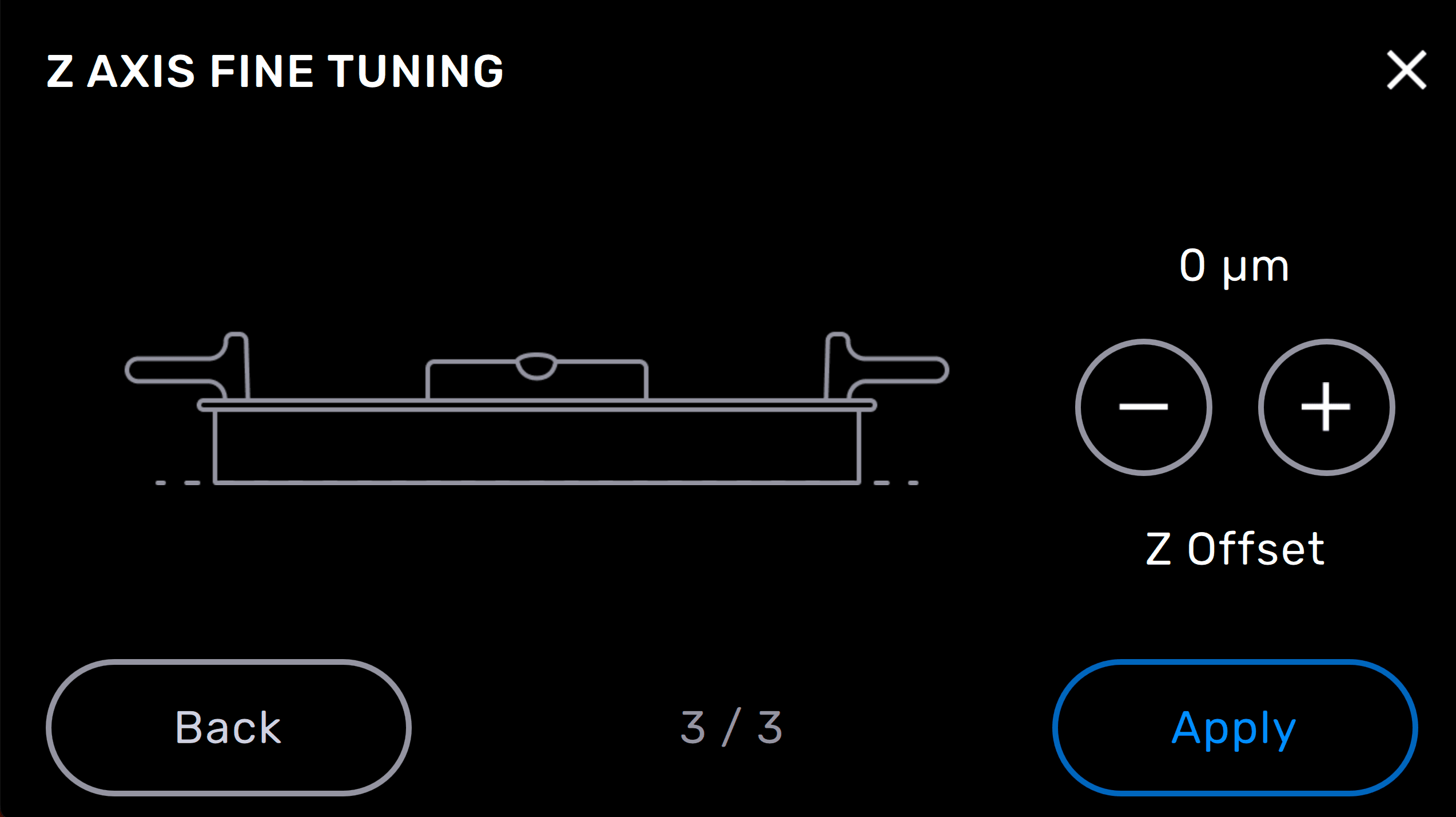
Z Axis Fine Tuning changes the height of the build platform above the tank’s elastic layer before the first layer adheres to the build platform. Small adjustments lowering the build platform’s height may correct non-adherence in models.
Tip:
When adjusting the Z-axis your PreForm settings do not change.
To fine tune the Z-axis on a Formlabs LFS printer:
Tip:
Adjust the build platform height in increments of -50 µm, then print small models to test the change and continue to adjust the value until models print with consistent supports and rafts.
Contacting Formlabs Support
If your parts never adhere or continue to shift location on the build platform, reset all Z Axis Fine Tuning settings to default values and contact Formlabs Support or your authorized reseller.
To help us provide the fastest and most effective response to your issue, please provide the following information: