WHITE PAPER
Formlabs Logo

Inspecting the Backlight Unit and LPU (Form 4 and Form 4L generation)

Inspecting the Backlight Unit and LPU (Form 4 and Form 4L generation)

If you experience print defects when using your Form 4 or Form 4L generation printer, inspect the Backlight Unit and Light Processing Unit (LPU) to ensure they are functioning normally. Start by testing the Backlight Unit, then test the Backlight Unit and LPU together.

Warning:

Do not look directly at the UV backlight while inspecting the printer optics.

Testing the Backlight Unit

To test the Backlight Unit in isolation:
  1. Dim the lights in your workspace. This will make it easier to see the light from the Backlight Unit and determine if it is working properly.
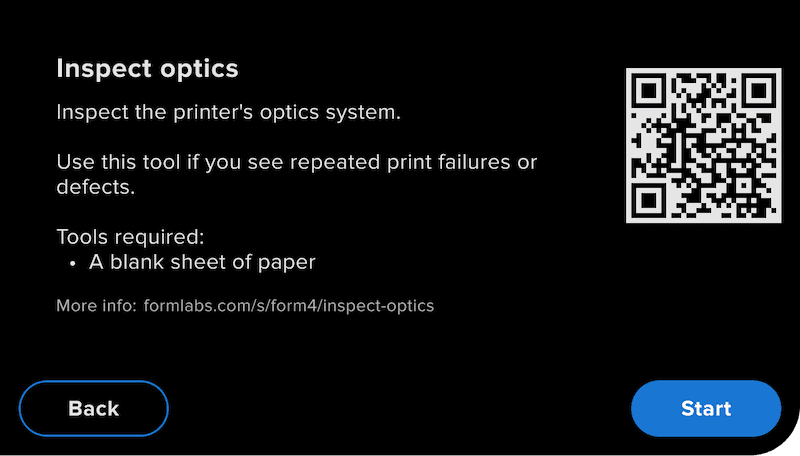
  2. On the touchscreen, go to Settings > Tools > Inspect optics.
Starting the Form 4 optics inspection
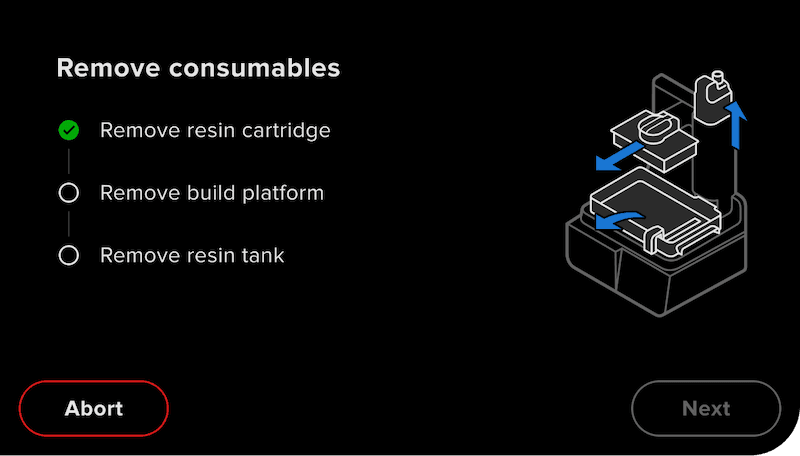
  1. The touchscreen walks you through the process of removing consumables. Remove the consumables and tap Next.
Removing consumables to inspect the Form 4 optics
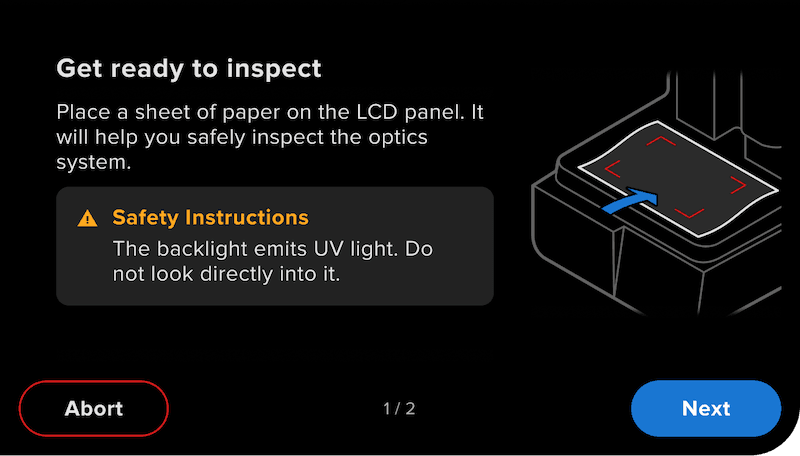
  1. Place a sheet of paper on the LPU to protect your eyes from UV damage. Leave the printer cover open after placing the sheet of paper on the LPU. On Form 4L generation printers, place two sheets of paper on the LPU.
  2. Tap Next when the LPU is fully covered.
Covering the LPU before inspecting the Form 4 optics
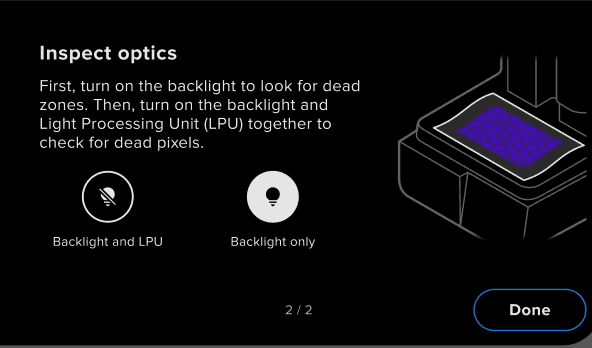
  1. With the paper in place, tap Backlight only. The Backlight Unit turns on while the LPU remains off.
  2. Inspect the paper. If the Backlight Unit and LPU are functioning normally, the paper should be uniformly dimly lit. If the paper does not appear to light up at all, the environment may be too bright. Turn down the lights or use thinner paper, then inspect the backlight again.
Turning the Form 4 LPU on to test it

Identifying issues by testing the Backlight Unit
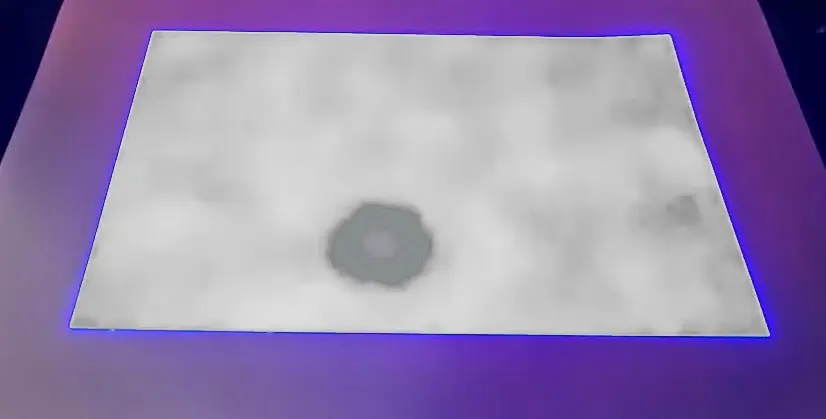
A Form 4 printer showing signs of a failed Backlight Unit

Testing the Backlight Unit with the LPU

To test the Backlight Unit and LPU together:

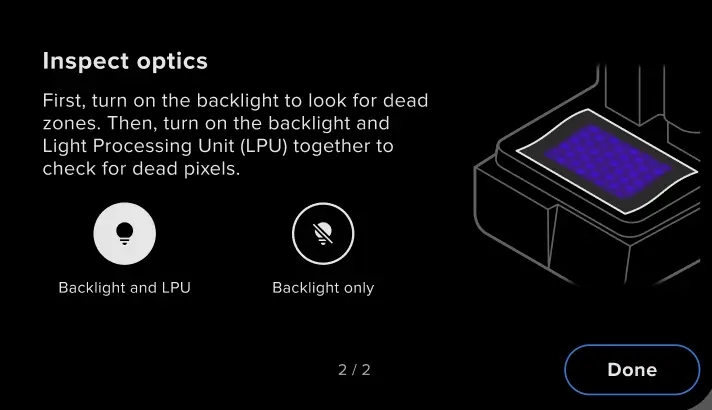
  1. After testing the Backlight Unit alone, tap Backlight and LPU. The Backlight Unit and LPU both turn on.
  2. Inspect the paper. If the Backlight Unit and LPU are functioning normally, the paper should be uniformly lit, but brighter than before.
Testing the Backlight Unit and LPU together on a Form 4 generation printer

Identifying issues by testing the Backlight Unit and LPU
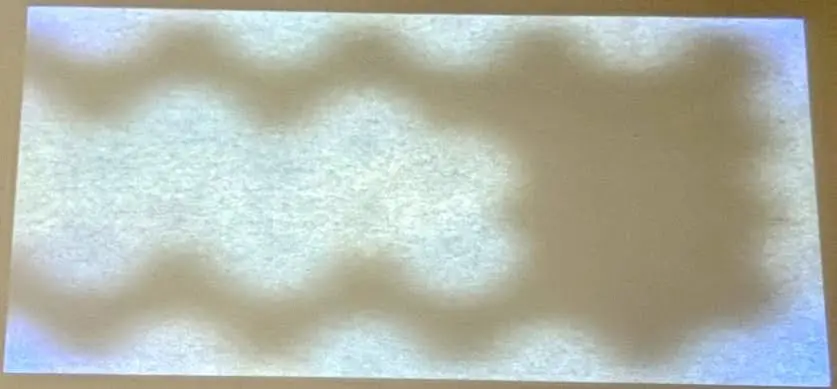
  • If the light is no brighter than during the previous test, the LPU may have failed.
  • If the light is flickering or a section of the LPU does not light up, the LPU may have failed.
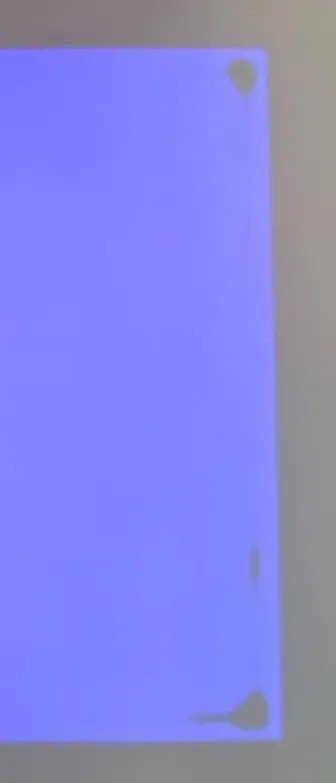
  • Small dark spots, typically near the edges, indicate failed areas in the LPU.
  • Localized regions where the light is darker may be due to dust settling under the LPU. Follow the appropriate LPU replacement guide for your printer (Form 4 or Form 4L) to remove the LPU, then clean the underside of the LPU with a non-abrasive wipe lightly wetted with IPA. Clean any other visible dust in the printer cavity, then reinstall the LPU. Also clean or replace the LPU fan filter following the appropriate guide for your printer (Form 4 or Form 4L) and ensure the printer is located away from machinery that generates dust. LPU fan filters are available for purchase on the Formlabs Store.
Small dark spots near the edge of a Form 4 LPU
Dark regions on a Form 4L LPU

Replacement Light Processing Units are available on the Formlabs Store. Follow the appropriate guide for your printer to replace the component.

If the sheet(s) of paper do not appear uniformly lit or completely unlit during this test or you have questions about the results of these tests, contact Formlabs Support or your authorized service provider for assistance.