
Note:
Printer history is available to download from Fuse 1 generation printers running firmware 1.19.0 or later through PreForm 3.41 or later. Print videos were added to the printer history download in firmware version 1.22.0.

Viewing activity logs can be useful when maintaining or troubleshooting your printer. Download print history, error message, and maintenance logs from your Formlabs printer via PreForm to save or analyze.
Note:
Printer history is available to download from Fuse 1 generation printers running firmware 1.19.0 or later through PreForm 3.41 or later. Print videos were added to the printer history download in firmware version 1.22.0.
Downloading printer history
Connect to a Formlabs SLS printer via PreForm to download the printer history package. To download your printer history:
Viewing printer history
The printer history package contains three CSV files:
Print history
The PrintHistory.csv file contains a list of print jobs that have been started on the printer, along with details about the prints and their resolution.
The following fields are available in this log file:
| Name | Description |
|---|---|
| Serial Name | Printer serial name |
| Machine Type | Printer type (e.g., Fuse 1 or Fuse 1+ 30W) |
| Started | Time that the print job was started (UTC) |
| Ended | Time that the print job ended (UTC) |
| Job Name | Print job name (defined in PreForm) |
| User | User that uploaded the print job (if logged in). Field left blank if the uploader was not logged in. |
| Job Guid | Print job unique identifier |
| Job Material | Material type for the print job |
| Total Layer Count | Total number of layers in the print job |
| Print Guid | Print unique identifier |
| Last Successful Layer | Last layer completed before the print ended (-1 means the print job was aborted during preprint) |
| Status | Final status of print job: Printing, Error, Aborted, or Finished |
| Build Chamber Serial | Build chamber serial number |
| Firmware Version | Firmware version installed on the printer when the print job was run |
Error history
The ErrorHistory.csv file contains a list of error messages that have occurred on the printer. It offers a more detailed and complete view of sensor readings at the time of each error message than the onboard Error History screen.
All values were valid at the time when the error occurred. The following fields are available in this log file:
| Name | Description | Units |
|---|---|---|
| Serial Name | Printer serial name | |
| Machine Type | Printer type (e.g., Fuse 1 or Fuse 1+ 30W) | |
| Time of Occurrence | Time at which the recorded error occurred (UTC) | |
| Error | Error code | |
| Job Name | Print job name (defined in PreForm) | |
| User Name | User that uploaded the print job (if logged in). Field left blank if the uploader was not logged in. | |
| Layer | Layer number at which the error occurred | |
| Printer Material | Material type assigned to the printer | |
| Job Material | Material type for the print job | |
| Cylinder Material | Material type assigned to the build chamber | |
| Event UUID | Error event unique identifier | |
| Print UUID | Print unique identifier | |
| Job UUID | Print job unique identifier | |
| Air heater temperature | Temperature measured by the sensor in front of the air heater | ˚C |
| Bed temperature | Temperature measured by the IR sensor | ˚C |
| Buffer trough temperature | Temperature measured by the sensor below the buffer trough | ˚C |
| Cylinder wall top temperature | Temperature measured by the sensor by the upper wall of the build chamber | ˚C |
| Cylinder wall temperature | Temperature measured by the sensor by the lower wall of the build chamber | ˚C |
| Hopper trough temperature | Temperature measured by the sensor below the hopper trough | ˚C |
| Laser temperature | Temperature measured by the sensor in the laser assembly | ˚C |
| Nitro temperature | Temperature measured by the sensor on the nitrogen board (Fuse 1+ 30W) | ˚C |
| Piston top temperature | Temperature measured by the sensor below the build chamber piston top | ˚C |
| Chamber in fan speed | Measured speed of the intake fan | RPM |
| Chamber out fan speed | Fuse 1: Measured speed of the exhaust fan Fuse 1+ 30W: Measured speed of the recirculation fan | RPM |
| Nitro pressure | Pressure measured by the transducer at the inlet of the nitrogen system (Fuse 1+ 30W) | Pa |
| Chamber pressure | Fuse 1: Pressure measured through a tap connected to the print chamber Fuse 1+ 30W: Pressure measured through a tap connected to the recirculation fan plenum | Pa |
| Intake pressure | Fuse 1: Pressure measured through a tap connected to the intake fan plenum Fuse 1+ 30W: Pressure measured through a tap connected to the nitrogen plenum | Pa |
| Door handle state | Whether the door latch registers as open or closed | On/Off |
| Air valve state | Whether the air ball valve is open or closed (Fuse 1+ 30W) | On/Off |
| Nitro valve state | Whether the nitrogen ball valve is open or closed (Fuse 1+ 30W) | On/Off |
| Filter door state | Whether the filter door switch registers as open or closed | On/Off |
| Interlock 1 state | Whether one of the door magnet sensors registers as open or closed | On/Off |
| Interlock 2 state | Whether one of the door magnet sensors registers as open or closed | On/Off |
| TCO monitor state | Whether the thermal cutoff fuse is open or closed | On/Off |
Maintenance history
The MaintenanceHistory.csv file contains a list of maintenance tasks performed on the printer, as logged on the Maintenance screen on the printer.
The following fields are available in this log file:
| Name | Description |
|---|---|
| Serial Name | Printer serial name |
| Machine Type | Printer type (e.g., Fuse 1 or Fuse 1+ 30W) |
| Total Print Hours Since | Amount of print time in hours since firmware version 1.18.0 was installed (when print time tracking was introduced) |
| Time of Maintenance | Time when the listed maintenance task was performed (UTC) |
| Time Since Last Maintenance | Amount of print time since the listed maintenance task was performed. Print time is defined as in PreForm, starting with preprint and ending when the build chamber cools to 100 ℃. |
| Type of Maintenance | Maintenance task performed |
Viewing print photos
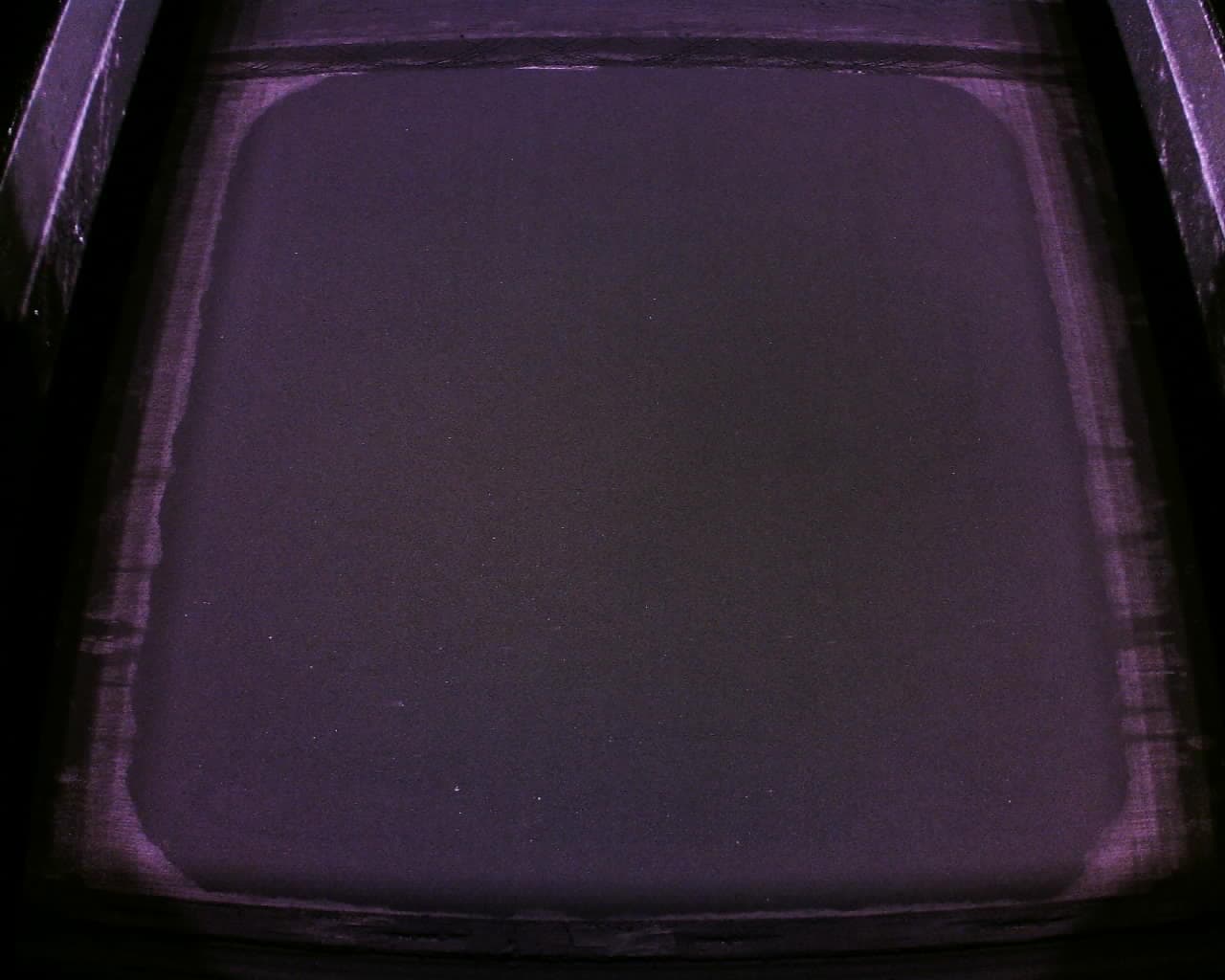
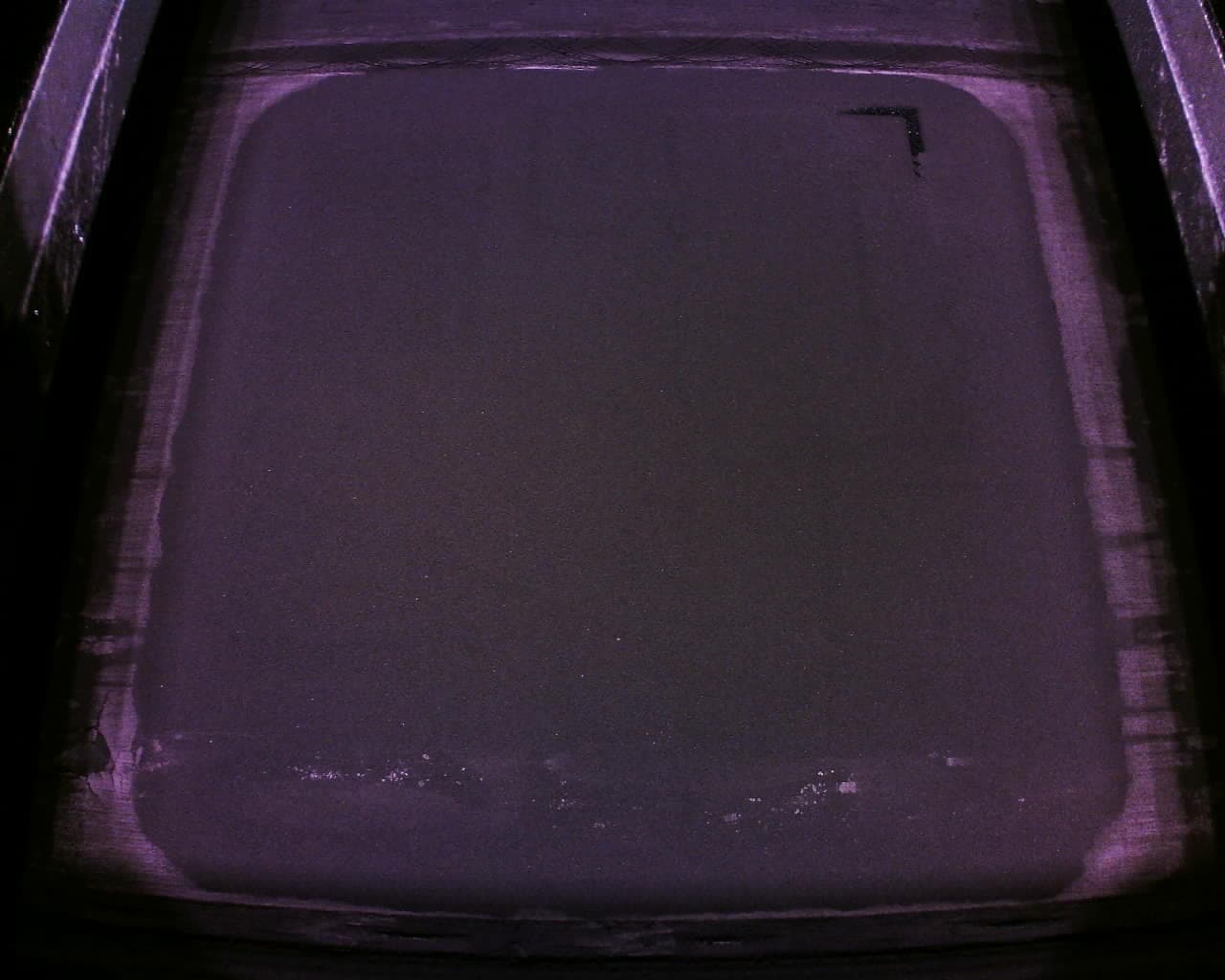
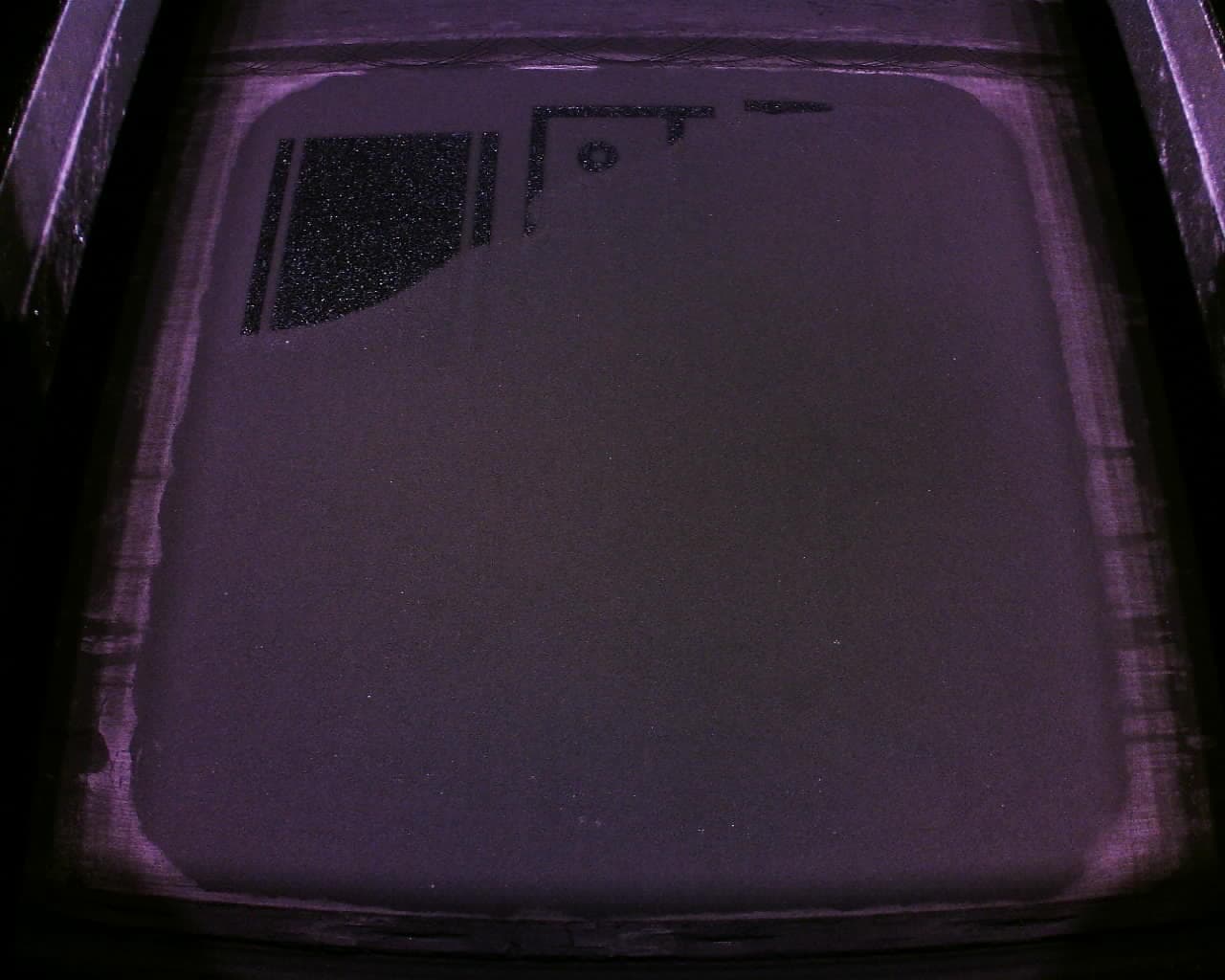
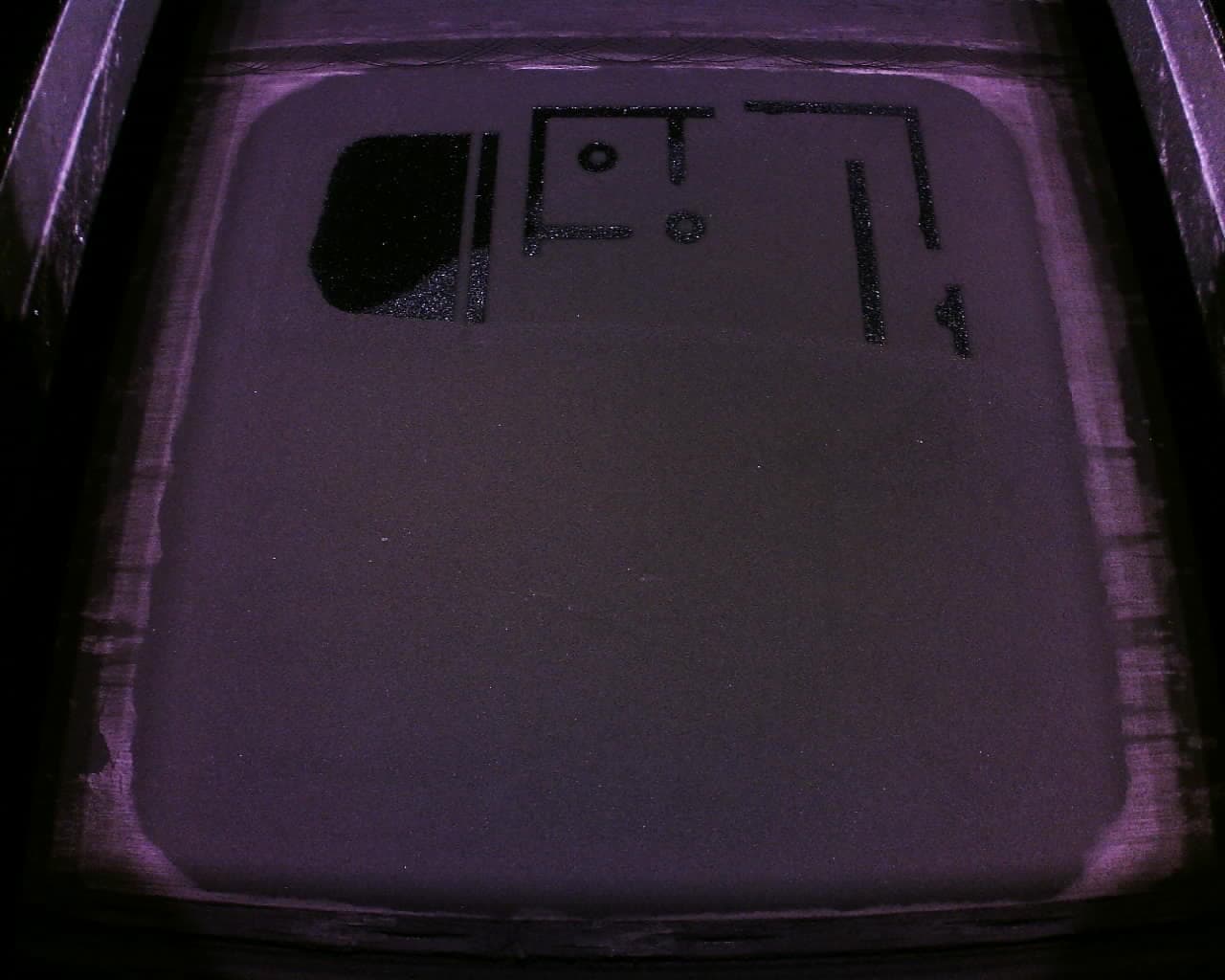
The folder PrinterWatcherFrames contains subfolders for prints that failed due to PrinterWatcher errors, each with 10 print photos taken by the onboard camera. These are the same photos shown on the printer touchscreen after these errors, and can be particularly helpful when diagnosing a print failure or troubleshooting an error message related to the PrinterWatcher system. Several sample images are given below.
Viewing print videos
The downloaded archive also contains videos for prints listed in PrintHistory.csv that started and had layers printed. The video names correspond to the Print UUID in the ErrorHistory.csv file and the Print Guid in the PrintHistory.csv file. Like the print images, these videos can be helpful when diagnosing a print failure or troubleshooting an error message related to the PrinterWatcher system.
Troubleshooting errors
Occasionally, error messages (e.g., Error: Bad State) may appear when downloading printer history logs. If this happens: