

Readying your printer to automatically start an uploaded print (Formlabs LFS printers)
Readying your printer to automatically start an uploaded print (Formlabs LFS printers)
Starting with PreForm 3.29.0 and firmware version 2.0, printers from the Form 3 and Form 3L product lines can be set to automatically print the next compatible print job once they are ready. This feature replaces printer priming. Use this feature to streamline your printing process and minimize extra preparation steps.
Readying a printer for a print
A printer is ready to print once you insert a resin cartridge, a resin tank, and a build platform. The resin tank must be unused, or its resin type must match that in the resin cartridge.
- Insert a resin cartridge and open the vent cap.
- Insert a matching or unused resin tank.
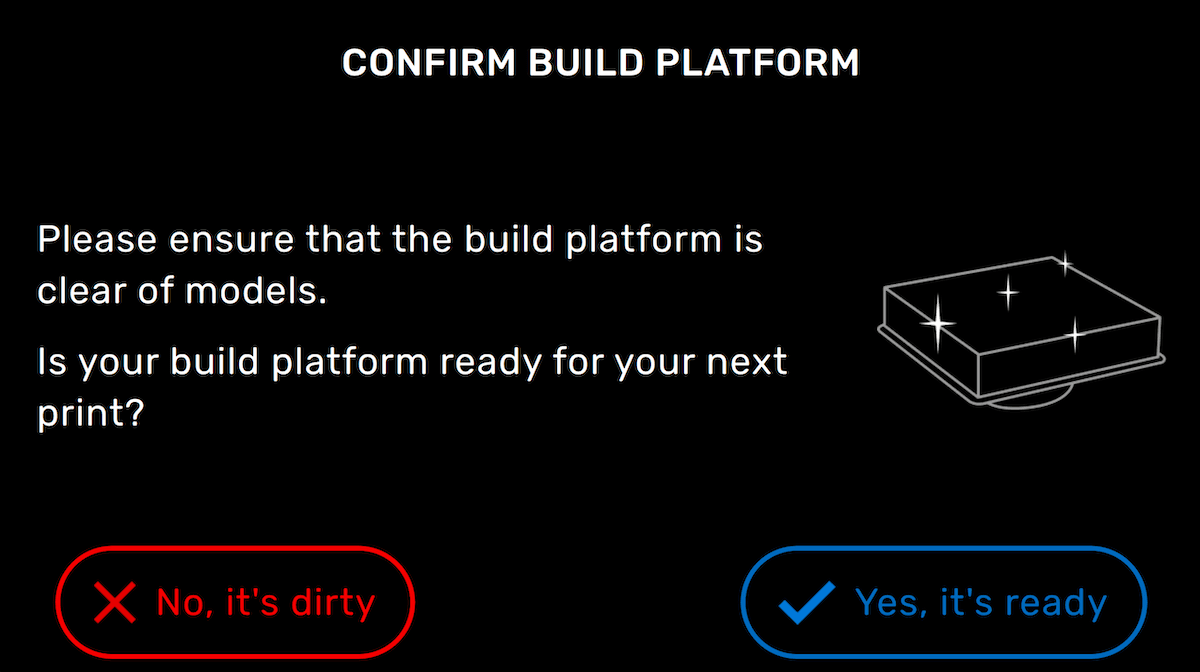
- Insert a build platform. The Build Platform Inserted notification appears. If the build platform is free of any previous prints or other cured resin, tap Yes, it’s ready.

- If the notification disappears before you confirm the status of the build platform or you have disabled build platform detection, tap Platform on the main printer screen. The Confirm Build Platform screen appears. Tap Yes, it’s ready to confirm that the build platform is ready for a new print.
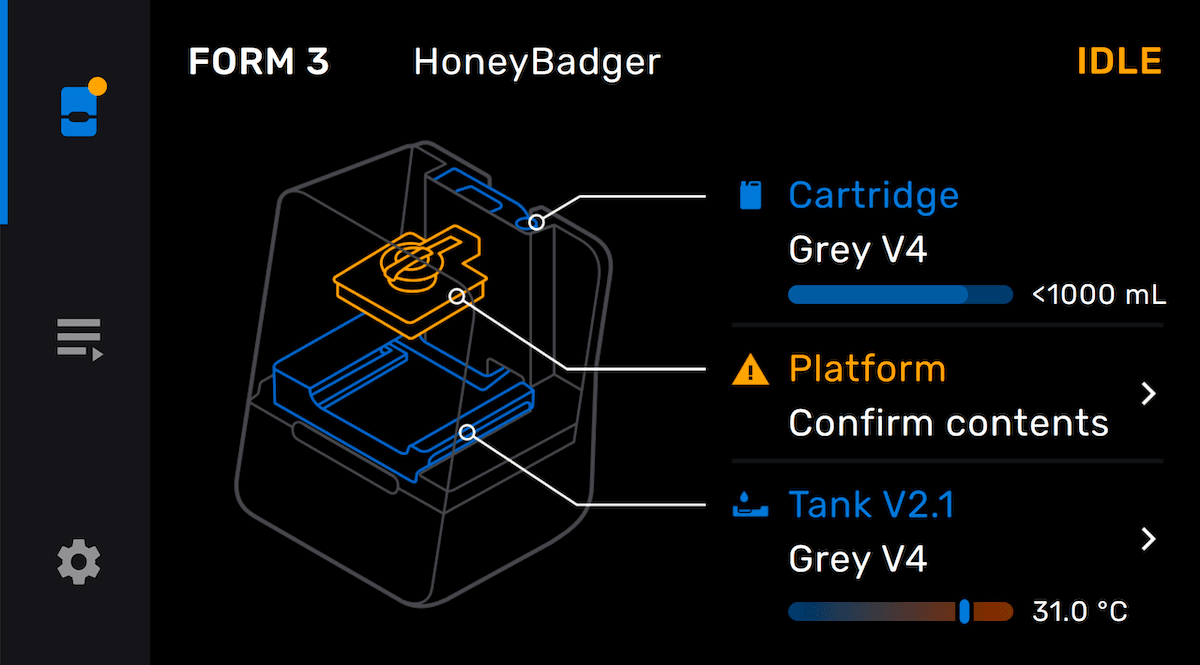
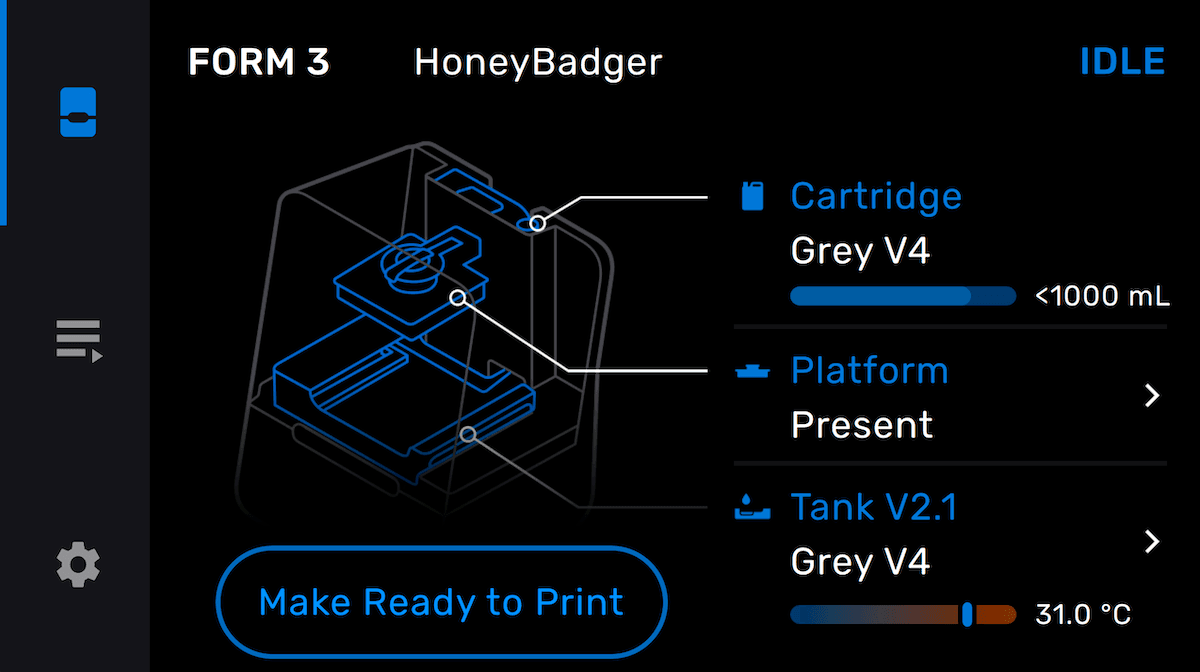
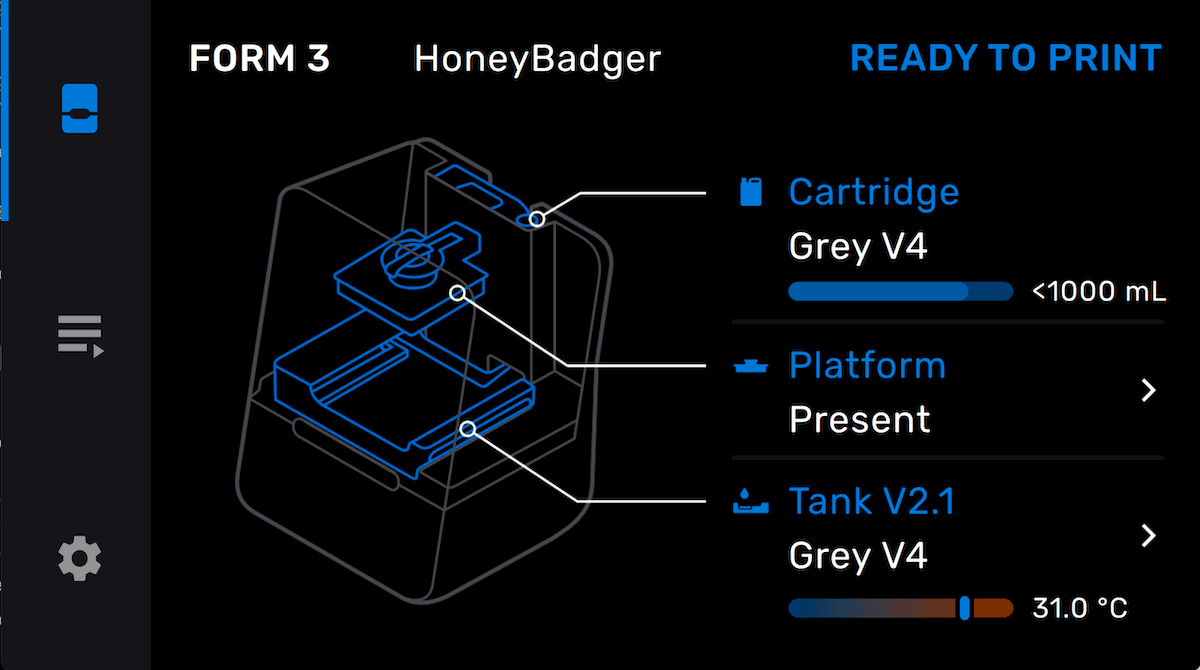
- If you previously disabled Automatic Ready to Print, the Ready button appears. Tap Ready.
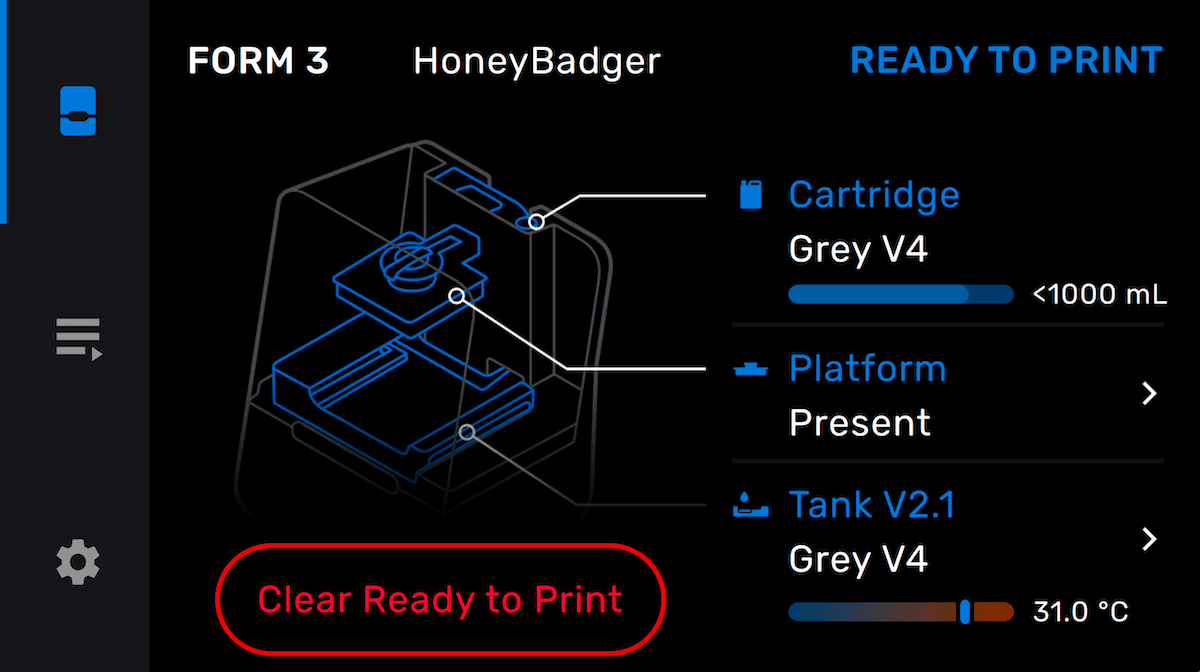
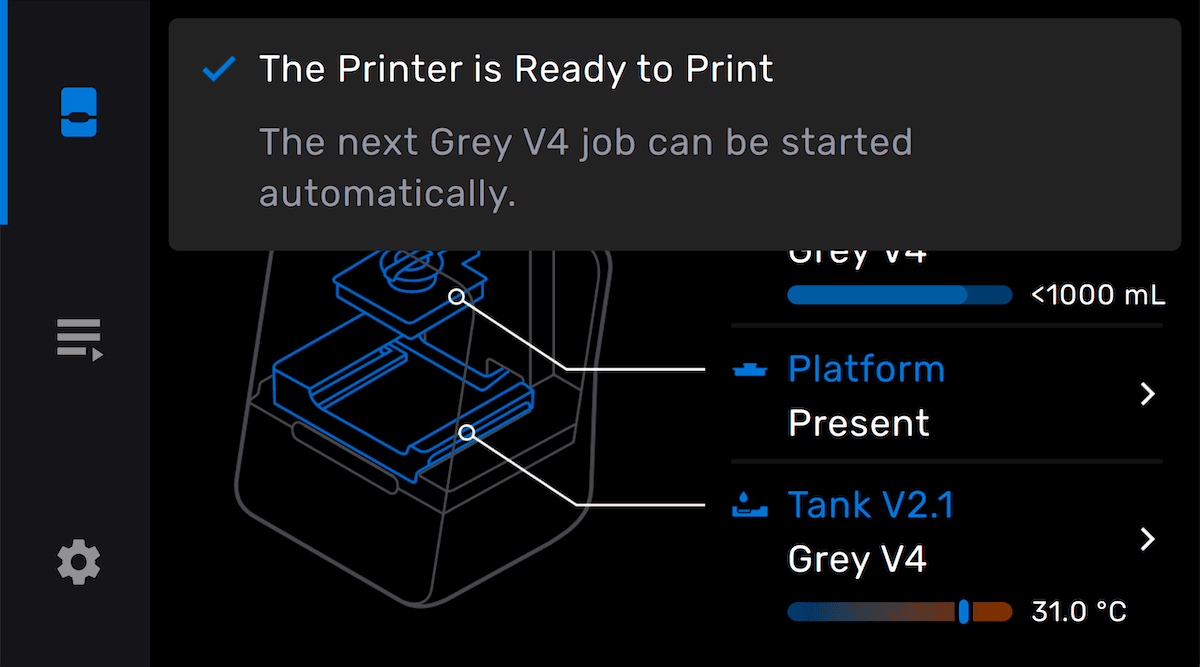
- Once you insert matching consumables and confirm the status of the build platform, the printer displays the message The Printer is Ready to Print.
Starting a print
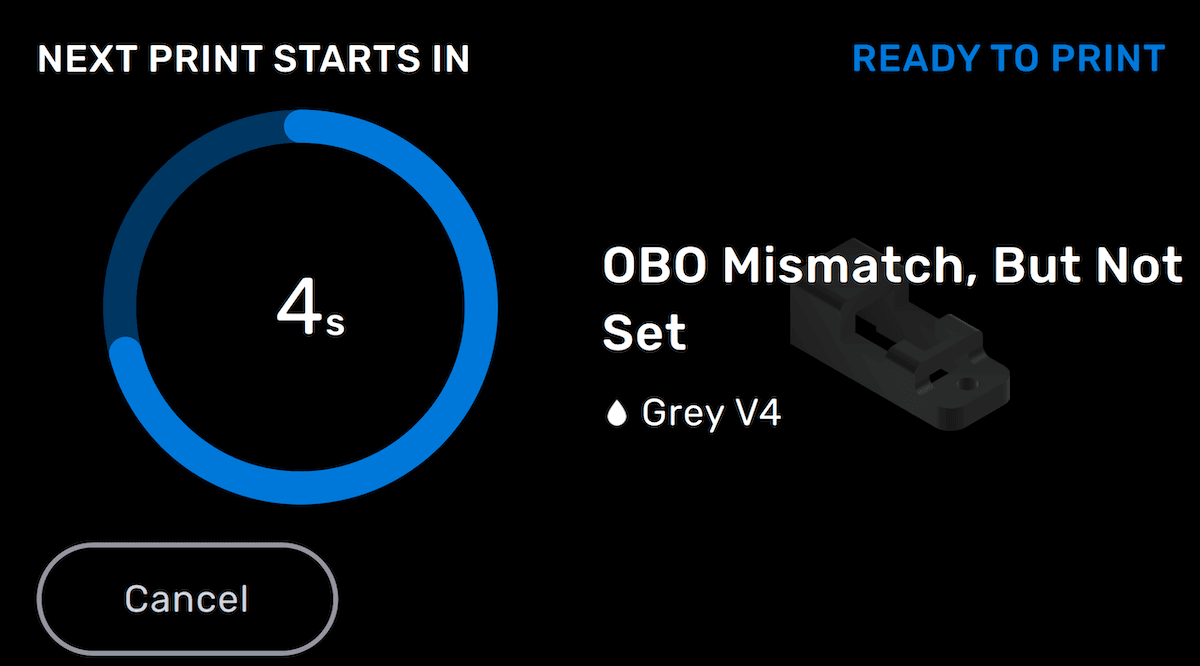
Once your printer’s status is Ready To Print, set up your print job in PreForm and click Print Now (available in PreForm 3.29.0 and later). The print job is uploaded to the printer, which starts the print automatically.
After a print
After a print completes, the printer status changes to Idle. The build platform status on the printer screen changes to Remove parts.
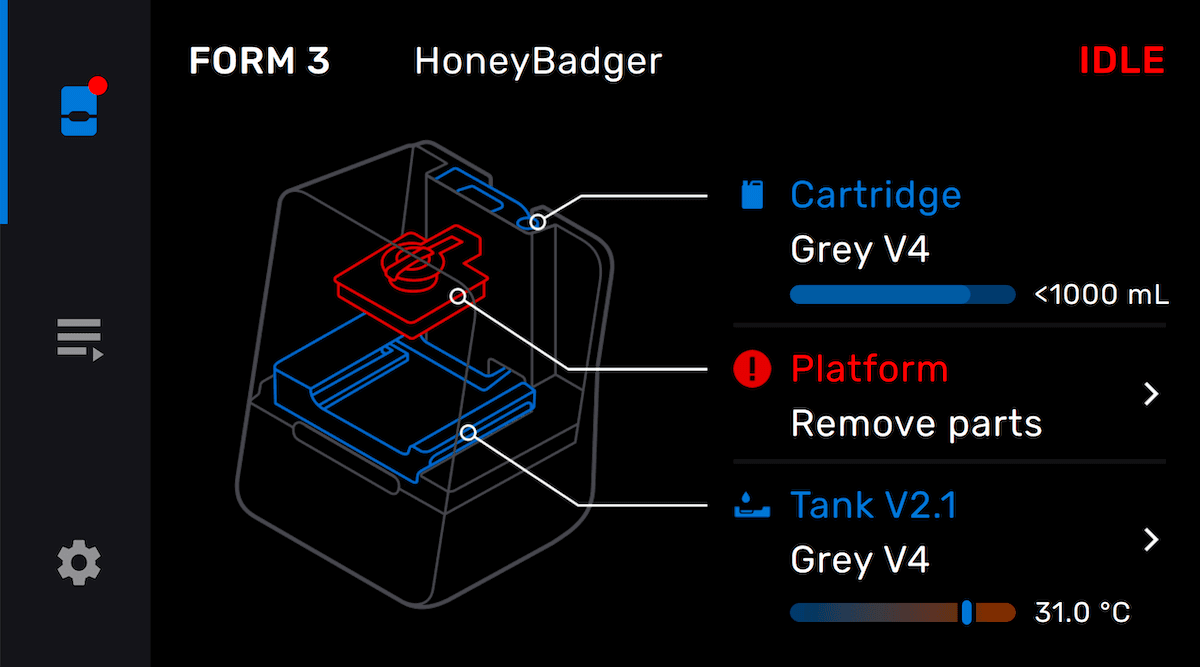
Remove the build platform and retrieve your printed parts. To ready your printer again, insert a build platform and confirm that it is ready to print.
Disabling automatic ready to print
You may want to disable automatic readying, for example if you want to leave your consumables in your printer without it automatically starting a print or if you are in a multi-user environment and want more control over printing. To disable automatic readying:
- Tap the gear icon on the touchscreen. The Settings screen appears.
- Tap System > Printer Details > Subsystems. The Subsystems screen appears.
- Toggle Automatic Ready to Print off. A confirmation screen appears.
- Tap Confirm to disable automatic ready to print.