Notice:
Do not cover the printer with any packaging or any other covers or sleeves during printing. Insulating the printer during printing can damage the machine.


Form Studio 1 printer packages
Il pacchetto standard della stampante Form Studio 1 viene fornito con più scatole: la stampante, il Finish Kit, il serbatoio resina e la piattaforma di stampa. Il serbatoio resina, la piattaforma di stampa, le cartucce di resina ordinate e le scatole degli accessori aggiuntivi vengono spediti separatamente dalla confezione della stampante Form Studio 1.
I vari componenti imballati per la spedizione avranno le seguenti dimensioni e peso:
| Printer | Resin cartridge | Resin tank | Build platform | |
|---|---|---|---|---|
| Dimensions | 43.1 × 40.5 × 61.6 cm (17 × 16 × 24.3 in) |
8.9 × 10.2 × 28.6 cm (3.5 × 4.0 × 11.3 in) |
31 × 24 × 6 cm (12.2 × 9.4 × 2.4 in) |
24 × 15 × 9 cm (9.4 × 5.9 × 3.5 in) |
| Weight |
Basic package: Flex package: |
1.5 kg (3.3 lb) |
0.35 kg (0.77 lb) |
Standard Build Platform:
|
| Contents | Form Studio 1 printer, resin tank, build platform, and accessories | Single resin cartridge | Single resin tank | Single build platform |
Before receiving your Form Studio 1
Prepare a space to install your Form Studio 1 printer printer and to house accessories and consumables.
Isopropyl alcohol is the recommended solution for rinsing parts and cleaning liquid resin after each completed print. Keep paper towels in stock to ensure a clean work environment for printing and finishing.
Depending on your use case and work environment, tripropylene glycol monomethyl ether (TPM) or Formlabs Resin Washing Solution may be a viable alternative to isopropyl alcohol for washing parts using the Form Studio Wash+Cure.
Unboxing your Form Studio 1 printer
The custom packaging your Form Studio 1 printer arrives in is specially designed to protect the printer during shipping. Save the Form Studio 1 packaging for transporting your printer. Original packaging is required for warranty service.
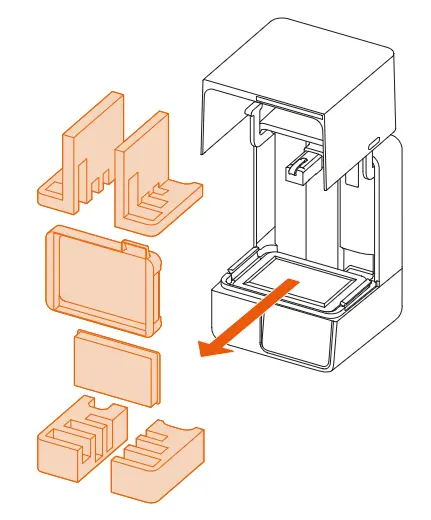
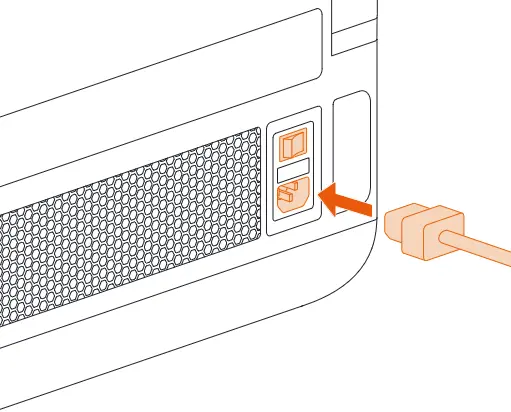
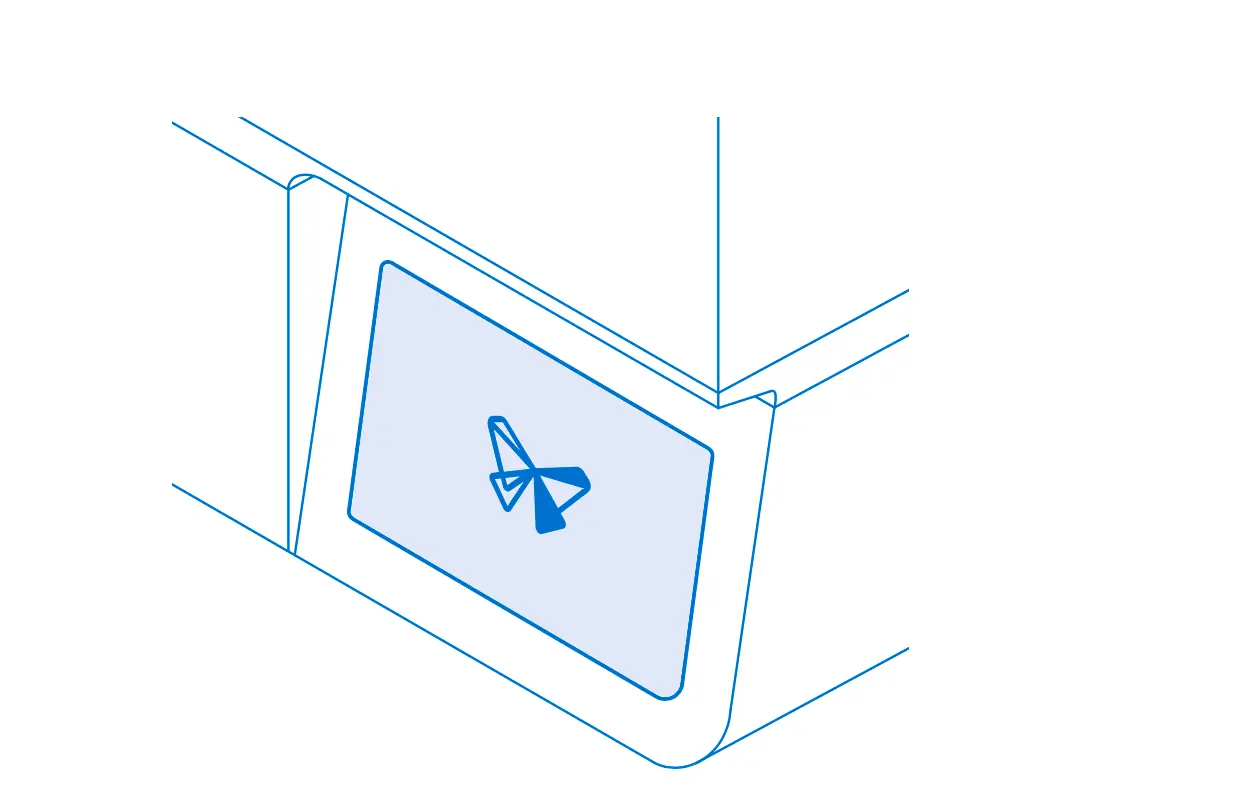
Notice:
Do not cover the printer with any packaging or any other covers or sleeves during printing. Insulating the printer during printing can damage the machine.
Proceed to follow the onboarding guide on the printer’s touchscreen. Once you’re done, connect to your printer if you have not already done so.
Consiglio:
Posiziona le stampanti SLA lontano dalle finestre per evitare che la resina contenuta nel serbatoio si indurisca inavvertitamente tra un utilizzo e l'altro o quando il coperchio è aperto.
Nome di serie
All Formlabs machines have a serial name instead of a serial number. The serial name is a unique identifier used to track the history of manufacturing, sales, and repair, and to distinguish between printers when multiple are connected to a network. The serial name is on the back panel of the machine in the format FormStudio1-ColorAdjectiveAnimal.
For a Form Studio 1 printer the serial name is also available on the touchscreen display. The serial name is listed in the format ColorAdjectiveAnimal.
If you give your printer a custom name, that is displayed instead of the serial name. To find the serial name, check the back label or tap Settings > General > About this printer on the touchscreen.