
TIP
Log in to PreForm with a Formlabs account to link print jobs to the account and to enable Dashboard notifications for only prints linked to the account.

Dashboard allows multiple users to access a single printer’s data and each user to access data from multiple printers. Configure notification preferences and share information about each print to customize the printing workflow.
Start by registering and connecting a printer to Dashboard. Once the printer is registered to Dashboard and Dashboard logging is enabled, the printer can begin to send data to Dashboard as long as the Wi-Fi or Ethernet connections are able to access the internet.
TIP
Log in to PreForm with a Formlabs account to link print jobs to the account and to enable Dashboard notifications for only prints linked to the account.
Shared printer management
Multiple users can share the same printers in Dashboard. This is possible via using the Share functionality, regardless whether the printers are organized into Printer Groups or not. A printer can only be in one Printer Group.
To add a user to a Printer Group, select the group in Dashboard and click Share. When the Share Printer screen appears, invite a user to the printer group by typing their email address, selecting their permission level (Member or Admin), and selecting Send Invite. The new user receives an invitation to the printer group via email.
The Share Printers screen adds the user’s email to the People with access list. Once the user accepts the invitation, they are listed with their email and given permission level within the People with access list on the Share Printers screen. A user with admin control can change the user’s membership within the printer group by clicking the arrow next to the user’s membership details. A dropdown menu appears that gives the admin the option to Make Admin, Make Member, and Remove Access. Only admins can change a user’s access from Member to Admin.
For additional information, see the support article Managing a Printer Group with Dashboard or our white paper on managing multiple 3D printers.
TIP:
Dashboard starts sharing printer data once a user registers the printer and only when the printer is network-connected.
Share access to multiple printers by forming a Printer Group within Dashboard and inviting individual users.
Accessing print data
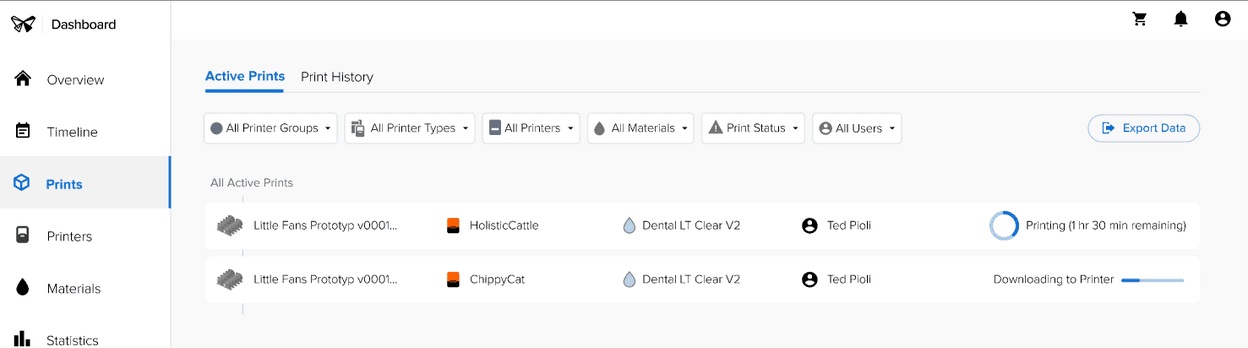
Click on the Prints page to view overall printing trends and filter individual print data:
Tip:
Use the Search option in Dashboard to search previous prints by the uploaded file name.
Recording success rates
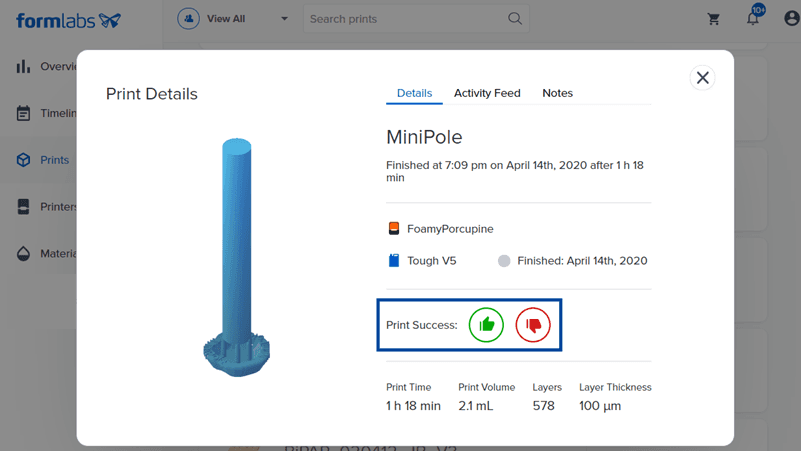
User feedback is an important piece of the design process. By consistently marking each print as a success or failure, you are able to sort through all iterations to quickly find the prints that work.
To mark a print as a success or failure:
Alternatively:
Sorting print data
To filter past print jobs by outcome:
To filter all prints to only show your own:
Ensuring accurate logging
A print is logged on Dashboard each time a print is started while the printer is online, including aborted prints. To see data for a specific print and accurate material usage, the printer must be able to access the internet via Wi-Fi or Ethernet when the print is started. To investigate missing print activity and printer events, check whether the printer’s Dashboard connection is fully enabled.
Providing data feedback to Formlabs
In order to view your print data on Dashboard, Dashboard Logging is automatically enabled from the Settings menu on the printer's touchscreen. Dashboard Logging grants you online access to your print times and volumes, resin types, and enables you to track the outcome of each print job.
The 3D model geometries are kept securely on your computer or printer and will never be shared with Formlabs or outside parties without your explicit consent.
Sharing data to Dashboard requires a separate permission from PreForm's data sharing option. Toggle PreForm's data collection setting from the PreForm menu bar by selecting Help > Help Improve PreForm For specific details on privacy, data sharing, and access, please visit formlabs.com/privacy.
To learn more about optimizing printing, read about managing multiple printers.