
Notice:
A factory reset erases all print job information, custom settings, and diagnostic logs. Upload diagnostic logs before performing a factory reset.

If the Form Studio 1 encounters any abnormalities, the touchscreen displays error messages and displays more details about the error. This article outlines initial troubleshooting steps to resolve common error codes seen on Form Studio 1 printers or that are expected during normal operation. If you encounter an error code not found in this article, refer to the general troubleshooting steps below.
Form Studio 1 error codes have the format X.YY.ZZ, where X is the machine code, YY is the subsystem, and ZZ is the unique error code which signifies the relevant warning. The machine code for Form Studio 1 printers is 8, so the full error code for all such printer errors starts with 8. The error group number describes the type of error, while the subcode designates a specific subsystem or failure mode. For example, all subcodes of Form Studio 1 Error Group 3 relate to the heater and resin temperature, while Error 8.3.1 in particular relates to the resin failing to reach the target temperature.
General troubleshooting steps
The following steps are recommended for most issues seen on Form Studio 1 printers:
Best practices for opening a support case with Formlabs Support:
Diagnostic logs
Form Studio 1 printers maintain diagnostic logs to provide detailed information about the machine’s functionality. Include these diagnostic logs with other relevant observations and details when contacting Formlabs Support to speed up resolution.
For machines connected to the internet over an active Wi-Fi or Ethernet connection:
For printers not connected to the internet:
Learn more about options for network and non-network connections.
Enabling Remote Assistance for troubleshooting
During troubleshooting, Formlabs Support may need additional information from or access to your printer. You may be asked to enable Remote Assistance on your machine.
To prepare your printer for remote assistance:
Enabling analytics for troubleshooting
During troubleshooting, Formlabs Support may need additional information from or access to your printer. You may be asked to enable Analytics sharing options on your machine.
To enable analytics sharing on your printer:
Factory reset instructions
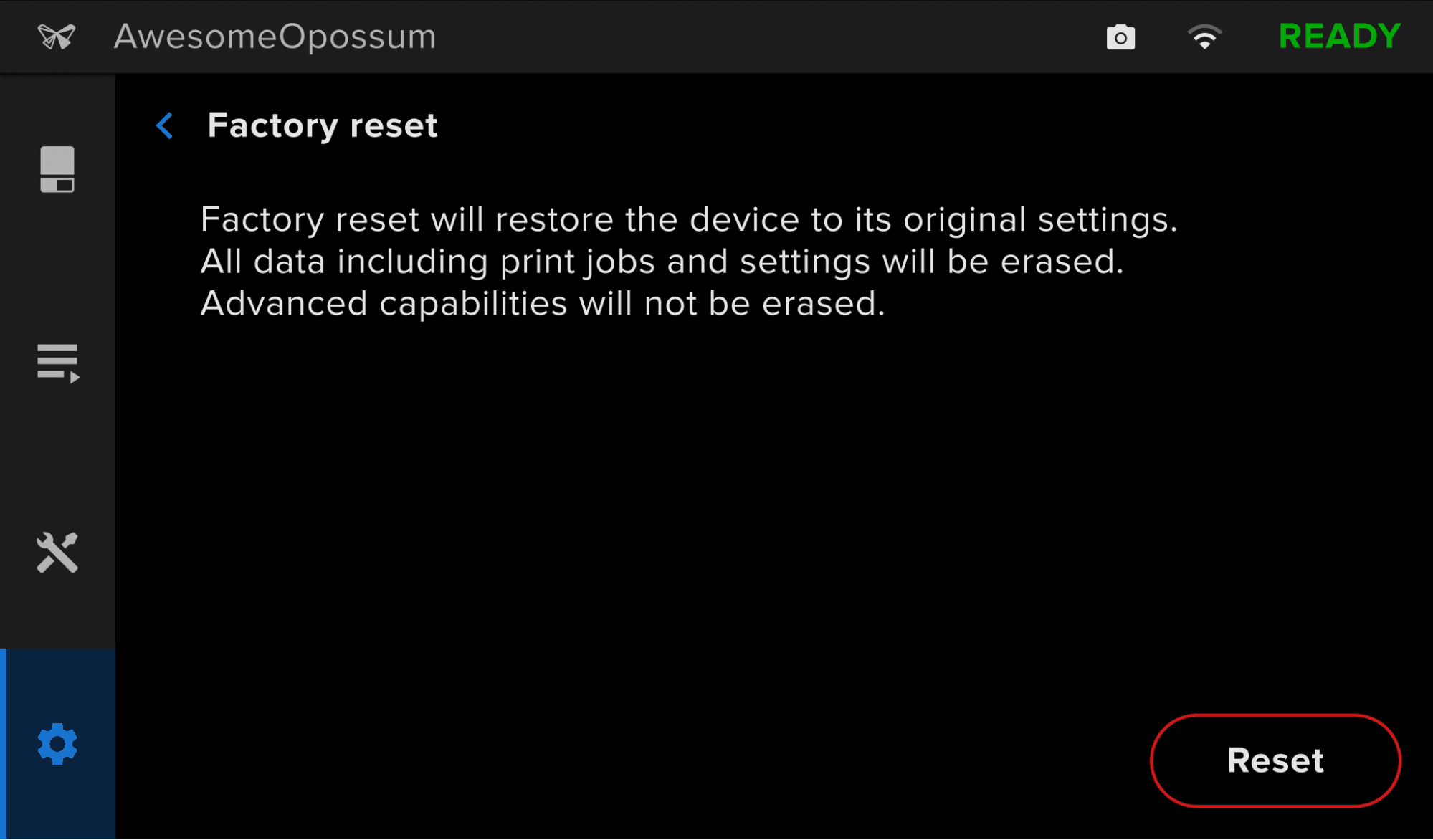
On some occasions, a factory reset may correct unusual printer behavior. Unusual behavior may include unknown error messages, incomplete firmware updates, an unresponsive touchscreen, or trouble connecting to PreForm. A factory reset erases custom settings, including prints saved in the Queue and network connections.
Notice:
A factory reset erases all print job information, custom settings, and diagnostic logs. Upload diagnostic logs before performing a factory reset.
To perform a factory reset:
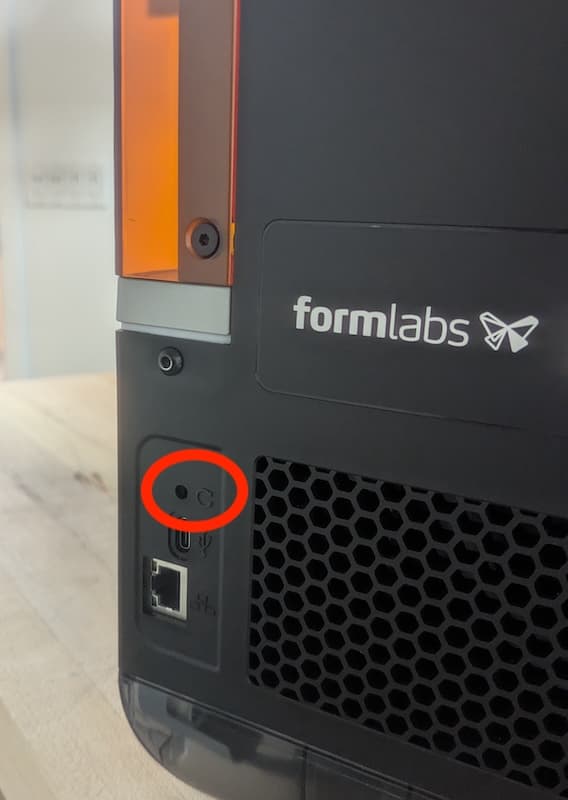
If you cannot perform a factory reset using the touchscreen, use the physical button on the back of the machine:
To confirm a successful factory reset, tap Queue on the printer’s touchscreen. After a successful reset, the print queue is empty. If the reset does not resolve the behavior, contact Formlabs Support.