WHITEPAPER
Formlabs Logo

Switching SLS powder types (Fuse 1/Fuse Sift)

Switching SLS powder types (Fuse 1/Fuse Sift)

The Fuse 1, Fuse Sift, and related accessories are designed to be used with only one powder type at a time. Make sure to clean each device thoroughly, following the instructions given here, before switching powder types. Mixing powders can lead to print failures or permanent damage to the machine.

In most cases, when switching between two materials, you will need to thoroughly and comprehensively clean your printer, Fuse Sift, and build chamber. If you are switching between Nylon 12 Powder and Nylon 12 GF Powder or between Nylon 11 Powder and Nylon 11 CF Powder, you can follow a simplified cleaning procedure. Clean the hoppers and dosing assemblies of your printer and Fuse Sift. In most cases, repeated cleaning passes and detailed cleaning of optical surfaces, heaters, and filters are not necessary. You do not need to clean your build chamber when switching between these pairs of materials.

If you plan to regularly print in multiple different materials, Formlabs recommends dedicating a separate Fuse 1 and Fuse Sift for each material type.

Menschlicher Kopf (linkes Profil) mit einer Maske

Warning:

Human head (left-hand profile) wearing a mask

Use appropriate personal protective equipment when handling loose or unsintered powder. Refer to the support articles Safety with the Fuse 1 generation printers and Safety with the Fuse Sift for more information.

Hinweis:

Wird das Pulver vor dem Materialwechsel nicht vollständig entfernt, kann dies zu Fehldrucken oder dauerhaften Beschädigungen am Gerät führen. Machen Sie sich mit allen Anweisungen in diesem Artikel vertraut, bevor Sie fortfahren.

Supplies:

Switching powder types on a Fuse 1

The Fuse 1 uses a powder credit system to track the type of powder currently being used. When switching powder types, you must fully clean the printer and reset the registered powder type.

To reset the registered powder type:

  1. On the touchscreen, tap the gear icon. The Settings screen appears.
  2. Tap Tools. The Tools screen appears.
  3. Tap Reset Powder Type. The Reset Registered Powder screen appears.

Alternatively:

  1. Upload a print job whose powder type does not match the powder type currently registered to the Fuse 1.
  2. Attempt to start the print job. The Powder Type Mismatch screen appears.
  3. Tap Switch. The Reset Registered Powder screen appears.

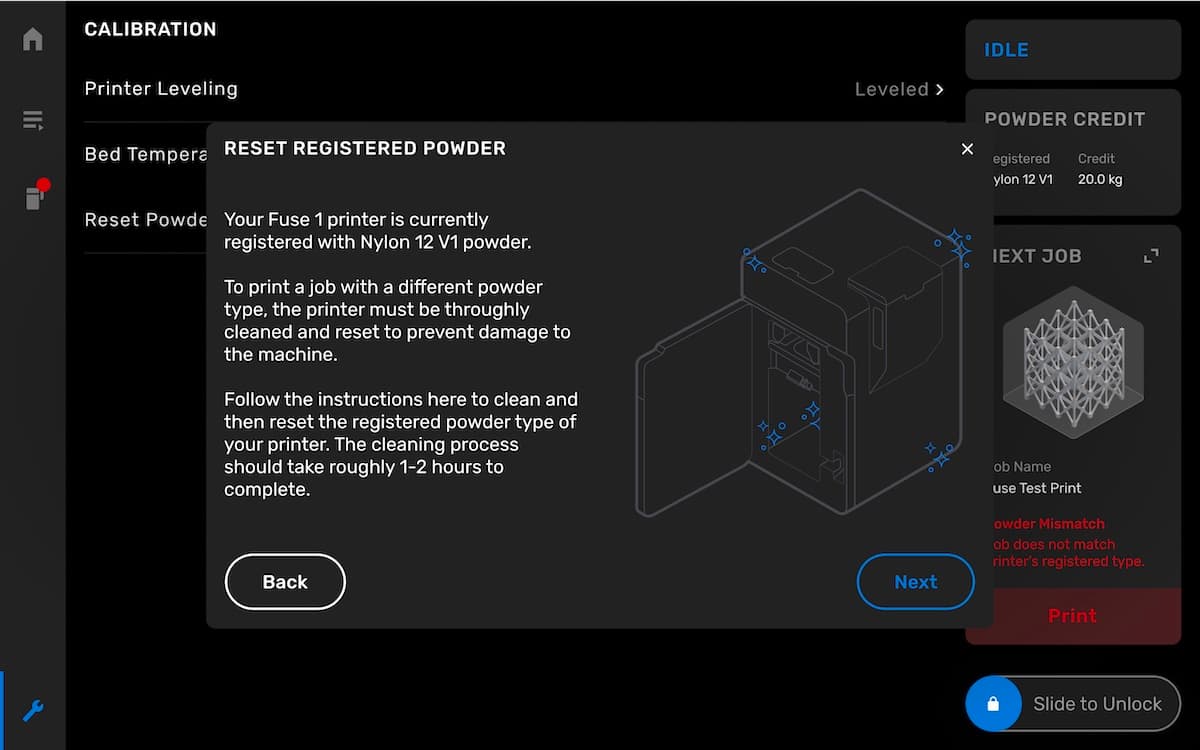
On the Reset Registered Powder screen, the machine warns you that failing to clean out all powder before switching materials can lead to print failures or permanent damage. Read the instructions on this screen and tap Next.

The Fuse 1's powder switching workflow, screen 1

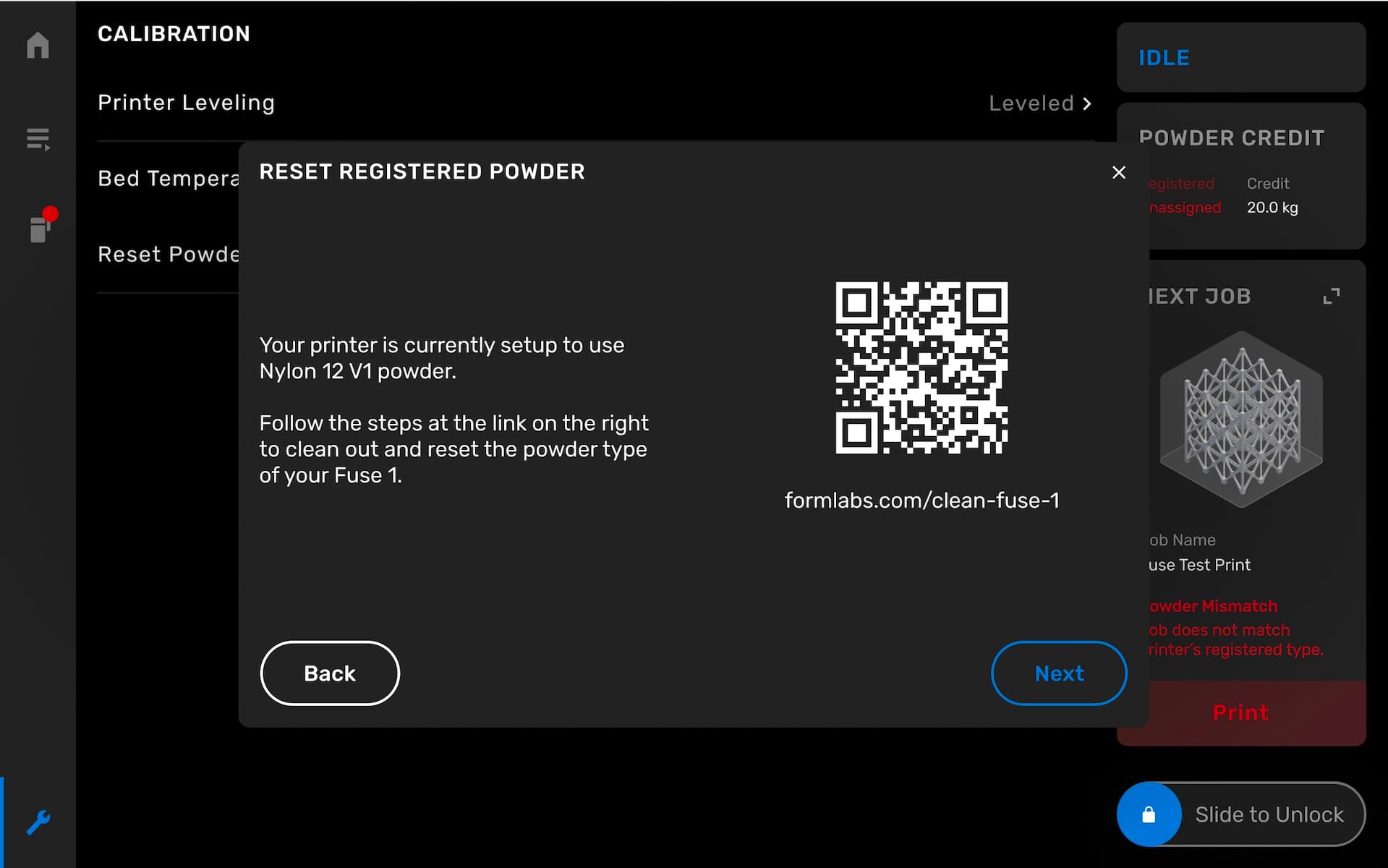
Follow the link on the touchscreen or go to the support article Cleaning all powder out of a Fuse 1. Carefully follow all steps in the article and fully clean the machine before proceeding. After cleaning the machine, return to the Reset Registered Powder screen and tap Next to continue.

The Fuse 1's powder switching workflow, screen 2

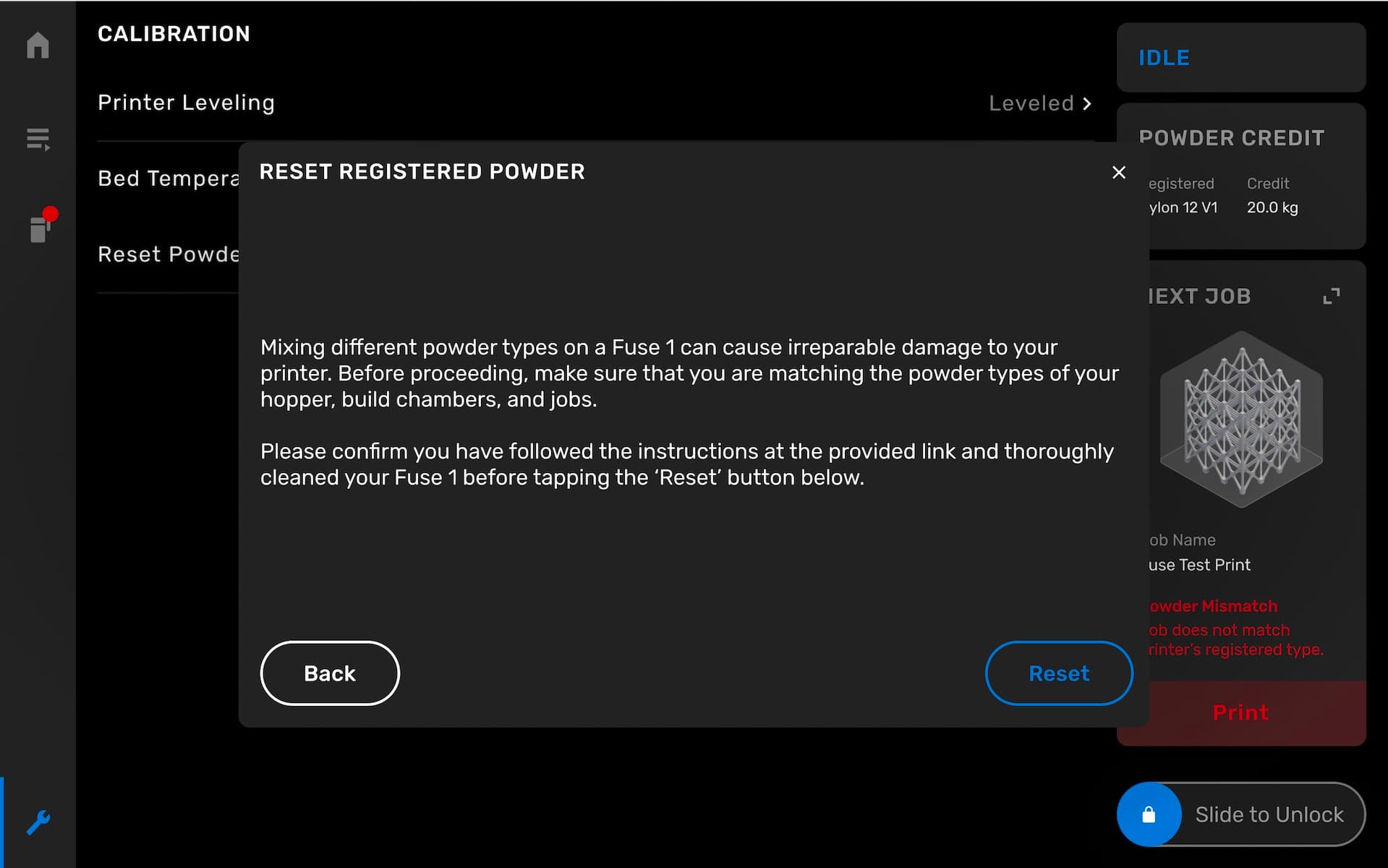
Confirm that the printer is fully clean and tap Reset. The registered powder type is reset and the machine can be used with a new powder type.

The Fuse 1's powder switching workflow, screen 3

Register powder credit for the new powder type (if necessary), fill the hopper with the new powder type, and start a print.

Notice:

It is important to remove the debris catcher from the hopper before printing with Nylon 11. The material will clump if the debris catcher is left in place.

Switching powder types on a Fuse Sift

When you first insert a build chamber into a Fuse Sift, it checks the type of powder that is in the build chamber and prompts you to assign that powder type to the machine. When switching powder types, you must fully clean the machine and reset the registered powder type before refilling the fresh powder hopper with the new powder.

To reset the registered powder type:

  1. On the touchscreen, tap the wrench icon. The Settings screen appears.
  2. Tap Maintenance. The Maintenance screen appears.
  3. Tap Assign Loaded Powder. The Assign Loaded Powder screen appears.

Alternatively:

  1. Insert a build chamber whose powder type does not match the powder type currently registered to the Fuse Sift. The Powder Type Mismatch error appears.
  2. Tap Switch. The Assign Loaded Powder screen appears.

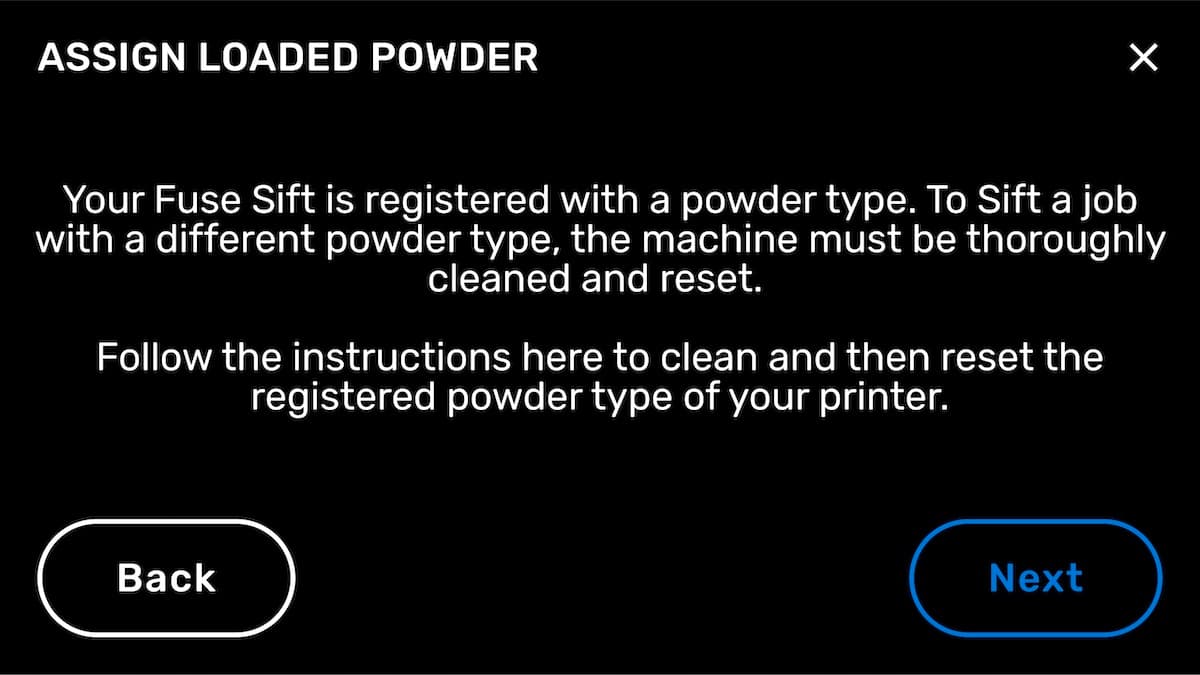
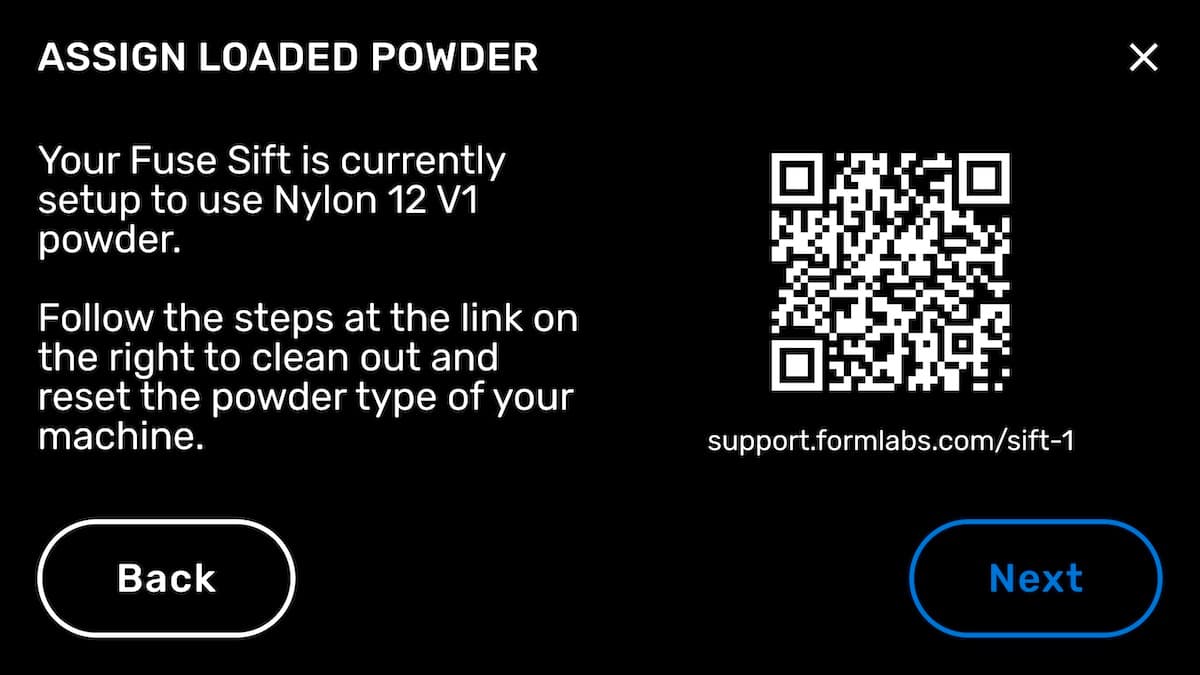
On the Assign Loaded Powder screen, the machine warns you that failing to clean out all powder before switching materials can lead to print failures or permanent damage. Read the instructions on this screen and tap Next.

Fuse Sift's powder switching workflow, screen 1

Follow the link on the touchscreen or go to the support article Cleaning all powder out of a Fuse Sift. Carefully follow all steps in the article and fully clean the machine before proceeding. After cleaning the machine, return to the Assign Loaded Powder screen and tap Next to continue.

The Fuse Sift's powder switching workflow, screen 2

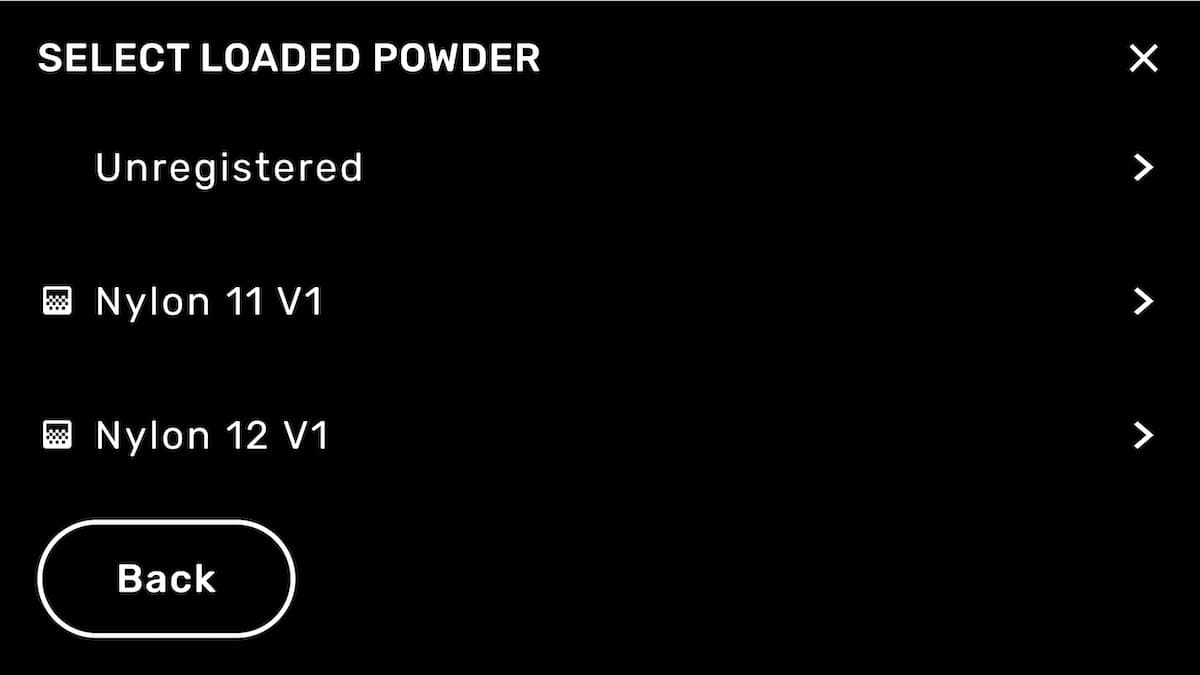
Tap the type of powder to be used with the machine.

The Fuse Sift powder's switching workflow, screen 3

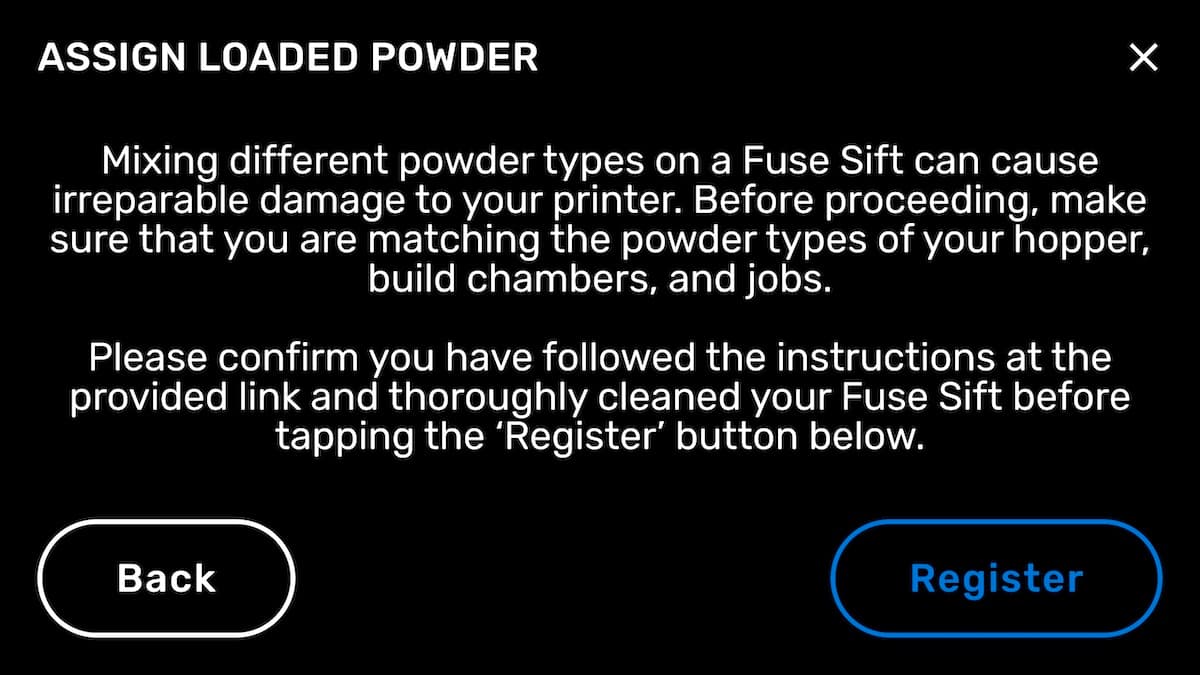
Confirm that the machine is fully clean and tap Register. The registered powder type is reset and the machine can be used with a new powder type.

The Fuse Sift's powder switching workflow, screen 4

Switching powder types for a build chamber

Formlabs recommends using a different build chamber for each type of powder. Build chambers should be well-labeled with their dedicated powder. If you plan to reuse a build chamber with a different material, it is critical to fully clean all powder out of the build chamber first. Carefully follow all steps in the support article Cleaning all powder out of a build chamber to prepare the build chamber for a new material.

Notice:

Formlabs strongly recommends changing your print bed when cleaning your build chamber for use with a new powder.

  • When switching from a powder with a lower melting point, such as TPU 90A Powder or Polypropylene Powder, to a powder with a higher melting point, such as Nylon 12 Powder, reusing the print bed may result in damage to the build chamber.
  • Residual powder can contaminate your next print, leading to discoloration or parts with reduced mechanical properties.

The print bed for Fuse 1 generation build chambers is available for purchase on the Formlabs Store. To replace the print bed, follow the instructions in Replacing the Fuse 1 generation print bed [EN] [DE] [ES] [FR] [IT] [JA] [ZH]. Contact Formlabs Support or your certified service provider for more information.

To reset a build chamber’s assigned powder type:

  1. Insert the build chamber into a Fuse 1.
  2. On the touchscreen, tap the gear icon. The Settings screen appears.
  3. Tap Tools. The Tools screen appears.
  4. Tap Reassign Build Chamber Powder Type.