Remarque :
Appuyez sur Ignore (Ignorer) pour reprogrammer le bac à résine afin qu’il corresponde au type de résine de la tâche d’impression.


Si la Form 4 ou la Form 4L rencontre des anomalies, l’écran tactile affiche des messages d’erreur et plus de détails sur l’erreur. Cet article décrit les étapes initiales de dépannage pour résoudre les codes d’erreur courants observés sur les imprimantes de génération Form 4 ou attendus lors d’un fonctionnement normal. Si vous rencontrez un code d’erreur qui ne figure pas dans cet article, consultez les étapes générales de dépannage ci-dessous.
Les codes d’erreur de génération Form 4 et Form 4L sont au format X.YY.ZZ : X est le code de la machine, YY est le sous-système et ZZ est le code d’erreur unique qui indique l’avertissement correspondant. Le code machine des imprimantes de génération Form 4 est 1, de sorte que le code d’erreur complet pour toutes ces erreurs d’imprimante commence par 1. Le numéro du groupe d’erreurs décrit le type d’erreur, tandis que le sous-code désigne un sous-système ou un mode de défaillance spécifique. Par exemple, tous les sous-codes du groupe d’erreurs 3 de la génération Form 4 concernent la température de l’appareil de chauffage et de la résine, tandis que l’Erreur 1.3.1, en particulier, concerne la résine qui n’atteint pas la température cible.
Étapes générales de dépannage
Les étapes suivantes sont recommandées pour la plupart des problèmes rencontrés sur les imprimantes de génération Form 4 et Form 4L :
Fichiers diagnostic
Les imprimantes de génération Form 4 et Form 4L produisent des fichiers diagnostic afin de fournir des informations détaillées sur le fonctionnement de la machine. Joignez ces fichiers diagnostic, ainsi que les autres observations et détails pertinents, lorsque vous contactez l’assistance Formlabs ou votre revendeur agréé afin d’accélérer la résolution de votre problème.
Pour les machines connectées à Internet via une connexion Wi-Fi ou Ethernet active :
Pour les imprimantes non connectées à Internet :
En savoir plus sur les options de connexions réseau et hors réseau.
Erreurs de contrôle (Groupe d’erreurs 1)
Tous les sous-codes du Groupe d’erreurs 1 (1-61) de la Form 4 et de la Form 4L se rapportent à la communication du sous-système et à la commande du moteur dans la machine.
Erreur 1.1.1 : Le moteur ne revient pas en position d’origine
L’Erreur 1.1.1 indique qu’un moteur n’a pas atteint sa position d’origine. Le moteur peut avoir calé à cause de fragments ou l’interrupteur de fin de course que l’imprimante utilise pour déterminer la position du moteur peut être endommagé. Vérifiez qu’il n’y a pas de fragments dans le bac à résine ou sur la plateforme de fabrication et retirez-les, puis vérifiez que la plateforme de fabrication et le mélangeur se déplacent normalement pendant l’impression. Cette erreur a été supprimée dans la version 1.4 du firmware. Si ce message d’erreur s’affiche de manière répétée, mettez à jour le firmware de l’imprimante.
Erreur 1.1.3 : Erreur interne
Erreur 1.1.3 indique une erreur de communication interne entre les sous-systèmes de l’imprimante. Pour résoudre ce problème :
Erreur 1.1.4 : Le capteur de niveau de résine n’est pas programmé.
L'erreur 1.1.4 indique un problème avec le circuit du capteur de niveau de résine dans l'imprimante. Pour résoudre ce problème :
Erreur 1.1.5 : Impossible de mesurer la résine dans le bac
L'Erreur 1.1.5 indique un problème avec le circuit du capteur de niveau de résine dans l'imprimante. Si une impression est en cours, surveillez-la pour vous assurer que le bac à résine ne s’épuise pas. Pour résoudre ce problème, suivez les mêmes étapes de dépannage que pour Erreur 1.1.4 : Le capteur de niveau de résine n'est pas programmé.
Erreur 1.1.6 : Le mélangeur a détecté des fragments
L’Erreur 1.1.6 indique que le mélangeur a heurté des fragments en se déplaçant dans le bac à résine. Pour résoudre ce problème :
Si le mélangeur entrait en collision avec la plateforme de fabrication parce que la plateforme de fabrication était collée au bac à résine pendant l’impression :
Si cette erreur se produit immédiatement lorsque l’imprimante est allumée ou que le mélangeur se déplace de manière inattendue lors de l’utilisation de l’outil Déplacer les moteurs (sans bac à résine ni mélangeur inséré), remplacez l’assemblage du mélangeur. Suivez les instructions des guides de réparation Remplacement de l'assemblage du mélangeur de la Form 4 ou Remplacement de l'assemblage du mélangeur de la Form 4L. Vous pouvez acheter des assemblages de mélangeur de rechange sur la boutique en ligne de Formlabs.
Erreur 1.1.7 : La plateforme de fabrication a détecté des fragments
L’Erreur 1.1.7 indique que la plateforme de fabrication a rencontré des fragments lors de sa descente dans le bac à résine. Pour résoudre ce problème :
Erreur 1.1.17 : Couvercle ouvert
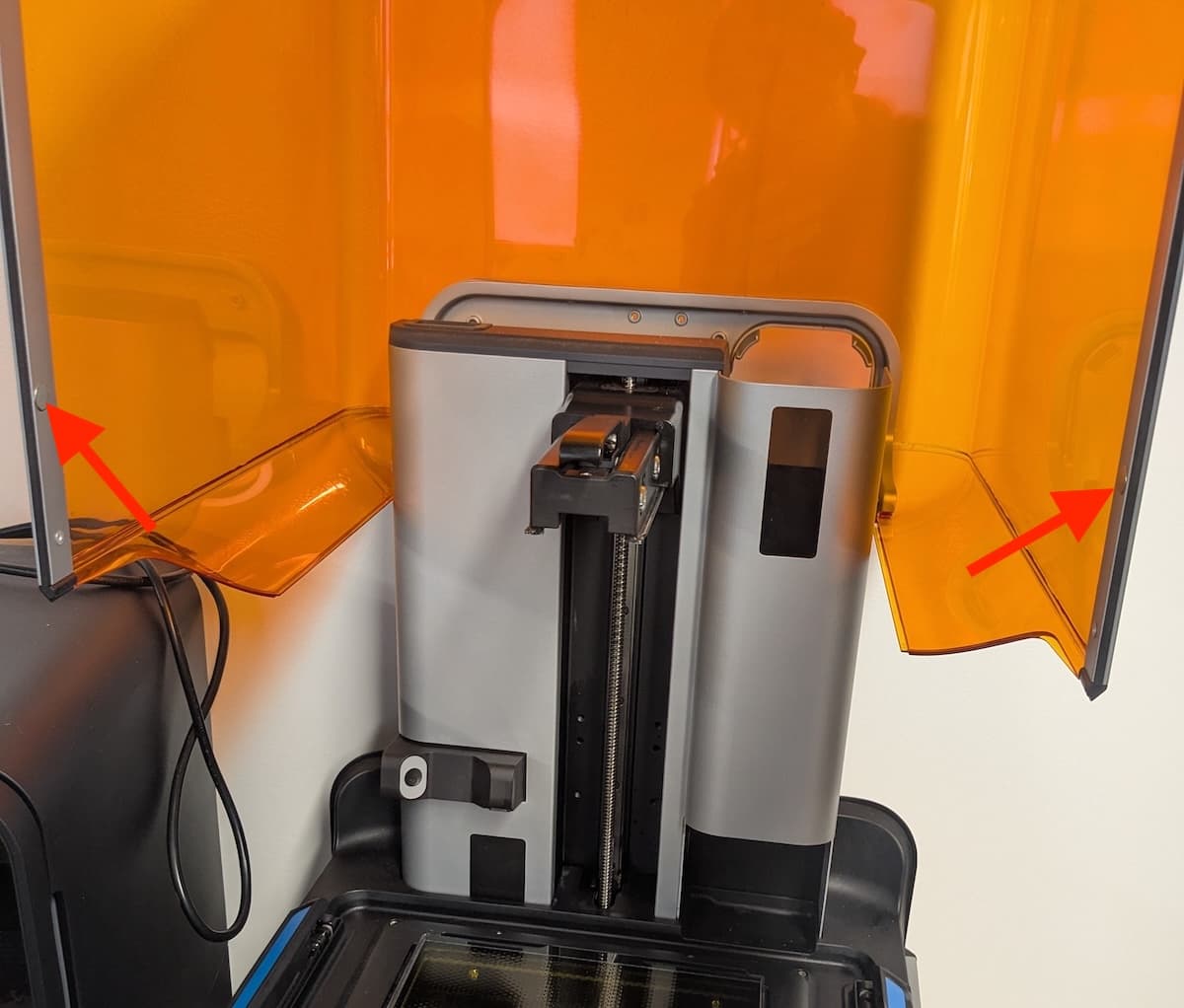
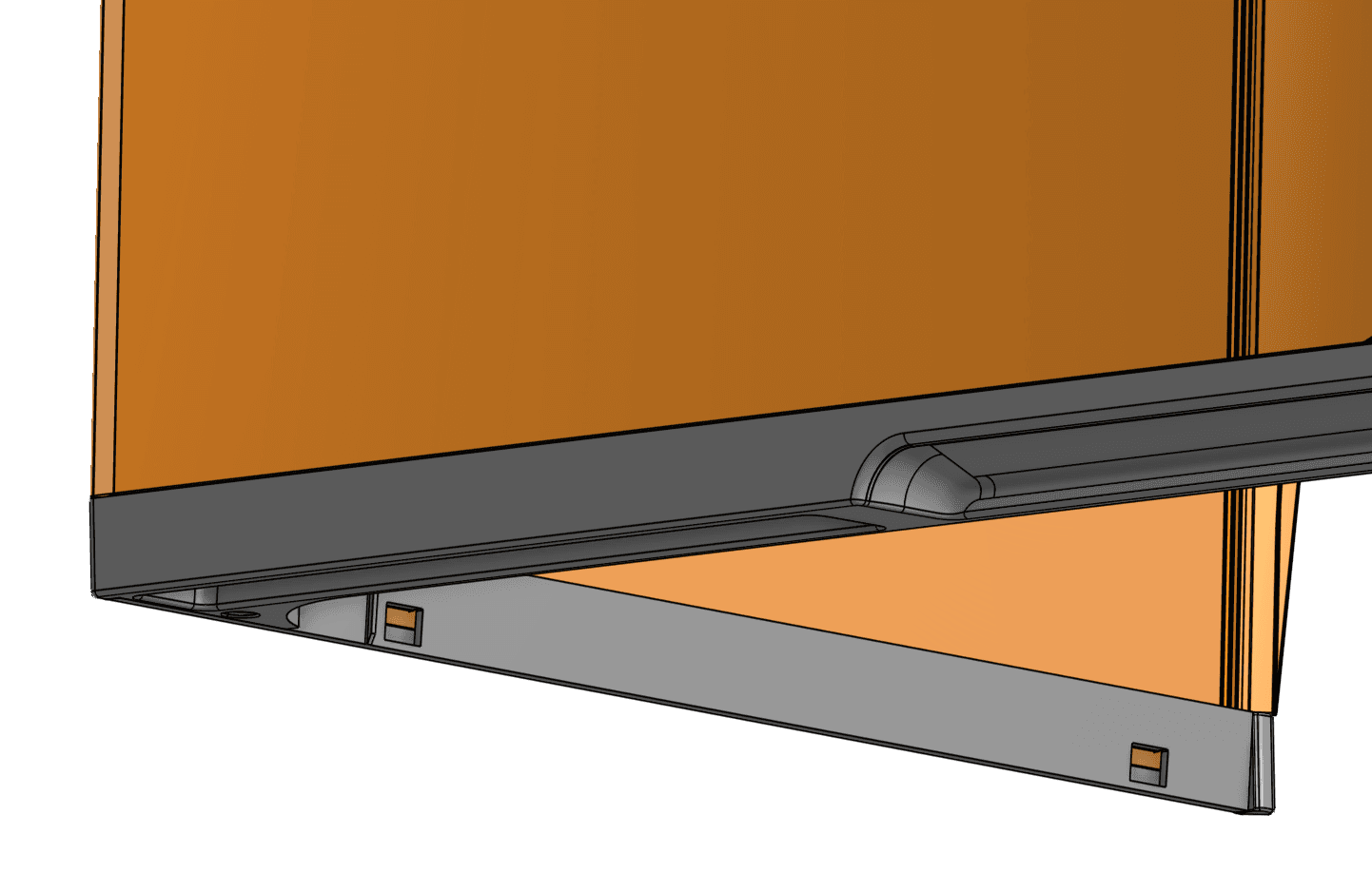
L’Erreur 1.1.17 indique que le couvercle (génération Form 4) ou la porte (génération Form 4L) a été ouvert pendant l’impression. Pour des raisons de sécurité, l’impression s’arrête dès que le couvercle ou la porte est ouvert. Fermez le couvercle ou la porte pour continuer.
Si le couvercle ou la porte n’était pas ouvert ou si le fait de le fermer ne résout pas le problème :
Erreur 1.1.23 : La communication avec la carte mère a échoué
L'erreur 1.1.23 indique que l'imprimante n'a pas réussi à envoyer un message à la carte mère. Pour résoudre ce problème :
Erreur 1.1.31 : Firmware incompatible
L’Erreur 1.1.31 indique un problème avec le firmware installé sur l’imprimante. Assurez-vous que le firmware de votre imprimante est à jour. Si le problème persiste et que le firmware de l’imprimante est déjà à jour, réinstallez manuellement le dernier pack de firmware. Redémarrez votre imprimante et réessayez.
Erreur 1.1.32 : Ventilateur de la LPU défaillant
L’Erreur 1.1.32 indique que le ventilateur de refroidissement de la Light Processing Unit (LPU) est défaillant. Si vous continuez à utiliser l’imprimante, vous risquez d’endommager la LPU. Pour résoudre ce problème :
Erreur 1.1.33 : Ventilateur de l’éclairage défaillant
L’Erreur 1.1.33 indique que le ventilateur de refroidissement de l’unité d’éclairage est défaillant. Si vous continuez à utiliser l’imprimante, vous risquez d’endommager l’unité d’éclairage. Pour résoudre ce problème :
Erreur 1.1.34 : Ventilateur de l’alimentation électrique défaillant
L’Erreur 1.1.34 indique que le ventilateur de refroidissement de l’alimentation électrique est défaillant. Si vous continuez à utiliser l’imprimante, vous risquez d’endommager l’alimentation électrique. Redémarrez votre imprimante, réinitialisez son firmware et réessayez. Contactez l’assistance Formlabs ou votre revendeur agréé si ce message d’erreur se répète.
Erreur 1.1.40 : La tension de l’imprimante est inférieure à celle attendue
L’erreur 1.1.40 indique que l’alimentation électrique délivre une tension inférieure à celle attendue. Si vos impressions sont réussies, ignorez ce message d'erreur. Cependant, une faible tension peut avoir un impact sur l'impression, notamment en empêchant l'unité d'éclairage de s'allumer. Pour résoudre ce problème :
Erreur 1.1.41 : erreur interne
Erreur 1.1.41 indique une erreur de communication interne entre les sous-systèmes de l’imprimante. Pour résoudre ce problème :
Erreur 1.1.47 : Impossible de mettre la plateforme de fabrication en position initiale
L’Erreur 1.1.47 indique que la plateforme de fabrication n’a pas réussi à revenir correctement à sa position initiale.
Erreur 1.1.48 : Le mélangeur ne revient pas en position d’origine
L’Erreur 1.1.48 indique que le mélangeur n’a pas réussi à revenir correctement à sa position d’origine.
Erreur 1.1.51 : Ventilateur de la LPU arrière défaillant (génération Form 4L uniquement)
Les imprimantes de génération Form 4L sont équipées de deux ventilateurs de la Light Processing Unit (LPU). Erreur 1.1.51 indique que le ventilateur de refroidissement de la LPU arrière est défaillant. Si vous continuez à utiliser l’imprimante, vous risquez d’endommager la LPU.
Erreur 1.1.52 : Échec du ventilateur de la LPU avant (génération Form 4L uniquement)
Les imprimantes de génération Form 4L sont équipées de deux ventilateurs de la Light Processing Unit (LPU). Erreur 1.1.52 indique que le ventilateur de refroidissement de la LPU avant est défaillant. Si vous continuez à utiliser l’imprimante, vous risquez d’endommager la LPU.
Erreur 1.1.53 : Les deux ventilateurs de la LPU sont défaillants (génération Form 4L uniquement)
Les imprimantes de génération Form 4L sont équipées de deux ventilateurs de la Light Processing Unit (LPU). Erreur 1.1.53 indique que les deux ventilateurs de refroidissement de la LPU sont défaillants. Si vous continuez à utiliser l’imprimante, vous risquez d’endommager la LPU.
Erreur 1.1.54 : Échec du ventilateur de l’unité d’éclairage à l’arrière gauche
Les imprimantes de génération Form 4L sont équipées de deux ventilateurs d’unité d’éclairage. Erreur 1.1.54 indique que le ventilateur de refroidissement de l’unité d’éclairage à l’arrière gauche est défaillant. Si vous continuez à utiliser l’imprimante, vous risquez d’endommager l’unité d’éclairage. Pour résoudre ce problème :
Erreur 1.1.55 : Échec du ventilateur de l’unité d’éclairage à droite
Les imprimantes de génération Form 4L sont équipées de deux ventilateurs d’unité d’éclairage. Erreur 1.1.55 indique que le ventilateur de refroidissement de l’unité d’éclairage située à droite est défaillant. Si vous continuez à utiliser l’imprimante, vous risquez d’endommager l’unité d’éclairage. Pour résoudre ce problème :
Erreur 1.1.56 : Les deux ventilateurs de rétroéclairage sont défaillants
Les imprimantes de génération Form 4L sont équipées de deux ventilateurs d’unité d’éclairage. Erreur 1.1.56 indique que les deux ventilateurs de refroidissement de l’unité d’éclairage ont échoué. Si vous continuez à utiliser l’imprimante, vous risquez d’endommager l’unité d’éclairage. Pour résoudre ce problème :
Erreurs d'appareil de chauffage (Groupe d’erreurs 3)
Tous les sous-codes du groupe d’erreurs 3 (1-12) de la Form 4 et de la Form 4L se rapportent à l’appareil de chauffage.
Erreur 1.3.1 : La résine n’a pas pu être chauffée
L'erreur 1.3.1 indique que la résine n'a pas atteint sa température cible après une certaine durée. Pour résoudre ce problème :
Pour plus d’informations, consultez l’article d’assistance Maintien en température de la résine.
Erreur 1.3.3 : La résine est surchauffée
L’Erreur 1.3.3 indique que la résine dans le bac à résine a dépassé sa température cible. Pour résoudre ce problème :
Pour plus d’informations, consultez l’article d’assistance Maintien en température de la résine.
Erreur 1.3.4 : L’appareil de chauffage est surchauffé
L’Erreur 1.3.4 indique que la température du chauffage a dépassé sa plage de fonctionnement sûre. Arrêtez les tâches d’impression en cours, car vous risquez d’endommager votre imprimante et de provoquer une erreur d’impression. Pour résoudre ce problème, suivez les mêmes étapes de dépannage que pour Erreur 1.3.3 : La résine est surchauffée.
Pour plus d’informations, consultez l’article d’assistance Maintien en température de la résine.
Erreur 1.3.5 : L’appareil de chauffage n’est pas connecté
L’Erreur 1.3.5 indique que l’appareil de chauffage n’est peut-être pas connecté. L’appareil de chauffage est situé dans le cadre de l’assemblage de la LPU.
Erreur 1.3.6 et Erreur 1.3.7 : Impossible de mesurer la température de la résine
L’Erreur 1.3.6 et l’Erreur 1.3.7 indiquent que l’imprimante n’a pas pu mesurer la température actuelle de la résine dans le bac et qu’il peut être nécessaire de désactiver l’appareil de chauffage. Pour résoudre ce problème :
Erreur 1.3.8 et Erreur 1.3.9 : Impossible de mesurer la température de l’appareil de chauffage
L’Erreur 1.3.8 et l’Erreur 1.3.9 indiquent que l’imprimante n’a pas pu mesurer la température actuelle de l’appareil de chauffage. L'appareil de chauffage est situé sous le cadre de l'assemblage LPU.
Erreur 1.3.10 et Erreur 1.3.11 : Le courant de l’appareil de chauffage est trop élevé
L’Erreur 1.3.10 et l’Erreur 1.3.11 indiquent que l’appareil de chauffage a rencontré un problème au cours du processus de préimpression ou de l’impression elle-même. L’appareil de chauffage est situé dans le cadre de l’assemblage de la LPU. Pour résoudre ce problème, suivez les mêmes étapes de dépannage que pour Erreur 1.3.8 et Erreur 1.3.9 : Impossible de mesurer la température de l'appareil de chauffage.
Erreur 1.3.12 : Chauffage de la résine à la température d'impression
L'imprimante peut afficher Erreur 1.3.12 pour vous informer qu'elle est en train de chauffer la résine dans le bac. Cela n'indique pas nécessairement qu'il y a un problème. Si l'imprimante ne parvient pas à chauffer la résine après une durée prolongée, vérifiez la cartouche de résine comme vous le feriez pour une erreur liée à l'appareil de chauffage.
Erreurs d’accéléromètre (Groupe d’erreurs 4)
Tous les sous-codes du Groupe d’erreurs 4 (1-7) de la Form 4 et de la Form 4L se rapportent à l’accéléromètre.
Erreur 1.4.1 : L’imprimante n’est pas à niveau
Les imprimantes SLA Formlabs fonctionnent mieux quand elles sont parfaitement à niveau. L’écran tactile vous invite à mettre l’imprimante à niveau si nécessaire en affichant l’Erreur 1.4.1. Appuyez sur Settings > Tools > Level printer (Paramètres > Outils > Mise à niveau de l’imprimante) sur l’écran tactile de l’imprimante pour afficher l’état actuel du niveau. Suivez les instructions à l’écran tactile et utilisez l’outil de mise à niveau pour mettre l’imprimante à niveau. Si l’erreur persiste, réinitialisez le firmware de votre imprimante.
Erreur 1.4.2 et Erreur 1.4.3 : L’accéléromètre n’est pas connecté
Erreur 1.4.2 et Erreur 1.4.3 indiquent un problème avec l’accéléromètre de l’imprimante. Redémarrez votre imprimante, réinitialisez son firmware et réessayez. Contactez l’assistance Formlabs ou votre revendeur agréé si ce message d’erreur se répète.
Erreur 1.4.7 : Échec du recalibrage de l’accéléromètre
Erreur 1.4.7 indique que la routine d’étalonnage de l’accéléromètre a échoué. Pour résoudre ce problème :
Erreur d’éclairage (Groupe d’erreurs 5)
Tous les sous-codes du Groupe d’erreurs 5 (1-11) de la Form 4 et de la Form 4L se rapportent à l’unité d’éclairage UV.
Erreur 1.5.1 : Surchauffe de l’éclairage
L’Erreur 1.5.1 indique que l’unité d’éclairage est en surchauffe. L’impression reprendra lorsque l’unité d’éclairage aura refroidi. Pour résoudre ce problème :
Erreur 1.5.2 : Unité d’éclairage non détectée
L’Erreur 1.5.2 indique que l’unité d’éclairage n’a pas pu être détectée. Pour résoudre ce problème :
Dans de rares cas, une unité d’éclairage de remplacement de génération Form 4L peut faire en sorte que votre imprimante affiche cette erreur immédiatement après l’installation. Si cela se produit, activez l’assistance à distance et contactez l’assistance Formlabs.
Erreur 1.5.5 : Unité d’éclairage non reconnue
L’Erreur 1.5.5 indique que l’unité d’éclairage n’a pas pu être reconnue. Pour résoudre ce problème, suivez les mêmes étapes de dépannage que pour Erreur 1.5.2 : L'unité d'éclairage n'est pas détectée.
Dans de rares cas, une unité d’éclairage de remplacement de génération Form 4L peut faire en sorte que votre imprimante affiche cette erreur immédiatement après l’installation. Si cela se produit, activez l’assistance à distance et contactez l’assistance Formlabs.
Erreur 1.5.6 : Unité d’éclairage allumée trop longtemps
L’Erreur 1.5.6 indique que l’unité d’éclairage est restée allumée pendant plus de cinq minutes et que l’imprimante l’a donc éteinte par mesure d’autoprotection. Pour résoudre ce problème :
Erreur 1.5.7 : L’unité d’éclairage ne réagit pas
L’Erreur 1.5.7 indique que l’unité d’éclairage n’a pas répondu à une commande de l’imprimante. Pour résoudre ce problème, suivez les mêmes étapes de dépannage que pour Erreur 1.5.2 : L'unité d'éclairage n'est pas détectée.
Erreur 1.5.9 et Erreur 1.5.10 : Impossible de mesurer la température de l’unité d’éclairage
L’Erreur 1.5.9 et l’Erreur 1.5.10 indiquent que l’imprimante n’a pas pu mesurer la température de l’unité d’éclairage. Pour résoudre ce problème, suivez les mêmes étapes de dépannage que pour Erreur 1.5.2 : L'unité d'éclairage n'est pas détectée.
Erreur 1.5.11 : Impossible d’allumer l’unité d’éclairage
L’Erreur 1.5.11 indique que l’imprimante n’a pas pu allumer l’unité d'éclairage. Pour résoudre ce problème, suivez les mêmes étapes de dépannage que pour Erreur 1.5.2 : L'éclairage n'est pas détecté.
Erreurs de consommables (Groupe d’erreurs 6)
Tous les sous-codes de l’Erreur 1.6 (1-32) de la Form 4 et de la Form 4L concernent des problèmes liés aux consommables (cartouche de résine, bac à résine et plateforme de fabrication).
Erreur 1.6.2 : Cartouche manquante
Si la cartouche de résine est retirée pendant l’impression, l’impression peut encore se poursuivre pendant un certain temps en utilisant la résine stockée dans le bac à résine. L’imprimante affiche l’Erreur 1.6.2 pour l’indiquer. Réinsérez la cartouche de résine pour continuer. Si cela ne résout pas le problème :
Erreur 1.6.3 : Impression interrompue en raison de la cartouche manquante
Si la cartouche de résine est retirée pendant l’impression, l’impression peut encore se poursuivre pendant un certain temps en utilisant la résine stockée dans le bac à résine. Ensuite, l’impression s’interrompt. L’imprimante affiche l’Erreur 1.6.3 pour indiquer que l’impression a été interrompue en raison du retrait de la cartouche de résine. Réinsérez la cartouche de résine pour continuer. Si cela ne résout pas le problème, suivez les mêmes étapes de dépannage que pour Erreur 1.6.2 : Cartouche manquante.
Erreur 1.6.4 : Mauvaise correspondance de la cartouche gauche (génération Form 4L uniquement)
L’imprimante vérifie le type de résine dans le bac et la cartouche pour s’assurer qu’ils correspondent à la tâche d’impression en cours. Si le type de résine de la cartouche de gauche ne correspond pas au type de résine identifié dans la tâche d’impression, l’imprimante affiche l’Erreur 1.6.4 et vous invite à insérer une cartouche de résine qui correspond aux paramètres de la tâche d’impression. Assurez-vous que la résine contenue dans la cartouche de résine correspond au type de résine de la tâche, avec le même numéro de version du matériau. Si cela ne résout pas le problème :
Erreur 1.6.5 : La cartouche gauche a dépassé la limite (génération Form 4L uniquement)
Chaque cartouche contient et peut distribuer de manière fiable un litre de résine. Si la cartouche a dépassé sa durée de vie, l’imprimante affiche l’Erreur 1.6.5. Une fois le litre distribué, jetez la cartouche et continuez à imprimer avec une nouvelle cartouche. Relancez l’impression après avoir remplacé la cartouche vide. Si cette erreur est déclenchée par erreur, suivez les mêmes étapes de dépannage que pour Erreur 1.6.4 : Cartouche gauche non conforme.
Erreur 1.6.6 : Mauvaise correspondance de la cartouche droite (génération Form 4L uniquement)
L’imprimante vérifie le type de résine dans le bac et la cartouche pour s’assurer qu’ils correspondent à la tâche d’impression en cours. Si le type de résine de la cartouche de droite ne correspond pas au type de résine identifié dans la tâche d’impression, l’imprimante affiche l’Erreur 1.6.6 et vous invite à insérer une cartouche de résine qui correspond aux paramètres de la tâche d’impression. Assurez-vous que la résine contenue dans la cartouche de résine correspond au type de résine de la tâche, avec le même numéro de version du matériau. Si cela ne résout pas le problème :
Erreur 1.6.7 : La cartouche droite a dépassé la limite (génération Form 4L uniquement)
Chaque cartouche contient et peut distribuer de manière fiable un litre de résine. Si la cartouche a dépassé sa durée de vie, l’imprimante affiche l’Erreur 1.6.7. Une fois le litre distribué, jetez la cartouche et continuez à imprimer avec une nouvelle cartouche. Relancez l’impression après avoir remplacé la cartouche vide. Si cette erreur est déclenchée par erreur, suivez les mêmes étapes de dépannage que pour Erreur 1.6.6 : Cartouche droite non conforme.
Erreur 1.6.9 : Le bac à résine est manquant
L’Erreur 1.6.9 indique que le bac à résine est manquant ou a été retiré pendant l’impression. Réinsérez et fixez le bac à résine pour continuer. Si cela ne résout pas le problème :
Erreur 1.6.10 : Mauvais bac inséré
L’imprimante affiche l’Erreur 1.6.10 lorsque le type de résine dans le bac ne correspond pas à ce qui est requis pour la tâche. Retirez le bac à résine et remplacez-le par un bac qui correspond à la tâche d’impression.
Remarque :
Appuyez sur Ignore (Ignorer) pour reprogrammer le bac à résine afin qu’il corresponde au type de résine de la tâche d’impression.
Erreur 1.6.11 : Durée de vie du bac dépassée
Erreur 1.6.11 indique que le bac à résine a dépassé sa durée de vie recommandée. Envisagez de remplacer votre bac à résine pour garantir une impression réussie.
Erreur 1.6.12 : Bac non verrouillé
Erreur 1.6.12 indique que le bac à résine n’est pas verrouillé à l’aide des verrous du bac. Appuyez sur les côtés du bac à résine avec vos pouces et fermez les verrous pour fixer le bac. Si cela ne résout pas le problème :
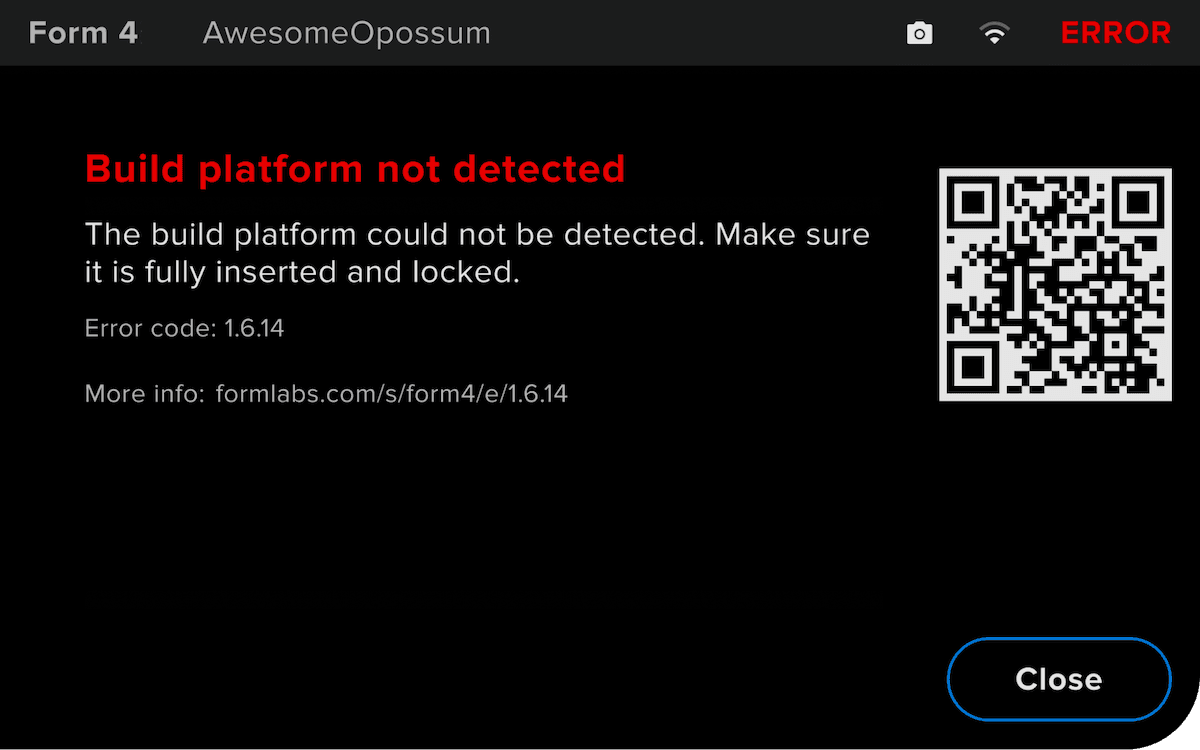
Erreur 1.6.14 : Plateforme de fabrication non détectée
L’Erreur 1.6.14 indique que l’imprimante n’a pas pu détecter de plateforme de fabrication. Insérez et fixez une plateforme de fabrication pour continuer. Si vous êtes certain qu’une plateforme de fabrication propre est insérée dans l’imprimante, vous pouvez également appuyer sur Ignore (Ignorer) pour continuer.
Si cela ne résout pas le problème, ouvrez le couvercle de l’imprimante, retirez la plateforme de fabrication et inspectez la broche du piston dans le coin supérieur droit du support de la plateforme de fabrication.
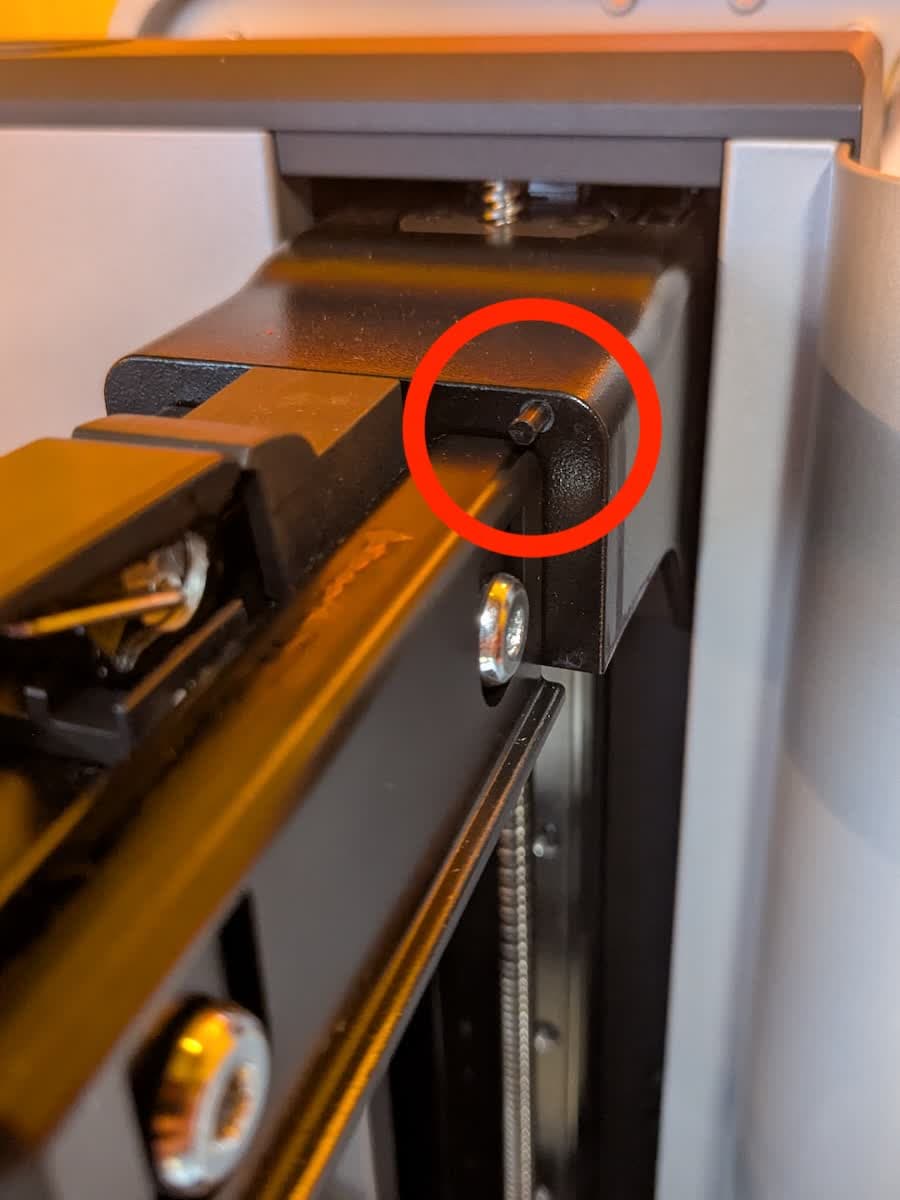
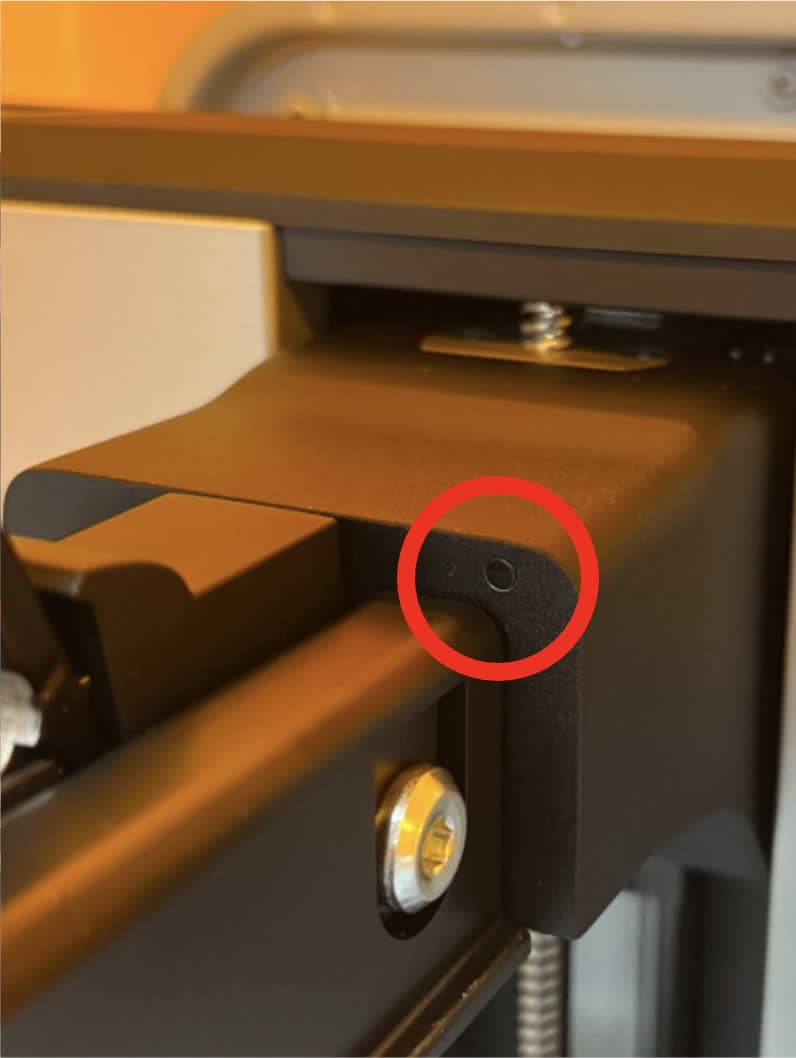
Si le piston est visible :
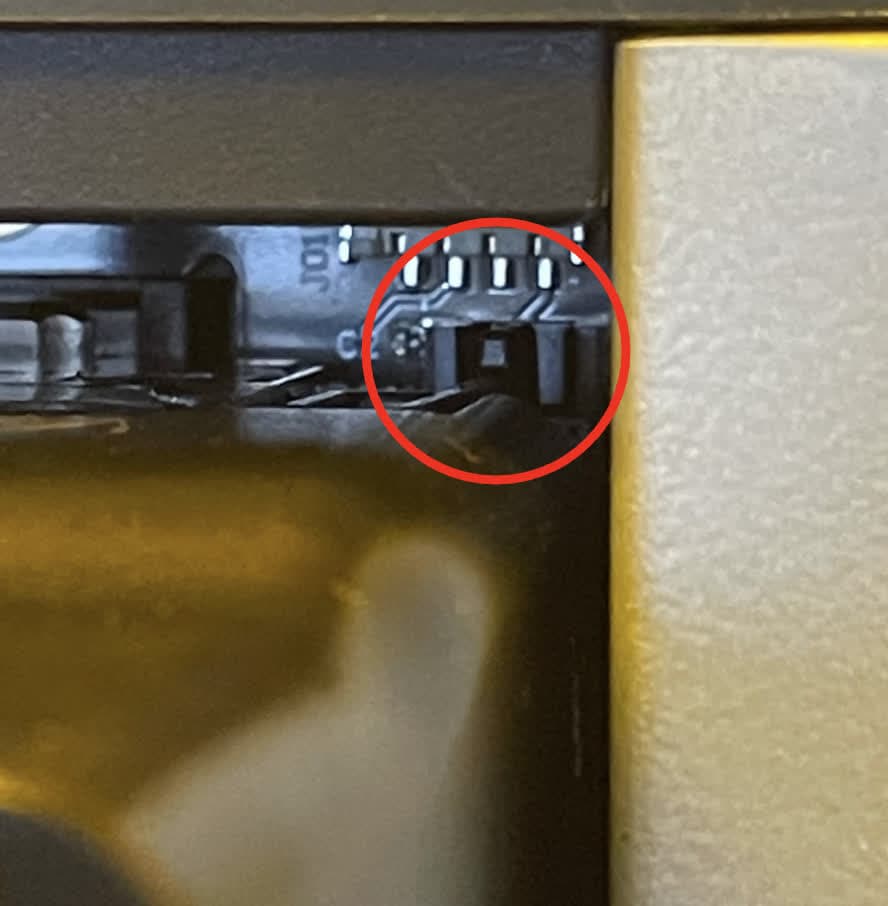
Si le piston est coincé à l’intérieur du support de la plateforme de fabrication :
Avis :
Ne coupez pas le piston sans l’outil d’élagage. L’outil de découpe permet de couper la bonne longueur. Une coupe trop importante empêchera le piston d’interagir avec le capteur de la plateforme de fabrication, ce qui entraînera une rupture permanente de la détection de la plateforme de fabrication.
Si l'erreur persiste, contactez l'assistance Formlabs ou votre revendeur agréé pour obtenir de l'aide.
Erreur 1.6.27 : Cartouche inadaptée (génération Form 4 uniquement)
L’imprimante vérifie le type de résine dans le bac et la cartouche pour s’assurer qu’ils correspondent à la tâche d’impression en cours. S’ils ne correspondent pas au type de résine identifié dans la tâche d’impression, l’imprimante affiche l’Erreur 1.6.27 et vous invite à insérer une cartouche de résine qui correspond aux paramètres de la tâche d’impression. Assurez-vous que la résine contenue dans la cartouche de résine correspond au type de résine de la tâche, avec le même numéro de version du matériau. Si cela ne résout pas le problème :
Erreur 1.6.28 : La cartouche a dépassé la limite (génération Form 4 uniquement)
Chaque cartouche contient et peut distribuer de manière fiable un litre de résine. Si la cartouche a dépassé sa durée de vie, l’imprimante affiche l’Erreur 1.6.28. Une fois le litre distribué, jetez la cartouche et continuez à imprimer avec une nouvelle cartouche. Relancez l’impression après avoir remplacé la cartouche vide. Si cette erreur se produit à tort, suivez les mêmes étapes de dépannage que pour Erreur 1.6.27 : Cartouche inadaptée (génération de la Form 4 uniquement).
Erreur 1.6.33 : Insertion d'un bac non reconnu
Formlabs propose plusieurs types de bacs à résine pour ses imprimantes SLA. L'Erreur 1.6.33 indique que l'imprimante n'a pas pu reconnaître le bac à résine inséré. Pour résoudre ce problème :
Erreurs de détection des fragments (Groupe d’erreurs 7)
Tous les sous-codes du Groupe d’erreurs 7 (1-7) de la Form 4 et de la Form 4L sont liés à la détection par l’imprimante de fragments dans le bac à résine ou sur la plateforme de fabrication pendant la préparation de l’impression.
Erreur 1.7.2 : Le mélangeur a détecté des fragments
Erreur 1.7.2 indique que le mélangeur a rencontré des fragments lors du raclage de la plateforme de fabrication avant l’impression. Utilisez une spatule pour retirer la résine durcie de la plateforme de fabrication et réessayez. Si le problème persiste, suivez les mêmes étapes de dépannage que pour Erreur 1.1.6 : Le mélangeur a détecté des fragments.
Erreur 1.7.3 : La plateforme de fabrication a détecté des fragments
Erreur 1.7.3 indique que la plateforme de fabrication a rencontré des fragments alors qu’elle s’abaissait dans le bac à résine pendant la phase de préimpression. Utilisez une spatule pour retirer la résine durcie de la plateforme de fabrication et réessayez. Si le problème persiste, suivez les mêmes étapes de dépannage que pour Erreur 1.1.7 : Fragments détectés sur la plateforme de fabrication.
Erreurs du mélangeur (Groupe d’erreurs 8)
Tous les sous-codes du groupe d’erreurs 8 (1) de la Form 4 et de la Form 4L se rapportent au mélangeur.
Erreur 1.8.1 : Mélangeur non détecté
Erreur 1.8.1 indique que l'imprimante n'a pas détecté le mélangeur. Pour résoudre ce problème :
Erreurs du distributeur (Groupe d’erreurs 9)
Tous les sous-codes du Groupe d’erreurs 9 (1-25) de la Form 4 et de la Form 4L concernent le système de distribution de la résine.
Erreur 1.9.4 : Impossible de mesurer le niveau de résine
Erreur 1.9.4 indique que l’imprimante n’a pas pu mesurer la quantité de résine dans le bac à résine. Pour résoudre ce problème :
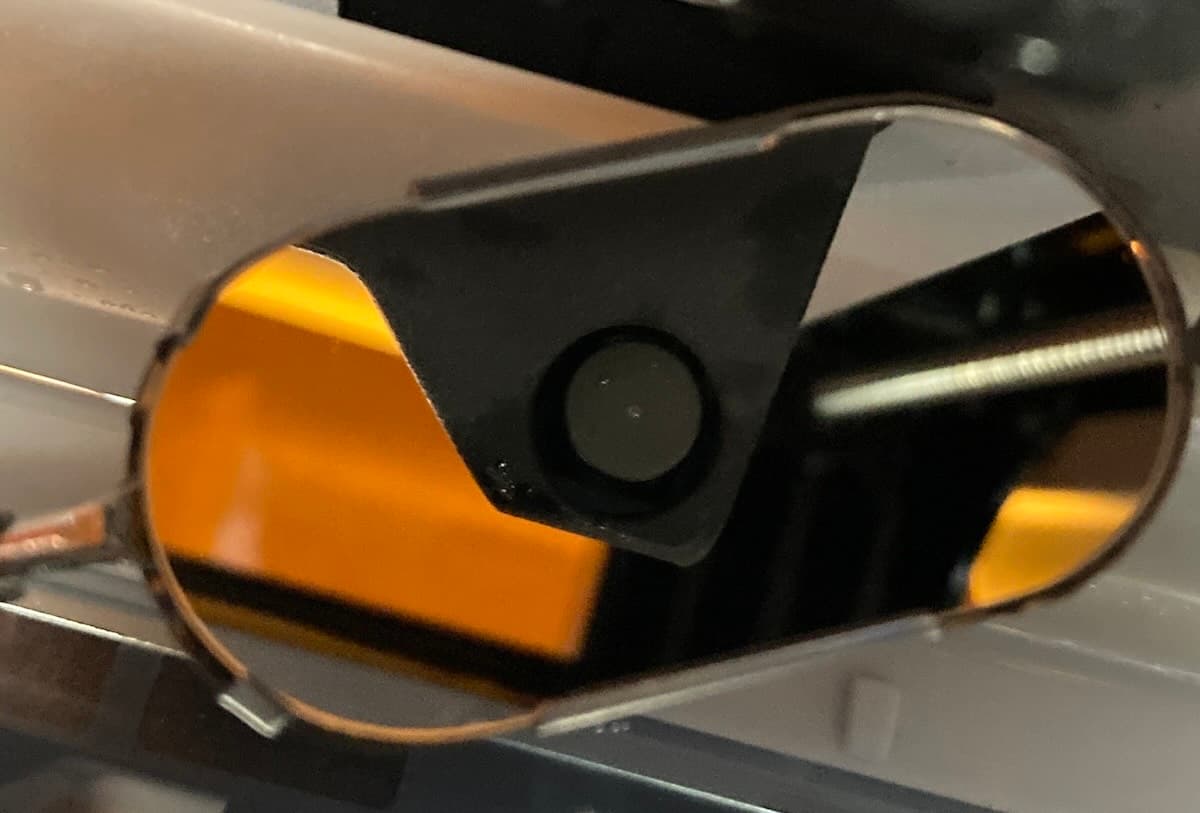
Erreur 1.9.5 : Le bac est trop rempli de résine
Si le bac à résine est trop plein, l’imprimante affiche l’Erreur 1.9.5. Utilisez une seringue ou un petit gobelet jetable pour retirer de petites quantités de résine et versez-les dans un récipient séparé. Si l’imprimante vous avertit par erreur d’un bac à résine trop rempli :
Erreur 1.9.6 : Quantité de résine insuffisante pour terminer l’impression
L’Erreur 1.9.6 indique que la tâche d’impression en cours nécessite plus de résine que n’en contiennent le bac et la cartouche de résine. Il se peut que vous deviez remplacer la cartouche de résine pendant l’impression. L’imprimante se met en pause et affiche l’Erreur 1.9.6 lorsque la cartouche est vide. Pour résoudre ce problème :
Erreur 1.9.7 : Impression interrompue en raison d’une faible quantité de résine
Les imprimantes SLA Formlabs contiennent un capteur de niveau de résine. Il mesure le niveau de résine dans le bac à résine pendant l’impression. En surveillant le niveau de résine, l’imprimante peut automatiquement distribuer de la résine de la cartouche dans le bac quand le niveau commence à être bas. L’Erreur 1.9.7 indique que l’imprimante s’est interrompue pour remplir le bac à résine. Si ce message apparaît à plusieurs reprises :
Erreur 1.9.9 : La cartouche gauche est vide (génération Form 4L uniquement)
L'imprimante affiche l'Erreur 1.9.9 s'il n'y a plus de résine dans la cartouche de gauche. Chaque cartouche contient et peut distribuer de manière fiable un litre de résine. Une fois vide, jetez la cartouche et continuez à imprimer avec une nouvelle cartouche.
Si une cartouche n'est pas vide mais que l'imprimante affiche cette erreur :
Erreur 1.9.10 : La cartouche droite est vide (génération Form 4L uniquement)
L'imprimante affiche l'Erreur 1.9.10 s'il n'y a plus de résine dans la cartouche de droite. Chaque cartouche contient et peut distribuer de manière fiable un litre de résine. Une fois vide, jetez la cartouche et continuez à imprimer avec une nouvelle cartouche.
Si une cartouche n'est pas vide mais que l'imprimante affiche cette erreur :
Erreur 1.9.11 : La cartouche gauche distribue lentement (génération Form 4L uniquement)
L’Erreur 1.9.11 indique que la résine est distribuée par la cartouche de résine de gauche à un rythme plus lent que prévu. Si une cartouche n’est pas vide mais que l’imprimante est incapable de distribuer de la résine, le problème peut concerner la cartouche :
Remarque :
L’imprimante peut distribuer la résine lentement sans afficher de message d’erreur. Suivez les étapes de dépannage ci-dessus pour remédier à une distribution lente, que vous voyiez ou non un message d’erreur.
Erreur 1.9.12 : La cartouche droite distribue lentement (génération Form 4L uniquement)
Erreur 1.9.12 indique que la résine est distribuée par la cartouche de résine de droite à un rythme plus lent que prévu. Si une cartouche n’est pas vide mais que l’imprimante est incapable de distribuer de la résine, le problème peut concerner la cartouche :
Remarque :
L’imprimante peut distribuer la résine lentement sans afficher de message d’erreur. Suivez les étapes de dépannage ci-dessus pour remédier à une distribution lente, que vous voyiez ou non un message d’erreur.
Erreur 1.9.13, Erreur 1.9.14, Erreur 1.9.15 et Erreur 1.9.19 : erreurs de distance de réétalonnage du capteur de niveau
Les imprimantes SLA Formlabs contiennent un capteur de niveau de résine. Il mesure le niveau de résine dans le bac à résine pendant l’impression. Sur les imprimantes de génération Form 4 et Form 4L, l’imprimante mesure la distance entre le capteur de niveau de résine et la résine liquide. Si l'imprimante ne mesure pas correctement le niveau de résine, recalibrez le capteur de niveau de résine. Si l’imprimante ne peut pas mesurer cette distance ou si elle est en dehors de la plage prévue, l’imprimante affiche l’Erreur 1.9.13, l’Erreur 1.9.14, l’Erreur 1.9.15 ou l’Erreur 1.9.19. Pour résoudre ces problèmes :
Error 1.9.16, Error 1.9.17, and Error 1.9.18: LevelSense temperature errors
Formlabs SLA printers have a component known as LevelSense that measures the amount of resin in the resin tank during a print. On Form 4 and Form 4L generation printers, the LevelSense system also measures the ambient temperature to accurately measure the resin level. If the printer is incorrectly measuring resin level, recalibrate the LevelSense. During recalibration, if the printer cannot measure the ambient temperature or it is out of the expected range, the printer displays Error 1.9.16, Error 1.9.17, or Error 1.9.18. To resolve these issues:
Error 1.9.20: Filling tank
The printer may show Error 1.9.20 to inform you that it is filling the resin tank. It does not necessarily indicate that there is an issue. If the printer fails to fill the resin tank after a prolonged length of time, check the resin cartridge as you would for a dispense-related error.
Error 1.9.21: Could not determine offset
Error 1.9.21 indicates that the cartridge sensor readings were not stable during cartridge floor load cell calibration. Make sure that nothing is sitting on the cartridge floor(s) and retry the cartridge floor calibration process. If the issue persists:
Error 1.9.22: Cartridge is empty (Form 4 generation only)
The printer displays Error 1.9.22 if there is no more resin in the cartridge. Each cartridge contains and can reliably dispense one liter of resin. After the full liter dispenses, dispose of the cartridge and continue printing with a new cartridge.
If a cartridge is not empty but the printer displays this error:
Remarque :
Il se peut que l’imprimante ne parvienne pas à distribuer la résine sans afficher de message d’erreur. Suivez les étapes de dépannage ci-dessus pour résoudre les problèmes de distribution de résine, que vous voyiez ou non un message d’erreur.
Erreur 1.9.23 : La cartouche distribue lentement (génération Form 4 uniquement)
Erreur 1.9.23 indique que la résine est distribuée par la cartouche de résine à un rythme plus lent que prévu. Si une cartouche n’est pas vide mais que l’imprimante est incapable de distribuer de la résine, le problème peut concerner la cartouche :
Remarque :
L’imprimante peut distribuer la résine lentement sans afficher de message d’erreur. Suivez les étapes de dépannage ci-dessus pour remédier à une distribution lente, que vous voyiez ou non un message d’erreur.
Erreur 1.9.24 : Impression interrompue en raison d’une faible quantité de résine
Les imprimantes SLA Formlabs contiennent un capteur de niveau de résine. Il mesure le niveau de résine dans le bac à résine pendant l’impression. En surveillant le niveau de résine, l’imprimante peut automatiquement distribuer de la résine de la cartouche dans le bac quand le niveau commence à être bas.
Toutefois, les imprimantes avec Open Material Mode ne peuvent pas distribuer automatiquement de la résine à partir de la cartouche. L'Erreur 1.9.24 indique que l'imprimante s'est interrompue pour permettre à l'utilisateur de remplir manuellement le bac à résine. Si ce message apparaît à plusieurs reprises :
Erreurs de la Light Processing Unit (Groupe d’erreurs 10)
Tous les sous-codes du Groupe d’erreurs 10 (1-9) de la Form 4 et de la Form 4L concernent la Light Processing Unit (LPU).
Erreur 1.10.1 et Erreur 1.10.4 : LPU non connectée
L’Erreur 1.10.1 et l’Erreur 1.10.4 indiquent que la Light Processing Unit (LPU) n’est pas connectée. Pour résoudre ces problèmes :
Erreur 1.10.3 : LPU non détectée
L’Erreur 1.10.3 indique que la Light Processing Unit (LPU) n’a pas pu être détectée. Pour résoudre ce problème, suivez les mêmes étapes de dépannage que pour Erreur 1.10.1 et Erreur 1.10.4 : La LPU n'est pas connectée.
Erreur 1.10.5 : Impossible de charger le fichier d’impression
L'erreur 1.10.5 indique un problème avec un fichier dans la tâche d'impression téléversée. Mettez à jour PreForm et le firmware de l’imprimante, puis téléversez à nouveau la tâche d’impression.
Erreur 1.10.8 : Durée de vie de la LPU dépassée
L’Erreur 1.10.8 indique que la Light Processing Unit a été utilisée au-delà de sa durée de vie recommandée. Continuer à imprimer peut entraîner des erreurs d’impression. Remplacez la LPU. Suivez les instructions des guides de réparation Remplacement de la Light Processing Unit de la Form 4 ou Remplacement de la Light Processing Unit de la Form 4L. Des LPU de remplacement sont disponibles sur la boutique en ligne Formlabs.
Erreurs de caméra (Groupe d’erreurs 12)
Tous les sous-codes du Groupe d’erreurs 12 (1-5) de la Form 4 et de la Form 4L se rapportent au système de caméras.
Erreur 1.12.2 : La caméra n’est pas connectée
L’Erreur 1.12.2 indique que la caméra, qui est utilisée pour prendre des photos après impression, n’est pas connectée. Si vous avez volontairement déconnecté ou retiré la caméra, ignorez ce message. Pour résoudre ce problème :
Erreur 1.12.3 : Échec de prise de photo
L’Erreur 1.12.3 indique que la caméra n’a pas réussi à prendre une photo. Pour résoudre ce problème, suivez les mêmes étapes de dépannage que pour Erreur 1.12.2 : La caméra n'est pas connectée.
Erreurs de phase d’écrasement (Groupe d’erreurs 13)
La phase d’écrasement de chaque couche correspond à la descente de la plateforme de fabrication dans le bac à résine. Tous les sous-codes du Groupe d'erreurs 13 de la Form 4 et de la Form 4L concernent les phases d'écrasement.
Erreur 1.13.1 : La plateforme de fabrication a détecté des fragments
L’Erreur 1.13.1 indique que l’imprimante a détecté des fragments dans le bac à résine ou sur la plateforme de fabrication pendant la phase d’écrasement. Pour résoudre ce problème, suivez les mêmes étapes de dépannage que pour Erreur 1.1.7 : La plateforme de fabrication a détecté des fragments.
Erreurs de statut d’impression (Groupe d’erreurs 15)
Tous les sous-codes du Groupe d’erreurs 15 (1-6) de la Form 4 et de la Form 4L sont liés à un problème de statut d’impression.
Erreur 1.15.1 : Impossible de charger la tâche d’impression
Erreur 1.15.1 indique un problème avec la tâche d’impression chargée. Mettez à jour PreForm et le firmware de l’imprimante, puis téléversez à nouveau la tâche d’impression.
Erreur 1.15.2 : Tâche déjà en cours d’impression
Erreur 1.15.2 indique qu’une nouvelle tâche d’impression n’a pas démarré parce qu’une tâche était déjà en cours. Attendez que l’impression en cours soit terminée avant d’en lancer une nouvelle. Si aucune tâche n’est en cours d’exécution, redémarrez votre imprimante, réinstallez sa dernière version du firmware et réessayez.
Erreur 1.15.3 : La tâche d’impression n’est pas valide.
Erreur 1.15.3 indique un problème avec la tâche d’impression chargée. Elle peut avoir été générée en raison d’une version de PreForm incompatible avec le firmware de l’imprimante. Mettez à jour PreForm et le firmware de l’imprimante, puis téléversez à nouveau la tâche d’impression.
Erreur 1.15.5 : Réglage de l’ajustement incompatible
Erreur 1.15.5 indique que les valeurs d’ajustement de l’imprimante ont été mises à jour après le téléchargement de cette tâche. Pour résoudre ce problème, téléversez à nouveau la tâche via PreForm.
Erreur 1.15.6 : Espace de stockage insuffisant pour l’impression
Erreur 1.15.6 indique qu’il n’y a pas assez d’espace de stockage sur l’imprimante pour stocker les données d’impression, même après la suppression automatique des tâches de l’historique. Supprimez les impressions de la file d'attente et rechargez la tâche via PreForm sans la fonction vidéo accélérée.
Erreurs du Resin Pumping System (groupe d’erreurs 20)
Tous les sous-codes du Groupe d’erreurs 20 (1-15) de la Form 4 et de la Form 4L concernent un problème avec le Resin Pumping System.
Erreur 1.20.1 : Vérifier le récipient à résine
Le Resin Pumping System pompe la résine d’un conteneur de 5 L dans l’imprimante. Si le récipient est vide, remplacez-le pour continuer votre impression. Si le conteneur n’est pas vide, il se peut qu’il y ait un problème avec la carte de résine insérée dans la pompe. Contactez l’assistance Formlabs ou votre revendeur agréé pour obtenir de l’aide.
Erreur 1.20.4 : Pompe à résine non connectée
Le Resin Pumping System (Form 4) se connecte aux imprimantes de génération Form 4 et Form 4L via une connexion USB. L’Erreur 1.20.4 indique que l’imprimante a reconnu une pompe à résine grâce au capteur RFID de la cartouche de résine, mais qu’elle n’a pas pu communiquer avec la pompe par l’intermédiaire du câble USB. Pour résoudre ce problème :
Erreur 1.20.6 : Impossible de mettre à jour le firmware de la pompe à résine.
Erreur 1.20.6 indique que l’imprimante a essayé de mettre à jour le firmware de la pompe à résine, mais a échoué. Cela peut se produire si la pompe est déconnectée pendant la mise à jour. Pour résoudre ce problème, suivez les mêmes étapes de dépannage que pour Erreur 1.20.4 : La pompe à résine n'est pas connectée.
Erreur 1.20.14 : Problème de connexion avec la pompe à résine
Erreur 1.20.14 indique qu’il y a un problème de connexion à la pompe à résine. Assurez-vous que la pompe est connectée directement à l’imprimante à l’aide du câble USB intégré. Ne connectez pas la pompe à résine à l’imprimante via un moyeu, un adaptateur ou tout autre accessoire USB. Si l'erreur persiste, suivez les mêmes étapes de dépannage que pour l'Erreur 1.20.4 : La pompe à résine n'est pas connectée.
Erreur 1.20.15 : Problème d’alimentation de la pompe à résine
Erreur 1.20.15 indique un problème d’alimentation de la pompe à résine. Pour résoudre ce problème, suivez les mêmes étapes de dépannage que pour Erreur 1.20.4 : La pompe à résine n'est pas connectée. Si l'erreur persiste, remplacez la pompe à résine.
Erreurs de Color Resin (groupe d'erreurs 22)
Tous les sous-codes du Groupe d'erreurs 22 (1-4) de la Form 4 et de la Form 4L sont liés à Color Resin.
Erreur 1.22.1 : Couleur du bac non conforme
L’imprimante affiche Erreur 1.22.1 lorsque la couleur de la résine dans le bac ne correspond pas à celle requise pour la tâche. Retirez le bac à résine et remplacez-le par un bac qui correspond à la tâche d’impression.
Remarque :
Appuyez sur Ignorer pour reprogrammer le bac à résine afin que la couleur de résine corresponde à la tâche d'impression.
Erreur 1.22.2 : Couleur de cartouche non correspondante (génération Form 4 uniquement)
L’imprimante affiche Erreur 1.22.2 lorsque la couleur de la résine dans la cartouche ne correspond pas à celle requise pour la tâche. Retirez la cartouche et remplacez-la par une cartouche adaptée à la tâche. Si cela ne résout pas le problème, suivez les mêmes étapes de dépannage que pour Erreur 1.6.27 : Cartouche non conforme (génération Form 4 uniquement).
Erreur 1.22.3 : Couleur de la cartouche gauche non conforme (génération Form 4L uniquement)
L’imprimante affiche Erreur 1.22.3 lorsque la couleur de la résine dans la cartouche gauche ne correspond pas à celle requise pour la tâche. Retirez la cartouche gauche et remplacez-la par une cartouche correspondant à la tâche. Si cela ne résout pas le problème, suivez les mêmes étapes de dépannage que pour Erreur 1.6.4 : Cartouche gauche non conforme (génération Form 4L uniquement).
Erreur 1.22.4 : Couleur de la cartouche droite non conforme (génération Form 4L uniquement)
L’imprimante affiche Erreur 1.22.4 lorsque la couleur de la résine dans la cartouche de droite ne correspond pas à celle requise pour la tâche. Retirez la cartouche droite et remplacez-la par une cartouche adaptée à la tâche. Si cela ne résout pas le problème, suivez les mêmes étapes de dépannage que pour Erreur 1.6.6 : Cartouche droite non conforme (génération Form 4L uniquement).
Erreurs de consommables (Groupe d’erreurs 227)
Tous les sous-codes du Groupe d'erreurs 227 (1-4) de la Form 4 et de la Form 4L concernent un problème avec une cartouche de résine insérée.
Erreur 1.227.1 : La cartouche de résine est incompatible (génération Form 4 uniquement)
L’imprimante affiche Erreur 1.227.1 lorsque la résine de la cartouche est incompatible avec l’imprimante. Cela se produit notamment lorsqu'une résine destinée à des applications biocompatibles est insérée dans une imprimante Form 4 plutôt que dans une imprimante Form 4B. Si vous avez inséré la cartouche dans le mauvais type d'imprimante, déplacez-la dans la bonne imprimante. Sinon, suivez les instructions de paramétrage de la Form 4B pour enregistrer une licence à vie pour les matériaux biocompatibles de Formlabs sur l'imprimante.
Erreur 1.227.2 : La cartouche de résine droite est incompatible (génération Form 4L uniquement)
L’imprimante affiche Erreur 1.227.2 lorsque la résine de la cartouche droite est incompatible avec l’imprimante. Cela se produit notamment lorsqu'une résine destinée à des applications biocompatibles est insérée dans une imprimante Form 4L plutôt que dans une imprimante Form 4BL. Si vous avez inséré la cartouche dans le mauvais type d'imprimante, déplacez-la dans la bonne imprimante. Sinon, suivez les instructions de paramétrage de la Form 4BL pour enregistrer une licence à vie pour les matériaux biocompatibles de Formlabs sur l'imprimante.
Erreur 1.227.3 : La cartouche de résine gauche est incompatible (génération Form 4L uniquement)
L’imprimante affiche Erreur 1.227.3 lorsque la résine de la cartouche gauche est incompatible avec l’imprimante. Cela se produit notamment lorsqu'une résine destinée à des applications biocompatibles est insérée dans une imprimante Form 4L plutôt que dans une imprimante Form 4BL. Si vous avez inséré la cartouche dans le mauvais type d'imprimante, déplacez-la dans la bonne imprimante. Sinon, suivez les instructions de paramétrage de la Form 4BL pour enregistrer une licence à vie pour les matériaux biocompatibles de Formlabs sur l'imprimante.
Erreur 1.227.4 : Les cartouches de résine sont incompatibles (génération Form 4L uniquement)
L’imprimante affiche Erreur 1.227.4 lorsque la résine des deux cartouches est incompatible avec l’imprimante. Cela se produit notamment lorsqu'une résine destinée à des applications biocompatibles est insérée dans une imprimante Form 4L plutôt que dans une imprimante Form 4BL. Si vous avez inséré les cartouches dans le mauvais type d'imprimante, déplacez-les dans la bonne imprimante. Sinon, suivez les instructions de paramétrage de la Form 4BL pour enregistrer une licence à vie pour les matériaux biocompatibles de Formlabs sur l'imprimante.
Erreur 1.227.5 : Vérification de la cartouche recommandée
Les nouvelles résines de la famille Tough font gonfler la valve de distribution de la cartouche de résine au fil du temps. Une valve de distribution gonflée distribue la résine plus lentement, surtout vers la fin de la vie d'une cartouche. Dans un nombre limité de cas, la valve de distribution peut finir par se détacher complètement de la cartouche de résine, entraînant un renversement important de la résine. L'imprimante affiche Erreur 1.227.5 après que la cartouche de résine a effectué 50 cycles de distribution et peut avoir réduit les performances de distribution. Pour éviter les problèmes de distribution et les déversements de résine :
Erreur 1.227.6 : Vérification de la cartouche recommandée (génération Form 4L uniquement)
Les nouvelles résines de la famille Tough font gonfler la valve de distribution de la cartouche de résine au fil du temps. Une valve de distribution gonflée distribue la résine plus lentement, surtout vers la fin de la vie d'une cartouche. Dans un nombre limité de cas, la valve de distribution peut finir par se détacher complètement de la cartouche de résine, entraînant un renversement important de la résine. Sur les imprimantes de génération Form 4L, l'imprimante affiche Erreur 1.227.6 après que la cartouche de résine dans le logement de cartouche de droite a effectué 50 cycles de distribution et peut avoir réduit les performances de distribution. Pour éviter les problèmes de distribution et les déversements de résine :/p
L’imprimante ne s’initialise pas
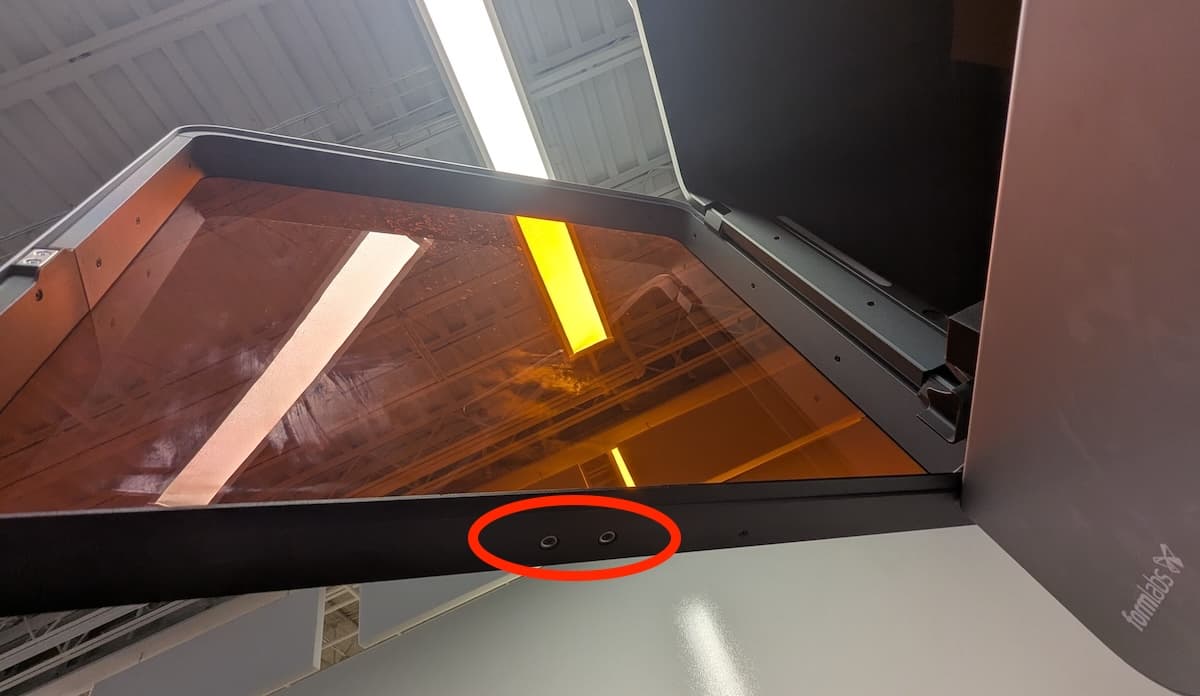
Si l’imprimante ne s’initialise pas lorsqu’elle est mise sous tension, assurez-vous que le couvercle est fermé. S’il est fermé, ouvrez le couvercle et vérifiez la présence des deux aimants de blocage du couvercle ronds situés sur le bord inférieur du couvercle. Si l’un des aimants s’est détaché du couvercle, il peut s’être fixé à la coque de l’imprimante ou s’être logé sous l’un des verrous du bac à résine. Fixez l’aimant sur le couvercle à l’aide d’un adhésif puissant. Une fois que l’adhésif est sec, refermez le couvercle pour continuer.
Si le problème persiste, contactez l’assistance Formlabs ou votre revendeur agréé pour obtenir de l’aide. Si les deux aimants sont présents, redémarrez votre imprimante, mettez à jour son firmware et réessayez.
Erreurs diverses et internes
En de rares occasions, l’imprimante peut afficher Internal error (Erreur interne) avec un code d’erreur associé. Si vous constatez une erreur interne, chargez les fichiers diagnostic de votre imprimante et contactez l’assistance Formlabs pour obtenir des conseils spécifiques.
Erreur 1.23.3
Erreur 1.23.3 indique que l’imprimante a rencontré une erreur de communication interne. Pour résoudre ce problème :
Erreur 1.196.3
L’erreur 1.196.3 peut être causée par un espace de stockage insuffisant sur l’imprimante. Supprimez les anciennes tâches d’impression de la file d’attente et réessayez votre impression.
Erreur 1.225.1
Erreur 1.225.1 indique que l’imprimante a rencontré une erreur lors de la connexion au réseau Wi-Fi sélectionné. Redémarrez l'imprimante et le routeur Wi-Fi (si possible) et réessayez.
Erreur 1.226.5 : L’imprimante s’est réinitialisée pendant l’impression
L’erreur 1.226.5 indique que l’imprimante a redémarré pendant l’impression, très probablement en raison d’un problème d’alimentation électrique. Si l’alimentation de l’imprimante est interrompue au cours d’une tâche d’impression, l’imprimante ne reprend pas la tâche d’impression lorsqu’elle redémarre. Pour résoudre ce problème :
Erreur 1.240.5
Erreur 1.240.5 indique que l’imprimante a reçu une tâche d’impression corrompue. Cela peut se produire en cas de problèmes au niveau de la connectivité réseau lorsque vous avez envoyé la tâche d'impression à l'imprimante. Téléversez à nouveau la tâche d'impression. Si le problème se reproduit, téléversez à nouveau via une connexion plus stable, par exemple USB.
Activation de l’assistance à distance pour le dépannage
Lors du dépannage, l’assistance Formlabs peut avoir besoin d’informations supplémentaires ou d’accéder à votre imprimante. Il peut vous être demandé d’activer l’assistance à distance sur votre machine.
Pour préparer votre imprimante à l’assistance à distance :
Activation de l’analyse pour le dépannage
Lors du dépannage, l’assistance Formlabs peut avoir besoin d’informations supplémentaires ou d’accéder à votre imprimante. Il se peut que l’on vous demande d’activer l’analyse sur votre machine.
Pour préparer votre imprimante à la connexion à Dashboard :
Instructions de réinitialisation aux paramètres d'usine
Dans certains cas, une réinitialisation aux paramètres d’usine peut corriger un comportement inhabituel de l’imprimante. Ces comportements sont notamment l’affichage de messages d'erreur inconnue, des mises à jour incomplètes du firmware, l’absence de réaction de l’écran tactile ou des problèmes de connexion à PreForm. Une réinitialisation aux paramètres d’usine efface les paramètres personnalisés, y compris les tâches enregistrées dans la file d’impressions et les connexions réseau.
Avis :
La réinitialisation efface toutes les informations sur les tâches d’impression, les paramètres personnalisés et tous les fichiers diagnostic. Chargez les fichiers diagnostic avant d’effectuer une réinitialisation aux paramètres d’usine.
Pour réinitialiser aux paramètres d’usine :
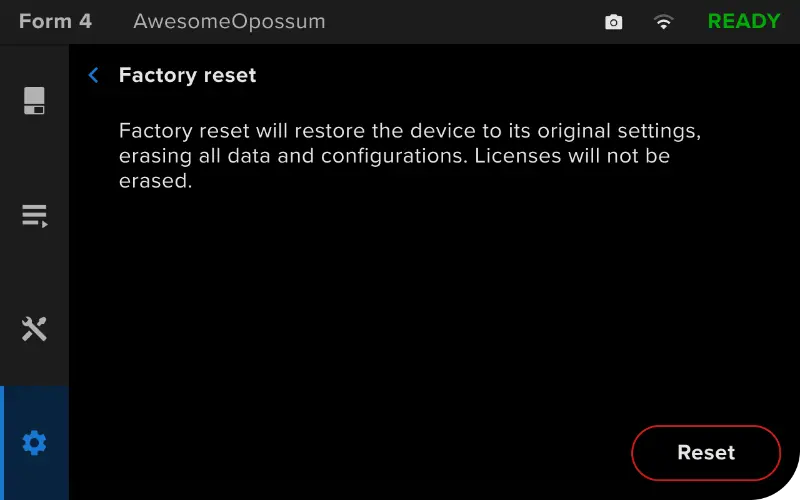
Si vous ne pouvez pas effectuer une réinitialisation aux paramètres d’usine à l’aide de l’écran tactile, utilisez le bouton physique situé à l’arrière de l’appareil :
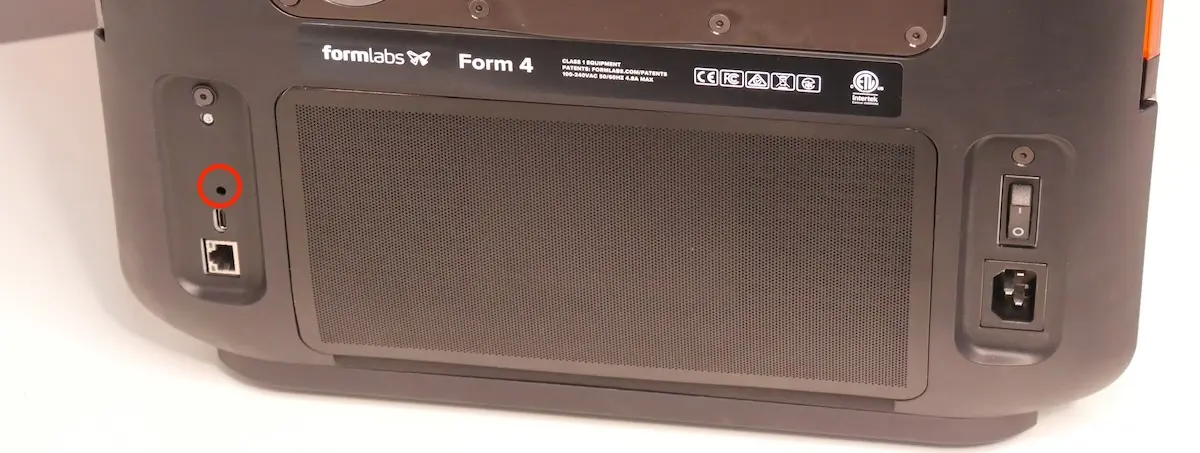
Pour vous assurer de la réussite de la réinitialisation aux paramètres d’usine, appuyez sur Queue (File d’impressions) sur l’écran tactile de l’imprimante. Après une réinitialisation réussie, la file d’impression est vide. Si la réinitialisation ne résout pas le problème, contactez l’assistance Formlabs ou votre revendeur agréé.