2.1 Import File
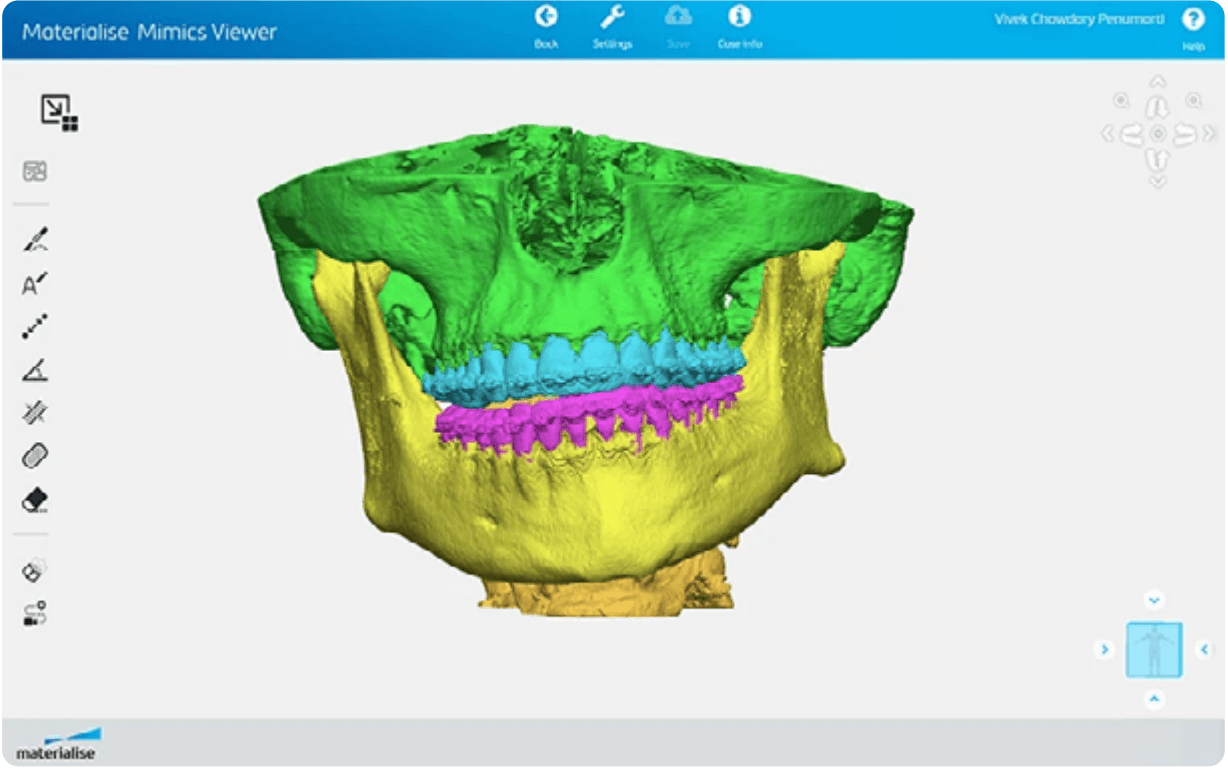
Check that your version of PreForm is up to date by going to Help, then Check For Updates in the upper left-hand corner. Import or open your part file by dragging it into PreForm, or by going to File, and then Open, in the upper right-hand corner.
2.2 Select Material
Select the material by clicking the Printer Type box in the Job Info menu on the right-hand side. Select BioMed Durable Resin or Rigid 4000 Resin from the materials grid.
2.3 Hollow and Add Drain Holes
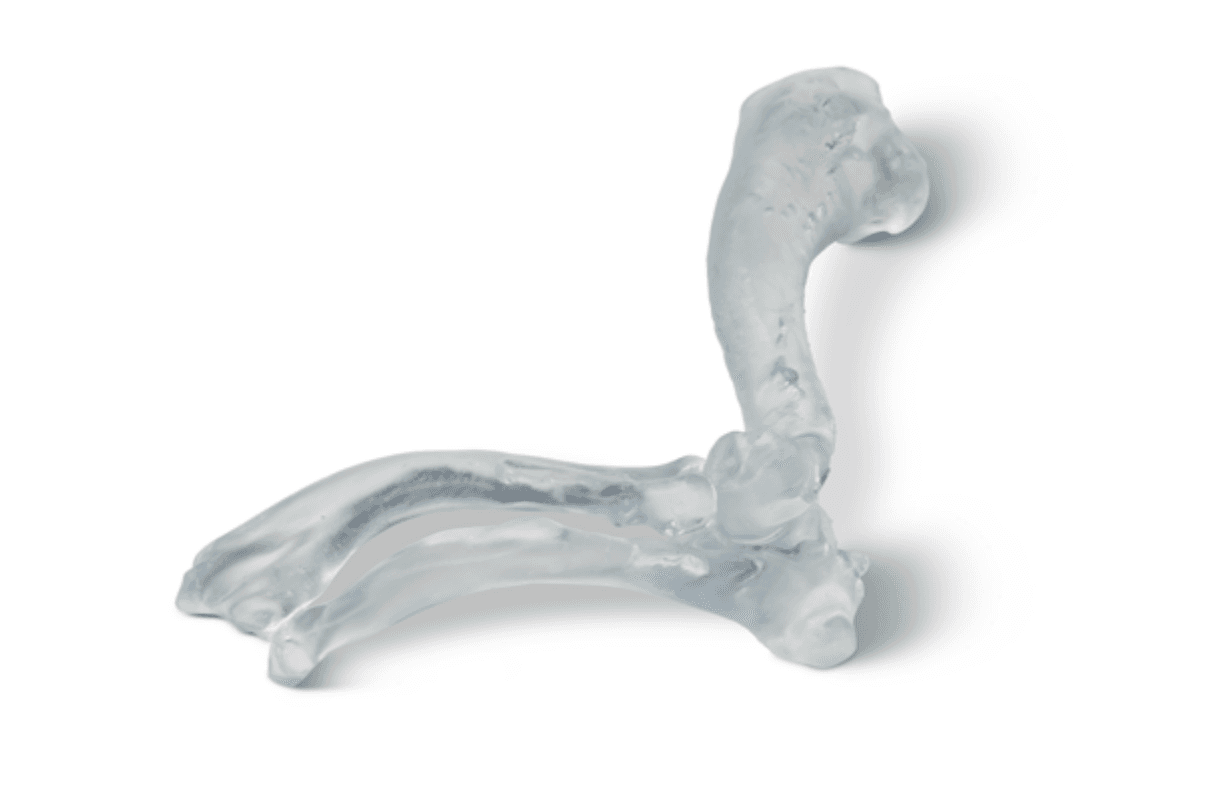
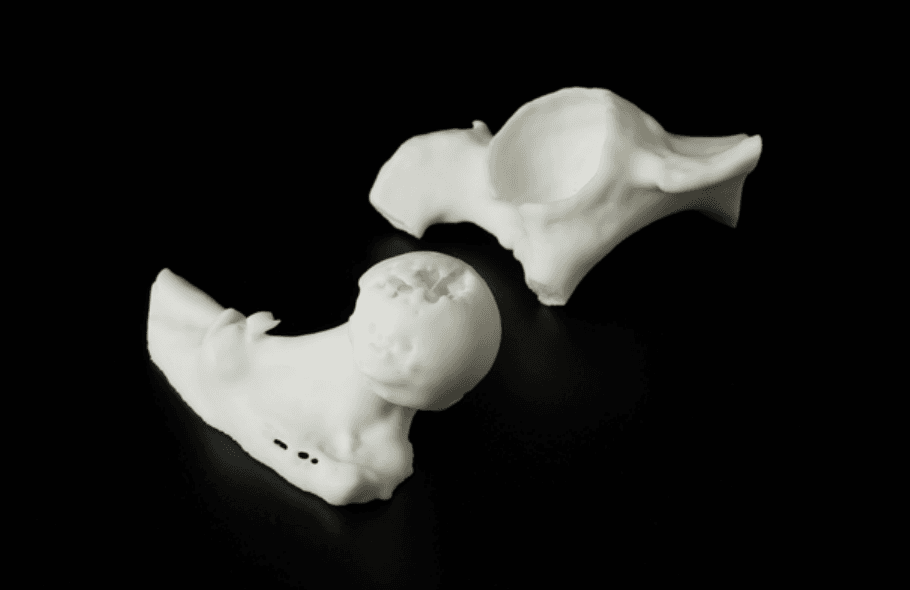
Some users prefer hollow models over solid models for bone simulation. Models can be hollowed and drain holes can be added during the design stage, or using PreForm. To hollow a bone model in PreForm, select the Hollow function on the left side of the PreForm window. Set the wall thickness value to the approximate thickness of compact bone in the bony anatomy being simulated. Drain holes can be added using the Hole function, which is also located on the left side of the PreForm Window.
2.4 Orient
PreForm can auto-orient based on Formlabs’ best practices. To auto-orient, select your part and click Orientation on the left side of the screen. Then, click Auto-Orient Selected.
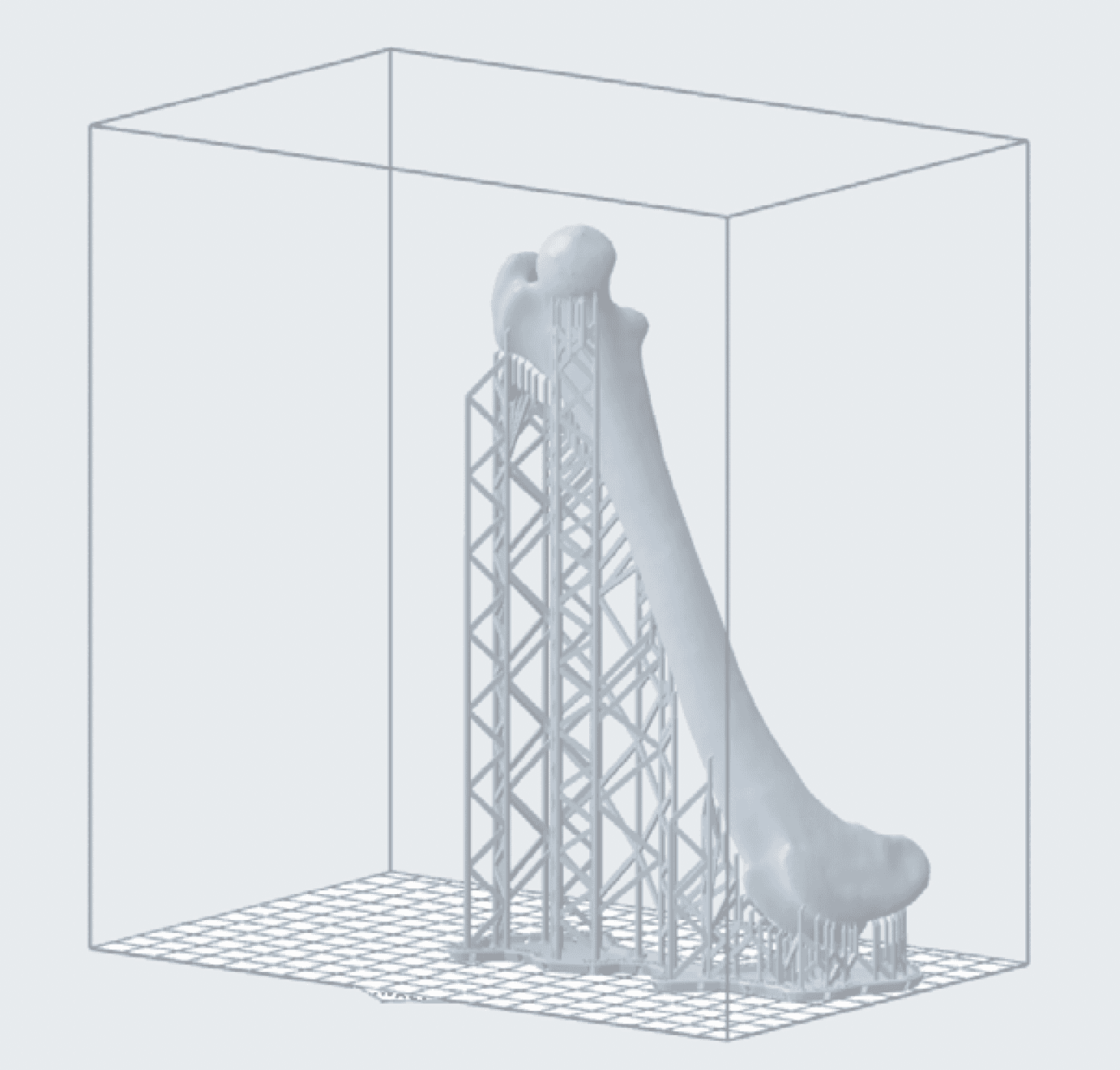
For best results, you should orient manually using the red, green, and blue actuators surrounding your part. Below are some orientation considerations for manually orienting; deviating from these practices increases the risk of print failure:
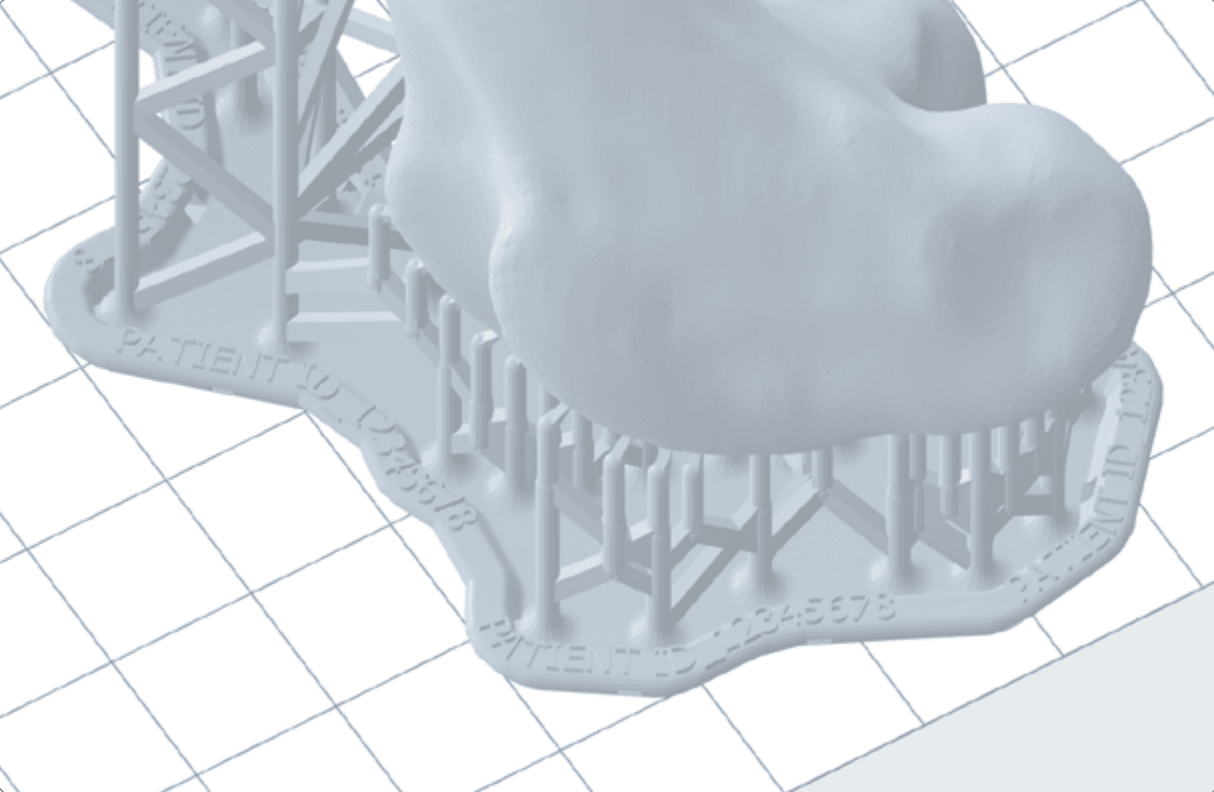
• Print directly on the build platform whenever possible.
• When printing with supports, orient the part so that it is smaller at the base and then builds on itself. This decreases the likelihood that the print will break away from the supports during printing and increases stability.
• Minimize the number of unsupported minima whenever possible.
• Aim cups away from the build platform to avoid filling with liquid resin while printing and adding more weight to the part.
• Make sure that hollow models are oriented to drain properly. This can be done by orienting at least one drain hole away from the build platform.
• Orient the thinnest part of the object away from the build platform to decrease peel forces and lower the failure rate.
• Flat surfaces should be oriented at an angle. This study conducted at the Mercer University School of Engineering suggests that a 60° angle is ideal for maintaining dimensional accuracy.
• Parts should be angled on more than one axis.
• If there is one side where supports are more acceptable than another, or where surface texture or fine details are less important, this side should be oriented towards the build platform. Areas where supports are undesirable, such as a specific region of interest or surfaces with fine details, should be oriented facing away from the build platform.
• Point junctions between two surfaces down towards the build platform to preserve dimensional integrity at intersections.
• Thoughtful orientation can sometimes be used to fit a large part, or multiple parts, into one build. Choosing an orientation that reduces the size of the print in the X or Y axis may allow you to fit more parts onto one build platform. Space-saving orientations are not based on maximizing print success and thus increase the risk of failure. Ensure proper support placement to compensate.
• Keep the bulk of the part’s weight as close to the build platform as possible to reduce the risk of failure.
• Orient long parts parallel to the front edge of the build platform for easier removal.