
Tip:
Each resin's recommended lifetime is listed in the support article Choosing the right material.

Brittle parts are more fragile than expected and may break under stress. Each Formlabs resin has its own material properties that are important to consider when choosing the right material.
Visual symptoms
Common causes
Any of the following factors, or a combination of them, can cause prints to become brittle:
Troubleshooting steps
Step 1: Check the resin cartridge storage
Improperly stored resin cartridges may lead to brittle parts.
Step 2: Check the resin expiration date
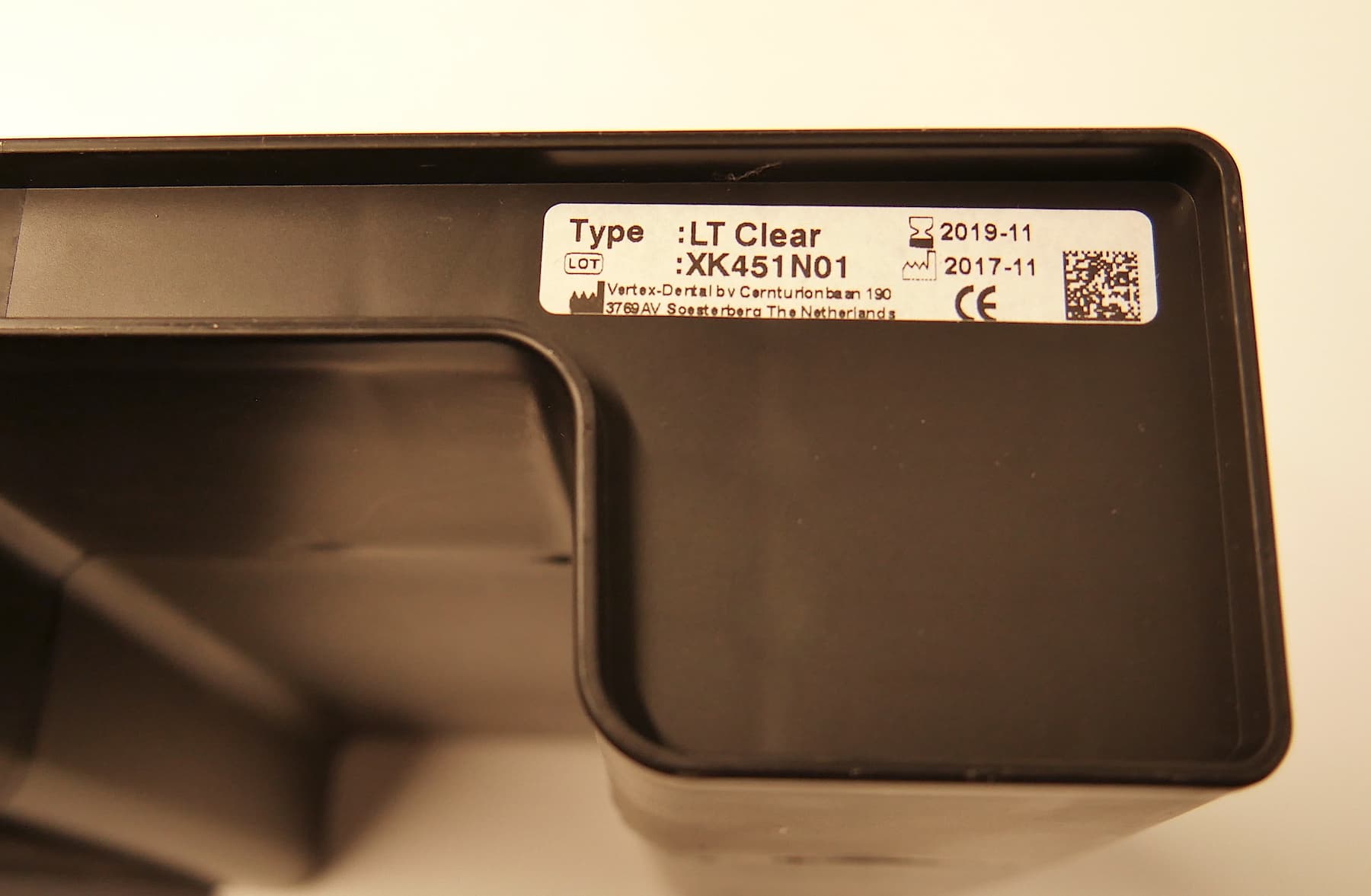
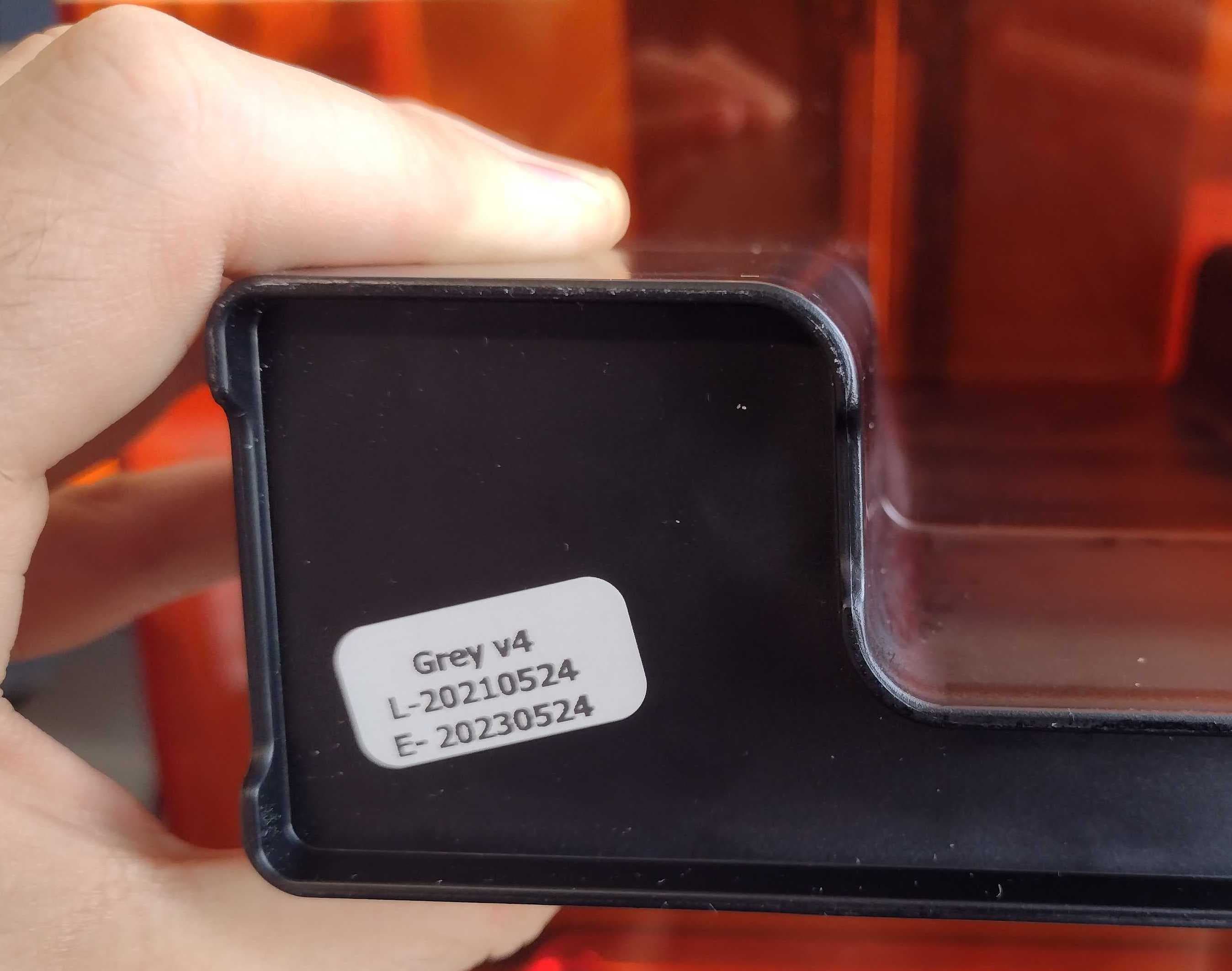
Towards the end of a resin’s recommended lifetime, its photoreactivity may decrease and prints attempted with the resin may fail. A resin may also print successfully for a longer lifetime than indicated, depending on handling, use, and storage.
Check the lot number on the bottom of the resin cartridge to ensure the resin is within its recommended lifespan. The lot number on most resin cartridges is formatted YYYYMMDD or YYYY-MM. If the lot number begins with 2020 or an earlier year, the resin is most likely past its recommended lifetime and may not print properly.
Tip:
Each resin's recommended lifetime is listed in the support article Choosing the right material.
Step 3: Check the material properties for the resin
Each Formlabs resin has its own material properties. For example, parts printed in Rigid 10K Resin may be more brittle than those printed in less stiff resins. Refer to the Safety Data Sheet (SDS) and Technical Data Sheet (TDS) for the specific properties of each resin.
Step 4: Follow the recommended steps for post-processing
Post-processing requirements vary based on resin type. Follow the recommended steps for washing and post-curing parts for your specific resin. Any modifications can lead to brittle parts.
Ensure parts are completely dry before post-curing. Damp parts may not post-cure properly.
Step 5: Store parts properly
Do not store printed parts in direct sunlight. Parts may become more brittle and change color due to the 405 nm light and heat in sunlight. Parts may also become more brittle with age.
Step 6: Check for custom print settings
The PreForm Print Settings Editor allows you to customize print settings for Formlabs materials and certified third-party materials. Custom print settings may affect the material properties of printed parts.
If you have an issue with brittle parts when printing with custom print settings, revert to the Formlabs default print settings. Due to the complex nature of custom print settings, Formlabs is unable to assist with fine-tuning or developing custom print settings.
Step 7: Contact Formlabs Support
If the issue persists, contact Formlabs Support or your authorized reseller and upload diagnostic logs to speed up resolution.