WHITE PAPER
Formlabs Logo

Printing with Open Material Mode (SLA)

Printing with Open Material Mode (SLA)

With Open Material Mode, you can print with any type of 405 nm photopolymer resin on Formlabs SLA printers. Open Material Mode is available for a one-time lifetime fee per printer.

Follow the steps in this article to print with Open Material Mode on your Formlabs SLA printer.

Requirements

Note:

Open Material Mode jobs can only be set up in the Standard Workspace.

Creating a print setting to use with Open Material Mode

To print with Open Material Mode, you first need to create a print setting using the PreForm Print Settings Editor:
  1. Open PreForm.
  2. Click Edit > Print Settings Editor. The Print Settings Editor window appears, showing a list of the existing custom print settings.
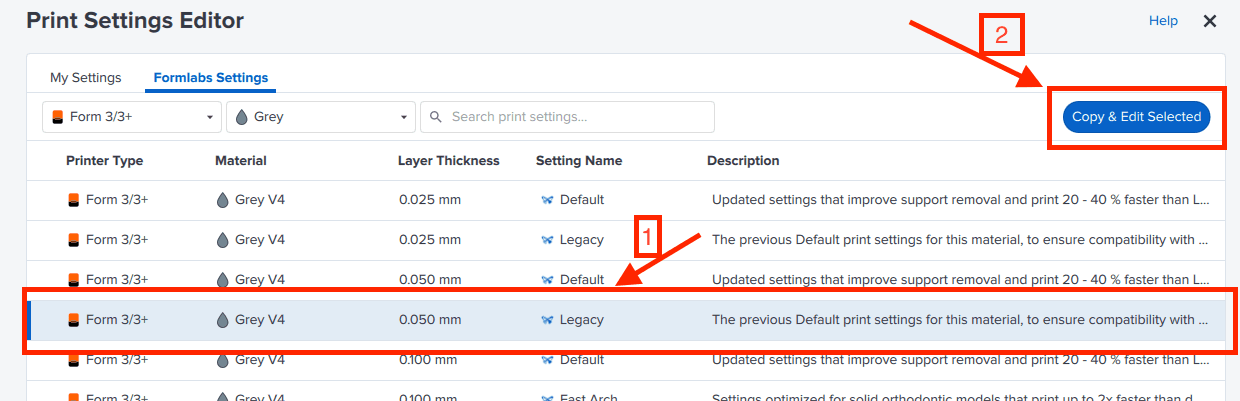
  3. Click New Print Setting. A list of Formlabs print settings appears.
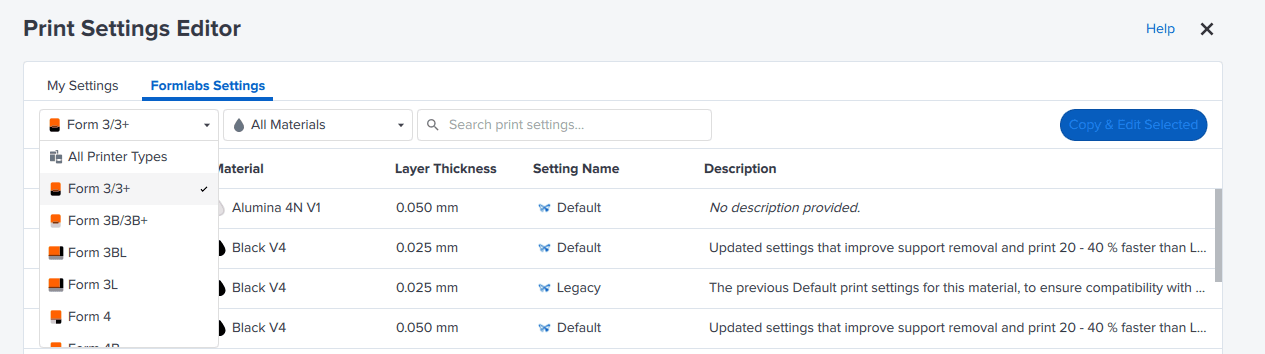
  4. Select your printer type in the printer type filter dropdown.
Printer filter in the PreForm Print Settings Editor
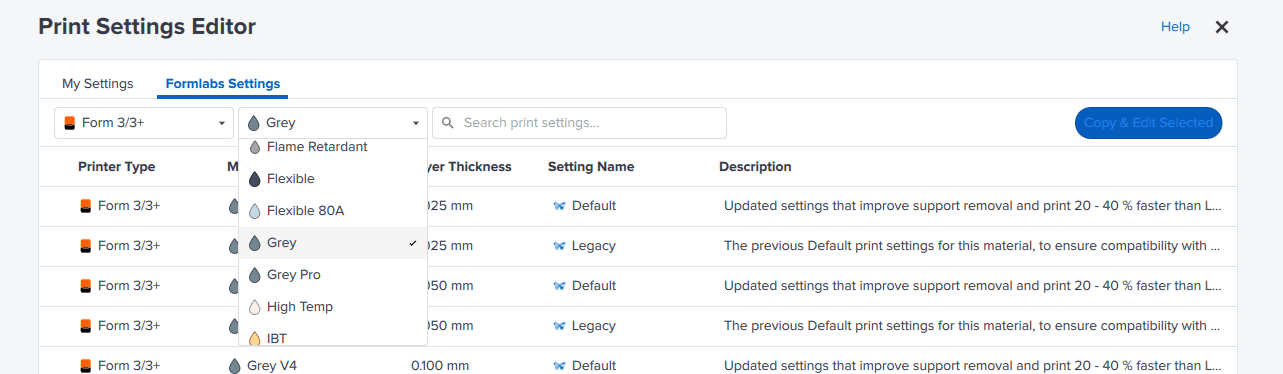
  1. Pick a Formlabs material that has the closest properties to the resin you want to print with. A list of validated print settings for that Formlabs material appears.
Material filter in the PreForm Print Settings Editor
  1. Select a print setting. Click Copy & Edit Selected. A screen appears with the new print setting.
Creating a custom print setting in the PreForm Print Settings Editor
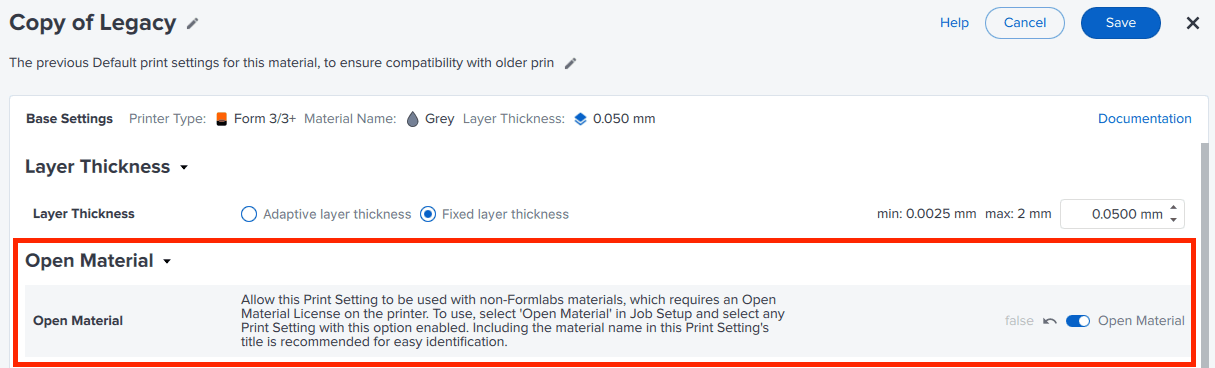
  1. Toggle Open Material to ON. The toggle turns blue.
The Open Material toggle in the PreForm Print Settings Editor
  1. Edit any other parameters you want to modify.
  2. Give the setting a custom name, edit print parameters, and then click Save. Your custom print setting is saved and the My Settings list appears.

The print setting is now available to set up jobs using any 405 nm photopolymer resin.

Setting up a print with a custom print setting

After you have created a custom Open Material print setting, you can use it to slice and send jobs to a printer with Open Material Mode activated.

  1. If the Print Settings Editor window is still open, click X to close it. The main PreForm workspace appears.
  2. In the Job Setup panel, click Edit Job Setup. The Job Setup screen appears.
  3. Select or add a printer that has Open Material Mode activated. A blue ribbon next to the printer serial name indicates that the capability has been activated.
Selecting a printer in PreForm with the Open Material License
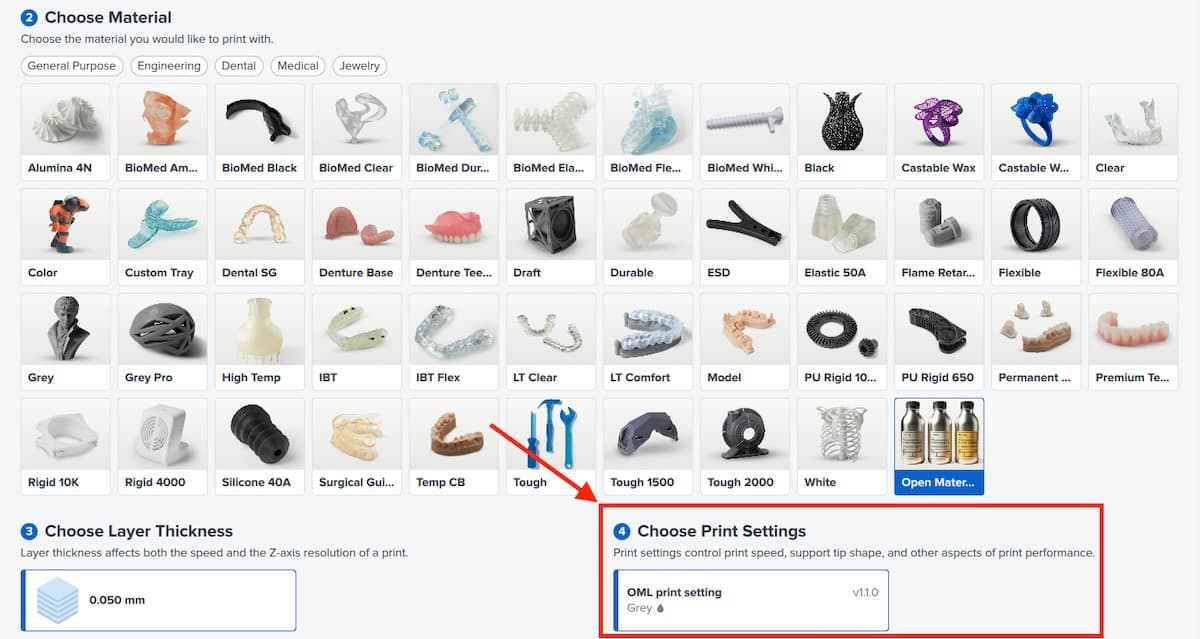
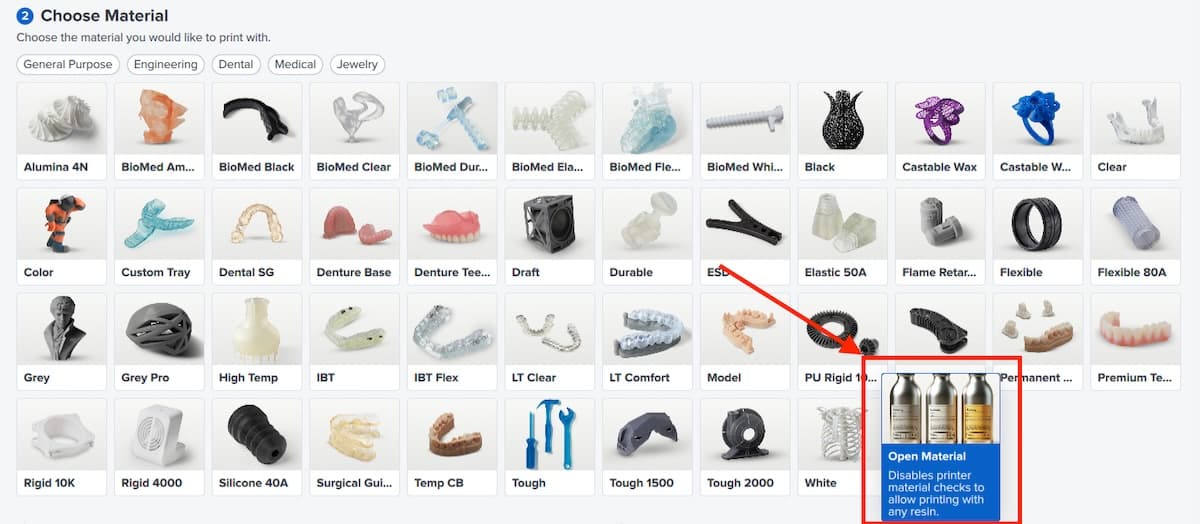
  1. Scroll down to the Choose Material section. Select Open Material.
Selecting an Open Material in PreForm
  1. Scroll down to the Choose Print Settings section. Select the print setting you created earlier.
Selecting a print setting for an Open Material in PreForm
  1. Click Apply. The main PreForm workspace reappears.
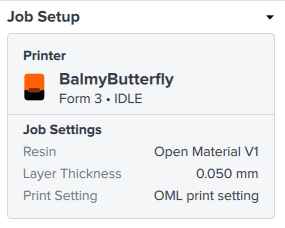
  2. In the Job Setup card, confirm that the resin has been set to Open Material V1 and your custom print setting has been selected.
PreForm Job Setup card showing an Open Material selected
  1. Set up your job and upload it to your printer, as you would with a Formlabs print setting.

Setting up your printer to print with Open Material Mode

Insert a new resin tank and manually pour in the resin you want to print with. When printing with a job with Open Material Mode, automatic resin dispensing is disabled.

Note:

Use a dedicated tank for printing with Open Material Mode. The printer automatically programs the tank for use with open materials.

Printer behavior with Open Material Mode

When printing with Open Material Mode, the printer behaves differently than when printing with a Formlabs resin. Here are some things to keep in mind:

  1. The printer will not automatically dispense resin from the cartridge. Manually pour resin into the tank before starting a print. Pour enough resin to cover the tank film.
  2. The printer will not detect the resin level in the tank automatically and will not warn you if the resin is too low or if the tank is overfilled. Monitor the resin level in the tank during the print and manually refill the tank as needed.
  3. Normally, Formlabs SLA printers warn you about resin tank and resin cartridge mismatches to avoid dispensing incorrect resin. For jobs set up with Open Material Mode, this check is disabled. If you’re printing with different resins in different tanks, mark them appropriately to avoid mixing resins.
  4. The printer will not provide automatic tank lifetime warnings for tanks used with non-Formlabs resins.

Tips for printing with Open Material Mode

Printer and consumable performance may also change depending on the third-party resin you are using.

Depending on the non-Formlabs resin you are printing with, the tank lifetime may be shortened. Performance may degrade significantly and lead to tank failures and damage to your printer. You are responsible for monitoring lifetime and performance of the resin tank.

Formlabs SLA printers heat resin while preparing for a print. For non-Formlabs resins, this may lead to evaporation of volatile components. Ensure appropriate ventilation when printing with third-party resins.