技術白書
Formlabs Logo

ダッシュボードの通知の設定

ダッシュボードの通知の設定

Dashboard can notify you about print events over text and email. You can customize notification options to monitor the prints for an entire team or just your own prints.

To opt in to receiving custom notifications:

  1. Log in to your Formlabs account.
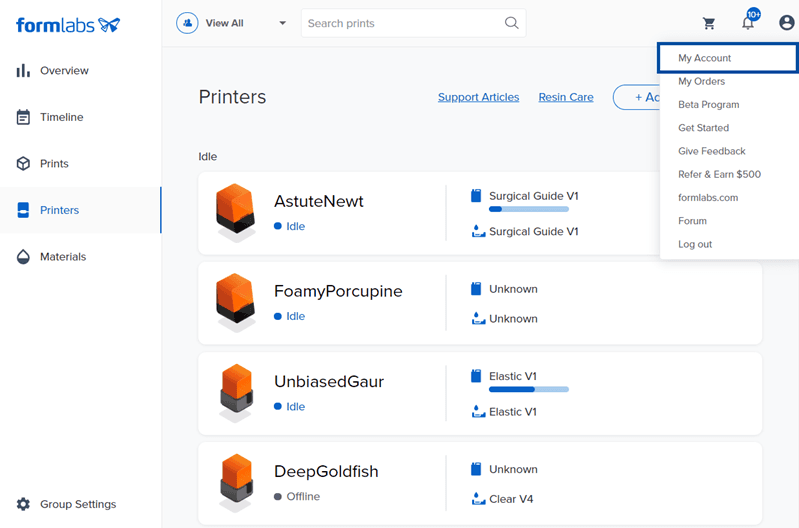
  2. Click the account icon in the top-right corner. A dropdown appears.
  3. Click My Account. The Account Overview page appears.
  4. Click Notifications. The Notification Settings page appears.
  5. Choose the type of notifications to receive:
    • To receive text notifications, enable SMS and select which printers, teams, and events to receive notifications about.
      • To opt out of text notifications, disable SMS or reply STOP to a notification text.
      • To enable text notifications after opting out, text START to +1-617-553-4411.
    • To receive email notifications, enable Email and select which printers, teams, and events to receive notifications about.
    • To receive a monthly breakdown about your resin usage and the success rate of your prints, enable Receive monthly printing reports.

Notifications are sent to the listed Notification Email and Notification Phone Number. The Notification Email can be different from the login email address for the account.

ヒント:

ご自身のプリントに関するイベントのみ通知を受け取りたい場合は、Only My Prints(自分のプリントのみ)を選択します。

Dashboardで「Settings (設定)」 > 「Notifications (通知)」ページが開かれており、SMS通知を有効にすると、「Printers (プリンタ)」ページが開き、プリンタの一覧とプリント イベントの一覧が表示されます。

プリント イベントについて

SMSまたはメール通知を有効にすると、通知を受ける特定のプリントイベントを選択できます。プリントイベントの範囲は以下の通りです。

  • プリント開始:プリンターでプリントが確認されるとすぐに送信されます。Print Started(造形開始)通知の後、プリンターは造形を開始する前に予熱を行い、レジンを充填します。
  • 造形完了:造形の最終層が完了した時に送信されます。Print Finished(造形完了)の通知が表示されたら、ビルドプラットフォームを取り外すことができます。
  • プリントエラー:プリンターでエラーが発生した時に送信されます。Print Errorの通知後、プリントは自動的に停止します。詳細情報や手順については、プリンタのタッチスクリーンで確認できます。エラーが解消しない場合は、診断ログをアップロードし、特定のエラー内容とともにFormlabsサポートにお問い合わせください。
  • プリント中止:プリントジョブが開始後に手動でキャンセルされた時に送信されます。Print Aborted(造形中止)通知の後、プリンターは造形可能な状態になります。プリントを中止した時点ですでにプリントが一部開始されている場合は、必要に応じて、ビルド プラットフォームから硬化したレジンをすべて取り除いてから、次のプリントを開始するようにしてください。
  • プリント中断:プリンターが一時停止し、プリントを続行するために対応が必要な場合に送信されます。詳細情報や中断したプリントを再開する手順については、プリンタのタッチスクリーンで確認できます。
  • レジン残量低:Dashboardが現在のレジンカートリッジの残量が容量の4分の1(250mL)未満と推定した時点で送信されます。Resin Lowの通知後、プリントは継続します。この通知は、「レジン低残量」が原因でプリントが中断する際に送信される通知とは異なります。プリントが中断する際は、その原因(レジン低残量)がプリンタのタッチスクリーンにメッセージとして表示されます。

備考:

Dashboardで設定できる通知は、プリント1回につき7件までです。