Controlling support structure visibility in PreForm
Controlling support structure visibility in PreForm
When preparing a model for an SLA print, dense support structures can obscure the underlying model itself, making it difficult to assess overall part geometry and identify areas that may require support modification. Additionally, once support geometry is generated, it can be challenging to clearly identify the precise location and density of support touchpoints on the model's surface. This can make it difficult to effectively inspect, edit, and validate your print setups.
Starting with PreForm 3.50.0, you can control the visibility of support structures in PreForm. Use this tool to get a clearer view of your model and speed up support placement.
Changing support structure visibility
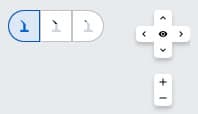
Use the support visibility controls, located next to the 3D view controls, to change the visibility of the support structure. Your visibility selection applies across other tools and interactions, such as model orientation, layout changes, hollowing, or adding holes, texture, or labels.
Opaque structure and touchpoints
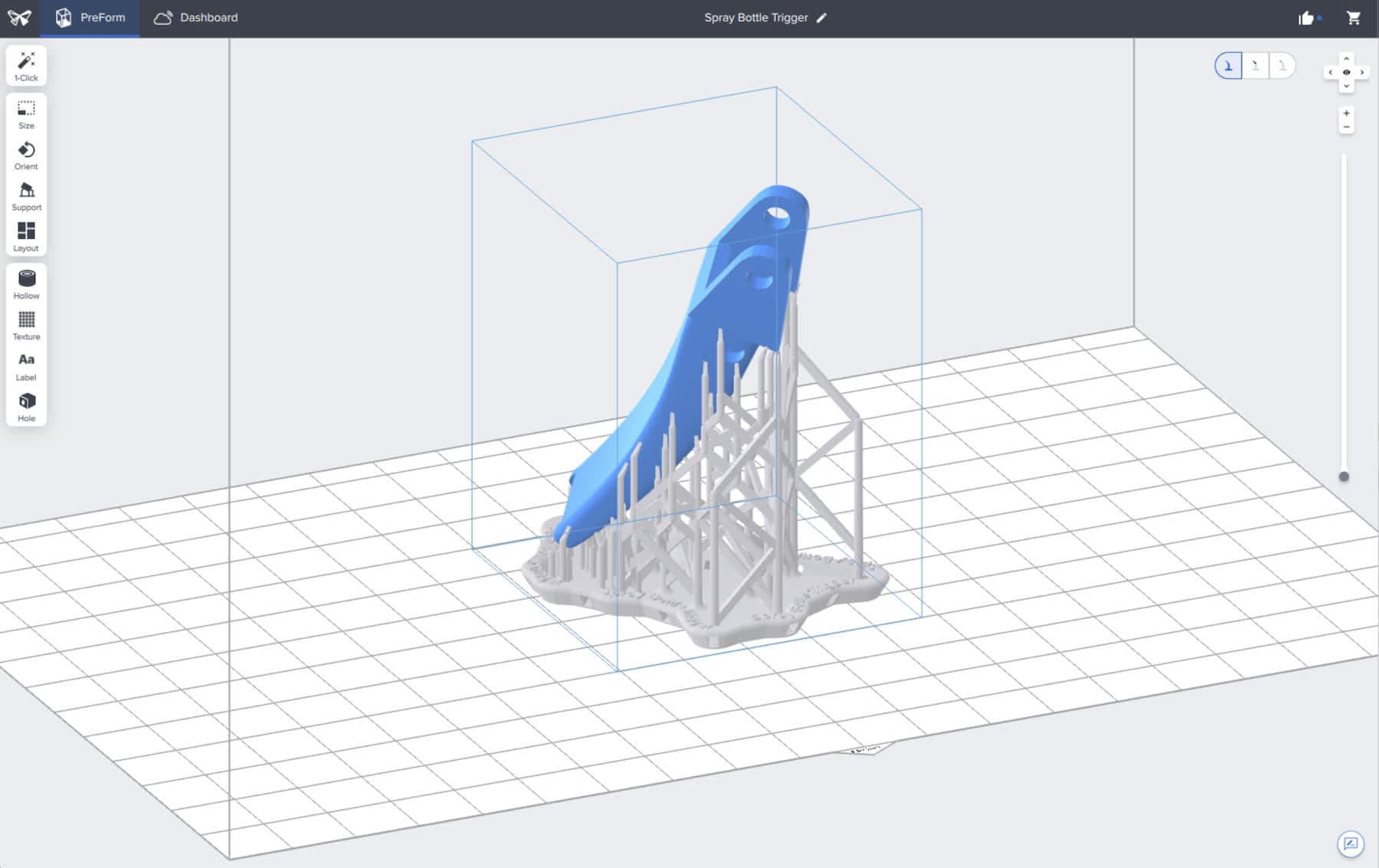
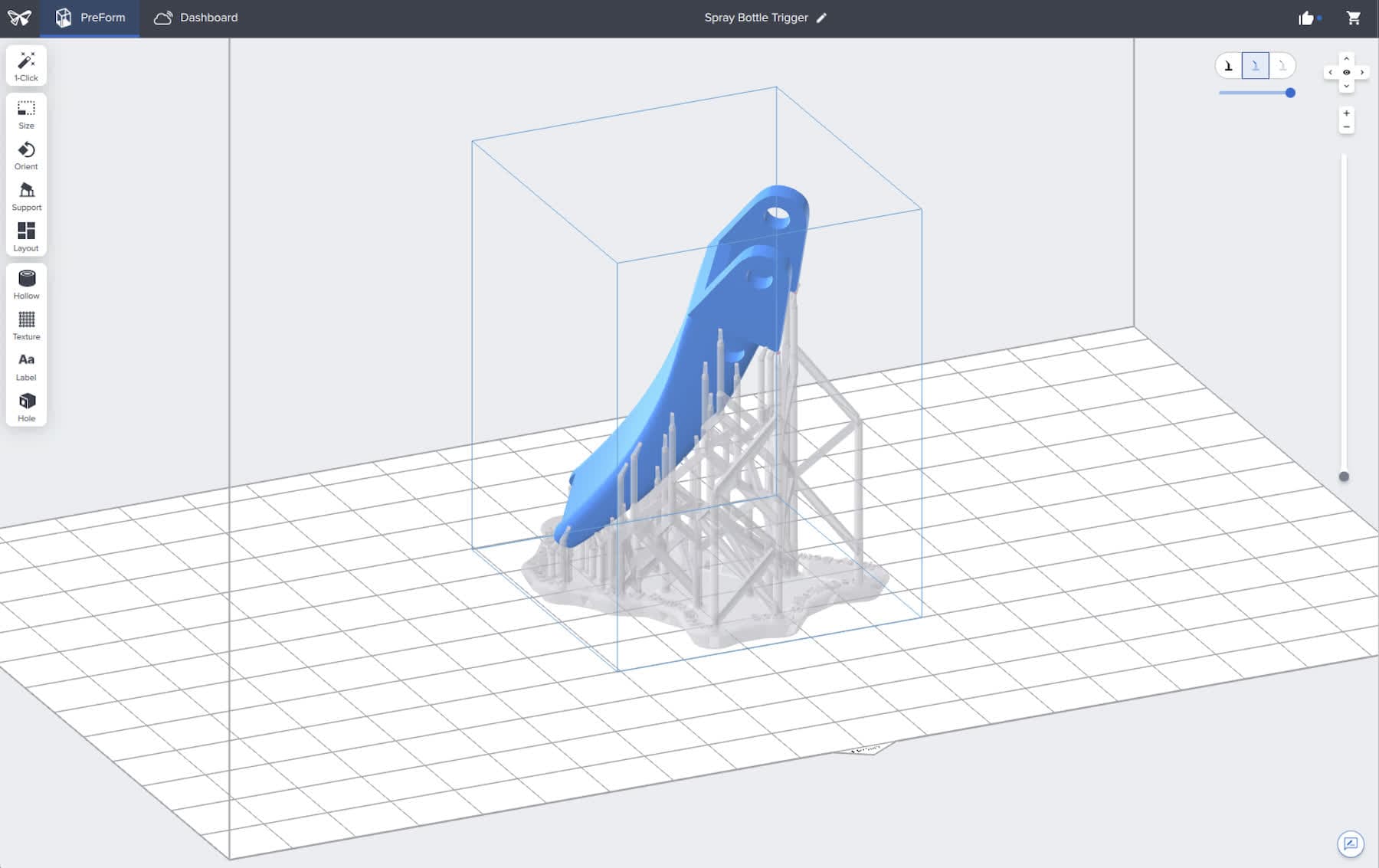
To make the support structure fully opaque, click the leftmost visibility control, labeled Show structure and touchpoints. This matches earlier versions of PreForm and is the default behavior when you first open the application.
Transparent structure with touchpoints
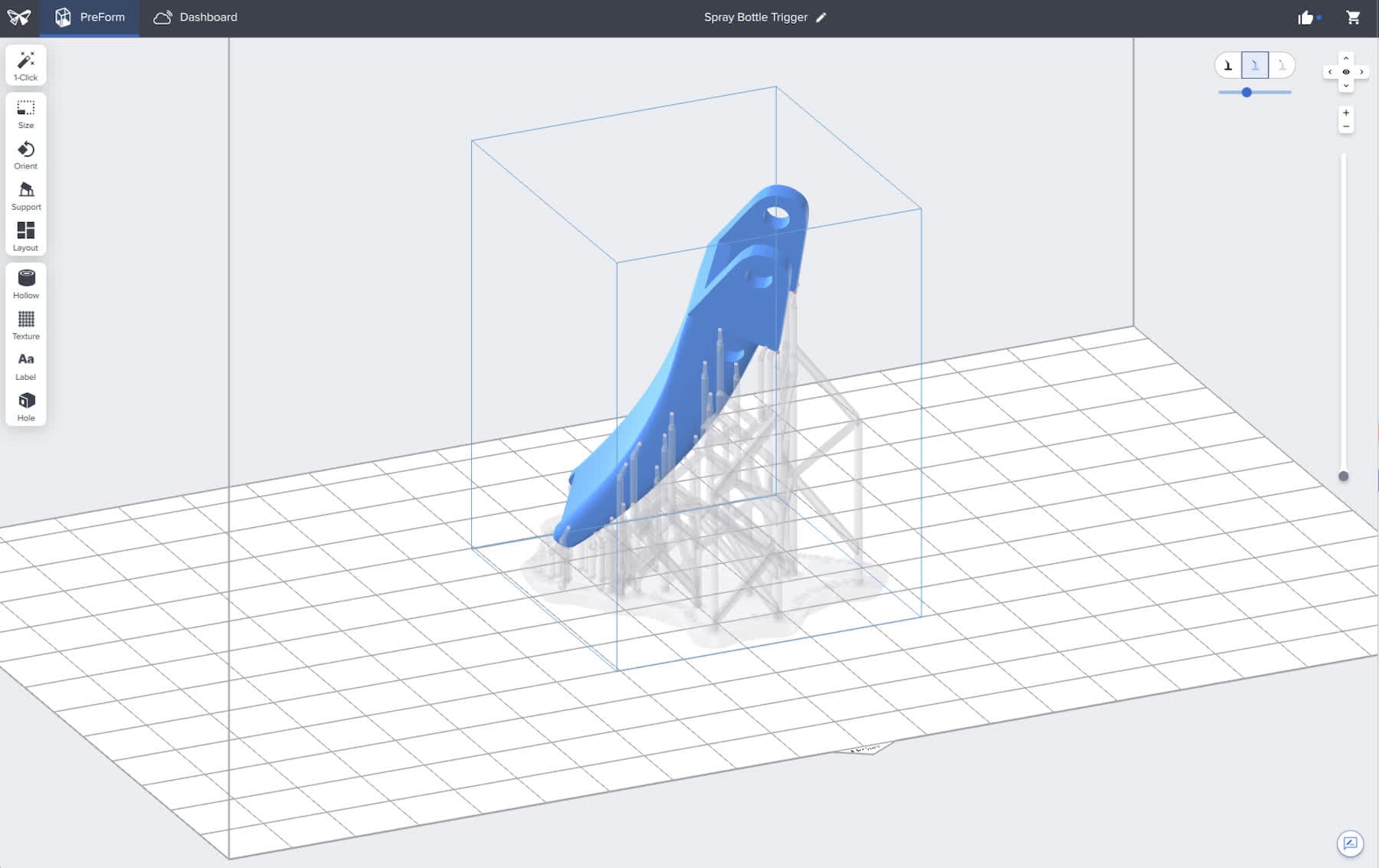
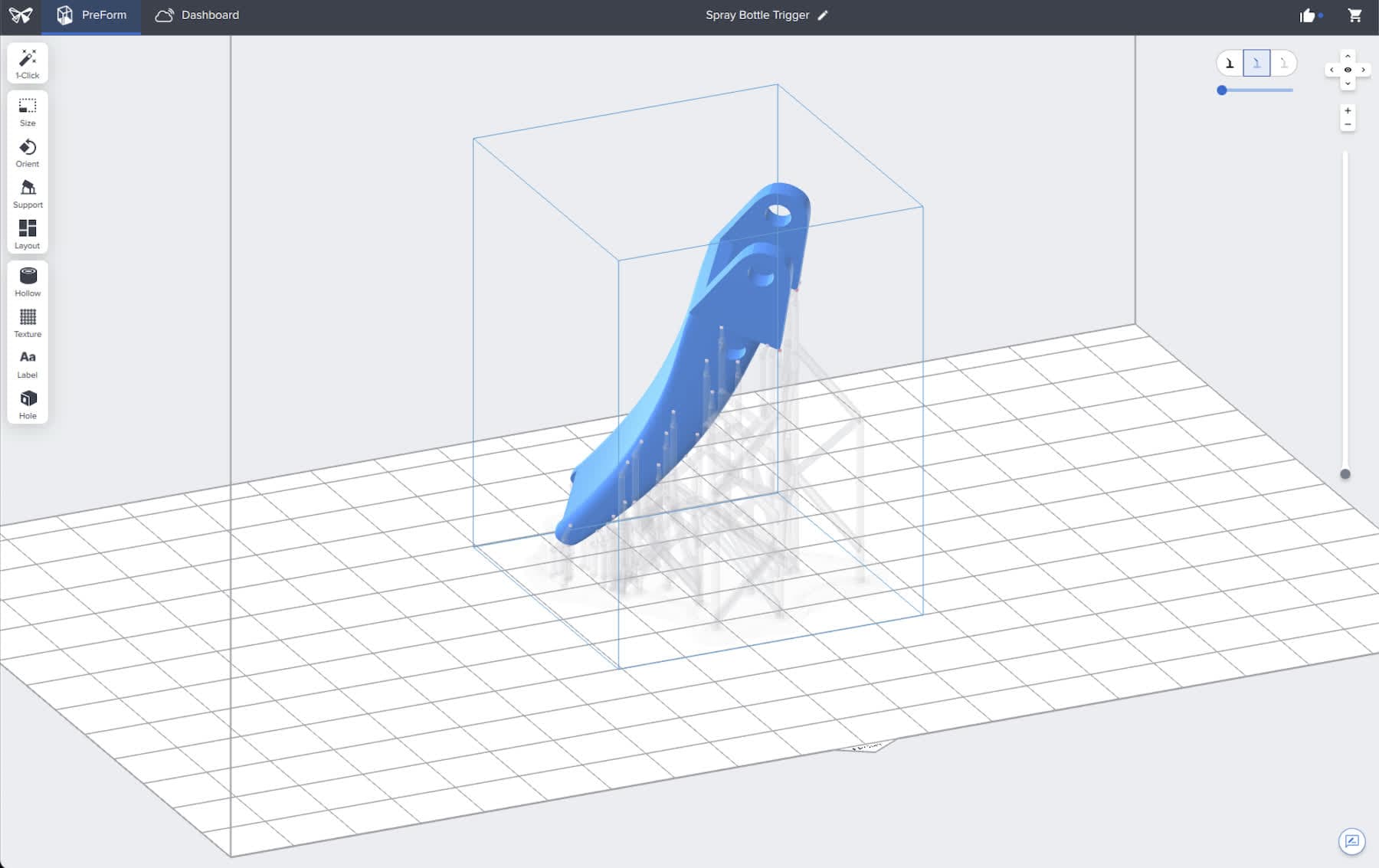
To reduce the opacity of the support structure, click the middle visibility control, labeled Show transparent structure and touchpoints. Use the slider that appears below the visibility controls to further adjust the opacity of the supports.
Touchpoints only
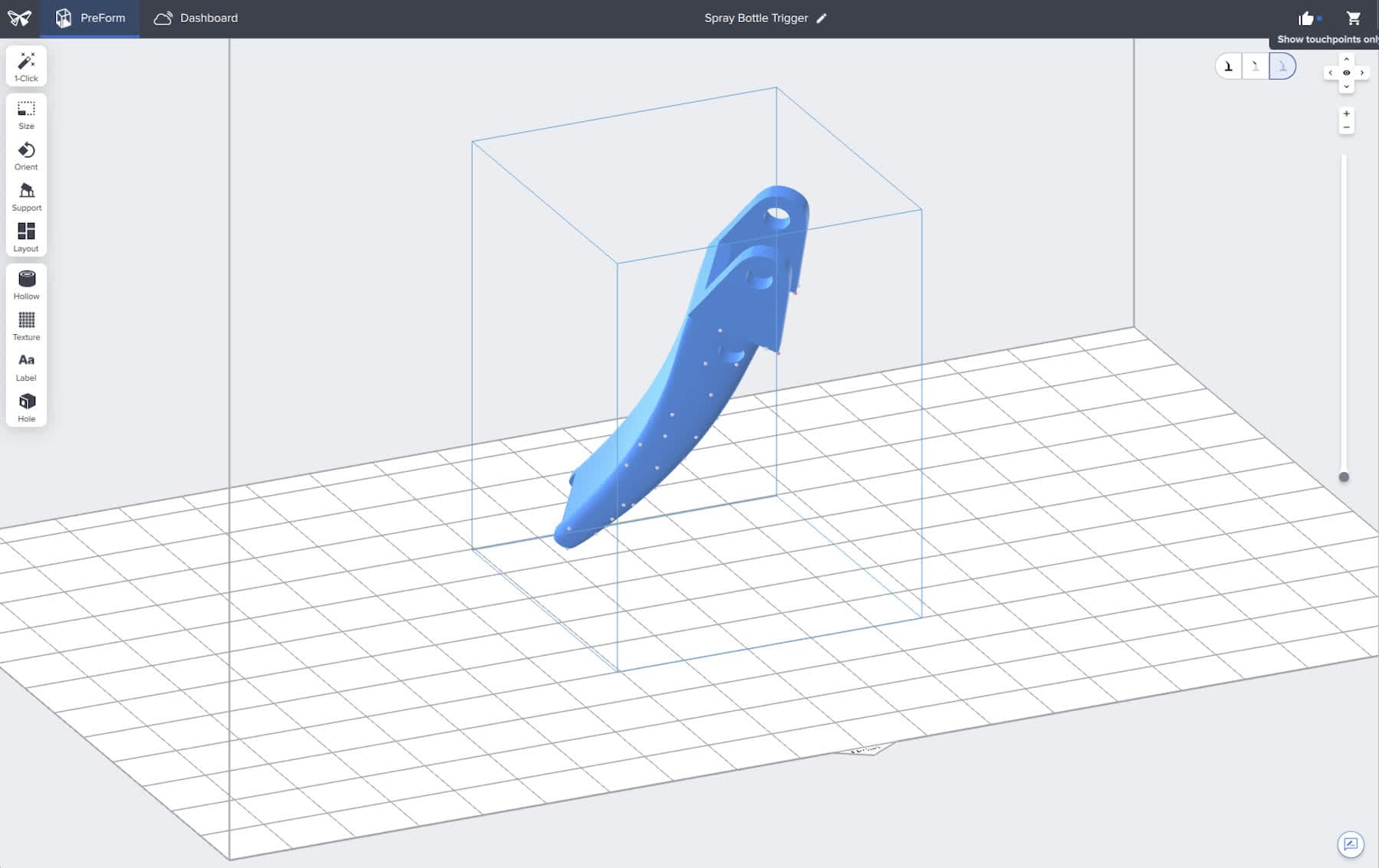
To fully hide the support structure, click the rightmost visibility control, labeled Show touchpoints only. The support structure is fully hidden from view.